Calendars & Reservations
Information about Google calendars and reserving a room at MLML.
Making MLML Reservations
Requesting a Reservation
- Intranet → Calendars & Reservations
- Rooms - Classrooms at MLML.
- Vehicles - MLML State Vehicles
- Other Resources - Special Equipment, Marine Operations, Scuba Diving
- Select the resource you wish to reserve
- If you select “Small Boats Schedules and Request Forms” you will have to then choose the specific boat.
- All selections should lead to a page similar to the one shown below:

- Fill out the required information → Click Submit
- An email will be sent to the manager of that resource
- A confirmation email will be sent to you when they have processed your request
Changing/Cancelling a Reservation
Respond to the email confirmation with the changes you’d like to make to your reservation or with a cancellation notice.
Google Calendars
MLML Google Calendar and Reservations
MLML faculty and Staff can add MLML Google Calendar to quickly check availability for shared spaces such as the Think Tank, Dry Classroom, Study Room, Private Pod, and other Classrooms. This guide provides a quick overview of how to + add a Google Calendar and make a reservation.
This calendar can sync to all of your devices that support Google. If your question isn’t answered below, find more support at Google Calendar Help Center.
(By default, all Faculty, admin, and selected Staff have access to make changes and view most calendars in the main lab)
Creating a Google Calendar
- Open Google Calendar.
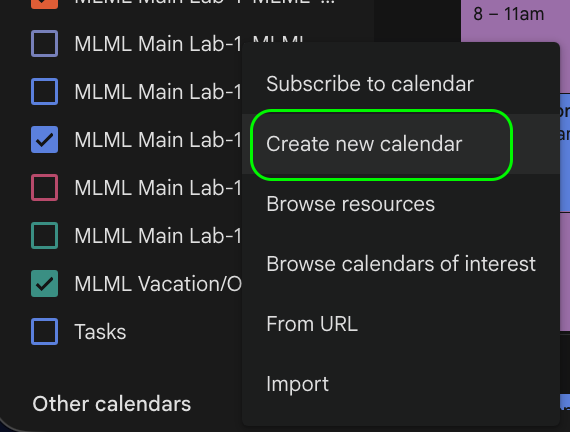
- On the left side, click the + button next to Other calendars and click Create new calendar.

- Add a name and description for your calendar.
- Click Create calendar.
Sharing a Google Calendar
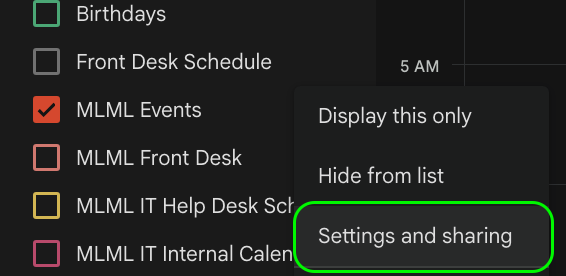
- On the left side panel where calendars listed, select the three vertical dots to the right of the calendar you’d like to share:

- Select “Settings and Sharing” from the drop down menu.
- Scroll down to “Share with specific people”.

- Select Add People → Enter their email → Choose editing/sharing capabilities → Send.

Add MLML available Calendar
In Google Calendar, look on the left side under Other calendars.
Click the + and select Browse resources. Find the MLML resource calendars, you will see the following:
 .
. 
Resource Calendars:

From the Dropdown arrow, select the calendar of interest:

Once checked, the rooms will appear in the calendar list on the left side of Google Calendar.
NOTE- If you’re faculty, you should automatically be able to “Make changes and see all event details” to Lab/classroom calendars, including:
MLML Main Lab-1-MLML-0103 Group Study
MLML Main Lab-1-MLML-0109 Dry Classroom
MLML Main Lab-1-MLML-0202 Think Tank
MLML Main Lab-1-MLML-0214 Wet Classroom
MLML Main Lab-1-MLML-0508 Oceanography Classroom
If other MLML calendars are public to SJSU, you can still add and view events but will not be able to make reservations.
View room availability without cluttering your Calendar
You do not need to keep all the room calendars visible all the time.
Simply check the box next to a room calendar when you want to see its schedule and availability. When you’re finished, uncheck the box to hide that calendar.

This keeps the room available in your calendar list without constantly displaying all of its reservations.
Reserve the room when creating an event
When creating a Google Calendar event, enter your meeting title, date, and time as usual.


Then use the Add rooms option and search for the MLML room you want to reserve or select from frequently used.

Google Calendar will show whether the room is available during the selected time. Once the room is added to the event, save the event to submit/reserve the room.
Zoom Room spaces
The Study Room, Think Tank, and Dry Classroom are configured as Zoom Rooms. For meetings using these spaces, add the appropriate room/resource to the Google Calendar event so the scheduled meeting is available through the room’s Zoom Room system.

This allows you to arrive at the room and use the room’s Zoom equipment for the scheduled meeting instead of setting up the room manually.
Quick Tip: Add a Reservation Directly to a Room Calendar
Once a room calendar has been added, you can click directly on the desired date/time on that room’s calendar to create a reservation. Make sure the correct room calendar is selected, then add yourself and all meeting attendees to the guest list before saving the event.
NOTE: Resource Calendars
-
- These calendars are created by IT and are used for resources rather than personal or group schedules. Resource calendars can be for reserving rooms, vehicles, or equipment.
- You can view a list of MLML Resources at this link: https://mlml.sjsu.edu/intranet/reservation-request-agreement/
- These calendars are created by IT and are used for resources rather than personal or group schedules. Resource calendars can be for reserving rooms, vehicles, or equipment.
Access to The Private Pod
Accessing & Reserving the Private Pod (Room 107)
All MLML faculty, staff, and students have full access to the Private Pod calendar and can make reservations directly through Google Calendar.
Add the calendar: You can add MLML Main Lab-1-107-MLML – The Private Pod – Room 107 (20) by going to Other calendars → + → Browse resources, or use the direct calendar link below.
Resource Calendars:
From the Dropdown arrow, select the calendar of interest: (The Private Pod)
Private Pod Calendar: Direct Link
Make a reservation: Select an available date/time on the Private Pod calendar and create your event. Be sure to add yourself and any attendees as guests, then save.
Tip: Once added, you can check/uncheck the Private Pod calendar to show or hide it from your Google Calendar view.
For more on MLML Google Calendar and Reservations.