# Google Calendars

### MLML Google Calendar and Reservations

MLML faculty and Staff can add MLML Google Calendar to quickly check availability for shared spaces such as the ***Think Tank, Dry Classroom, Study Room, and other Classrooms.*** This guide provides a quick overview of how to + add a Google Calendar and make a reservation.

This calendar can sync to all of your devices that support Google. If your question isn’t answered below, find more support at [Google Calendar Help Center](https://support.google.com/calendar/?hl=en#topic=3417969).

***(By default, all Faculty, admin, and selected Staff have access to make changes and view most calendars in the main lab)***

### Creating a Google Calendar

<div id="bkmrk-open%C2%A0google-calendar"><div><div><div data-index="1"><div><div>1. Open [Google Calendar](http://calendar.google.com/).
2. On the left side, click the **+** button next to **Other calendars** and click **Create new calendar.**  
    [![Screenshot 2026-09-24 at 4.14.59 PM.png](https://kb.mlml.sjsu.edu/uploads/images/gallery/2026-09/scaled-1680-/screenshot-2026-09-24-at-4-14-59-pm.png)](https://kb.mlml.sjsu.edu/uploads/images/gallery/2026-09/screenshot-2026-09-24-at-4-14-59-pm.png)
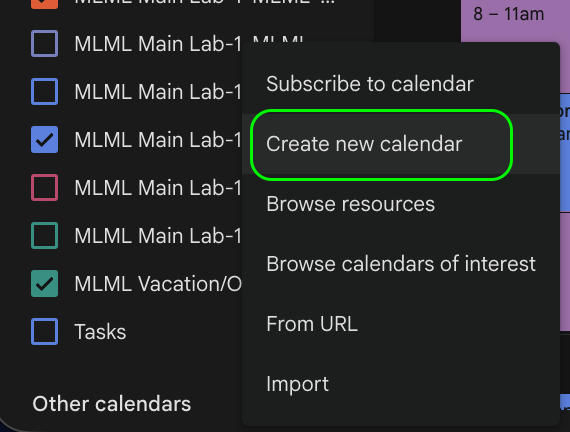
3. Add a name and description for your calendar.
4. Click **Create calendar.**

</div></div></div></div></div></div>### Sharing a Google Calendar

<div id="bkmrk-on-the-left-side-pan"><div data-index="1">1. On the left side panel where calendars listed, select the three vertical dots to the right of the calendar you’d like to share:  
    [![Screenshot 2026-09-24 at 4.16.23 PM.png](https://kb.mlml.sjsu.edu/uploads/images/gallery/2026-09/scaled-1680-/screenshot-2026-09-24-at-4-16-23-pm.png)](https://kb.mlml.sjsu.edu/uploads/images/gallery/2026-09/screenshot-2026-09-24-at-4-16-23-pm.png)
2. Select “Settings and Sharing” from the drop down menu.
3. Scroll down to “Share with specific people”.  
    [![Screenshot 2026-09-24 at 4.17.24 PM.png](https://kb.mlml.sjsu.edu/uploads/images/gallery/2026-09/scaled-1680-/screenshot-2026-09-24-at-4-17-24-pm.png)](https://kb.mlml.sjsu.edu/uploads/images/gallery/2026-09/screenshot-2026-09-24-at-4-17-24-pm.png)
4. Select **Add People** → **Enter their email** → Choose editing/sharing capabilities → **Send.**

</div></div>### Add MLML available Calendar

In Google Calendar, look on the left side under Other calendars.

Click the + and select Browse resources. Find the MLML resource calendars, you will see the following:

![](https://kb.mlml.sjsu.edu/uploads/images/gallery/2026-09/embedded-image-7mwtynun.png). ![](https://kb.mlml.sjsu.edu/uploads/images/gallery/2026-09/embedded-image-efxxfoac.png)

#### Resource Calendars:

![](https://kb.mlml.sjsu.edu/uploads/images/gallery/2026-09/embedded-image-dqli6vco.png)

#### From the Dropdown arrow, select the calendar of interest:

![](https://kb.mlml.sjsu.edu/uploads/images/gallery/2026-09/embedded-image-pafgfexn.png)

Once checked, the rooms will appear in the calendar list on the left side of Google Calendar.

***NOTE- If you’re faculty, you should automatically be able to “Make changes and see all event details” to Lab/classroom calendars, including:***

*MLML Main Lab-1-MLML-0103 Group Study*

*MLML Main Lab-1-MLML-0109 Dry Classroom*

*MLML Main Lab-1-MLML-0202 Think Tank*

*MLML Main Lab-1-MLML-0214 Wet Classroom*

*MLML Main Lab-1-MLML-0508 Oceanography Classroom*

If other MLML calendars are public to SJSU, you can still add and view events but will not be able to make reservations.

### View room availability without cluttering your Calendar

You do not need to keep all the room calendars visible all the time.

Simply check the box next to a room calendar when you want to see its schedule and availability. When you’re finished, uncheck the box to hide that calendar.

![](https://kb.mlml.sjsu.edu/uploads/images/gallery/2026-09/embedded-image-4svfem6z.png)

This keeps the room available in your calendar list without constantly displaying all of its reservations.

### Reserve the room when creating an event

When creating a Google Calendar event, enter your meeting title, date, and time as usual.

![](https://kb.mlml.sjsu.edu/uploads/images/gallery/2026-09/embedded-image-imgwgrfw.png) ![](https://kb.mlml.sjsu.edu/uploads/images/gallery/2026-09/embedded-image-arkmpm2m.png)

Then use the Add rooms option and search for the MLML room you want to reserve or select from frequently used.

![](https://kb.mlml.sjsu.edu/uploads/images/gallery/2026-09/embedded-image-vpdmptae.png)

Google Calendar will show whether the room is available during the selected time. Once the room is added to the event, save the event to submit/reserve the room.

### Zoom Room spaces

The Study Room, Think Tank, and Dry Classroom are configured as Zoom Rooms. For meetings using these spaces, add the appropriate room/resource to the Google Calendar event so the scheduled meeting is available through the room’s Zoom Room system.

![](https://kb.mlml.sjsu.edu/uploads/images/gallery/2026-09/embedded-image-rxqwhnbd.png)

This allows you to arrive at the room and use the room’s Zoom equipment for the scheduled meeting instead of setting up the room manually.

#### Quick Tip: Add a Reservation Directly to a Room Calendar 

Once a room calendar has been added, you can click directly on the desired date/time on that room’s calendar to create a reservation. Make sure the correct room calendar is selected, then add yourself and all meeting attendees to the guest list before saving the event.

<div id="bkmrk-login-to-your-mlml-g"><div><div><div><div><div data-index="1"><div></div></div></div></div></div></div></div>#### NOTE: Resource Calendars

- - These calendars are created by IT and are used for resources rather than personal or group schedules. Resource calendars can be for reserving rooms, vehicles, or equipment.
    - You can view a list of MLML Resources at this link: [https://mlml.sjsu.edu/intranet/reservation-request-agreement/](https://mlml.sjsu.edu/intranet/reservation-request-agreement/)