# How to Use the Jabra Bluetooth Speaker for Zoom Meetings
Jabra bluetooth speakers are available for the following classrooms at MLML and can be retrieved from the IT Helpdesk: **Dry Classroom**, **Think Tank**, and **Seminar Room**.
*To reserve a time slot in one of these classrooms, visit [MLML Calendars & Reservations](https://mlml.sjsu.edu/intranet/reservation-request-agreement/)*
#### How to Use a Jabra Bluetooth Speaker for Zoom Meetings:
1. Power on TV and change input to Mac mini on TV.
1. If the TV says “No Input,” look behind the TV to find the Mac mini and gently tap the power button.
2. If you are in the Seminar Room, instead power on the Mac on the pedestal and use it for all of the instructions concerning the Mac mini.
2. Log into the Mac mini.
3. Power on the Jabra bluetooth speaker by holding the power button until it lights up.
4. Open the bluetooth settings on the Mac mini, which can be found under System Preferences.[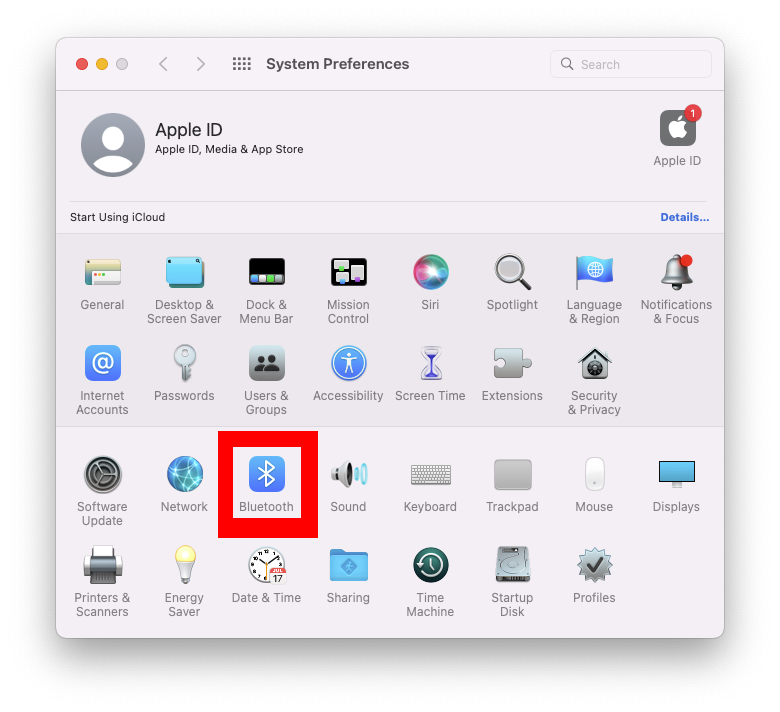](https://kb.mlml.sjsu.edu/uploads/images/gallery/2022-10/screen-shot-2022-10-05-at-91430-am.png)
1. If the Jabra is an option, double click on it.[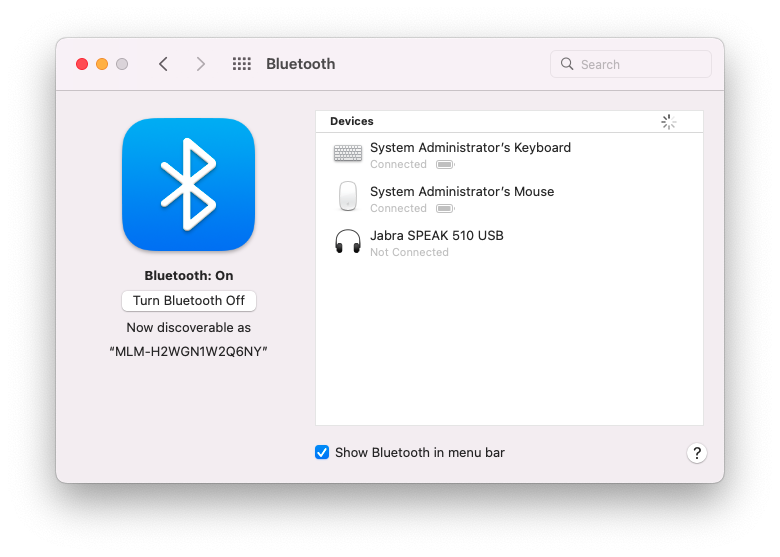](https://kb.mlml.sjsu.edu/uploads/images/gallery/2022-10/screen-shot-2022-10-05-at-91444-am.png)[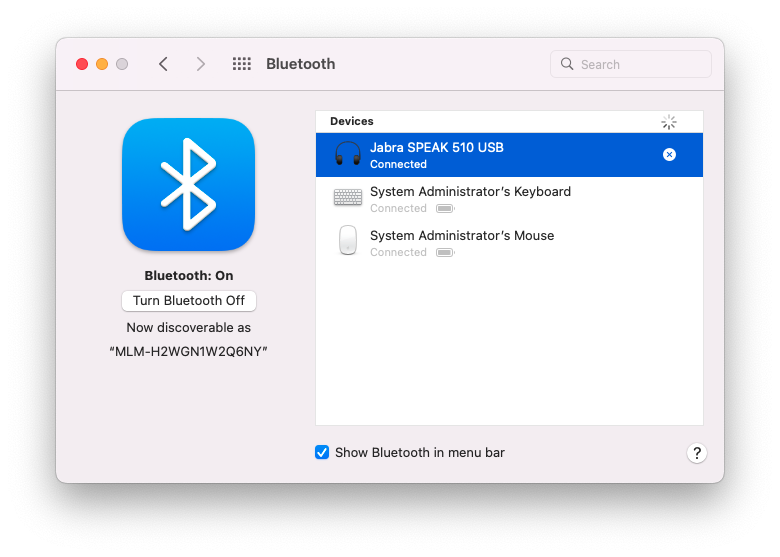](https://kb.mlml.sjsu.edu/uploads/images/gallery/2022-10/screen-shot-2022-10-05-at-91507-am.png)
2. If the Jabra is not an option, hold the bluetooth button on the Jabra for 5 seconds until you hear the Jabra say “To connect the Jabra SPEAK 510…”. The option for the Jabra should appear with the word connect. Click connect, and wait for the Jabra to connect.[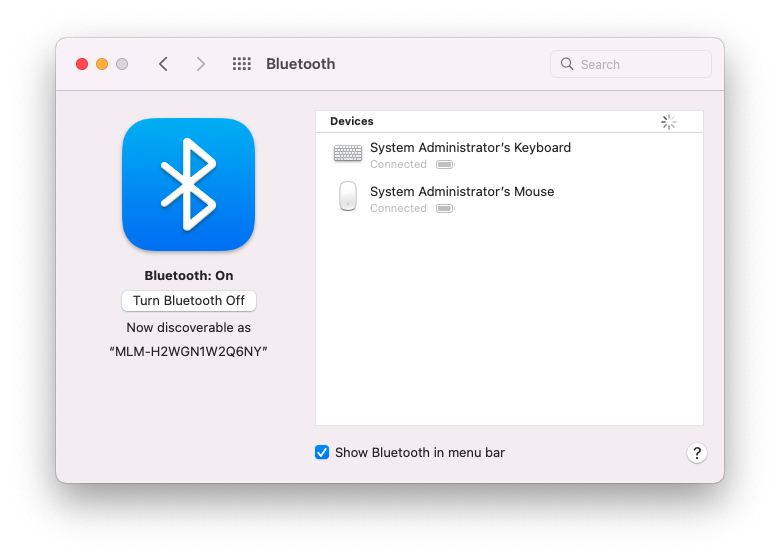](https://kb.mlml.sjsu.edu/uploads/images/gallery/2022-10/screen-shot-2022-10-05-at-91644-am.png)[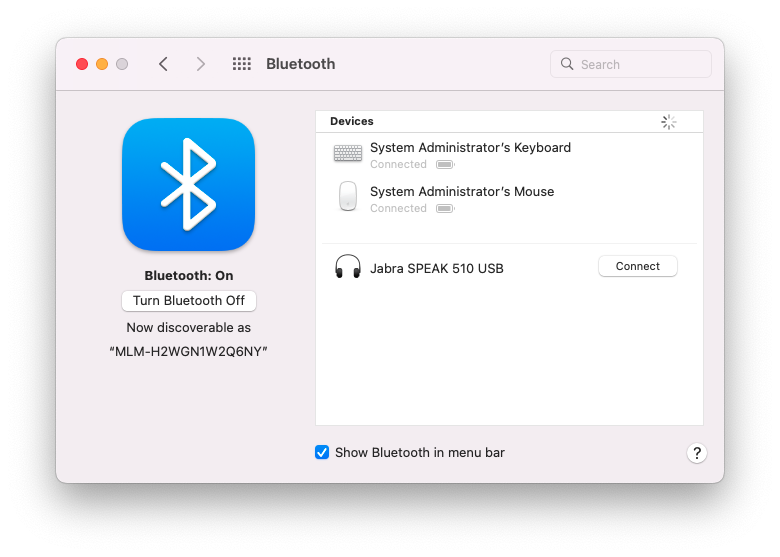](https://kb.mlml.sjsu.edu/uploads/images/gallery/2022-10/screen-shot-2022-10-05-at-91937-am.png)
5. Open Zoom on the Mac mini.
6. Start or join the meeting on Zoom on the Mac mini.
7. On Zoom, set the microphone to “Jabra SPEAK 510 USB”
8. Set the speaker to “E701i-A3” or “E701i-B3” (only one of the two will be available).
1. If you are in the Dry Classroom, the volume of the speaker can be changed from the computer. If you are in the Think Tank, you will need to press the volume buttons on the side of the TV.[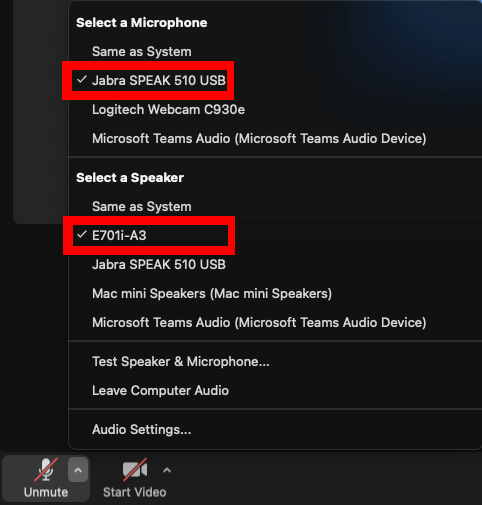](https://kb.mlml.sjsu.edu/uploads/images/gallery/2022-10/a3.png)
The setup should now be ready.