# Statistics Software
Information about R, SPSS, etc.
# Install SPSS v.25 (PASW Statistics) Windows and Mac OS
**Step 1:**
- Submit an [iTicket](https://helpdesk.mlml.calstate.edu/) to request SPSS v.25
**Step 2: Install**
1. From the files shared with you, download the Installation File that corresponds with your operating system:
- SPSS\_Statistics\_25\_mac\_dmg
- SPSS\_Statistics\_25\_win64.exe
2. Run the Installer:
- MacOS:
- Open the Installation Application and Run Installer
- Select “Yes” when it asks if you "are you sure you want to open it"
- English → Ok
Windows:
- Open the Installation Application
- Select “Yes” when it asks if you want “to allow this app to make changes to your device”
3. Select Next
4. Agree to the terms → Next
5. Select “Yes” to install IBM SPSS Statistics - Essentials for Python → Next
6. Accept the terms → Next
7. Accept the terms again → Next
8. Choose a file destination and click Next, or just simply select Next again to use default folder
9. Select “Install”
10. Select Start SPSS Statistics 25 License Authorization Wizard now → Finish
**Step 3: [Licensing](https://kb.mlml.sjsu.edu/books/software/page/license-spss-v25-%28pasw-statistics%29-windows-and-mac-os)**
# License SPSS v.25 (PASW Statistics) Windows and Mac OS
**Licensing**
1. After selecting to start the Licensing Authorization Wizard, a Licensing window should pop up with two different options of licensing your product.
2. Click Next
3. Select “Authorization Code” (first option) → Next
4. Enter the License Code provided to you from IT → Next
5. Select Finish. You have now successfully installed and licensed your SPSS v.25 software.
**If for some reason the licensing window does not begin after installation (or if you need to do it later), you can also license by accessing IBM SPSS Statistics 25 License Authorization Wizard from your Windows start menu or from the Applications folder in Finder on the Mac.**
1. Start the IBM SPSS License Authorization Wizard:
- **Windows:**
- In the search bar of your Start menu, type in IBM SPSS Statistics.
- Right click on the IBM SPSS Statistics 25 License Authorization Wizard application.
- Select Run As Administrator (make sure you are logged into a user account with full Administrator access rights).
- The License Authorization Wizard should then Launch.
- **macOS:**
- In your Applications folder, you should see either an IBM folder or an SPSS folder. Open that folder.
- Inside that folder should be a folder called SPSS or Statistics 25 or even SPSS 25 (or less if you have an earlier version). Open that folder.
- You may have one or more empty folders after that. Simply open each folder in succession until you find a non-empty folder.
- You should eventually see an application called License Authorization Wizard. Double-click that program.
- The License Authorization Wizard should then launch.
2. Follow licensing the steps above to complete your process.
# R - The open source alternative
Commercial software can be prohibitively expensive. Therefore, we strongly encourage you to try the open source statistical programming language [R](http://www.r-project.org/) which runs on both Windows and Mac. You can use R like MATLAB, or you can try a myriad of preprogrammed packages for R that perform many of the same statistical procedures that are found in commercial statistical packages. There is a learning curve for R, but once you successfully master the R language you will never have to rely on obtaining an expensive commercial software license.
There are volumes of helpful R resources but here are several to get you started:
- [The R website](http://www.r-project.org/)
- [A Quick and (Very) Dirty Intro to Doing Your Statistics in R](http://homes.msi.ucsb.edu/~byrnes/rtutorial.html#1)
- [R for MATLAB users](http://mathesaurus.sourceforge.net/octave-r.html)
# Install and License Resampling Stats 4.0 - Excel Add-in
##### Already installed but need a license?
*NOTE: [Submit a Help Desk ticket](http://helpdesk.mlml.calstate.edu/) to get a license key.*
1. Run **Resampling Stats for Excel** from your Start menu or the Desktop icon. This will open Excel with Resampling Stats enabled.
2. Select the **Add-ins** tab in the top menu bar.
3. Click the **Resampling** drop-down menu and select **RSXL License**. Click **Yes** when asked if you want to enter a new license key.
4. **Copy and paste** the license information you were given in the Help Desk ticket and click **OK**.
Requirements
- Microsoft Windows
- Microsoft Office 2007 or newer
##### Pre-install Excel Configuration
*NOTE: These instructions were written with Office 2010 in mind. There may be minor variations in older and newer versions.*
1. Open Excel.
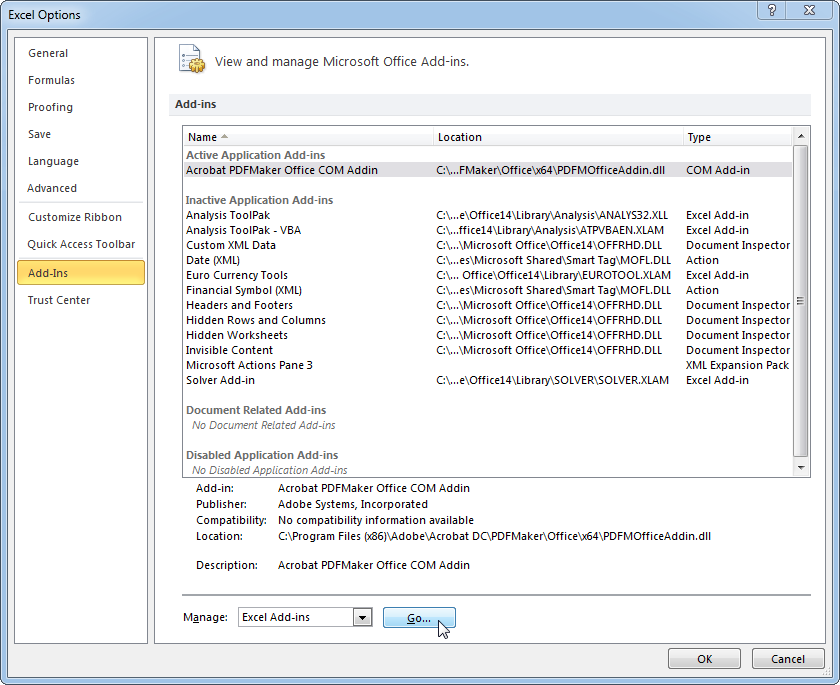
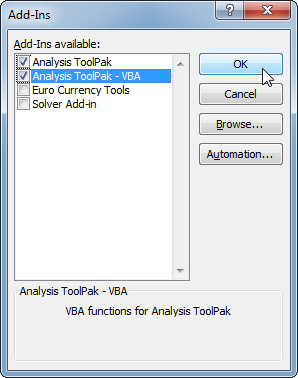
2. In the **File** menu (or the **Office icon** in Office 2007), click **Options**.
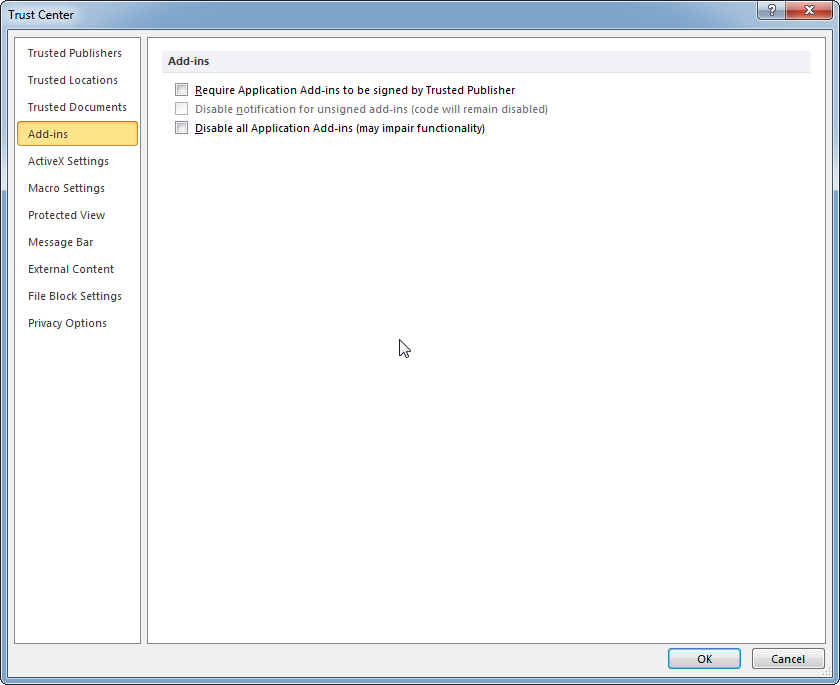
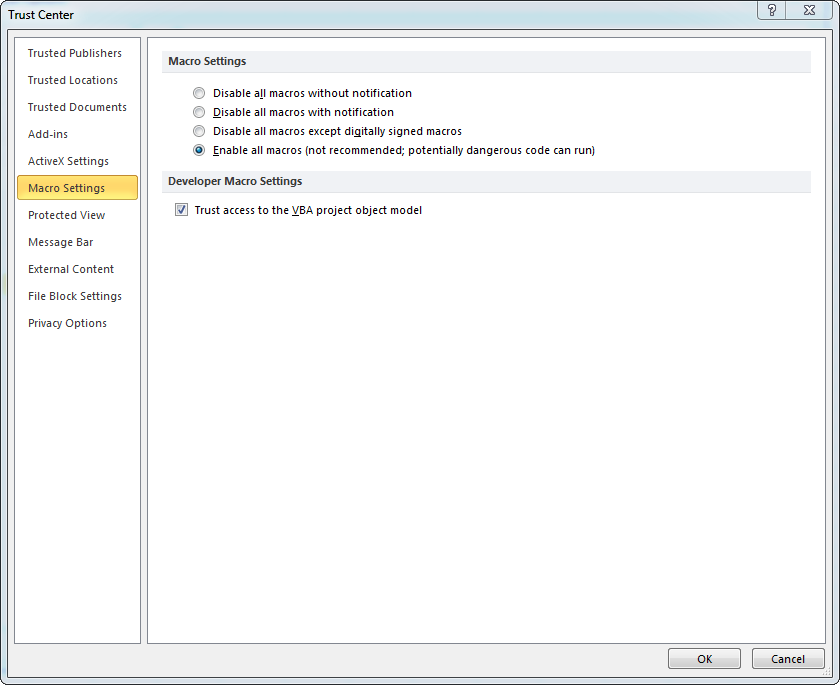
3. Click the **Trust Center** tab on the left, then the **Trust Center Settings...** button.
4. Ensure everything in the **Add-ins** tab is unchecked.
- 
- 
- 
- 
9. Exit Excel.
##### Install
*NOTE: [Submit a Help Desk ticket](http://helpdesk.mlml.calstate.edu/) to get a license key.*
1. Download and install Resampling Stats from [here](http://www.resample.com/wp-content/uploads/2015/01/Resampling-Stats-for-Excel.exe).
2. Run **Resampling Stats for Excel** from your Start menu or the Desktop icon. This will open Excel with Resampling Stats enabled.
3. **Copy and paste** the license information you were given in the Help Desk ticket and click **OK**.
##### Having trouble?
Check out these links for more information:
[http://www.resample.com/support/user-guides/](http://www.resample.com/support/user-guides/)
[http://www.resample.com/support/troubleshooting/](http://www.resample.com/support/troubleshooting/)
# JMP Pro
##### **JMP Pro 13 Licenses are no longer available from MLML. If you'd like to download JMP visit [SJSU OnTheHub](https://spartanshops.onthehub.com/WebStore/OfferingsOfMajorVersionList.aspx?pmv=4a88ecf1-e22d-e811-8101-000d3af41938&cmi_mnuMain=df783b53-081b-de11-9c12-0030485a8df0&cmi_mnuMain_child=78d793bc-b838-dd11-abb7-0030485a6b08&cmi_mnuMain_child_child=2ff73789-74c7-e011-ae14-f04da23e67f6&cmi_mnuMain_child_child_child=2a1143f0-74c7-e011-ae14-f04da23e67f6) for discounted rates or submit an IT Helpdesk Ticket at [CSUMB](https://csumb.teamdynamix.com/TDClient/Requests/ServiceDet?ID=23975).**
# How to Install MatLab
1. Login to the [San Jose State University MATLAB Portal](http://www.mathworks.com/academia/tah-portal/san-jose-state-university-31511582).
- NOTE: You will need to create a MathWorks account using your SJSU email address.
(Please [submit an IT Help Desk Ticket](https://helpdesk.mlml.calstate.edu/) if you do not have an SJSU email address.)
2. Follow the instructions in the [SJSU MatLab QuickStart Guide](https://drive.google.com/file/d/1JeIWbccDBTh6bMOiTfUh2BeNZC1A_H5e/view?usp=sharing) to download and install MatLab.