# Remote Software & Computer Access Procedure
There are times when you need to use a certain software application or device but do not have physical access. Instead, you can remotely access a device at MLML that has the software you need or computing capabilities. Below are the instructions on how to gain software & computing access remotely.
---
#### STEP 1: Identify Needs
- Identify the application/computing that you need and research it to know what exactly it is you're looking for:
- Version/Year
- Model
- Specs (CPU, Storage)
- Pinpoint exactly what you'll be using the application/device for
---
#### STEP 2: Submit an IT Helpdesk Ticket
Once you know what you need, we can help you get access to it. [Submit an IT Helpdesk Ticket](https://helpdesk.mlml.calstate.edu/) with the information you uncovered from Step 1. Please do the research before submitting an IT Helpdesk Ticket so we know exactly what it is you are trying to accomplish.
---
#### STEP 3: Access MLML VPN
Once you have the go-ahead from the IT Department, setup access to the MLML network using VPN. You will need to be connected to the MLML network to access a device remotely.
##### [Access the MLML Network using VPN Instructions](https://kb.mlml.sjsu.edu/books/network-services/page/access-the-mlml-network-using-vpn)
---
#### STEP 4: Launch Remote Desktop
NOTE: The following instructions are to connect to a Windows desktop computer from Windows or macOS.
IMPORTANT: You will need to configure the Windows computer to which you are connecting to allow Remote Desktop connections. Refer to the Troubleshooting section below to enable Remote Desktop connections
##### **Windows:**
- Launch Remote Desktop Connection
- - - - - - - 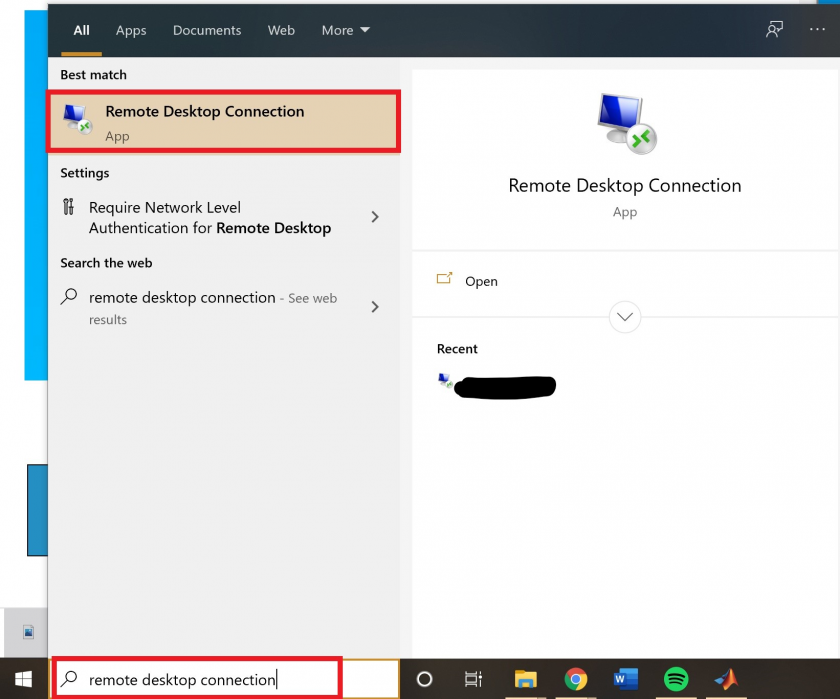
- Start Menu > search for "Remote Desktop Connection" or Start Menu > Windows Accessories folder
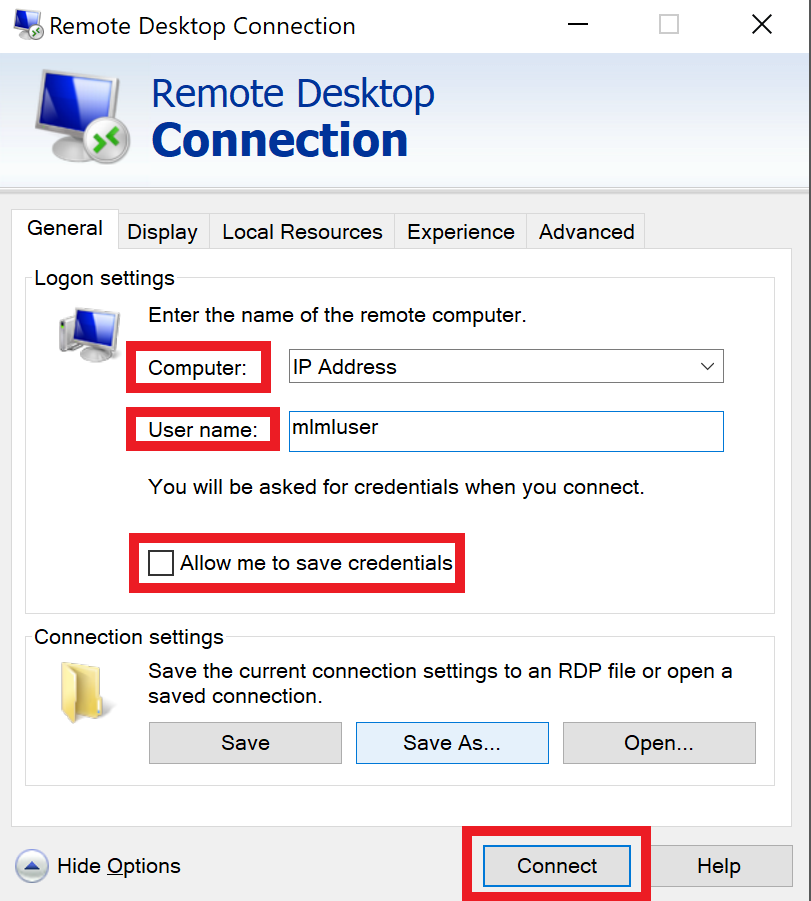
- In the **Computer field** type the name or **IP address** of the device you're connecting to
- Select **Show Options**
- Enter the username of the account you'll use to login
- Select "Allow me to save credentials" to save the credentials so you don't have to enter them each time you access this device
- Select **Connect**
- - - - - - - - 
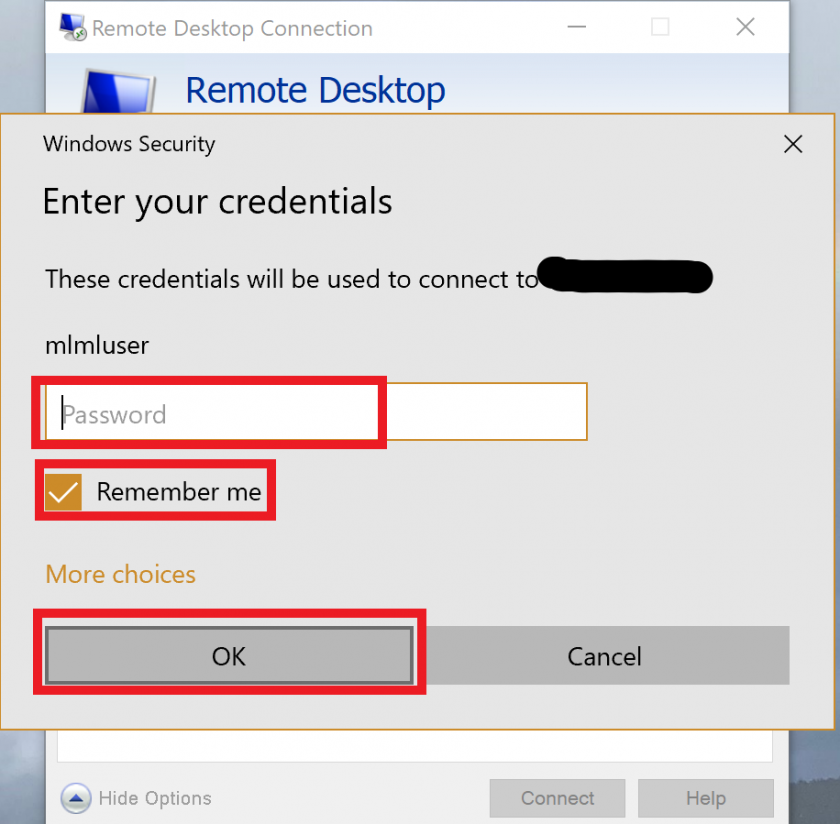
- Enter the password associated with the username you used into the window that pops-up
- Again you can select "Remember me" so you do not have to enter the password each time
- Click **OK**
- - - - - - - - 
- You may receive a message saying that the identity of the remote computer cannot be verified. Check the box for "**Don't ask me again for connections to this computer**" and **click Yes**
- You should now be connected
- For more information on how to use Remote Desktop Connection go to this link ["How to Use Microsoft's Remote Desktop Connection"](https://www.pcmag.com/how-to/how-to-use-microsofts-remote-desktop-connection)
##### **Mac:**
- Download "[**Microsoft Remote Desktop**](https://apps.apple.com/us/app/microsoft-remote-desktop-10/id1295203466?mt=12)" from the [Mac app store](https://apps.apple.com/us/app/microsoft-remote-desktop-10/id1295203466?mt=12)
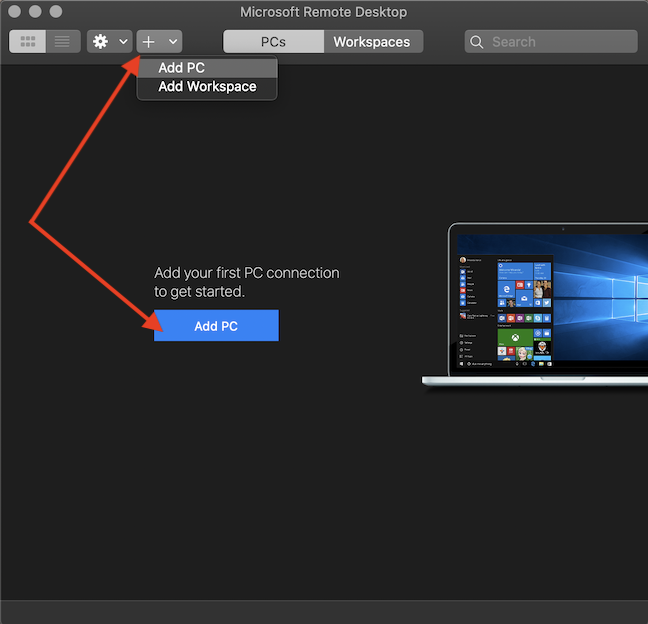
- Open Microsoft Remote Desktop
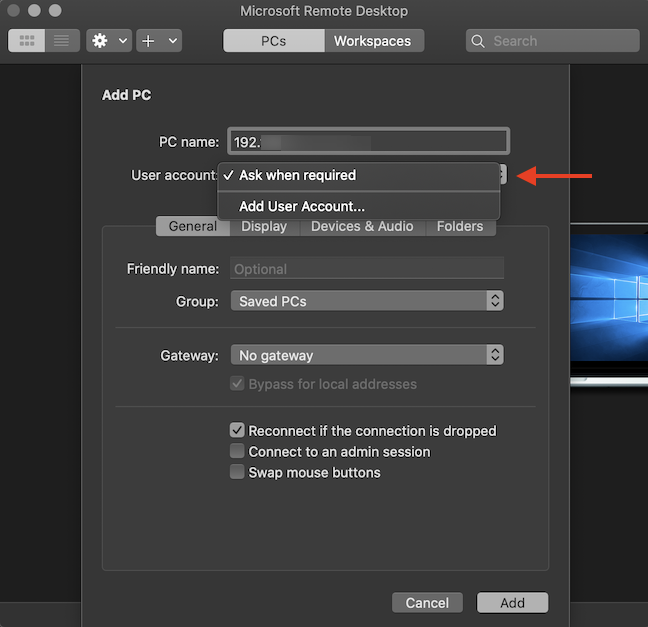
- **Select "Add PC"** in the center when the app opens
- - - - - - 
- Fill in the fields:
- **PC name** is the IP address
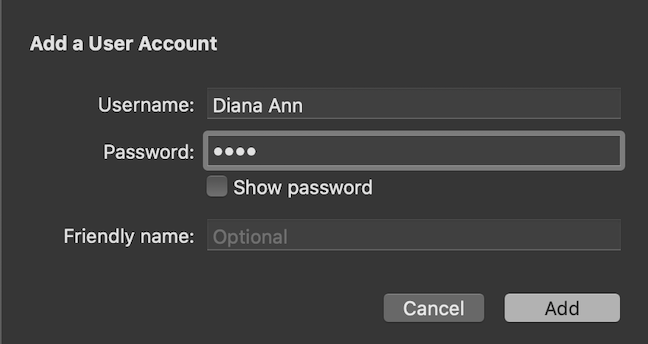
- **User account:** either "Ask when required" or if you will be using this account often use "Add User Account..."
- - - - - 
- For Add User Account: enter the username of account you're accessing & the associated password
- Press Add
- - - - - 
- **Friendly Name:** what you want to call the connection - optional
- **Group:** Where you want to save this connection
- **Gateway**: no gateway configured
- For all other tabs (Display, Devices & Audio, Folders): these settings are your preference - you can stick with the standard and go from there
- The Folders tab allows you to share files and folders between the devices
- For more information about these other tabs visit ["How to remote access Windows 10 from Mac"](https://www.digitalcitizen.life/connecting-remotely-windows-desktop-mac-os-x)
- **Click Add**
- To begin a session with that remote desktop just simply double-click it
- To edit it, select the pen in the top right corner of the desktop icon
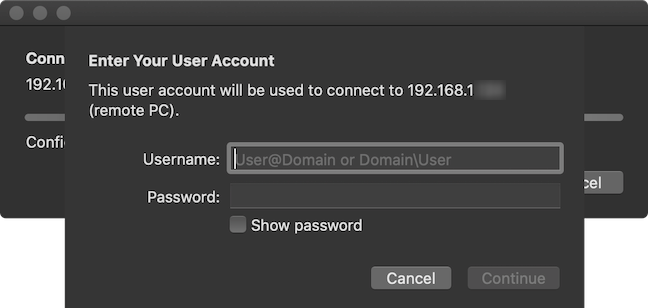
- A pop-up should show with "Enter Your User Account" to enter your username and password
- - - - - 
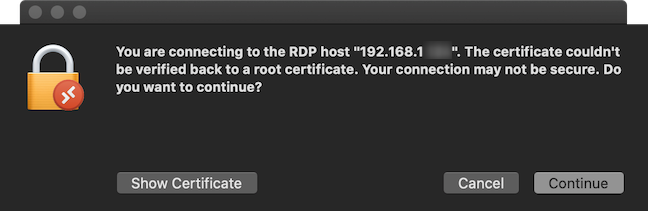
- You may see a prompt about your connection (see below), select Continue
- - - - - 
- For more information about accessing using Mac, go to the link ["How to remote access Windows 10 from Mac"](https://www.digitalcitizen.life/connecting-remotely-windows-desktop-mac-os-x)
---
#### Troubleshooting:
If you followed all steps and are not able to connect to the remote desktop, it might be that the desktop you are trying to connect to is not setup with remote desktop. If you or someone else can access the desktop physically, use the following instructions to setup the device:
- Login to the account you will be remote accessing
- Open Settings > System > Remote Desktop
- Turn on the switch next to "Enable Remote Desktop"
- Select Confirm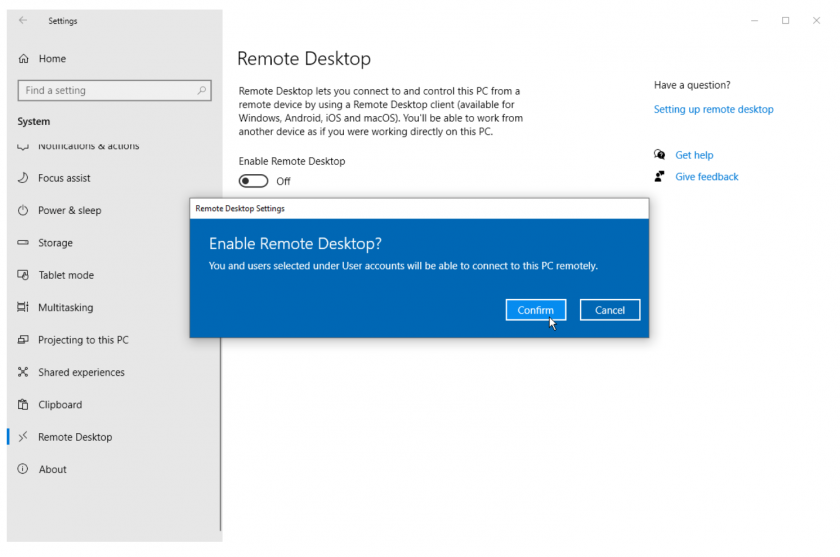
- Make sure "Keep my PC awake for connections when it is plugged in" and "Make my PC discoverable on private networks to enable automatic connection from a remote device" are checked
- Select Advanced Settings
- - - - - 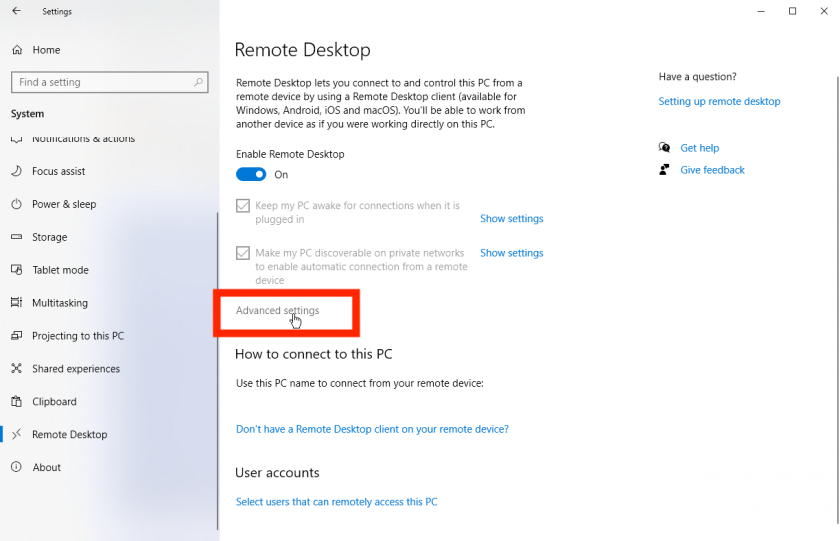
- Check the box next to "Require computers to use Network Level Authentication (NLA) to connect"
For more information: [How to Use Microsoft's Remote Desktop Connection](https://www.pcmag.com/how-to/how-to-use-microsofts-remote-desktop-connection) or [How to remote access Windows 10 from Mac](https://www.digitalcitizen.life/connecting-remotely-windows-desktop-mac-os-x)