Zoom Rooms User Guide
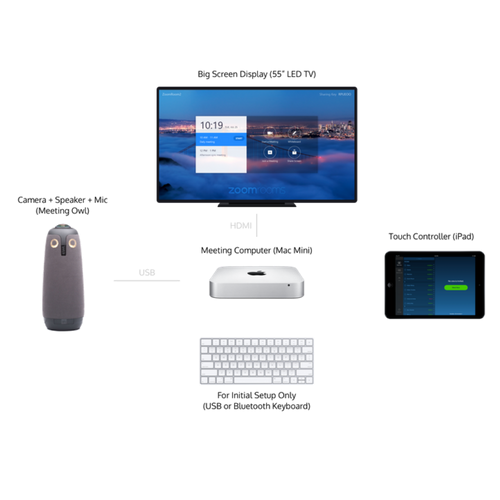
This guide explains how to use Zoom Rooms located in the Dry Classroom and Think Tank.
The setup includes:
-
Mac mini running Zoom Rooms
-
TV
-
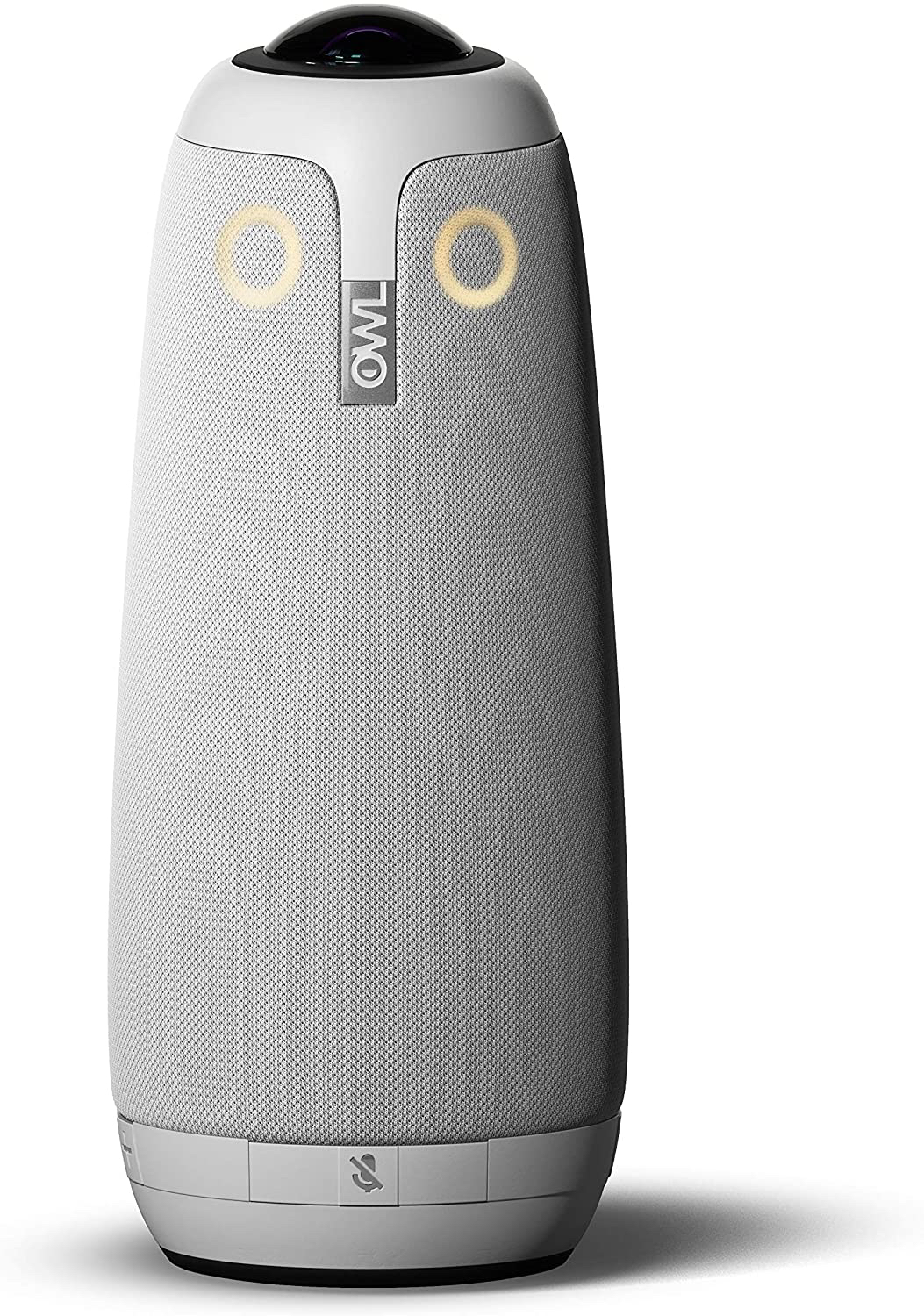
Meeting Owl (camera + mic + speaker)
-
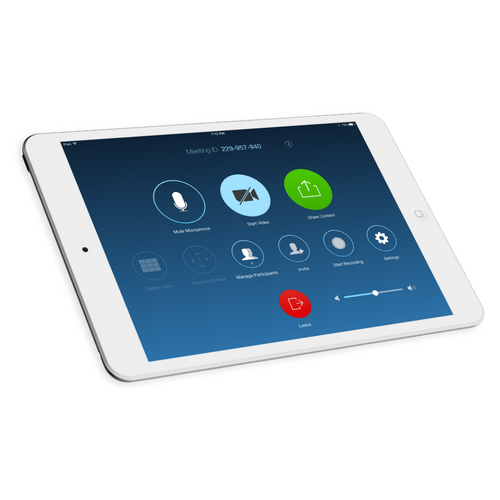
iPad Zoom Rooms controller
-
Dry Classroom & Think Tank shared calendar (read/write for faculty and staff)
1. Turn on the TV and log into the Mac mini
Turn on the TV and Mac Mini behind the TV.
Note: Mac Mini remains turned on at all times, turning on the wireless keyboard and mouse and pressing any key will wake up the machine.
Steps:
-
Wake the Mac mini + TV
-
Log in using the following credentials
Username: MLMLuser | Password: mlml1234 (Same password used to exit Zoom Rooms)
-
Launch Zoom Rooms (if it doesn’t open automatically)
2. Launching Zoom Rooms on the Mac mini
When open, the TV will show the room name and any scheduled meetings. The iPad should automatically sync as the controller.
If the controller does not connect, check Wi-Fi signal.
3. Scheduling a Meeting
All users (faculty and staff) may add events directly to the Dry Classroom | Think Tank Calendar.
Scheduled meetings will automatically appear on the TV.
When scheduling:
-
Select the Dry Classroom | Think Tank Zoom Room as the room/location
-
Add Zoom links only if hosting from outside the room.
4. Starting a Meeting from the iPad
To start:
-
Tap Start next to your calendar event
or -
Tap Join and enter a Meeting ID
or -
Tap New Meeting for an instant session
5. In-Meeting Controls (iPad)
The iPad lets you have full control over the Zoom meeting, including:
-
Mute/unmute the room microphone
-
Start/stop video
-
Assign host/co-host
-
Manage participants
-
Control volume
-
Share screen
-
End or leave the meeting
6. Video & Audio Settings: ALWAYS Select the Meeting Owl
When the meeting begins, ensure Zoom Rooms is using the correct hardware.
The Zoom Room should automatically select:
-
Camera: Meeting Owl | Microphone: Meeting Owl | Speaker: Meeting Owl
If not:
-
On the iPad, tap Settings → Microphone > Speaker >Camera
-
Select Meeting Owl for all three
The Owl provides:
360° video | Built-in microphone array | Built-in speaker | Active speaker tracking.
7. Preventing Echo & Improving Audio: Use Companion Mode (RECOMMENDED)
One of the biggest causes of bad audio is people joining the meeting on their laptops without muting or using incorrect audio settings.
To prevent feedback and improve clarity, participants should join in Companion Mode.
What is Companion Mode? 

Companion Mode lets users join the same Zoom Room meeting from their laptop with audio, cancelling echo or audio interference.
Allowing:
How to use Companion Mode
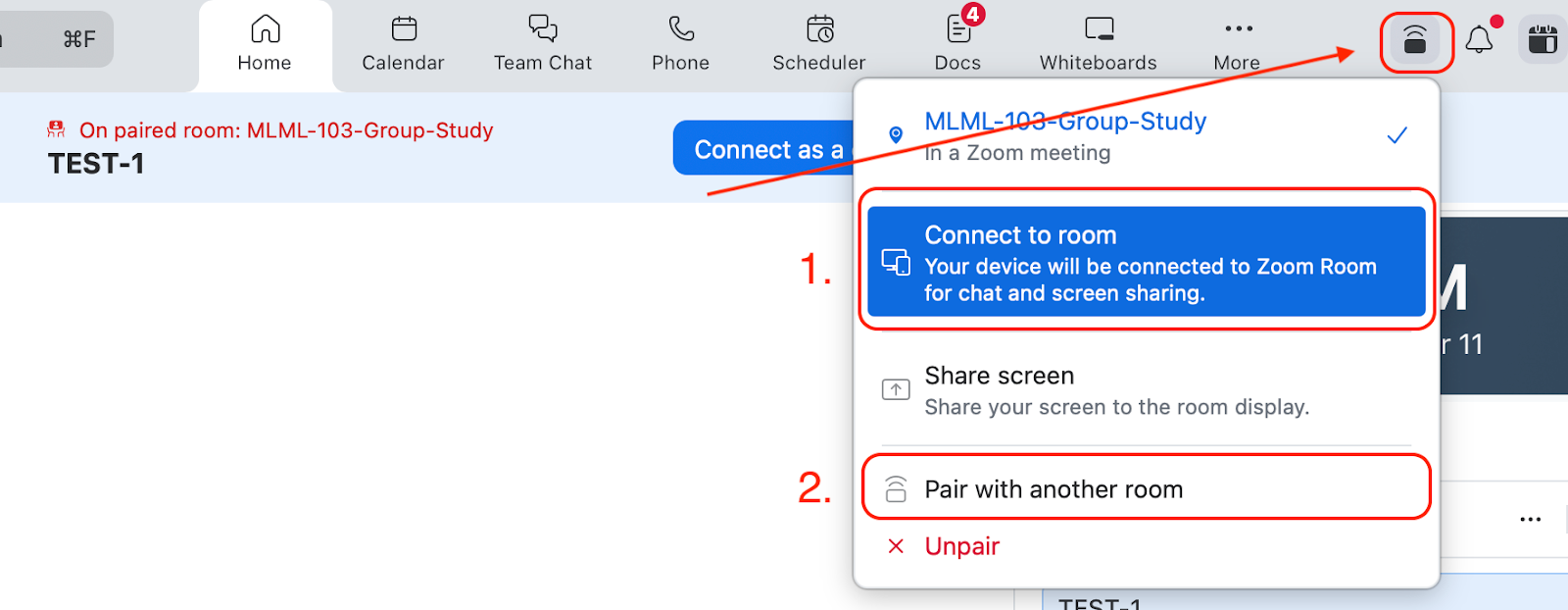
From your laptop, go to the Zoom Application, click on the Companion icon  and select one of two options.
-
Click on Connect to room. You should see:
-
MLML-109-Dry Classroom | MLML-202-Think Tank
Pair with another room
-
Punch in the Sharing Key, i.e., A2BZ, F9QML
The Sharing Key is usually shown in the top-left of the TV screen
Benefits
-
No echo
-
No high-pitched feedback
-
Cleaner audio for remote participants
-
Local users can still share their screen or use chat
8. Sharing Content in the Room (Optional)
A) Wireless (AirPlay)
-
Open Screen Mirroring on your device
-
Select MLML-109-Dry Classroom or MLML-202-Think Tank Zoom Room
B) Using the iPad
C) Using Companion Mode
-
Join via companion mode
-
Click Share Screen from your laptop
-
No feedback issues
9. Ending the Meeting
On the iPad:
-
Tap End
-
Choose End Meeting for All (recommended)
10. Exiting Zoom Rooms (Admin only)
To return to macOS:
-
On the iPad, tap Settings → Exit Zoom Rooms
-
Enter passcode: mlml1234
Troubleshooting Tips
Owl not detected
-
Unplug/replug Meeting Owl USB cable
-
Restart Zoom Rooms
-
Ensure Owl is powered on (LED ring)
Audio issues
-
Confirm Meeting Owl is selected for mic/speaker
-
Lower the TV volume
-
Make sure participants join in Companion Mode
iPad not syncing
-
Restart the iPad controller app
-
Ensure it’s on the same network
The meeting won’t start
-
Confirm the event was added to the MLML-109-Dry Classroom | MLML-202-Think Tank Calendar.
MLML IT
mlml-it@sjsu.edu | (831)771-4458
Need more help? >>>> Submit a help ticket! We’re here to help you.