# Collaboration & Communication Tools

# Phones & Faxing

Who can get a phone at MLML, how do you program or troubleshoot phone & communication issues? Learn the answer to these questions and more in this chapter.

# Phones & Faxing

#### Desk Phones

Desktop Cisco phones are available for use throughout the MLML main lab. These phones have large touchscreen displays, built-in cameras for video calls, bluetooth compatibility and call management capabilities. The MLML Staff Directory may be found [here](https://mlml.sjsu.edu/staff-directory/).  
Guides for operating the Cisco Model CP-9971 phone may be found [here](https://kb.mlml.sjsu.edu/books/phones-communication-tools/page/cisco-phone-voicemail-quick-tips).

####  

#### Speed Dials

On these phones, users may add up to four speed dials. To add a speed dial, the user must submit an [iTicket](http://helpdesk.mlml.calstate.edu/), and the IT Department will create the speed dial on the phone for them. (User may add more than one speed dial on the same ticket if they include all the relevant information for each one). Included should be: The **full ten digit number** (3 digit area code + 7 digit phone number), and the **name** or **short description** they want to show up next to the speed dial button on the screen of the phone.

####  

#### Voicemail to email

A user can also have voicemails automatically sent as an audio file to their email. To set this up, submit an [iTicket](https://helpdesk.mlml.calstate.edu/).

####  

#### Conference Phones

[Cisco conference phones](https://mlml.populiweb.com/library/resource.php?resourceID=8383052) are available for use in the Group Study (Rm 103) and Think Tank (Rm 202). These phones are also available for check-out at the IT Help Desk Cubicle (Rm 203).

Click [here](https://www.cisco.com/c/dam/en/us/td/docs/voice_ip_comm/cucme/ip_phones/7937/4-3/english/reference/guide/rc7937.pdf) for a quick reference guide.

A more in depth guides for operating the Cisco Model 7937G conference phone may be found [here](https://www.cisco.com/c/en/us/support/collaboration-endpoints/unified-ip-conference-station-7937g/model.html) (e.g. Maintain and Operate Guides).

NOTE: Zoom is recommended when hosting conference calls with more than two callers due to limitations on the number of lines our phones can support simultaneously.

####  

#### Making Calls - Desk Phones and Conference Phones

<span id="bkmrk-"></span>To an internal phone:

<div data-index="3" id="bkmrk-internal-phones%C2%A0may-"><div data-index="3"><div><div>1. [Internal phones](https://mlml.sjsu.edu/intranet/mlml-internal-directory/) may be reached by dialing only the extension (e.g. 1-4418 for the IT Help Desk cubicle).

</div></div></div></div>To an external phone:

<div data-index="3" id="bkmrk-dial-7-first.-enter-"><div data-index="3"><div><div>1. DIAL 7 first.
2. Enter 1 + 3-DIGIT AREA CODE + 7-DIGIT PHONE NUMBER
3. Example: 7+1+831+771-4400

</div></div></div></div>####  

#### Fax Numbers and Locations

A fax machine is available at the main lab in Administration Office (Rm 203) on the Admin Copier.   
Fax cover sheets are available at the Front Desk.  
  
Below is a list of fax numbers associated with MLML:

- Administration Printer: 831-632-4403
- Marine Operations: 831-633-4580
- MOBY tent (Hawaii): 808-845-4599
- MPSL DFW: 831-633-0805
- MPSL MLML: 831-771-4189

####  

#### Faxing from the Admin Office at the Main Lab

Instructions to send a fax from the MLML Administration Office:

<div data-index="9" id="bkmrk-insert-the-document-">1. Insert the document into the document feeder (adjusting for size, as necessary) or place it onto the glass.
2. Tap the touch screen to wake-up the copier
3. If needed, tap the **Home** button in the lower left corner of the touchscreen.
4. Tap **Fax**
5. Tap the **123456** at the top of the screen
6. Dial **9** + **1** + **THREE-DIGIT AREA CODE** + **SEVEN-DIGIT PHONE NUMBER**
    1. Example: 9+1+831+7714400
7. Press **START**
8. To verify whether the fax went through, press the **Home** button on the lower left corner of the screen, then **Job List**
9. If the fax is still sending, it will show in the **In Progress** tab.
10. If no jobs are in the **In Progress** tab, select the **Log** tab.
11. Completed faxes under the **Log** tab will show as **Job Complete**

</div>####  

#### Received Faxes in the Admin Office at the Main Lab

Check the copier tray if the fax was just sent. Check the “Unclaimed Faxes” folder in the standup filer on the copy room counter. Check your mailbox or with the Front Desk Staff.

# Cisco Phone & Voicemail Quick Tips

**A great guide for operating Cisco phones can be found [here](https://www.cisco.com/c/dam/en/us/td/docs/voice_ip_comm/cuipph/9971_9951_8961/8_5/english/quick_reference/qrcrd_rt911.pdf), however below you will find tips on how to perform the most common functions.**

1. **Make a call**  
    Internal: simply dial the full number or 1 + the 4-digit extension  
    External: dial 71 + the full number (including area code)
2. **Access your phone history**  
    Select Applications [![Screen-Shot-2019-09-12-at-9.45.01-AM.png](https://kb.mlml.sjsu.edu/uploads/images/gallery/2019-09-Sep/scaled-840-0/Screen-Shot-2019-09-12-at-9.45.01-AM.png)](https://kb.mlml.sjsu.edu/uploads/images/gallery/2019-09-Sep/Screen-Shot-2019-09-12-at-9.45.01-AM.png), then **call history**
3. **Place a call on hold**  
    Select Hold [![Screen-Shot-2019-09-12-at-9.46.30-AM.png](https://kb.mlml.sjsu.edu/uploads/images/gallery/2019-09-Sep/scaled-840-0/Screen-Shot-2019-09-12-at-9.46.30-AM.png)](https://kb.mlml.sjsu.edu/uploads/images/gallery/2019-09-Sep/Screen-Shot-2019-09-12-at-9.46.30-AM.png)  
    To resume the call, press the **Resume** soft key
4. **Transfer a call**  
    Select transfer [![Screen-Shot-2019-09-12-at-9.50.48-AM.png](https://kb.mlml.sjsu.edu/uploads/images/gallery/2019-09-Sep/scaled-840-0/Screen-Shot-2019-09-12-at-9.50.48-AM.png)](https://kb.mlml.sjsu.edu/uploads/images/gallery/2019-09-Sep/Screen-Shot-2019-09-12-at-9.50.48-AM.png), dial the number, press the transfer button again
5. **Start a conference call**  
    Select Conference [![Screen-Shot-2019-09-12-at-9.51.42-AM.png](https://kb.mlml.sjsu.edu/uploads/images/gallery/2019-09-Sep/scaled-840-0/Screen-Shot-2019-09-12-at-9.51.42-AM.png)](https://kb.mlml.sjsu.edu/uploads/images/gallery/2019-09-Sep/Screen-Shot-2019-09-12-at-9.51.42-AM.png), dial the new participant, press the conference button again
6. **Silence the ringer**  
    Press the **volume** button down once [![Screen-Shot-2019-09-12-at-9.52.43-AM.png](https://kb.mlml.sjsu.edu/uploads/images/gallery/2019-09-Sep/scaled-840-0/Screen-Shot-2019-09-12-at-9.52.43-AM.png)](https://kb.mlml.sjsu.edu/uploads/images/gallery/2019-09-Sep/Screen-Shot-2019-09-12-at-9.52.43-AM.png)
7. **Change Voicemail Pin/Password**  
    Select Voice Mail ![](https://kb.mlml.sjsu.edu/uploads/images/gallery/2019-02-Feb/scaled-840-0/image-1550619500705.png) and enter your current pin  

    Press 4 &gt; 3 &gt; 1  
    Enter a new pin and press #  
    Enter the new pin again to confirm it and press #
8. **Access your voicemail**  
    Select Voice Mail ![](https://kb.mlml.sjsu.edu/uploads/images/gallery/2019-02-Feb/scaled-840-0/image-1550619500705.png) Enter your pin

9. **Change your name in your voice mail greeting**  
    Select Voice Mail ![](https://kb.mlml.sjsu.edu/uploads/images/gallery/2019-02-Feb/scaled-840-0/image-1550619500705.png) and enter your pin  

    Press 4 for Setup Options  
    Press 3 for Preferences  
    Press 2 for Recorded Name  
    Follow the prompts
10. **Add speed dial numbers to your phone** Speed Dial configuration must be performed by the phone system administrator.   
    Please [submit an IT Helpdesk Ticket](https://helpdesk.mlml.calstate.edu) to request speed dials for your phone. Each phone can have up to 4 speed dials.   
    Please provide the number and the name you want associated with each number.

**Additional useful information is available on the [SJSU IT website](http://www.sjsu.edu/it/services/network/phones.php).**

**More information about the Cisco voicemail system is available, [here](http://www.sjsu.edu/it/docs/connectivity/VoicemailOnlyUserGuide.pdf).**

# How to Respond to Scam Calls - Don't

#### Phone-Related Threats

<div id="bkmrk-"><div><div><div><div data-index="2"><div><div><div><div><div><div data-index="2"><div><div>---

</div></div></div></div></div></div></div></div></div></div></div></div></div>###### **Scam Calls / Robocalls**

If you receive a phone call that seems suspicious, whether it's a computer-generated voice on the other end or a person fishing for personal information: Don't follow any directions given by the caller. Just ***hang up the phone***. Following any prompts given by the caller may make them more likely to call again. ***Never give out any personal information*** to an unknown caller. Take down any information you remember and [report the call to the FTC](https://www.ftc.gov/faq/consumer-protection/submit-consumer-complaint-ftc).

These calls often show up as being from a local phone number, spoofing of numbers is rampant among scam callers, to hide the call's origin and make the calls difficult to block.

# Access the MLML Cisco Voicemail System from any Phone

**To check your voicemail messages from any phone:**

1. Dial 408-924-6800 and press \* when you hear the recording
2. Key in your 5 digit extension (ex 14400 not 4400)
3. Enter your voicemail PIN followed by #  
    *NOTE: The first time you access your Cisco Unity Connection Messaging System, you will be prompted to complete enrollment in the system, including creating a new voicemail PIN.*
4. Your new voicemails will start playing automatically

More information about the Cisco voicemail system is available, [here](http://www.sjsu.edu/it/docs/connectivity/VoicemailOnlyUserGuide.pdf).

# Public Announcement (Intercom) using the MLML Cisco Phone

**The Cisco Bogen PA for the main building hallway works as follows:**

1. From any MLML Cisco phone using the hand set for speaking, do not use the speaker as it is prone to feedback, dial 14101.
2. Listen for 2 beeps.
3. Dial 00 (zero zero)
4. Listen for announce 'tone' (only played through the speakers in the hall), or you can also wait 2 full seconds.
5. Make your announcement, this is a real-time announcement.
6. Depress the Release Button or Handset button to hang-up and avoid making a loud noise. ![](https://kb.mlml.sjsu.edu/uploads/images/gallery/2019-02-Feb/scaled-840-0/image-1550619960463.png)

7. Hang up.

# How do I set up a distribution list in the Cisco Unity voice mail system?

**Q: How do I set up a distribution list in the Cisco Unity voice mail system?**  
  
**A:** In Unity, distribution lists are called Private Lists.   
  
**To create a Private List:**

1. Enter your voice mailbox
2. Select 2 for setup options
3. Select 2 for message settings
4. Select 4 for private lists
5. Select 2 to change names
6. Enter a number for your private list, in this case (1) since it is your first
7. Enter 1 to add a name  
    At this point, you will be directed to spell the names of the people you want to add with the keypad. It will probably be easier to switch to add by entering the extensions.
8. Switch to numeric entry by entering # #.
9. When adding extensions, complete the add process by selecting the # key after each extension
10. Press \* to stop adding names
11. Enter 3 to record the name of your private list
12. To send a message with a Private list
13. Enter your voice mailbox
14. Select 2 to send a message
15. Record your message and when finished press #
16. Press # # to switch to numeric entry
17. Enter 1 or other number of a private list
18. Wait for the next prompt
19. Press # to select your private list
20. To send the message press #

# Satellite Phone Instructions and Rates

The satellite phone is an Iridium 9505A made by Stratos Global.  
  
  
**To turn on the phone and enter the PIN:**

1. Press and hold the power button until the phone powers on
2. Enter 1111 and press OK
3. Wait until the phone indicates that the PIN verification has been "Completed" and verify that you have adequate satellite coverage before making a call

**To make a call:**  
(NOTE: outgoing calls cost $1.49/minute)

1. Dial 001-###-###-####, then press OK

**To send a text message FROM the Iridium Phone:**  
(NOTE: outgoing text messages cost 0.33x the minute rate per message, so approx $0.50 per outgoing text message)

1. Press the "Envelope" button
2. Press the down arrow until "Message Editor" displays, then press OK
3. Type your message and press OK 
    - \* or up = move cursor left
    - \# or down = space or move cursor right
    - C = backspace
4. Enter the destination number as follows: 001-###-###-#### and press OK

**To send a text message TO the Iridium Phone free of charge:**  
(NOTE: incoming text messages are free)

- OPTION 1: Send via the Iridium website [http://messaging.iridium.com/](http://messaging.iridium.com/)
    1. Type in the satellite phone number (do not add 00 or "+")
    2. Type message
    3. Click the Send Message button.
- OPTION 2: Send message via email to: <881641468738@msg.iridium.com>  
    (160 character max)

# How to Start an "ad-hoc conference call"

**Initiating an "ad-hoc conference call"**

1. Place your call to the first participant in the conference call.
2. To add someone to the conference call, while on the active call, press the Conference button: <div><dl class="file"><dt class="attach-image">![](https://kb.mlml.sjsu.edu/uploads/images/gallery/2019-02-Feb/scaled-840-0/image-1550619994941.png)
    
    </dt></dl></div>
3. Your call will be placed on hold.
4. Dial the number or extension you wish to add to the call (or select the listing from your directory or call history).
5. Press the Conference button again at any time to rejoin the other call.
6. Repeat steps 2-5 for each participant. **You can have a total of 4 participants.**

**Drop someone from a conference call?**

1. While in a conference, press Show Details on your screen.
2. Select the caller you wish to drop from the call, and then press Remove.

**To terminate the call do one of the following:**

1. Place the handset in the cradle.
2. Press one of the following keys that: headset, speaker, or the "End Call" button.

# Configure call forwarding on your desk phone

**Forward calls going to your Cisco phone to another number (i.e. cell phone or home phone):**

1. On your Cisco phone, tap the **Forward All** button on the touchscreen.
2. Enter the number to which you want to forward your calls.   
    Be sure to prepend the full 10-digit number with a "71" (i.e. 718317714400).
3. To disable the forwarding, simply tap the **Forward Off** button on the touchscreen.

# Communications Software & Zoom


# Zoom: Video Conferencing at MLML

<table border="1" id="bkmrk-host-zoom-meeting-sc" style="border-collapse: collapse; width: 100%; height: 255px;"><tbody><tr style="height: 37px;"><td style="width: 53.0864%; height: 37px;">**[Join a Zoom Meeting](https://kb.mlml.sjsu.edu/books/software/page/zoom#bkmrk-join-zoom-meeting)**</td><td style="width: 46.9136%; height: 37px;">**[Screen Sharing in Zoom Meeting](https://kb.mlml.sjsu.edu/books/software/page/zoom#bkmrk-screen-sharing-in-zo)**</td></tr><tr style="height: 37px;"><td style="width: 53.0864%; height: 37px;">**[Start a Zoom Meeting](#bkmrk-start-a-zoom-meeting)**

</td><td style="width: 46.9136%; height: 37px;">**[Remote Control Computer Screen](https://kb.mlml.sjsu.edu/books/software/page/zoom#bkmrk-remote-control-compu)**</td></tr><tr style="height: 35px;"><td style="width: 53.0864%; height: 35px;">**[Enabling and Adding a Co-Host for Room Moderation](https://kb.mlml.sjsu.edu/books/software/page/zoom#bkmrk-enabling-and-adding-)**</td><td style="width: 46.9136%; height: 35px;">**[Leaving Zoom Meeting](https://kb.mlml.sjsu.edu/books/software/page/zoom#bkmrk-leaving-zoom-meeting)**

</td></tr><tr style="height: 35px;"><td style="width: 53.0864%; height: 35px;">**[Audio and Video Settings](https://kb.mlml.sjsu.edu/books/software/page/zoom#bkmrk-audio-and-video-sett)**</td><td style="width: 46.9136%; height: 35px;">**[Classroom-Specific Guidelines](https://kb.mlml.sjsu.edu/books/software/page/zoom#bkmrk-classroom-specific-g)**

</td></tr><tr style="height: 37px;"><td style="width: 53.0864%; height: 37px;">**[Record Zoom Meeting](https://kb.mlml.sjsu.edu/books/software/page/zoom#bkmrk-record-zoom-meeting)**</td><td style="width: 46.9136%; height: 37px;">**[Think Tank Meetings](https://kb.mlml.sjsu.edu/books/software/page/zoom#bkmrk-think-tank-meetings)**</td></tr><tr style="height: 37px;"><td style="width: 53.0864%; height: 37px;">**[Creating Polls](https://kb.mlml.sjsu.edu/books/software/page/zoom#bkmrk-creating-polls)**</td><td style="width: 46.9136%; height: 37px;"> **[Mobile Presentation Unit (MPU)](https://kb.mlml.sjsu.edu/books/software/page/zoom#bkmrk-mobile-presentation-)**</td></tr></tbody></table>

**To learn how to teach remotely at MLML using Zoom, follow [this link](https://kb.mlml.sjsu.edu/books/collaboration-communication-tools/page/zoom-for-remote-teaching-at-mlml).**

<table border="1" id="bkmrk-quick-tips%3A-zoom-is-" style="height: 7499px; width: 100%; border-collapse: collapse;"><tbody><tr><td style="width: 100%;">### Quick Tips:

Zoom is a video conferencing application available to CSUMB and SJSU affiliates (students, faculty, staff, etc.) Users are able to host or join conference calls, video conference call, and share their screen.

- SJSU's Zoom website: [https://sjsu.zoom.us/](https://sjsu.zoom.us/) (Login with your SJSUID)
- CSUMB’s Zoom website: [https://csumb.zoom.us/](https://csumb.zoom.us/) (Login with your OtterID)

**Keep Zoom meetings secure:**

- **DO NOT** share meeting URLs with anyone who is not a part of the meeting
- **Keep meeting passwords on** and set a simple password
- Add waiting room so you can review what participants are trying to join
- Once all attendees have joined, **lock your session** ([How-To Guide here](https://blog.zoom.us/wordpress/2014/06/03/spotlight-security/))
- Use "Only authenticated users can join" setting for meetings attended by people only from MLML/SJSU
- Set your name in your Zoom portal and/or app
- For more information: 
    - **MLML's [Zoom Security Best Practices &amp; Recommendations](https://kb.mlml.sjsu.edu/books/collaboration-communication-tools/page/zoom-security-best-practices-recommendations)**
    - SJSU's [Securing Zoom Meetings page. ](http://www.sjsu.edu/it/security/safe-computing/zoom-meetings.php)

</td></tr><tr><td style="width: 100%;">##### Make sure your name on Zoom is your name in real life!

Your displayed name in Zoom meetings should read as your first name followed by your last name (i.e., "Jane Doe")

**How to change your display name on Zoom:**

- Visit [Zoom's website](https://zoom.us) and log in with your credentials from your home campus
- Click "profile" on the left side of the screen
- Click the first "edit" button on the top right of the screen (to the right of your name and profile picture)
- In the "display name" field, put your name is as "First Last" 
    - Please do not use initials, nicknames, or abbreviations

</td></tr><tr><td style="width: 100%;">##### If you use Chrome as your primary web browser, try downloading the [Zoom extension for Chrome ](https://chrome.google.com/webstore/detail/zoom-scheduler/kgjfgplpablkjnlkjmjdecgdpfankdle?hl=en-US)

- This will make it much easier for you to schedule meetings, send out invitations, and keep track of your upcoming meetings

</td></tr></tbody></table>

### Join a Zoom Meeting

<div id="bkmrk-"><div><div><div data-index="6"><div><div>---

</div></div></div></div></div></div>#### By Computer

<div id="bkmrk-download-and-install"><div data-index="6">1. <span style="font-weight: 400;">Download and install the [Zoom App](https://zoom.us/support/download).  
      
    </span>
2. <span style="font-weight: 400;">Click the Join URL in a Zoom invitation  
     - or -   
    </span><span style="font-weight: 400;">Navigate to Zoom:</span>
    - SJSU's Zoom website: [https://sjsu.zoom.us/](https://sjsu.zoom.us/) (Login with your SJSUID)
    - CSUMB’s Zoom website: [https://csumb.zoom.us/](https://csumb.zoom.us/) (Login with your OtterID)
3. <span style="font-weight: 400;">Select “Join a Meeting”  
      
    </span>
4. <span style="font-weight: 400;">Enter the Meeting ID number (your meeting ID is a 9, 10, or 11-digit number) or Personal Link Name</span>
    - <span style="font-weight: 400;">Find Meeting ID in email invite or...</span>
    - <span style="font-weight: 400;">Hosts or current participants can find Meeting ID at top of Zoom browser.</span>

</div></div>(You can prepare for a scheduled Zoom meeting by downloading and installing the [Zoom Client](https://zoom.us/download).)

#### Call In By Phone

<div id="bkmrk-dial-an-in-country-n"><div><div><div data-index="6">1. Dial an in-country number found at [https://zoom.us/zoomconference](https://zoom.us/zoomconference) or provided by host 
    - For calls in the US use this phone number: **+1 646-876-9923**
    - **If calling in with MLML conference phone dial 7 first.**
2. **<span style="font-weight: 400;">Enter the Meeting ID followed by # (your meeting ID is a 9, 10, or 11-digit number) or Personal Link Name</span>**
    - <span style="font-weight: 400;">Find Meeting ID in email invite or...</span>
    - <span style="font-weight: 400;">Hosts or current participants can find Meeting ID at top of Zoom browser.</span>
3. Enter your participant ID, followed by # (Press # only to skip) 
    - To enter your participant ID once you are in the meeting, enter #Participant ID# on your phone

</div></div></div></div>### Start a Zoom Meeting

---

**Step One:** **Sign into Zoom** for [SJSU](https://sjsu.zoom.us/) (using your SJSU ID) or [CSUMB](https://csumb.zoom.us/) (OtterID)

##### Host a Meeting

1. Select **Host a Meeting** in top right of Zoom screen.
2. The Zoom App will launch

[![01.png](https://kb.mlml.sjsu.edu/uploads/images/gallery/2022-08/scaled-1680-/01.png)](https://kb.mlml.sjsu.edu/uploads/images/gallery/2022-08/01.png)

1. Join audio and/or video by clicking the microphone and video camera icons, respectively
2. Invite others while meeting is started, click the **Invite** button at the bottom of the Zoom user interface and select the participants via email address or contact list
3. You could also edit the participant list by clicking **Manage Participants**, which is next to the Invite button

#####  

##### Schedule a Meeting

See our [Zoom Security Best Practices &amp; Recommendations](https://kb.mlml.sjsu.edu/books/collaboration-communication-tools/page/zoom-security-best-practices-recommendations).

1. Select **Schedule a Meeting** in top-right of Zoom screen
2. <span style="font-weight: 400;">Fill in the information, below are recommended options:</span>
    - <span style="font-weight: 400;">Registration Required: Unchecked</span>
    - <span style="font-weight: 400;">Require Meeting Password: Unchecked</span>
    - <span style="font-weight: 400;">Video: Off for both</span>
    - <span style="font-weight: 400;">Audio: Both</span>
    - <span style="font-weight: 400;">Meeting Options - Select the Following: </span>
        
        
        - <span style="font-weight: 400;">Enable join before host</span>
        - <span style="font-weight: 400;">Mute participants upon entry</span>
3. <span style="font-weight: 400;">**Save**</span>
4. <span style="font-weight: 400;">Click the </span>**Copy the invitation**<span style="font-weight: 400;"> link and send the info to your meeting attendees.</span>
5. <span style="font-weight: 400;">When you are ready to start the Zoom meeting:</span>
    - <span style="font-weight: 400;">Go to [https://sjsu.zoom.us/](https://sjsu.zoom.us/), sign-in, and click Meetings on the left</span>
    - <span style="font-weight: 400;">Click the Start Meeting button to start the Zoom meeting.</span>
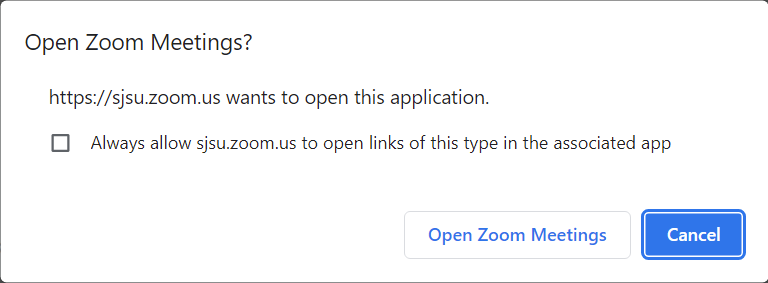
6. Zoom will download a launcher and click **Open zoom.us** if a system dialog pops up

<div id="bkmrk--2"><div data-index="3"><div><div></div></div></div><div data-index="4">[![01.png](https://kb.mlml.sjsu.edu/uploads/images/gallery/2022-08/scaled-1680-/01.png)](https://kb.mlml.sjsu.edu/uploads/images/gallery/2022-08/01.png)</div><div data-index="5"><div><div></div></div></div></div>- To Invite others while meeting is started, click the **Invite** button at the bottom of the Zoom user interface and select the participants via email address or contact list
- You could also edit the participant list by clicking **Manage Participants**, which is next to the Invite button

**NOTE:** All CSUMB, SJSU, and Research Foundation Faculty, Staff, and Students should be able to login to [Zoom](https://sjsu.zoom.us/). If you are unable to login to Zoom, please submit an IT Helpdesk Ticket.

##### Large Meeting Tips:

- <span style="font-weight: 400;">Wait to admit participants until the meeting starts</span>
- <span style="font-weight: 400;">Participants with raised hands will rise to the top of the recipient list</span>
- <span style="font-weight: 400;">Assign multiple Co-Hosts to help moderate a large meeting</span>
- <span style="font-weight: 400;">Pause the recording until all participants are in the meeting and the meeting starts</span>

<div id="bkmrk-to-make-a-meeting-ea"><div><div><div data-index="6"><div>**To make a meeting easier to join for your group, try embedding the password into the invitation with these steps:**</div>1. Open up Zoom in your internet browser and sign in to your account
2. Go to the "settings" tab on the left hand side [![02.png](https://kb.mlml.sjsu.edu/uploads/images/gallery/2022-08/scaled-1680-/02.png)](https://kb.mlml.sjsu.edu/uploads/images/gallery/2022-08/02.png)
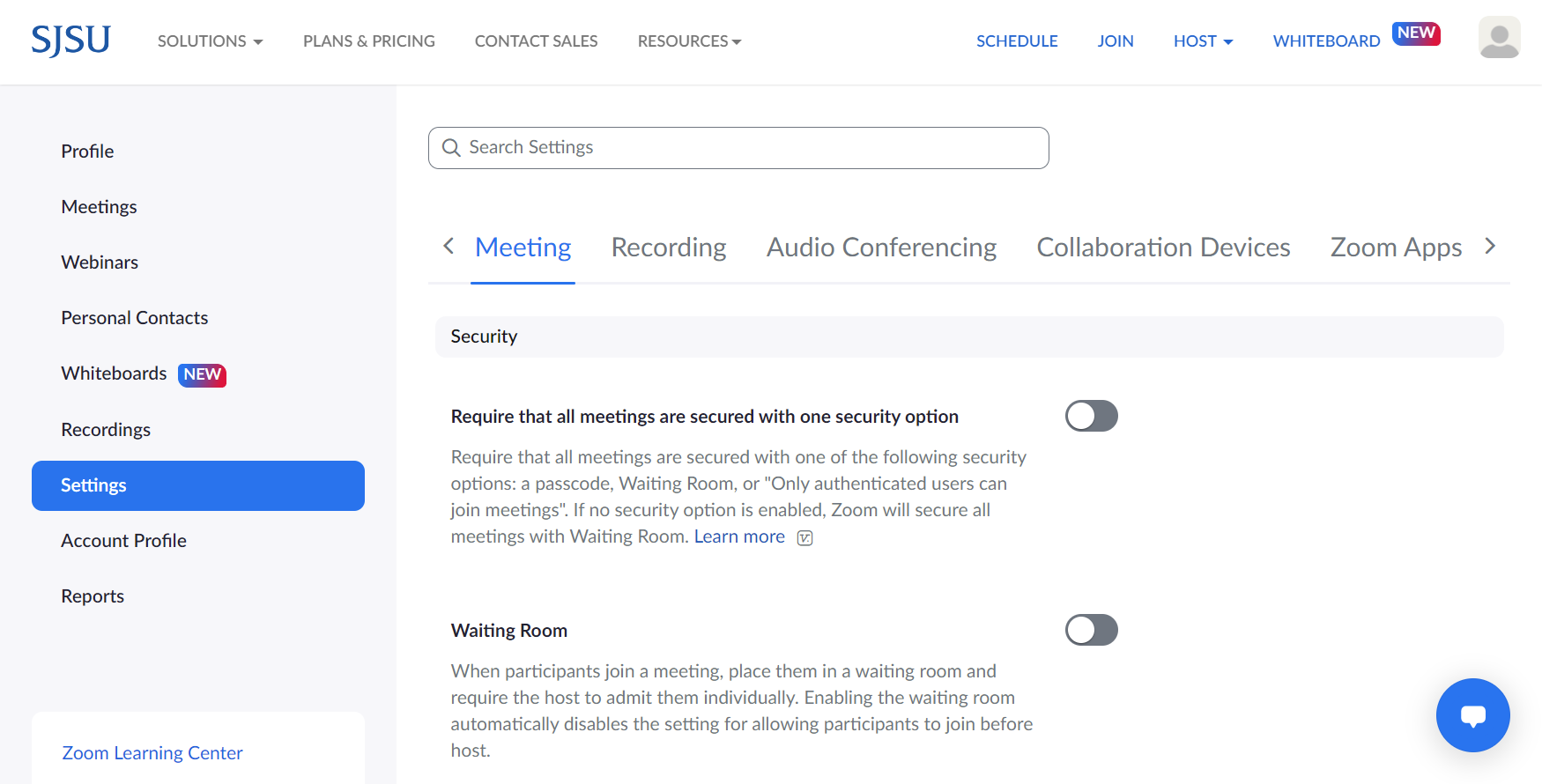
3. Under the "meeting" settings, go to the "security" subsection
4. Check the box next to "embed passcode in invite link for one-click join"[![Screen-Shot-2020-09-28-at-1.04.12-PM.png](https://kb.mlml.sjsu.edu/uploads/images/gallery/2020-09-Sep/scaled-840-0/Screen-Shot-2020-09-28-at-1.04.12-PM.png)](https://kb.mlml.sjsu.edu/uploads/images/gallery/2020-09-Sep/Screen-Shot-2020-09-28-at-1.04.12-PM.png)

</div></div></div></div>### Enabling and Adding a Co-Host for Room Moderation

<div id="bkmrk--3"><div><div><div data-index="7"><div><div>---

</div></div></div></div></div></div>When hosting large Zoom Meetings, you might want to add a co-host, to help you moderate or facilitate the meeting.

#### **Enabling Co-host**

**Enabling Co-host on Your Account**

To enable the Co-host feature for all members of your organization:

1\. Sign into the Zoom web portal, click settings.

2\. Scroll down to the In Meeting settings and locate the Co-host option and verify that the setting is enabled.

3\. If the setting is disabled, click the Status toggle to enable it. If a verification dialog displays, choose Turn On to verify the change.

<div id="bkmrk--4"><div><div><div data-index="7"><div><div></div></div></div><div data-index="8"><div><div>[![04.PNG](https://kb.mlml.sjsu.edu/uploads/images/gallery/2022-08/scaled-1680-/04.PNG)](https://kb.mlml.sjsu.edu/uploads/images/gallery/2022-08/04.PNG)</div></div></div></div></div></div>**Enabling Co-host on a Specific Group**

To enable the Co-host feature for all members of a specific group:

1\. Sign into the Zoom web portal as an administrator with the privilege to edit User groups, and click Group Management.

2\. Click the name of the group, then click the Settings tab.

3\. Navigate to the Co-host option on the Meeting tab and verify that the setting is enabled.

4\. If the setting is disabled, click the Status toggle to enable it. If a verification dialog displays, choose Turn On to verify the change.

<div id="bkmrk--5"><div data-index="9"><div><div></div></div></div><div data-index="10">[![04.PNG](https://kb.mlml.sjsu.edu/uploads/images/gallery/2022-08/scaled-1680-/04.PNG)](https://kb.mlml.sjsu.edu/uploads/images/gallery/2022-08/04.PNG)</div><div data-index="11"><div><div></div></div></div></div>5\. Note: If the option is grayed out, it has been locked at the Account level, and needs to be changed at that level.

6\. (Optional) If you want to make this setting mandatory for all users in this group, click the lock icon, and then click Lock to confirm the setting.

**Enabling Co-host in your own meetings**

To enable the Co-host feature for your own use:

1\. Sign into the Zoom web portal and click My Meeting Settings (if you are an account administrator) or Meeting Settings (if you are an account member).

2\. Navigate to the Co-host option on the Meeting tab and verify that the setting is enabled.

3\. If the setting is disabled, click the Status toggle to enable it. If a verification dialog displays, choose Turn On to verify the change.

<div id="bkmrk--6"><div data-index="11"><div><div></div></div></div><div data-index="12">[![04.PNG](https://kb.mlml.sjsu.edu/uploads/images/gallery/2022-08/scaled-1680-/04.PNG)](https://kb.mlml.sjsu.edu/uploads/images/gallery/2022-08/04.PNG)</div><div data-index="13"><div><div></div></div></div></div>4\. Note: If the option is grayed out, it has been locked at either the Group or Account level, and you will need to contact your Zoom administrator.

#### **Using Co-host in a Meeting**

There are two ways that you can make a user a co-host.

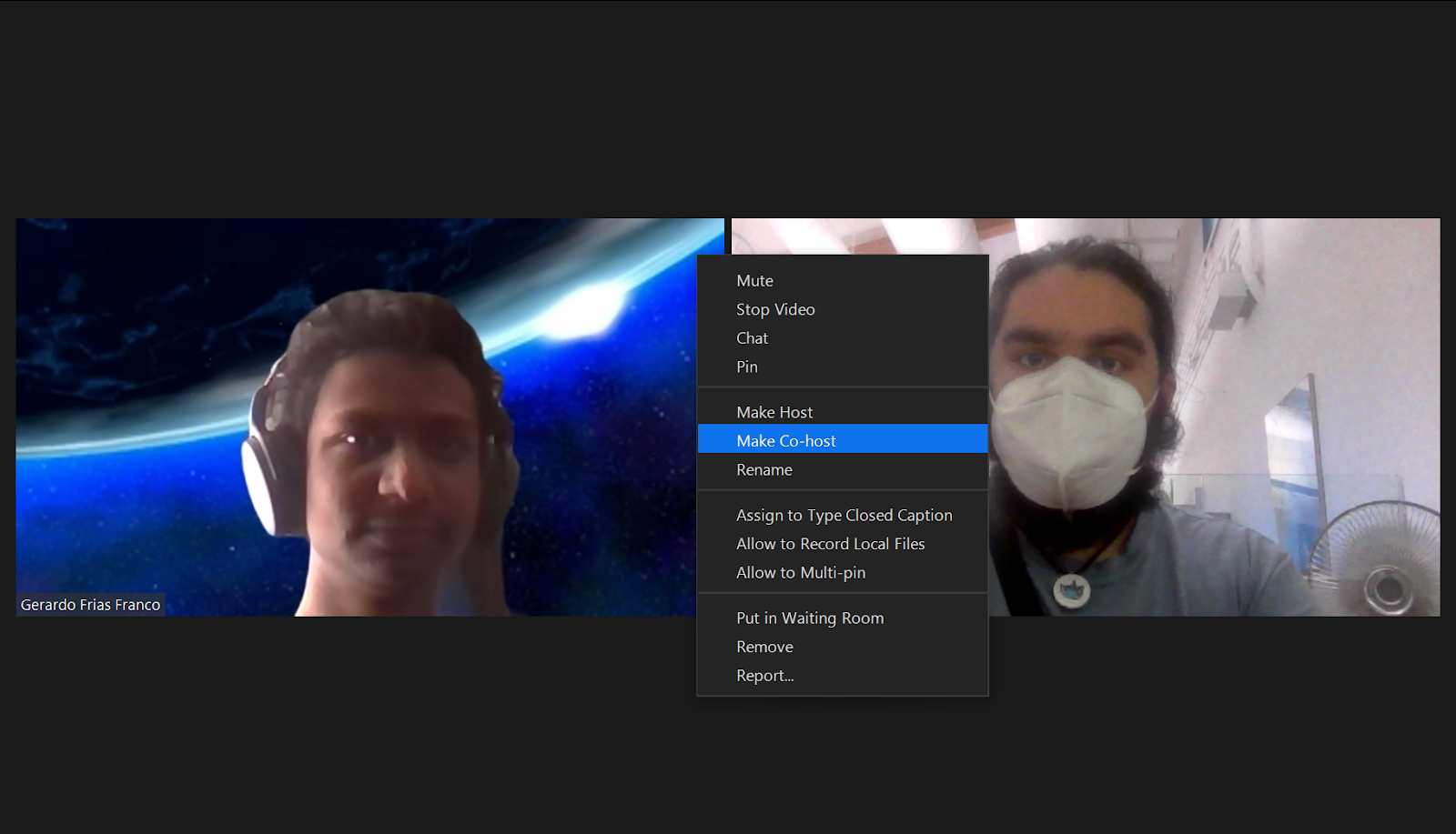
<div id="bkmrk-in-the-meeting%2C-the-"><div><div><div data-index="13"><div><div>- In the meeting, the host hovers over the user's video, clicks on the three dots and chooses Make Co-Host.

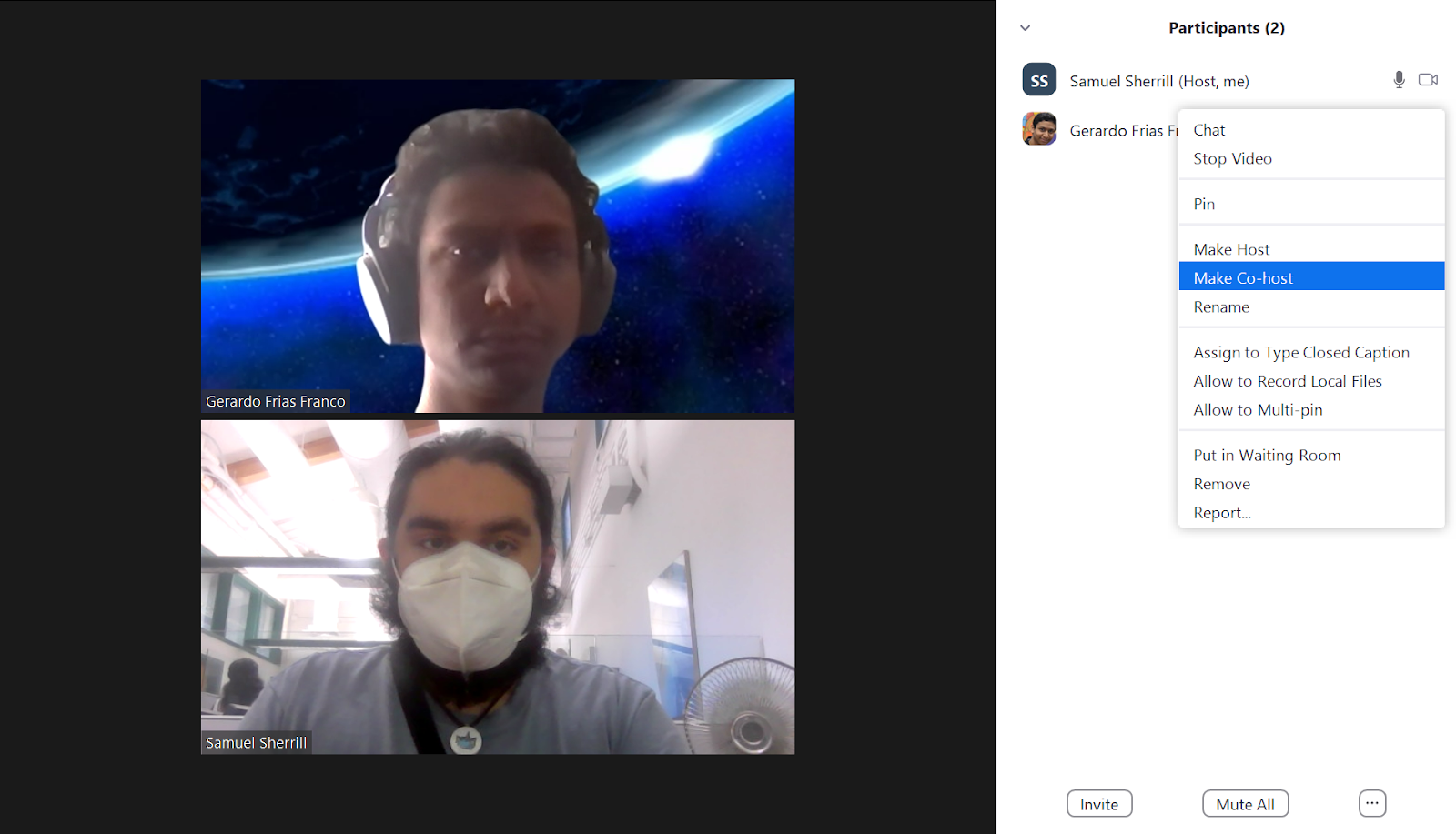
</div></div></div><div data-index="14"><div><div>[![5.png](https://kb.mlml.sjsu.edu/uploads/images/gallery/2022-08/scaled-1680-/5.png)](https://kb.mlml.sjsu.edu/uploads/images/gallery/2022-08/5.png)</div></div></div><div data-index="15"><div><div>- Alternatively, the host can make another participant a co-host through the Participants window.

</div></div></div></div></div></div>1\. Click on Manage Participants in the meeting controls at the bottom of the Zoom window.

<div id="bkmrk--7"><div data-index="16">[![6.PNG](https://kb.mlml.sjsu.edu/uploads/images/gallery/2022-08/scaled-1680-/6.PNG)](https://kb.mlml.sjsu.edu/uploads/images/gallery/2022-08/6.PNG)</div><div data-index="17"><div><div></div></div></div></div>2\. Hover over the name of the participant who is going to be a co-host, and choose More.

3\. Click Make Co-Host.

Once a participant has been made a Co-host, they'll have access to the [co-host controls](https://support.zoom.us/hc/en-us/articles/360016056751). For more information see [Enabling and Adding a Co-Host](https://support.zoom.us/hc/en-us/articles/206330935-Enabling-and-Adding-a-Co-Host).

<div id="bkmrk--8"><div data-index="17"><div><div></div></div></div><div data-index="18">[![7.png](https://kb.mlml.sjsu.edu/uploads/images/gallery/2022-08/scaled-1680-/7.png)](https://kb.mlml.sjsu.edu/uploads/images/gallery/2022-08/7.png)</div></div><div id="bkmrk--9"><div><div><div data-index="19"><div></div></div></div></div></div>### Enable Waiting Room

---

When hosting a large zoom meeting, enabling a waiting room allows you to control who can join a meeting and when.

**Enabling the Waiting Room**

1. While scheduling a meeting, under **Meeting Options** select Enable waiting room

**Admitting Participants**

One by one:

1. During the meeting click on **Manage Participants** at the bottom of the screen
2. Click **Admit** next to the participant(s) you would like to join the meeting

All at once:

1. During the meeting click on **Manage Participants** at the bottom of the screen
2. Click **Admit All** in the top right corner of the window

**Removing a Participant from the Waiting Room**

1. During the meeting click on **Manage Participants** at the bottom of the screen
2. Click **Remove** next to the unwanted participant

### Audio and Video Settings

<div id="bkmrk--11">---

<div data-index="20"><iframe allowfullscreen="allowfullscreen" data-mce-fragment="1" frameborder="0" height="360" src="//www.youtube.com/embed/ugda61PyFIo" width="640"></iframe>

</div></div>1\. Make sure the Zoom application window (small box) is open and selected as your primary window

2\. Navigate to the settings at the top right the application

3\. Select audio or video tab

a. Under the Audio menu, you can select your audio input/output and the adjust the sound level

b. Under the Video menu, you can configure your webcam and adjust the display settings

4\. You can also configure your audio and video settings during a conference call on the bottom left corner of the menu by clicking the pull-up tab

<div id="bkmrk--12"><div>[![8.PNG](https://kb.mlml.sjsu.edu/uploads/images/gallery/2022-08/scaled-1680-/8.PNG)](https://kb.mlml.sjsu.edu/uploads/images/gallery/2022-08/8.PNG)</div></div>#### **Audio by Phone**

<div id="bkmrk-select-pull-up-tab-b"><div><div><div data-index="23"><div><div>1. Select pull-up tab by mic icon (see above)
2. Click **Leave Computer Audio**
3. Select **Join Audio** and click the **Phone Call** tab
4. Dial one of the numbers provided
5. Enter your meeting ID, followed by #
6. Enter your participant ID, followed by #

</div></div></div></div></div></div>#### **Mute/Unmute**

You can mute and unmute yourself by clicking on the microphone icon or by using [push to talk](https://support.zoom.us/hc/en-us/articles/360000510003-Push-to-Talk).

Or use the following shortcuts:

**For PC:**

<div id="bkmrk-alt-%2B-a-%3A-mute-or-un"><div><div><div data-index="23"><div><div>- Alt + A : Mute or Unmute

</div></div></div></div></div></div>**For Mac:**

<div id="bkmrk-shift-%2B-command-%2B-a%3A"><div><div><div data-index="23"><div><div>- Shift + Command + A: Mute or Unmute

</div></div></div></div></div></div>**For telephone:**

<div id="bkmrk-%2A6-%3A-mute-or-unmute"><div data-index="23"><div><div>- \*6 : Mute or Unmute

</div></div></div><div data-index="24">[![9.png](https://kb.mlml.sjsu.edu/uploads/images/gallery/2022-08/scaled-1680-/9.png)](https://kb.mlml.sjsu.edu/uploads/images/gallery/2022-08/9.png)</div><div data-index="25"><div><div></div></div></div></div>#### **Mute All/Unmute All**

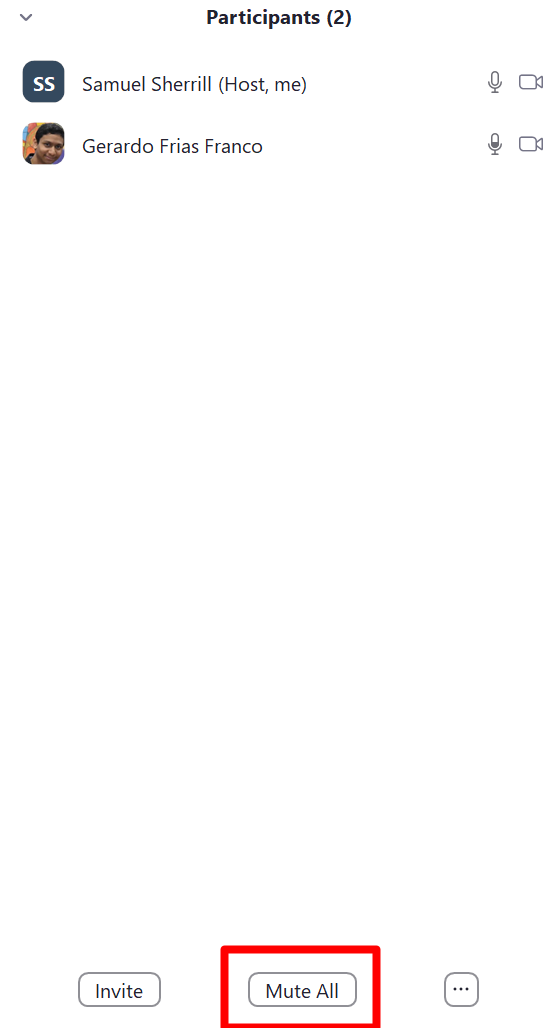
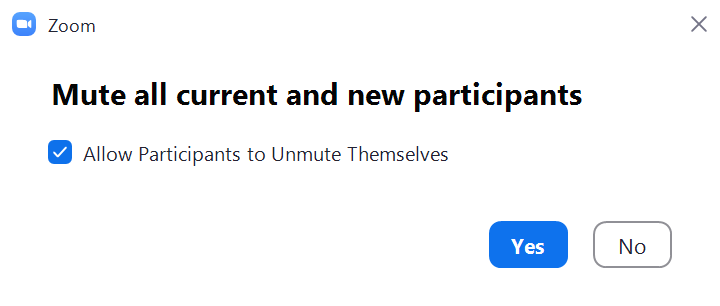
You can mute all participants that are already in the meeting as well as new participants joining the meeting.

1\. Select Manage Participants

<div id="bkmrk--13"><div data-index="25"><div><div></div></div></div><div data-index="26">[![6.PNG](https://kb.mlml.sjsu.edu/uploads/images/gallery/2022-08/scaled-1680-/6.PNG)](https://kb.mlml.sjsu.edu/uploads/images/gallery/2022-08/6.PNG)</div><div data-index="27"><div><div></div></div></div></div>2\. Select Mute All

<div id="bkmrk--14"><div data-index="28">[![11.PNG](https://kb.mlml.sjsu.edu/uploads/images/gallery/2022-08/scaled-1680-/uJF11.PNG)](https://kb.mlml.sjsu.edu/uploads/images/gallery/2022-08/uJF11.PNG)</div></div>3\. You will be prompted to Allow participants to unmute themselves. Clicking **Continue** will mute all current and new participants. You may unclick the check box if you do not want participants to be able to unmute themselves (you are still able to unmute them).

<div id="bkmrk--15"><div data-index="30">[![12.PNG](https://kb.mlml.sjsu.edu/uploads/images/gallery/2022-08/scaled-1680-/12.PNG)](https://kb.mlml.sjsu.edu/uploads/images/gallery/2022-08/12.PNG)</div></div>#### **Full Screen**

Making your zoom window full screen is the recommended for the best viewing experience.

1. Once in a zoom meeting, click on **View** in the top right corner of the screen. This will open a drop-down menu. Click Fullscreen in that menu. [![13.png](https://kb.mlml.sjsu.edu/uploads/images/gallery/2022-08/scaled-1680-/13.png)](https://kb.mlml.sjsu.edu/uploads/images/gallery/2022-08/13.png)
2. You can exit full screen by click **Exit Full Screen** in the same location or by pressing the esc key on your keyboard.


### Record Zoom Meeting

<div id="bkmrk-navigate-to-the-menu"><div><div data-index="31"><div><div>---

1. Navigate to the menu at the bottom of the Zoom user interface
2. Click **Record**
3. You will be given the option to “Record on this Computer” or “Record to the Cloud”, if using MacOS

</div></div></div></div></div><div id="bkmrk--16"><div><div><div data-index="32"></div></div></div></div>### Creating Polls

<div id="bkmrk--17"><div><div><div data-index="32"><div><div>---

</div></div></div></div></div></div>1\. Go to your profile and click **Meeting Settings**

2\. Enable **Polling**

3\. Schedule a meeting (See [Host Zoom Meeting](https://docs.google.com/document/d/1f8caQRaxKkMAgLyOPoUJav9AXeM8octT6FdDKcymwgw/edit#heading=h.u8vo67tq94l0))

4\. Once created, under **Manage “My Meeting”** scroll to the bottom to **Poll** and click **Add**

a. **Adding Poll During Meeting**

i. Click **Polling** on the bottom menu

ii. Click **Add A Question** and click **Save** once entered

5\. Select **Start this Meeting** when you’re ready to start your conference

6\. Click **Polling** on the bottom menu

7\. Click **Launch Poll**

<div id="bkmrk--18"><div data-index="33">[![16.png](https://kb.mlml.sjsu.edu/uploads/images/gallery/2022-08/scaled-1680-/16.png)](https://kb.mlml.sjsu.edu/uploads/images/gallery/2022-08/16.png)</div></div>### Screen Sharing in Zoom Meeting

<div id="bkmrk--19"><div><div><div data-index="34"><div><div>---

</div></div></div></div></div></div>1\. Navigate to the menu at the bottom of the Zoom user interface

2\. Click **Share Screen**

a. Must be on PC or Mac

3\. You will be given the option to enable a single user to screen share at a time or allow multiple users to screen share simultaneously

a. These options can be further configured under **Advanced Sharing Options** in the pull-up tab next to the Share Screen button

4\. Select which opened file you want your participants to control and select **Share Screen** again

a. **Sharing iPad/iPhone Screen**

i. Select **iPad/iPhone Screen** or **iPhone/iPad via Cable**

ii. If prompted, choose to install the plug-in

iii. Follow the instructions to connect your iOS device

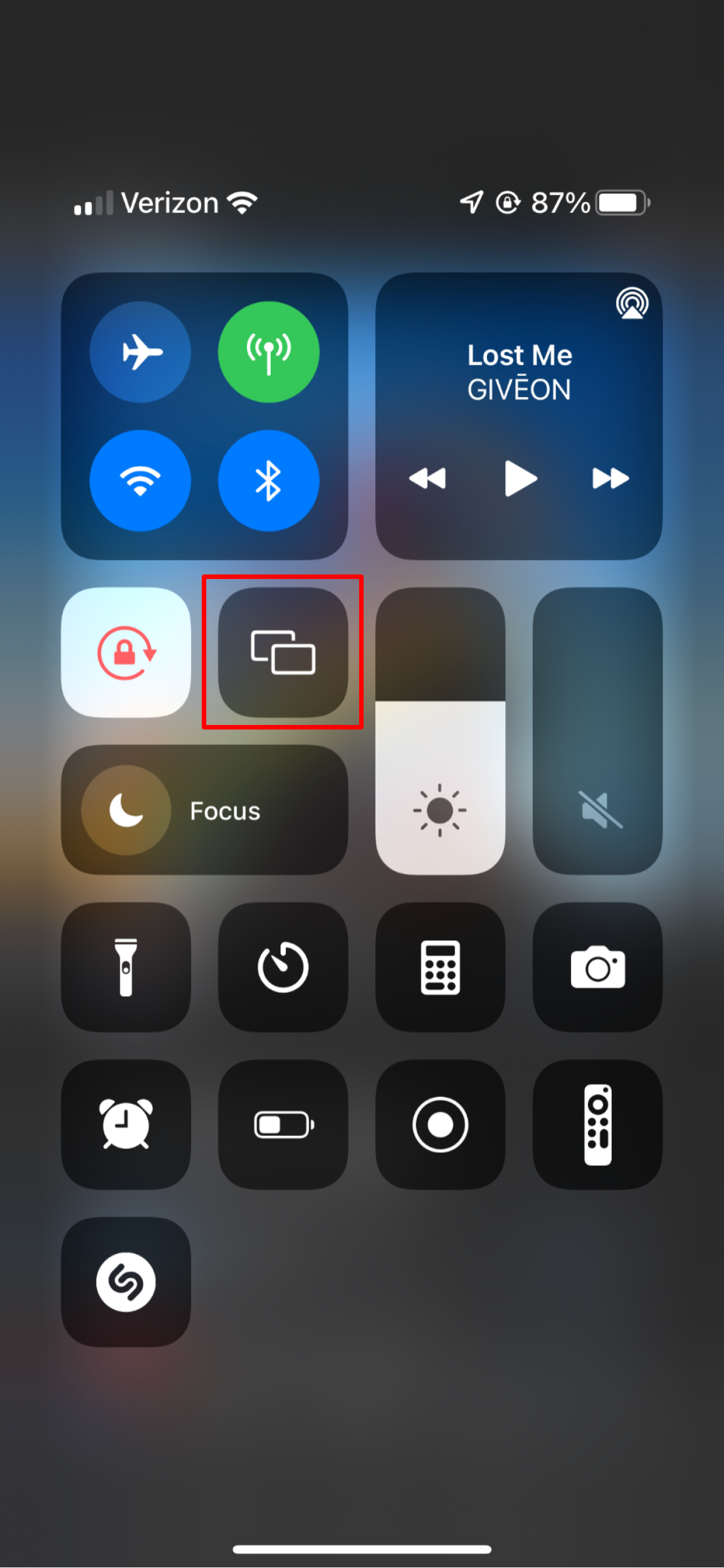
iv. On phone/ipad tap Screen Mirroring in control center and choose Zoom-your computer name

<div id="bkmrk--20"><div data-index="34"><div><div></div></div></div><div data-index="35">[![17.PNG](https://kb.mlml.sjsu.edu/uploads/images/gallery/2022-08/scaled-1680-/17.PNG)](https://kb.mlml.sjsu.edu/uploads/images/gallery/2022-08/17.PNG)</div></div><div id="bkmrk--21"></div>- **To view the Participants and Chat windows while sharing your screen**, scroll to the top of the Zoom app window and you should see the Participant and Chat buttons on the Options bar. If one is not visible, clicking the More button should show the missing button in a dropdown.

[![18.png](https://kb.mlml.sjsu.edu/uploads/images/gallery/2022-08/scaled-1680-/18.png)](https://kb.mlml.sjsu.edu/uploads/images/gallery/2022-08/18.png)

### Remote Control Computer Screen

---

1\. Click **Share Screen**

a. Must be on PC or Mac

2\. Select which opened file you want your participants to control and select **Share Screen** again

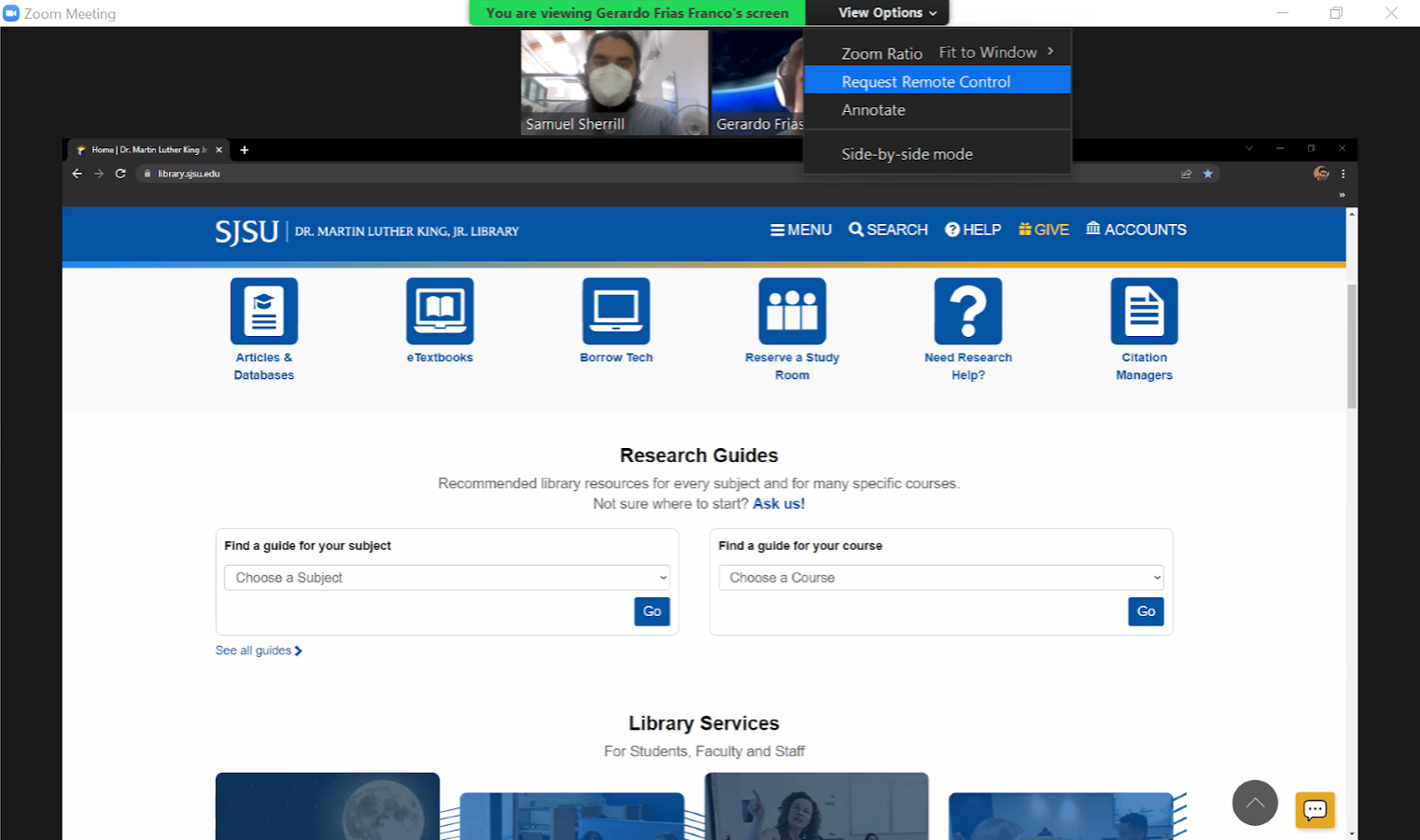
3\. In upper menu select **Remote Control** and select who you would like to control your screen

a. Participants viewing someone else’s screen can also click **Request remote control right** under **Options**

<div id="bkmrk--23"><div data-index="37">[![19.png](https://kb.mlml.sjsu.edu/uploads/images/gallery/2022-08/scaled-1680-/19.png)](https://kb.mlml.sjsu.edu/uploads/images/gallery/2022-08/19.png)</div></div>b. iPad: Touch and move the "Mouse icon" or tap the "Keyboard icon" to type.

<div id="bkmrk--24"><div><div><div data-index="39"><div><div>[![](https://mlml.sjsu.edu/itech/wp-content/uploads/sites/50/2018/11/image17.png)](https://mlml.sjsu.edu/itech/wp-content/uploads/sites/50/2018/11/image17.png)</div></div></div></div></div></div>#### **Regaining Control**

<div id="bkmrk-click-anywhere-on-yo"><div><div data-index="40"><div><div>1. Click anywhere on your screen

</div></div></div></div></div><div id="bkmrk--25"><div><div><div data-index="41"></div></div></div></div>### Leaving Zoom Meeting

<div id="bkmrk-leave-a-meeting-by-s"><div><div data-index="41"><div><div>---

1. Leave a meeting by selecting **Quit Zoom** under zoom.us or simply by closing the window
2. Hosts will be given the option to “End Meeting for All” or “Leave Meeting”

</div></div></div></div></div><div id="bkmrk--27"><div><div><div data-index="42"></div></div></div></div>### Classroom-Specific Guidelines

<div id="bkmrk--28"><div><div><div data-index="42"><div><div>---

</div></div></div></div></div></div>#### **Think Tank Meetings**

**(Request mac mini keyboard and mouse from IT helpdesk)**

**Set-up**

1\. Set-up the room (tables, chairs, etc)

a. Make sure tables and chairs are oriented towards the TV

b. **NOTE**: The webcam may be tested prior to starting a Zoom conference to ensure all individuals are in the field of view

2\. Power on the TV using the button on the left side of the TV

3\. Set input to the Mac mini by cycling through the sources using the button on the left side of the TV

4\. Launch the **zoom.us** Application

5\. Select one of the following options after signing in: 1) Start with Video, 2) Start without Video, 3) Join, 4) Schedule, 5) Share Screen

a. Click **Join Audio Conference by Computer** to enable audio or disable audio by closing the pop-up window

**Using the Conference Phone for audio**

- <span style="font-weight: 400;">The best option for audio in the Think Tank when using the webcam to display the room is to use a conference phone (located in the drawer of the cabinet in the Think Tank)</span>

[![8.PNG](https://kb.mlml.sjsu.edu/uploads/images/gallery/2022-08/scaled-1680-/8.PNG)](https://kb.mlml.sjsu.edu/uploads/images/gallery/2022-08/8.PNG)

**Audio by Phone**

- <span style="font-weight: 400;">Select pull-up tab by mic icon (see above)</span>
- <span style="font-weight: 400;">Click </span>**Leave Computer Audio**
- <span style="font-weight: 400;">Select </span>**Join Audio**<span style="font-weight: 400;"> and click the </span>**Phone Call**<span style="font-weight: 400;"> tab</span>
- <span style="font-weight: 400;">Dial one of the numbers provided</span>
- <span style="font-weight: 400;">Enter your meeting ID, followed by #</span>
- <span style="font-weight: 400;">Enter your participant ID, followed by #</span>

**Settings**

1\. Volume settings

a. May be adjusted on the TV or using the VIZIO remote

2\. Audio settings

a. The TV has a built-in microphone, an external microphone is not needed, but these settings may be changed in preferences

3\. Display settings

a. Zoom conference hosts have the option to display iOS and Android devices during a meeting

b. Screen sharing may be enabled by clicking Screen Share in the Zoom interface

i. You will be given the option to enable a single user to screen share at a time or allow multiple users to screen share simultaneously

ii. These options can be further configured under **Advanced Sharing Options** in the pull-up tab next to the Share Screen button

c. Dual monitors and fullscreen mode may be enabled under Preferences in the General tab

#### **Mobile Presentation Unit (MPU)**

**Connect your computer to an MPU**

<div id="bkmrk-connect-the-hdmi-cab"><div><div><div data-index="42"><div><div>1. Connect the HDMI cable to the video port on your computer and wait for the MPU to wake up.
2. Tap the “Share” button on the touch screen unit.
3. Tap the orange “PC HDMI” button on the touch screen unit.   
    Your computer should now display on the MPU screen.

</div></div></div></div></div></div>**Join an MPU to a Video Conference using Zoom**

1\. Sign into zoom using[ SJSU](https://sjsu.zoom.us/) or[ CSUMB](https://csumb.edu/cat/free-software) username and password

2\. Open zoom interface and click start with video

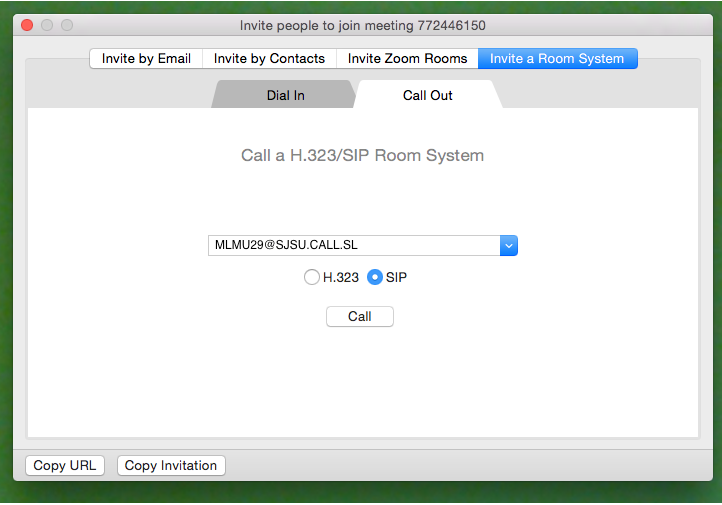
3\. Click Invite **→** Invite a Room System (on the top right) **→** Call Out tab

4\. Click on the SIP radio button and enter the SIP address for the MPU to which you wish to connect:

a. For the MPU in the group study, enter: **MLMU29@SJSU.CALL.SL**

b. For the MPU in the student conference room, enter: **MLMU20@SJSU.CALL.SL**

5\. Zoom will dial the MPU and people in that room can answer the call and join the conference.

a. The screenshot below shows how inviting a room system looks:

<div id="bkmrk--29"><div><div><div data-index="43"><div><div>[![Zoom Invitation](https://kb.mlml.sjsu.edu/uploads/images/gallery/2019-05-May/scaled-840-0/Screen-Shot-2019-05-10-at-1.05.07-PM.png)](https://kb.mlml.sjsu.edu/uploads/images/gallery/2019-05-May/Screen-Shot-2019-05-10-at-1.05.07-PM.png)</div></div></div><div data-index="44"><div><div></div></div></div></div></div></div>**How to host a video conference call using a MPU system**

1\. Sign into Zoom using[ SJSU](https://sjsu.zoom.us/) or[ CSUMB](https://csumb.zoom.us) username and password

2\. Open Zoom interface and click Start with Video

3\. Invite people to the conference call by clicking Invite **→** Invite by Email**→** pick the email you want to use and send

4\. Add the room system by clicking Invite **→** Invite a Room System (on the top right) **→** Call Out tab

a. The screenshot below shows how inviting a room system looks

<div id="bkmrk--30"><div><div><div data-index="44"><div><div></div></div></div><div data-index="45"><div><div>[![Zoom Invitation](https://kb.mlml.sjsu.edu/uploads/images/gallery/2019-05-May/scaled-840-0/Screen-Shot-2019-05-10-at-1.05.07-PM.png)](https://kb.mlml.sjsu.edu/uploads/images/gallery/2019-05-May/Screen-Shot-2019-05-10-at-1.05.07-PM.png)</div></div></div><div data-index="46"><div><div></div></div></div></div></div></div>5\. After inviting everyone turn off your audio and video on your personal computer

6\. The conference call should now be coming through the MPU system

**<span style="font-size: 11pt; font-family: Arial; color: #000000; background-color: transparent; font-style: normal; font-variant: normal; text-decoration: none; vertical-align: baseline; white-space: pre-wrap;">Setting Up Zoom Room</span>

<span style="font-size: 11pt; font-family: Arial; color: #000000; background-color: transparent; font-weight: 400; font-style: normal; font-variant: normal; text-decoration: none; vertical-align: baseline; white-space: pre-wrap;">Open Zoom</span>

<span style="font-size: 11pt; font-family: Arial; color: #000000; background-color: transparent; font-weight: bold; font-style: normal; font-variant: normal; text-decoration: none; vertical-align: baseline; white-space: pre-wrap;">Select Call a Room</span>

<span style="font-size: 11pt; font-family: Arial; color: #000000; background-color: transparent; font-weight: 400; font-style: normal; font-variant: normal; text-decoration: none; vertical-align: baseline; white-space: pre-wrap;">Enter the SIP: Found on MPU Device Setup (On the physical station)</span>

<span style="font-size: 11pt; font-family: Arial; color: #000000; background-color: transparent; font-weight: bold; font-style: normal; font-variant: normal; text-decoration: none; vertical-align: baseline; white-space: pre-wrap;">Start a Zoom Meeting</span>

<span style="font-size: 11pt; font-family: Arial; color: #000000; background-color: transparent; font-weight: 400; font-style: normal; font-variant: normal; text-decoration: none; vertical-align: baseline; white-space: pre-wrap;">Join with computer audio</span>

<span style="font-size: 11pt; font-family: Arial; color: #000000; background-color: transparent; font-weight: 400; font-style: normal; font-variant: normal; text-decoration: none; vertical-align: baseline; white-space: pre-wrap;">Click Participants &gt; Invite Participants</span>

<span style="font-size: 11pt; font-family: Arial; color: #000000; background-color: transparent; font-weight: 400; font-style: normal; font-variant: normal; text-decoration: none; vertical-align: baseline; white-space: pre-wrap;"><span style="border: 2pt solid #ff0000; display: inline-block; overflow: hidden; width: 566px; height: 431px;">![](https://lh3.googleusercontent.com/a4TMNPsgAwwdg5OONx3c0iZm7XZFjFwnXYUIyg_ARLUuJ2VhUYbcNDScCb1qBZgXMy4cTefXPWVxIsgLa-ILTZ6M1KgUcXTLH3xmhc_OnPr_VlznMGMmtvW1pFVVtgEKWmgpRfB8b4DzC6fFzz2NrlIj0Lwpw0Y6jp0GSb6hubyuSPadux_TGrWt)</span></span>

<span style="font-size: 11pt; font-family: Arial; color: #000000; background-color: transparent; font-weight: 400; font-style: normal; font-variant: normal; text-decoration: none; vertical-align: baseline; white-space: pre-wrap;">On the ribbon, choose the “Room Systems” option</span>

<span style="font-size: 11pt; font-family: Arial; color: #000000; background-color: transparent; font-weight: 400; font-style: normal; font-variant: normal; text-decoration: none; vertical-align: baseline; white-space: pre-wrap;"><span style="border: none; display: inline-block; overflow: hidden; width: 466px; height: 42px;">![](https://lh4.googleusercontent.com/lFehiU4ttQeegLAizOK_HaT68DuQWL--zXYNVbW_Ml1qgVXuE8ZgOWZYmAcE7CZoC5RlhJlSksSU5w9Pq-zZsRCih4SwdDIU7F49lDvjyBKilDA8efWDAupnMyu5PjglirKRA3pVGesZwaZfwBCPfj5wvnCzaWtcZMwUGCyQWRFJPgn6FUyq5giU)</span></span>

<span style="font-size: 11pt; font-family: Arial; color: #000000; background-color: transparent; font-weight: 400; font-style: italic; font-variant: normal; text-decoration: none; vertical-align: baseline; white-space: pre-wrap;">Pairing Code</span>

<span style="font-size: 11pt; font-family: Arial; color: #000000; background-color: transparent; font-weight: 400; font-style: normal; font-variant: normal; text-decoration: none; vertical-align: baseline; white-space: pre-wrap;">Under 1. in the dial in section, there will be numbers available based on region. Determine the number that is applicable (US West)</span>

<span style="font-size: 11pt; font-family: Arial; color: #000000; background-color: transparent; font-weight: 400; font-style: normal; font-variant: normal; text-decoration: none; vertical-align: baseline; white-space: pre-wrap;">Dial that number on the MPU touch screen</span>

<span style="font-size: 11pt; font-family: Arial; color: #000000; background-color: transparent; font-weight: 400; font-style: normal; font-variant: normal; text-decoration: none; vertical-align: baseline; white-space: pre-wrap;"><span style="border: none; display: inline-block; overflow: hidden; width: 312px; height: 187px;">![](https://lh6.googleusercontent.com/l2-dfBoC5KnDphNLK4koITv1YMqzokk3AdaCeB_PzR06bcVl-AjgLSX4n29YD9SKCulbXfPGUr3ZgeqpPlnXPIkV71ukrc-LmtraTSQ7B8GlBOXiW4jmXT7tSPb3yn7synz3Z7kZl9A_f9yQ7M7J3MjPccV3LZChxZtzdnSHpL_UasJbb-gJdRGa)</span></span><span style="font-size: 11pt; font-family: Arial; color: #000000; background-color: transparent; font-weight: 400; font-style: normal; font-variant: normal; text-decoration: none; vertical-align: baseline; white-space: pre-wrap;"><span style="border: none; display: inline-block; overflow: hidden; width: 206px; height: 178px;">![](https://lh6.googleusercontent.com/dkaCcUIUxbXLAbxnVqHt9IifVlbB7Fgs6nBJBbuHKZL-wS0wVYETX3EfOoyIWTi8igaH3r5sgJJXsksmtxGlnipUt4iSsbscUce20vGt9ySqrI5E_CG0RBVZmqtgcB6Y96WL7nlzv5NhY8XZzo2E0ruWp0SkNJe5oMXc_isMUiICUP8ncWQpqfuv)</span></span>

<span style="font-size: 11pt; font-family: Arial; color: #000000; background-color: transparent; font-weight: 400; font-style: normal; font-variant: normal; text-decoration: none; vertical-align: baseline; white-space: pre-wrap;">Zoom will ask user to input the Meeting ID # or display a pairing code (i.e BTBTS)</span>

<span style="font-size: 11pt; font-family: Arial; color: #000000; background-color: transparent; font-weight: 400; font-style: normal; font-variant: normal; text-decoration: none; vertical-align: baseline; white-space: pre-wrap;"><span style="border: 2pt solid #d9d9d9; display: inline-block; overflow: hidden; width: 350px; height: 274px;">![](https://lh4.googleusercontent.com/NNtnEVungOSVLP4K4KbN_dUcgF0e1VSHzyoYRhsw7g9H7-o93KfoiZsRXZ85V0kzByczRnmwMKhrQS4rOx_cAG6zwt15HNP_BafFWi_V-SO4CTeEauVkRkm-osdj7hS70NwD9a69OzyZjfwB9xc7H_VXdHrHFX9frxVIN_DVs3LKQ25Mtnsd7Dw6)</span></span>

<span style="font-size: 11pt; font-family: Arial; color: #000000; background-color: transparent; font-weight: 400; font-style: normal; font-variant: normal; text-decoration: none; vertical-align: baseline; white-space: pre-wrap;">Enter the pairing code in the Zoom invite dial in window. </span>

<span style="font-size: 11pt; font-family: Arial; color: #000000; background-color: transparent; font-weight: 400; font-style: normal; font-variant: normal; text-decoration: none; vertical-align: baseline; white-space: pre-wrap;">Select Invite</span>

<span style="font-size: 11pt; font-family: Arial; color: #000000; background-color: transparent; font-weight: 400; font-style: italic; font-variant: normal; text-decoration: none; vertical-align: baseline; white-space: pre-wrap;">Dial-In</span>

<span style="font-size: 11pt; font-family: Arial; color: #000000; background-color: transparent; font-weight: 400; font-style: normal; font-variant: normal; text-decoration: none; vertical-align: baseline; white-space: pre-wrap;">For the Dial-In option, the user can contact the Zoom from the MPU device.</span>

<span style="font-size: 11pt; font-family: Arial; color: #000000; background-color: transparent; font-weight: 400; font-style: normal; font-variant: normal; text-decoration: none; vertical-align: baseline; white-space: pre-wrap;">Under 1. There will be numbers available based on region. Determine the number that is applicable (US West)</span>

<span style="font-size: 11pt; font-family: Arial; color: #000000; background-color: transparent; font-weight: 400; font-style: normal; font-variant: normal; text-decoration: none; vertical-align: baseline; white-space: pre-wrap;">Dial that number in the MPU touch screen </span><span style="font-size: 11pt; font-family: Arial; color: #ff0000; background-color: transparent; font-weight: 400; font-style: normal; font-variant: normal; text-decoration: none; vertical-align: baseline; white-space: pre-wrap;">\[As shown above\]</span>

<span style="font-size: 11pt; font-family: Arial; color: #000000; background-color: transparent; font-weight: 400; font-style: normal; font-variant: normal; text-decoration: none; vertical-align: baseline; white-space: pre-wrap;">Zoom will ask user to input the Meeting ID #. Type the Meeting ID using the touchpad and press the pound (Hashtag, # ) key to join </span><span style="font-size: 11pt; font-family: Arial; color: #ff0000; background-color: transparent; font-weight: 400; font-style: normal; font-variant: normal; text-decoration: none; vertical-align: baseline; white-space: pre-wrap;">\[Meeting ID Can Be found at the top left of the Invite Window\]</span>

<span style="font-size: 11pt; font-family: Arial; color: #000000; background-color: transparent; font-weight: 400; font-style: normal; font-variant: normal; text-decoration: none; vertical-align: baseline; white-space: pre-wrap;">Zoom will ask the user to input the Meeting Password. Type the Meeting Password using the touchpad and press the pound (Hashtag, # ) key to join </span><span style="font-size: 11pt; font-family: Arial; color: #ff0000; background-color: transparent; font-weight: 400; font-style: normal; font-variant: normal; text-decoration: none; vertical-align: baseline; white-space: pre-wrap;">\[Meeting Password Can Be found at the top left of the Invite Window\]</span>

<span style="font-size: 11pt; font-family: Arial; color: #000000; background-color: transparent; font-weight: 400; font-style: normal; font-variant: normal; text-decoration: none; vertical-align: baseline; white-space: pre-wrap;">User should now be in the meeting</span>

<span style="font-size: 11pt; font-family: Arial; color: #000000; background-color: transparent; font-weight: 400; font-style: italic; font-variant: normal; text-decoration: none; vertical-align: baseline; white-space: pre-wrap;">Call-Out</span>

<span style="font-size: 11pt; font-family: Arial; color: #000000; background-color: transparent; font-weight: 400; font-style: normal; font-variant: normal; text-decoration: none; vertical-align: baseline; white-space: pre-wrap;">For the Call-Out option, the user can use their personal device to telephone the MPU device.</span>

<span style="font-size: 11pt; font-family: Arial; color: #000000; background-color: transparent; font-weight: 400; font-style: normal; font-variant: normal; text-decoration: none; vertical-align: baseline; white-space: pre-wrap;">Choose the Call-Out option &gt; Choose SIP</span>

<span style="font-size: 11pt; font-family: Arial; color: #000000; background-color: transparent; font-weight: 400; font-style: normal; font-variant: normal; text-decoration: none; vertical-align: baseline; white-space: pre-wrap;"><span style="border: none; display: inline-block; overflow: hidden; width: 624px; height: 352px;">![](https://lh4.googleusercontent.com/r-JCQGpQxNuvSXJL3xV4fhrUGo9oDDYH4gJOuFAb2bC_65A2EbwIlROJt1v7O8YK1afV8FcuS1yGHYisGwgdBmF_0yC8pWk4ePkCIaTFVKdm-NuzYkuU37CP2G04PY2WcCfdqB5NV3dVSWTmLltSitmcAUTLuOhsLBWPo3nM85c9b9YyvbDXgSoe)</span></span>

<span style="font-size: 11pt; font-family: Arial; color: #000000; background-color: transparent; font-weight: 400; font-style: normal; font-variant: normal; text-decoration: none; vertical-align: baseline; white-space: pre-wrap;">Enter the IP address or URL: Located on the MPU device setup &gt; Call</span>

<span style="font-size: 11pt; font-family: Arial; color: #000000; background-color: transparent; font-weight: 400; font-style: normal; font-variant: normal; text-decoration: none; vertical-align: baseline; white-space: pre-wrap;">The MPU should display an incoming call from Zoom+Meeting ID</span>

<span style="font-size: 11pt; font-family: Arial; color: #000000; background-color: transparent; font-weight: 400; font-style: normal; font-variant: normal; text-decoration: none; vertical-align: baseline; white-space: pre-wrap;">Answer the call to connect your Zoom Room</span>

<span style="font-size: 11pt; font-family: Arial; color: #000000; background-color: transparent; font-weight: 400; font-style: normal; font-variant: normal; text-decoration: none; vertical-align: baseline; white-space: pre-wrap;"><span style="border: none; display: inline-block; overflow: hidden; width: 624px; height: 367px;">![](https://lh3.googleusercontent.com/5DO6yW2TK8Nnxl6QKFcuWY6mC-UKIMP_2l4Ndgnmfx5asrmMSHD0SpgmcJj0CMtXDwmhkbxeuPQy1gRrpQWslFmZxrtfUvHND_gYhlHag4am98DZ_IWrIXhW4ymSuW5CqqC42_-5-GHNK3BNRLh-MVrAJCnxwBbBT2eeVjTkQrSKyfvv9Grf0rp1)</span></span>

**Troubleshooting the MPU**

If the MPU will not play sound, and the volume controls are not helping (possible solution to other issues).   
Please contact the IT Help Desk Staff to request technical support. The Help Desk Techs will perform the following:

1\. Try a hard reboot.

a. Unplug it and plug it back in.

b. Wait for it to boot and connect.

# Zoom for Remote Teaching at MLML

### How to host a Remote Class at MLML using Zoom:

**For a more comprehensive guide for using Zoom, follow [this link](https://kb.mlml.sjsu.edu/books/collaboration-communication-tools/page/zoom-video-conferencing-and-more).**

**For Zoom Security Best Practices &amp; Recommendations, follow [this link](https://kb.mlml.sjsu.edu/books/collaboration-communication-tools/page/zoom-security-best-practices-recommendations).**

####  

#### **What you will need:**

- **Laptop**<span style="font-weight: 400;"> - for hosting the Zoom meeting</span>
    - <span style="font-weight: 400;">Download the [Zoom App](https://zoom.us/support/download)</span>
- **Mobile Phone**<span style="font-weight: 400;"> (to sign in to Duo)</span>
- <span style="font-weight: 400;">**Conference Phone** (optional to enhance audio if in a group)</span>

####  

#### **The setup procedure is as follows:**

1. **Download**<span style="font-weight: 400;"> the </span>[<span style="font-weight: 400;">Zoom App</span>](https://zoom.us/support/download)
2. <span style="font-weight: 400;">Go to </span>[<span style="font-weight: 400;">https://sjsu.zoom.us/</span>](https://sjsu.zoom.us/)<span style="font-weight: 400;"> and click the </span>**Sign In**<span style="font-weight: 400;"> button  
      
    [![Screen-Shot-2020-03-18-at-3.12.08-PM.png](https://kb.mlml.sjsu.edu/uploads/images/gallery/2020-03-Mar/scaled-840-0/Screen-Shot-2020-03-18-at-3.12.08-PM.png)](https://kb.mlml.sjsu.edu/uploads/images/gallery/2020-03-Mar/Screen-Shot-2020-03-18-at-3.12.08-PM.png)  
    </span>
3. <span style="font-weight: 400;">Sign in and authenticate with Duo</span>
4. <span style="font-weight: 400;">Click </span>**Schedule a Meeting**<span style="font-weight: 400;"> - fill in the information and choose the following options:  
      
    [![Screen-Shot-2020-03-18-at-3.09.59-PM.png](https://kb.mlml.sjsu.edu/uploads/images/gallery/2020-03-Mar/scaled-840-0/Screen-Shot-2020-03-18-at-3.09.59-PM.png)](https://kb.mlml.sjsu.edu/uploads/images/gallery/2020-03-Mar/Screen-Shot-2020-03-18-at-3.09.59-PM.png)  
    </span>
    - <span style="font-weight: 400;">Topic: Class # and Title</span>
    - <span style="font-weight: 400;">Fill in Date &amp; Time of class</span>
        - <span style="font-weight: 400;">Select Recurring Meeting &gt; Weekly  
            </span>
    - <span style="font-weight: 400;">Registration Required: Unchecked</span>
    - <span style="font-weight: 400;">Require Meeting Password: Unchecked</span>
    - <span style="font-weight: 400;">Video: Off for both</span>
    - <span style="font-weight: 400;">Audio: Both</span>
    - <span style="font-weight: 400;">Meeting Options - Select the Following: </span>
        - <span style="font-weight: 400;">Enable join before host</span>
        - <span style="font-weight: 400;">Mute participants upon entry</span>
        - <span style="font-weight: 400;">Record Meeting Automatically - In the Cloud</span>
    - <span style="font-weight: 400;">Click the Save icon to save the settings.</span>
5. <span style="font-weight: 400;">Click the </span>**Copy the invitation**<span style="font-weight: 400;"> link, the info will be copied to your clipboard and you can send it to your meeting attendees via email.   
      
    [![Screen-Shot-2020-03-18-at-3.10.38-PM.png](https://kb.mlml.sjsu.edu/uploads/images/gallery/2020-03-Mar/scaled-840-0/Screen-Shot-2020-03-18-at-3.10.38-PM.png)](https://kb.mlml.sjsu.edu/uploads/images/gallery/2020-03-Mar/Screen-Shot-2020-03-18-at-3.10.38-PM.png)  
      
    [![Screen-Shot-2020-03-18-at-2.16.49-PM.png](https://kb.mlml.sjsu.edu/uploads/images/gallery/2020-03-Mar/scaled-840-0/Screen-Shot-2020-03-18-at-2.16.49-PM.png)](https://kb.mlml.sjsu.edu/uploads/images/gallery/2020-03-Mar/Screen-Shot-2020-03-18-at-2.16.49-PM.png)  
      
    </span>
6. <span style="font-weight: 400;">When you are ready to start the Zoom meeting:</span>
    - <span style="font-weight: 400;">Go to </span>[<span style="font-weight: 400;">https://sjsu.zoom.us/</span>](https://sjsu.zoom.us/)<span style="font-weight: 400;">, sign-in, and click </span>**Meetings**<span style="font-weight: 400;"> on the left</span>
    - <span style="font-weight: 400;">Click the </span>**Start Meeting**<span style="font-weight: 400;"> button to start the Zoom meeting  
          
        [![Screen-Shot-2020-03-18-at-2.18.52-PM.png](https://kb.mlml.sjsu.edu/uploads/images/gallery/2020-03-Mar/scaled-840-0/Screen-Shot-2020-03-18-at-2.18.52-PM.png)](https://kb.mlml.sjsu.edu/uploads/images/gallery/2020-03-Mar/Screen-Shot-2020-03-18-at-2.18.52-PM.png)  
          
        </span>
    - <span style="font-weight: 400;">Click **Open zoom.us** on the Pop-Up  
          
        [![Screen-Shot-2020-03-18-at-3.32.45-PM.png](https://kb.mlml.sjsu.edu/uploads/images/gallery/2020-03-Mar/scaled-840-0/Screen-Shot-2020-03-18-at-3.32.45-PM.png)](https://kb.mlml.sjsu.edu/uploads/images/gallery/2020-03-Mar/Screen-Shot-2020-03-18-at-3.32.45-PM.png)  
          
        </span>
7. **Three Audio Options for Zoom:**
    - - Join with **Computer** Audio: if you are alone in an isolated setting (i.e., office, home)
        - Join with **Mobile Phone**: if your computer audio is poor quality, call into the meeting with your mobile phone and use it as your mic - make sure to plug into power for long lectures
        - Join with **Conference Phone**: if you are in a room with a group of people so everyone in the room can speak through the phone &amp; hear outside participants. <span style="font-weight: 400;">(Make sure the phone is positioned centrally in the room)</span>
8. <span style="font-weight: 400;">(Optional) **If calling in with mobile/conference phone:**</span><span style="font-weight: 400;"> Select the Phone Call tab.   
      
    [![Screen-Shot-2020-03-18-at-3.13.26-PM.png](https://kb.mlml.sjsu.edu/uploads/images/gallery/2020-03-Mar/scaled-840-0/Screen-Shot-2020-03-18-at-3.13.26-PM.png)](https://kb.mlml.sjsu.edu/uploads/images/gallery/2020-03-Mar/Screen-Shot-2020-03-18-at-3.13.26-PM.png)</span>  
    
    - - - <span style="font-weight: 400;">Dial Zoom # </span><span style="font-weight: 400;">(</span>**1-646-876-9923**) or one of the numbers given under Phone Call tab (dial 7 first if calling out of MLML phone)
            - <span style="font-weight: 400;">Enter **Meeting ID followed by #**</span>
                - - <span style="font-weight: 400;">Can be found at top of Zoom Meeting browser or in the email Invite</span>
            - <span style="font-weight: 400;">Enter a participant ID followed by #, or press **\#** only to skip  
                  
                </span>
9. <span style="font-weight: 400;">Select </span>**Share Screen** <span style="font-weight: 400;">when you’re ready to show your slides to your class </span>
    - <span style="font-weight: 400;">For more help on sharing screen, visit [this link](https://support.zoom.us/hc/en-us/articles/201362153-Sharing-your-screen)</span>
10. (Optional) **Unmute**<span style="font-weight: 400;"> the Conference Phone or participants </span>
    - <span style="font-weight: 400;">Click </span>**Participants**<span style="font-weight: 400;"> at bottom of Zoom Browser</span>
    - <span style="font-weight: 400;">Click the microphone icon next to the conference phone #</span>
11. <span style="font-weight: 400;">Be sure to review the [Zoom Security Best Practices &amp; Recommendations](https://kb.mlml.sjsu.edu/books/collaboration-communication-tools/page/zoom-security-best-practices-recommendations) page.</span>

# Guide for Zoom Seminar Participants

---

##### Configure Zoom Prior to the Seminar

1. <span style="font-weight: 400;">Download the </span>[<span style="font-weight: 400;">Zoom Client app</span>](https://zoom.us/download)<span style="font-weight: 400;"> ahead of time</span>
1. <span style="font-weight: 400;">If you don’t anticipate asking questions, watch seminar via YouTube on our </span>[<span style="font-weight: 400;">Live Stream Page</span>](https://mlml.sjsu.edu/mlml-live-stream/)

3. Set your name in your Zoom portal and/or app
4. <span style="font-weight: 400;">Configure your Zoom Client app to have your video and mic turned off upon joining:</span>
1. <span style="font-weight: 400;">Instructions:</span>
1. <span style="font-weight: 400;">Login to Zoom app</span>
2. <span style="font-weight: 400;">Go to Settings  
    [![Screen-Shot-2020-04-14-at-4.03.59-PM.png](https://kb.mlml.sjsu.edu/uploads/images/gallery/2020-04-Apr/scaled-840-0/Screen-Shot-2020-04-14-at-4.03.59-PM.png)](https://kb.mlml.sjsu.edu/uploads/images/gallery/2020-04-Apr/Screen-Shot-2020-04-14-at-4.03.59-PM.png)  
    </span>
3. <span style="font-weight: 400;">Select the Video tab on the left &gt; Turn off my video when joining meeting  
    [![Screen-Shot-2020-04-14-at-4.06.20-PM.png](https://kb.mlml.sjsu.edu/uploads/images/gallery/2020-04-Apr/scaled-840-0/Screen-Shot-2020-04-14-at-4.06.20-PM.png)](https://kb.mlml.sjsu.edu/uploads/images/gallery/2020-04-Apr/Screen-Shot-2020-04-14-at-4.06.20-PM.png)  
    </span>
4. <span style="font-weight: 400;">Select the Audio tab &gt; Mute my mic when joining a meeting  
    [![Screen-Shot-2020-04-14-at-4.08.37-PM.png](https://kb.mlml.sjsu.edu/uploads/images/gallery/2020-04-Apr/scaled-840-0/Screen-Shot-2020-04-14-at-4.08.37-PM.png)](https://kb.mlml.sjsu.edu/uploads/images/gallery/2020-04-Apr/Screen-Shot-2020-04-14-at-4.08.37-PM.png)  
    </span>


##### <span style="font-weight: 400;">Guidelines During the Seminar</span>

1. <span style="font-weight: 400;">Join the seminar ~5 minutes early by clicking the Zoom link in the seminar announcement email</span>
2. <span style="font-weight: 400;">Keep your mic muted and video off during the seminar talk</span>
3. <span style="font-weight: 400;">Keep chat window and participant window up (see image below)</span>
4. <span style="font-weight: 400;">You can click a participants name in Chat window or the 3 dots in the video/profile pic to chat with them</span>
5. <span style="font-weight: 400;">Participant window has useful features to communicate without unmuting:</span>
1. <span style="font-weight: 400;">Raise Hand - use if you want to ask question at end </span><span style="font-weight: 400;">  
    </span><span style="font-weight: 400;">(or you can chat your question)</span>
2. <span style="font-weight: 400;">Applaud - use to thank speaker at end of talk</span>
3. <span style="font-weight: 400;">Like/Dislike</span>
4. <span style="font-weight: 400;">Slow Down/Speed Up</span>
5. <span style="font-weight: 400;">Yes/No</span>
6. <span style="font-weight: 400;">Need a Break  
    [![Screen-Shot-2020-04-14-at-4.15.01-PM.png](https://kb.mlml.sjsu.edu/uploads/images/gallery/2020-04-Apr/scaled-840-0/Screen-Shot-2020-04-14-at-4.15.01-PM.png)](https://kb.mlml.sjsu.edu/uploads/images/gallery/2020-04-Apr/Screen-Shot-2020-04-14-at-4.15.01-PM.png)  
    </span>
7. <span style="font-weight: 400;">If you need **to view the Participants and Chat window while sharing your screen**, navigate to the top of your Zoom app and you'll find the Options Bar. The "Manage Participants" option will be on the bar and the Chat option you'll find in the "More" option on the bar:</span>


![](https://kb.mlml.sjsu.edu/uploads/images/gallery/2020-05-May/scaled-840-0/image-1588358115339.png)

# Zoom Security Best Practices & Recommendations

### **<span style="text-decoration: underline;">Do's and Don'ts at a Glance</span>**

<table border="1" id="bkmrk-scheduling%3A-the-do%27s" style="height: 171px; width: 100%; border-collapse: collapse;"><tbody><tr style="height: 31px;"><td class="align-center" style="width: 50.4938%; height: 31px;">##### **Scheduling: The Do's**

</td><td class="align-center" style="width: 49.5062%; height: 31px;">##### **Hosting: The Do's**

</td></tr><tr style="height: 140px;"><td style="width: 50.4938%; height: 140px;">- DO keep meeting passwords on
- DO use automatically-generated meeting IDs
- DO keep meeting links private for private meetings
- DO control who you distribute classroom meeting links to
- DO verify your Google Calendar sharing settings
- DO set your meeting to mute people on entry
- DO enable registration for a public meeting or event
- DO enable the waiting room for a public event or a large class

---

##### **General Security: The Don'ts**

---

- DO NOT share meeting URLs with anyone who is not a part of the meeting
- DO NOT share meeting URLs on social media
- DO NOT post meeting URLs on public calendars

</td><td style="width: 49.5062%; height: 140px;">- DO use your waiting room to welcome attendees if you have enabled it
- DO disable annotation in your meeting
- DO consider locking your meeting or class after everyone has joined
- DO become familiar with the security options on the toolbar
- DO use the “On hold” and “Remove” features when necessary 
    - - - - - - - - - - -

---

##### **Hosting: The Don’ts**

---

- DON'T use your Zoom Personal Meeting ID (PMI)
- DON’T host alone if you’re running a large meeting or class
- DON’T enable Screen Sharing unless necessary

</td></tr></tbody></table>

### **<span style="text-decoration: underline;">Keep Zoom Up-to-Date</span>**

- **Windows:** Open the zoom app &gt; sign in &gt; click your initials in the top-right corner &gt; click "Check for Updates"
- **macOS:** Open the zoom app &gt; click the zoom.us menu &gt; click "Check for Updates..."

---

### **<span style="text-decoration: underline;">Security Recommendations</span>**

##### General Security:

- **DO NOT** share meeting URLs with anyone who is not a part of the meeting 
    - DO NOT share meeting URLs on social media
    - DO NOT post meeting URLs on public calendars
- **Keep meeting passwords on** and set a simple password
- [Add waiting room](https://kb.mlml.sjsu.edu/link/47#bkmrk-enable-waiting-room) so you can review what participants are trying to join
- Once all attendees have joined, **lock your session** ([How-To Guide here](https://blog.zoom.us/wordpress/2014/06/03/spotlight-security/))
- Use "Only authenticated users can join" setting for meetings attended by people only from MLML/SJSU
- For more information, visit SJSU's [Securing Zoom Meetings page.](http://www.sjsu.edu/it/security/safe-computing/zoom-meetings.php)

##### Account Security Settings:

- Sign-in to Zoom &gt; Settings (left-side menu panel) 
    - Enable Personal Meeting ID - **OFF**
    - Require a password when scheduling new meetings - **ON**
    - Require a password for instant messages - **ON**
    - Embed password in invite link for one-click join - **OFF**
    - Require password for participants joining by phone - **ON**
    - Mute participants upon entry - **ON**
    - Screen sharing- **ON**
    - Who can share - **Host Only**

---

### <span style="text-decoration: underline;">**Best Practices &amp; Tips**</span>

- <span style="font-weight: 400;">Select “**Participants**” at bottom of Zoom browser to view &amp; manage participants</span>
- <span style="font-weight: 400;">Select “**Chat**” at bottom of Zoom browser to open chat window</span>
- <span style="font-weight: 400;">Click a participants name in the Chat window or the 3 dots in the video/profile pic to chat with them</span>
- <span style="font-weight: 400;">Tips for Hosts &amp; Co-Hosts: Keep Participants &amp; Chat windows open during entire meeting</span>
- <span style="font-weight: 400;">Set your name in your Zoom portal and/or app</span>
- <span style="font-weight: 400;">Let your class know that the meeting is being recorded</span>
- <span style="font-weight: 400;">Plug your phone into power when using it to record video on Camtasia or Zoom</span>
- <span style="font-weight: 400;">When you share your screen, you can select to just share a web browser or app instead of your entire desktop</span>
    - <span style="font-weight: 400;">You can </span>[<span style="font-weight: 400;">select Whiteboard under Share Screen</span>](https://support.zoom.us/hc/en-us/articles/205677665-Sharing-a-whiteboard)<span style="font-weight: 400;"> to illustrate points</span>
- **Hide non-video participants**
    - <span style="font-weight: 400;">Hover over participants thumbnail at top of Zoom Browser</span>
    - <span style="font-weight: 400;">Select the three dots</span>
    - <span style="font-weight: 400;">Select “Hide non-video participants”</span>
- <span style="font-weight: 400;">If using a conference phone for audio, be sure to mute the other computers/TVs in room that are in the meeting</span>
- **Large Meeting Tips**:
    
    
    - - <span style="font-weight: 400;">Wait to admit participants until the meeting starts</span>
        - <span style="font-weight: 400;">Participants with raised hands will rise to the top of the recipient list</span>
        - <span style="font-weight: 400;">Assign multiple Co-Hosts to help moderate a large meeting</span>
        - <span style="font-weight: 400;">Pause the recording until all participants are in the meeting and the meeting starts</span>
- <span style="font-weight: 400;">**When sharing your screen, you can view the Participants and Chat windows** by scrolling to the top of your Zoom app and clicking the Participants on the Options Bar or the Chat button in the More section: </span>
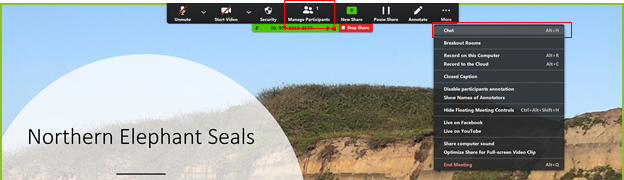
![](https://kb.mlml.sjsu.edu/uploads/images/gallery/2020-05-May/scaled-840-0/image-1588357933390.png)

# Phone Alternatives: Zoom and Google Hangout

#  

### Zoom

---

Zoom is a video conferencing application available to CSUMB and SJSU affiliates (students, faculty, staff, etc.) Instructions for setting up Zoom may be found [here](https://kb.mlml.sjsu.edu/books/software/page/zoom). Users are able to host or join conference calls, video conference call, and share their screen (when having multiple displays, the user can pick which screen\[s\] to share).

Here’s a link to SJSU's Zoom website: [https://sjsu.zoom.us/](https://sjsu.zoom.us/) (Login with your SJSUID)  
Here’s link to CSUMB’s Zoom website: [https://csumb.zoom.us/](https://csumb.zoom.us/)

The Group Study (Rm 103) and the Student Conference Room (Rm 414) have Mobile Presentation Units (MPUs). These units can be used to share your computer screen (like the Think Tank and Dry Classroom), or they can be used for video conferencing using Zoom. They are essentially TVs with a Cisco video conferencing system attached.

If you would like to use one of the units for a video conference, please indicate so on the appropriate [reservation request form](https://mlml.sjsu.edu/intranet/reservation-request-agreement/).

###  

### Google Hangouts

---

Google Hangouts is an easy way to video chat and hold meetings with up to 50 people. The service may be accessed online through the Gmail, Google+ websites, or mobile applications.

For more information and help visit [G Suite Hangouts](https://gsuite.google.com/learning-center/products/meet/get-started/#!/).

# Adding the Zoom Chrome Extension for Scheduling Zoom Meetings via Calendar

#### This page will teach you how to add the Zoom extension to your Google Chrome browser. The Zoom Scheduler Chrome Extension allows participants to schedule Zoom meetings directly from Google Calendar. Using the extension, you can start an instant meeting or schedule a future meeting. The meeting join link and details are sent via a Google Calendar invitation so the attendee can join with a single-click from their calendar. 

##### Requirements: 

- [Google Chrome](https://www.google.com/chrome/browser/)
- [Zoom Chrome extension](https://chrome.google.com/webstore/detail/zoom/kgjfgplpablkjnlkjmjdecgdpfankdle?hl=en) from the Google Chrome Web Store
- Zoom account with Google, work email and password, or Single Sign On (SSO) login
- Using Google Calendar to schedule meetings

##### How to Install the Extension: 

- Before you can schedule meetings using the Chrome extension or directly in Google Calendar, you need to install the **Zoom Scheduler** extension from the [Chrome Web Store](https://chrome.google.com/webstore/detail/zoom/kgjfgplpablkjnlkjmjdecgdpfankdle?hl=en-US). Click **Add to Chrome** in the upper right of the extension window.

##### How to Navigate the Extension: 

- The Zoom Chrome extension will install an icon next to your Chrome address bar. If you click the Zoom button, the Chrome extension will open.
- Sign in to your Zoom Account.
- Once signed in, you will have additional options in the Chrome Extension: 
    - **Schedule a Meeting**: Click Schedule a Meeting to open up a new event on Google Calendar.
    - **Start a Meeting**: Hover over Start a Meeting to choose to start with video or start without video. [Learn more about instant meetings.](https://support.zoom.us/hc/en-us/articles/201362533-Meet-Now-vs-Scheduled-Meetings)
    - **Name/email address:** Click on your name or email address to open your Zoom profile page.
    - **Gear icon**: Click on the Gear icon to open the Zoom meeting settings.

##### How to Schedule a Zoom Meeting Using the Calendar Extension: 

- Create a new calendar event or edit an existing calendar event.
- Open the additional options for the event. 
    - For a new calendar event, click **More Options**.
    - For an existing calendar event, click the Pencil icon.
- Click **Make it a Zoom Meeting**.
- This will create a Zoom meeting and populate the meeting details in the description.
- Click **Save**.
- \*\*Note: The settings you have saved in your Zoom account for your meetings will automatically be applied to any meetings scheduled through the extension (waiting room, video/audio preferences, etc.)

# DocuSign


# DocuSign FAQs

### What is DocuSign?

<span style="font-weight: 400;">DocuSign p</span><span style="font-weight: 400;">rovides electronic signature technology and digital transaction management services for facilitating electronic exchanges of contracts and signed documents.</span><span style="font-weight: 400;"> For more information, check out the </span>[<span style="font-weight: 400;">SJSU’s DocuSign Service Web Page</span>](https://www.sjsu.edu/it/services/collaboration/software/docusign.php) or [CSUMB's DocuSign Overview](https://csumb.teamdynamix.com/TDClient/1846/Portal/KB/?CategoryID=11540)<span style="font-weight: 400;">. See our </span>[<span style="font-weight: 400;">How to Fill PDFs Electronically Document</span>](https://kb.mlml.sjsu.edu/books/software/page/how-to-fill-pdfs-electronically)<span style="font-weight: 400;"> on how to complete fillable PDFs and print them using Adobe Reader. </span>

<span style="font-weight: 400;">For a tutorial about how DocuSign works, watch this </span>[<span style="font-weight: 400;">video</span>](https://support.docusign.com/en/videos/Signer-DocuSign-How-it-Works)<span style="font-weight: 400;">.</span>

### Who can use DocuSign?

<span style="font-weight: 400;">Any Faculty, Staff member, or student with a valid SJSUOne ID or OtterID may use the service for business-related purposes.</span>

###  

### How do I login to DocuSign?

**SJSU Faculty, Staff, and Students**:

1. Visit [docusign.com](https://www.docusign.com/)
2. Click login
3. Enter your SJSU email
4. You will be redirected to SJSUOne login
5. Enter your SJSUOne ID and password
6. Authenticate with DUO

**CSUMB Students**

1. Visit [docusign.com](https://www.docusign.com/)
2. Click login
3. Enter your CSUMB email
4. You will be redirected to OtterID login
5. Enter your OtterID and password

### How do I sign a document with DocuSign?

<span style="font-weight: 400;">When you receive an email that requires a signature through DocuSign, select the link given and consent to the use of electronic records and signatures. Review the document and fill out any information needed. When entering your name for the signature, confirm your name and select your signature. You also have the option to draw your own signature, if desired. </span>

<span style="font-weight: 400;">For a tutorial on how to sign a document watch this </span>[<span style="font-weight: 400;">video</span>](https://support.docusign.com/en/videos/New-Signing-Experience)<span style="font-weight: 400;">.</span>

<span style="font-weight: 400;">Read about signature policies of SJSU </span>[<span style="font-weight: 400;">here</span>](http://stage.sjsu.edu/it/docs/security/policies-standards/Standard_Electronic%20and%20Digital%20Signatures.pdf)<span style="font-weight: 400;">.</span>

### How do I receive a copy of the document once signed?

<span style="font-weight: 400;">You will automatically receive a copy of the signed document once you have completed the document and clicked </span>**FINISH**<span style="font-weight: 400;">.</span>

### How do I send a document that requires a signature?

1. <span style="font-weight: 400;">Once logged in, select </span>**NEW**<span style="font-weight: 400;"> then </span>**Send an Envelope**<span style="font-weight: 400;">. </span>
2. <span style="font-weight: 400;">Upload your documents that need to be filled out, or use a template. </span>
3. **Add Recipient(s)**<span style="font-weight: 400;"> by entering their name and email address and select the action that the recipient(s) must take (i.e. Needs to Sign).</span>
1. <span style="font-weight: 400;"> If you have multiple recipients, you may select </span>**Set signing order**<span style="font-weight: 400;"> and control the order in which your recipients receive and sign the document. (Ex: Second recipient may sign the document after the first recipient) </span>

5. <span style="font-weight: 400;">Enter a message to your recipient(s).</span>
1. <span style="font-weight: 400;">You may select </span>**Custom email and language for each recipient** <span style="font-weight: 400;">to personalise each message for each of your recipients. </span>
2. <span style="font-weight: 400;">You can alter the recipients privileges, send reminders, and expirations through the </span>**Advanced Options**<span style="font-weight: 400;">.</span>

7. <span style="font-weight: 400;">Select </span>**NEXT** <span style="font-weight: 400;">in top right corner of screen. </span>
8. <span style="font-weight: 400;">Add fields to your documents. On the left side are fields where you can click and drag each field to the areas needed to be filled. </span>
1. <span style="font-weight: 400;">You may use the panel on the right side to set or edit the field’s properties. </span>

10. <span style="font-weight: 400;">Select </span>**SEND**<span style="font-weight: 400;"> when done. </span>

<span style="font-weight: 400;">You will receive a copy of the completed envelope once the recipient has signed the document. </span>

<span style="font-weight: 400;">For a tutorial on how to send a document, watch this </span>[<span style="font-weight: 400;">video</span>](https://support.docusign.com/en/videos/New-DocuSign-Experience-Sending-Documents)<span style="font-weight: 400;">.</span>

### How do I create an Envelope and send it?

<span style="font-weight: 400;">An envelope in DocuSign is similar to a real-life envelope. It is a way to send documents to people that they may need to sign or add information to. You can create envelopes and send them to multiple people. Below are links to a couple tutorial videos, one is a quick overview, the second is an in depth look at how to use envelopes.</span>

<span style="font-weight: 400;">To create an Envelope and send it, follow the instructions from the section above, </span>[<span style="font-weight: 400;">“How do I send a document that requires a signature?”</span>](#bkmrk-how-do-i-send-a-docu)

<span style="font-weight: 400;">Quick tutorial of sending envelopes in Docusign, </span>[<span style="font-weight: 400;">here</span>](https://support.docusign.com/en/videos/New-DocuSign-Experience-Sending-Documents)<span style="font-weight: 400;">.</span>

<span style="font-weight: 400;">Detailed tutorial of creating, sending, receiving envelopes in DocuSign, </span>[<span style="font-weight: 400;">here</span>](https://drive.google.com/file/d/0B5b4NRwr7F41U2ZROU1aM2VqVDQ/view)<span style="font-weight: 400;">.</span>

### What are Templates and how do I use them?

<span style="font-weight: 400;">Templates are great when you are frequently using the same or similar documents multiple times. There are two ways to use a template: choose a template and input the signer’s information or upload a document and apply a recommended template to the document.</span>

<span style="font-weight: 400;">For a tutorial on how to use, create, and manage templates, watch this </span>[<span style="font-weight: 400;">video</span>](https://drive.google.com/file/d/0B5b4NRwr7F41Zko2VDhXbjVKYlU/view)<span style="font-weight: 400;">.</span>

<span style="color: #ff0000;">*<span style="font-weight: 400;">\*\*If you have access to creating templates, jump to “Creating a Template” section\*\*</span>*</span>

#### <span style="font-weight: 400;">Gaining Access to Template Creation: </span>

*<span style="font-weight: 400;">Note: Access for certain personnel (e.g., students) to use/create templates requires you to work in SJSU’s development environment first, follow these instructions:</span>*

1. <span style="font-weight: 400;">Login to the DocuSign Development Environment:</span>
1. <span style="font-weight: 400;">Reset the password of your xxxx@gtest.sjsu.edu email account using this link: </span>[<span style="font-weight: 400;">https://sjsuone-dev.sjsu.edu/SJSUOne/ResetPassword/</span>](https://sjsuone-dev.sjsu.edu/SJSUOne/ResetPassword/)
2. <span style="font-weight: 400;">Verify new password is working by using this link: </span>[<span style="font-weight: 400;">https://mail.gtest.sjsu.edu. </span>](http://mail.gtest.sjsu.edu/)<span style="font-weight: 400;"> Repeat step a and b if verification is not successful.</span>
3. <span style="font-weight: 400;">Use this link to login: </span>[<span style="font-weight: 400;">https://sjsudev.okta.com/app/docusign/exkec9pr9qSA7HvoR0x7/sso/saml</span>](https://sjsudev.okta.com/app/docusign/exkec9pr9qSA7HvoR0x7/sso/saml)

3. <span style="font-weight: 400;">Your account will automatically be created once you login.</span>
4. <span style="font-weight: 400;">From here you can create test templates.</span>
5. <span style="font-weight: 400;">Once you have fully created and tested your template, submit an </span>[<span style="font-weight: 400;">SJSU i-ticket</span>](https://isupport.sjsu.edu/helpdesk/Change/New?itemGuid=b694d2e0-2c3c-421c-a7c0-d99c62710874&templateIdentifier=37&tutorialIdentifier=0)<span style="font-weight: 400;"> stating you have tested your template.</span>
6. <span style="font-weight: 400;">Once they approve they will grant you access to create real templates.</span>

#### <span style="font-weight: 400;">Creating a Template:</span>

1. <span style="font-weight: 400;">From the </span>**TEMPLATES**<span style="font-weight: 400;"> page, select New Template.</span>
2. <span style="font-weight: 400;">Enter a name and description for your template.</span>
3. <span style="font-weight: 400;">Upload your files.</span>
4. <span style="font-weight: 400;">Add recipient roles and any named recipients.</span>
5. <span style="font-weight: 400;">To save your template without adding fields, click </span>**Other Actions**<span style="font-weight: 400;"> and select </span>**SAVE** **AND** **CLOSE**<span style="font-weight: 400;">.</span>
6. <span style="font-weight: 400;">To set the signing fields for your document, click </span>**NEXT**<span style="font-weight: 400;">.</span>
7. <span style="font-weight: 400;">Once your finished adding in other fields to your template, click </span>**SAVE AND CLOSE**<span style="font-weight: 400;">. </span>

#### <span style="font-weight: 400;">Using Templates:</span>

1. <span style="font-weight: 400;">Select </span>**TEMPLATES**<span style="font-weight: 400;"> in the header and locate that template you want to use and select </span>**USE**<span style="font-weight: 400;">.</span>
2. <span style="font-weight: 400;">Enter the recipient’s information and click </span>**SEND**<span style="font-weight: 400;">. </span>

#### <span style="font-weight: 400;">Applying a Recommended Template to a Document:</span>

**Automatically:**

1. <span style="font-weight: 400;">Start a new envelope and upload one or more files.</span>
2. <span style="font-weight: 400;">If your document matches a previously saved template, depending on your </span>[<span style="font-weight: 400;">template matching preferences</span>](https://support.docusign.com/en/guides/ndse-user-guide-manage-automatic-template-matching)<span style="font-weight: 400;">, the template is either applied to your document automatically, or the Select Matching Templates dialog appears for you to choose which templates to apply.</span>
3. <span style="font-weight: 400;">Select the templates you want to apply for each uploaded document, and click </span>**APPLY**<span style="font-weight: 400;">. (Click </span>**CANCEL**<span style="font-weight: 400;"> if you do not want to apply any templates.)</span>
4. <span style="font-weight: 400;">The templates are applied to your documents. The recipients, messages, and recipient fields from the template are added to your document.</span>

**Manually:**

1. <span style="font-weight: 400;">Upload your file to an envelope.</span>
2. <span style="font-weight: 400;">Click the menu below the document name (</span>**⋮**<span style="font-weight: 400;">) and select </span>**Apply Templates**<span style="font-weight: 400;">.</span>
3. <span style="font-weight: 400;">From the Apply Templates dialog, select the templates to apply to your document. The dialog has three tabs:</span>
1. **SUGGESTED**<span style="font-weight: 400;">: Templates that meet your account's matching preferences. The Match percentage reflects how closely the template matches with your document.</span>
2. **BROWSE**<span style="font-weight: 400;">: Search all of your templates, including templates shared with you.</span>
3. **SELECTED**<span style="font-weight: 400;">: The list of templates you have selected to apply.</span>

5. <span style="font-weight: 400;">Click </span>**APPLY SELECTED**<span style="font-weight: 400;">.</span>

### How do I send and sign documents from Google Drive or my Gmail?

<span style="font-weight: 400;">To be able to quickly sign and send documents through your Gmail or Google Drive, you will first need to install the Google Chrome extension for DocuSign. It’s a quick easy installation process. </span>

<span style="font-weight: 400;">Follow this </span>[<span style="font-weight: 400;">link</span>](https://support.docusign.com/en/videos/DocuSign-for-Google-Chrome-Installation)<span style="font-weight: 400;"> to see the video tutorial to install the Google Chrome extension. </span>

<span style="font-weight: 400;">Once the extension is installed, you should now see the option to use DocuSign when you receive documents in Gmail or for documents in your Google Drive. The following quick video tutorials outline these processes very well. </span>

[<span style="font-weight: 400;">Gmail DocuSign Tutorial</span>](https://support.docusign.com/en/videos/Google-DocuSign-for-Gmail)

[<span style="font-weight: 400;">Google Drive DocuSign Tutorial</span>](https://www.youtube.com/watch?v=F6TnWApGLJM)

### How can I fix a mistake on a document I’ve already sent out?

<span style="font-weight: 400;">Envelopes can be corrected once the document has been sent and is in progress. They cannot be corrected once the envelope has been completed by the recipient, but you can upload a new file with the corrections and resend it to the recipient. </span>

#### <span style="font-weight: 400;">Correcting a Mistake: </span>

1. <span style="font-weight: 400;">Select </span>**MANAGE**
2. <span style="font-weight: 400;">Select </span>**SENT**<span style="font-weight: 400;"> box and open the file you wish to edit.</span>

<span style="font-weight: 400;">Select </span>**CORRECT**<span style="font-weight: 400;"> to change details as needed and click </span>**CORRECT**<span style="font-weight: 400;"> once again when done. A new email will be sent to the recipient. </span>

# Submitting Timesheets with DocuSign

Submit all timesheets to your Supervisor through DocuSign and CC Jane Webster to ensure that they are approved in a timely manner. Here is a great, short tutorial for DocuSign: [https://support.docusign.com/en/videos/Signer-DocuSign-How-it-Works](https://support.docusign.com/en/videos/Signer-DocuSign-How-it-Works)

---

##### Download Your Timesheet

1. Navigate to [one.sjsu.edu](https://one.sjsu.edu/)
2. Click on the **SJSU @ Work** widget 
    1. Login using your SJSU credentials and DUO authentication
3. Enter your hours into the timesheet.
4. Click submit to save the hours.
5. View your timesheet for the entire pay period and **save webpage as PDF**
    1. Ex. YourLastName\_Month\_Timesheet.pdf

##### Send Timesheet Through DocuSign

1. Navigate to [one.sjsu.edu](https://one.sjsu.edu/)
2. Click on the **DocuSign** widget  
    
    1. Login using your SJSU credentials and DUO authentication
3. Click **NEW** &gt; **Send an Envelope** at the top of the page
4. Upload your timesheet
5. Enter your Supervisor's name and email as recipient one 
    1. Leave action as "**Needs to Sign**"
6. Click **Add Recipient** and enter Jane Webster's name and email 
    1. Set action as "**Receives a Copy**"
7. You may then enter an email message to the recipients 
    1. You can choose a custom email for each by checking the box or send a generic one to both 
        1. **Note**: It is helpful to let your Supervisor know that you CC'd Jane.
        2. If you leave the message blank, DocuSign will auto-populate the email body with a generic request to sign the document.
8. Click **NEXT** in the top-right corner
9. Add a **Signature** field
10. Add a **Date Signed** field
11. Click **SEND** in the top-right corner
12. You will receive an email to your SJSU email when your timesheet has been signed and sent to Jane for approval!

# Creating QR Codes

##### **Creating QR codes with Chrome**

1. Open [Google Chrome](https://www.google.com/chrome/?brand=FKPE&geo=US&gclid=CjwKCAjwndCKBhAkEiwAgSDKQSWr1UD0boxEk5fB_GCAekx6SN08JR4CLM4bsiNhQog8CGWU1lsMxxoCoL0QAvD_BwE&gclsrc=aw.ds)
2. Navigate to the webpage you would like the QR code to link to
3. Right-click anywhere on the webpage, click **Create QR Code for this Page  
      
    [![qr code.png](https://kb.mlml.sjsu.edu/uploads/images/gallery/2021-09/scaled-1680-/qr-code.png)](https://kb.mlml.sjsu.edu/uploads/images/gallery/2021-09/qr-code.png)**
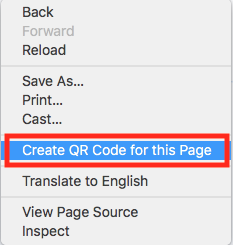
4. A pop-up window will appear with the new QR code
5. Click **Download** to save a .png file of the QR code  
      
    [![downlaod.png](https://kb.mlml.sjsu.edu/uploads/images/gallery/2021-09/scaled-1680-/downlaod.png)](https://kb.mlml.sjsu.edu/uploads/images/gallery/2021-09/downlaod.png)
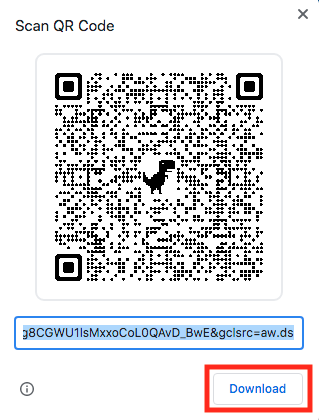
---

##### **Creating QR codes with a free, online QR code generator**

Use this method if you want to create a QR code for a zoom link or would like to customize the appearance of your QR code

1. Navigate to [QR Code Monkey](https://www.qrcode-monkey.com/)
2. Paste the URL you would like the QR code to link to under **Enter Content**
3. Adjust the **Set Colors**, **Add Logo Image**, and **Customize Design** tabs as you see fit
4. Click **Create QR Code** on the right of the screen to preview your QR code  
    **Tip:** Scan it with your phone before downloading to ensure that it links to the correct content
5. If you are satisfied with the appearance, click **Download PNG**