# Guide for Zoom Seminar Participants
---
##### Configure Zoom Prior to the Seminar
1. Download the [Zoom Client app](https://zoom.us/download) ahead of time
1. If you don’t anticipate asking questions, watch seminar via YouTube on our [Live Stream Page](https://mlml.sjsu.edu/mlml-live-stream/)
3. Set your name in your Zoom portal and/or app
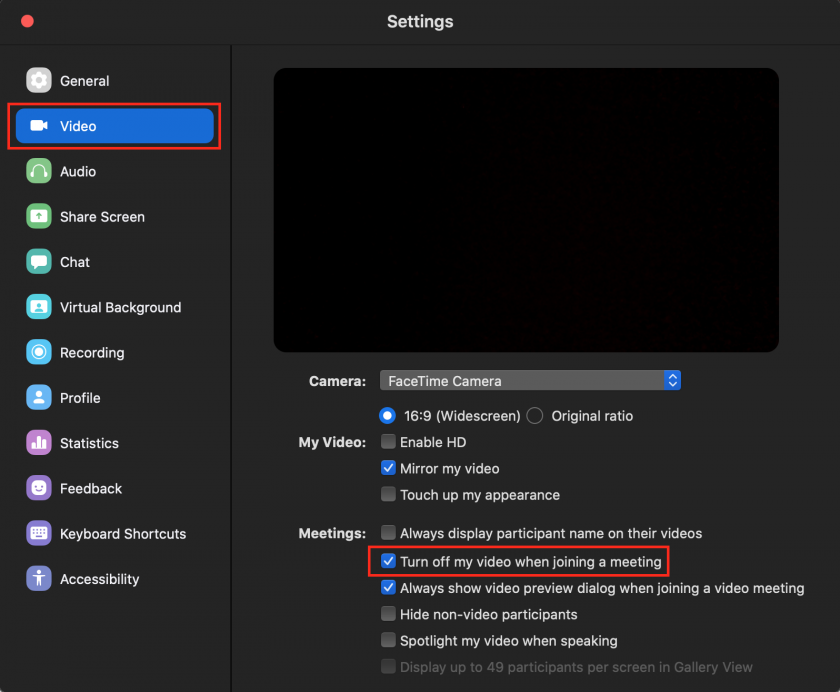
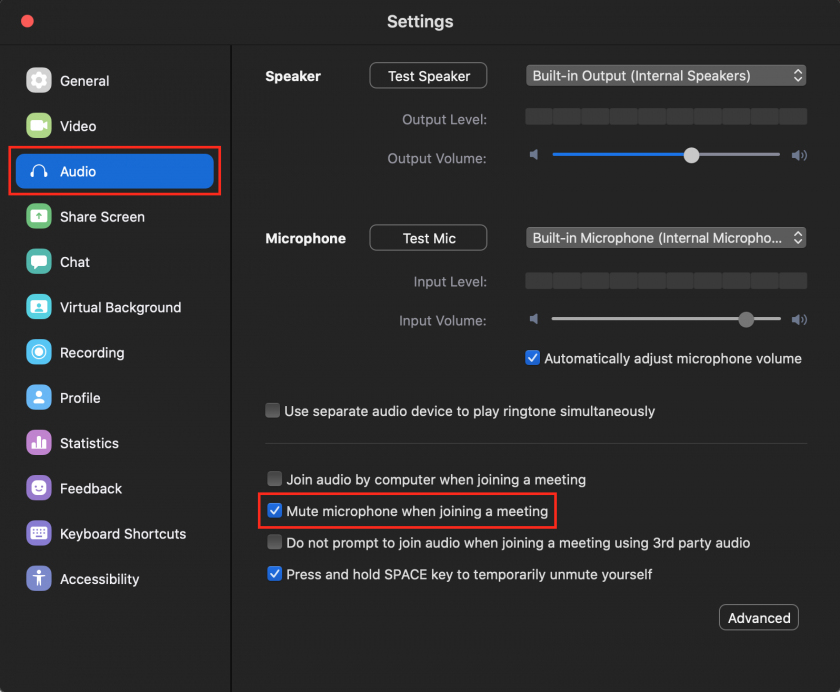
4. Configure your Zoom Client app to have your video and mic turned off upon joining:
1. Instructions:
1. Login to Zoom app
2. Go to Settings
[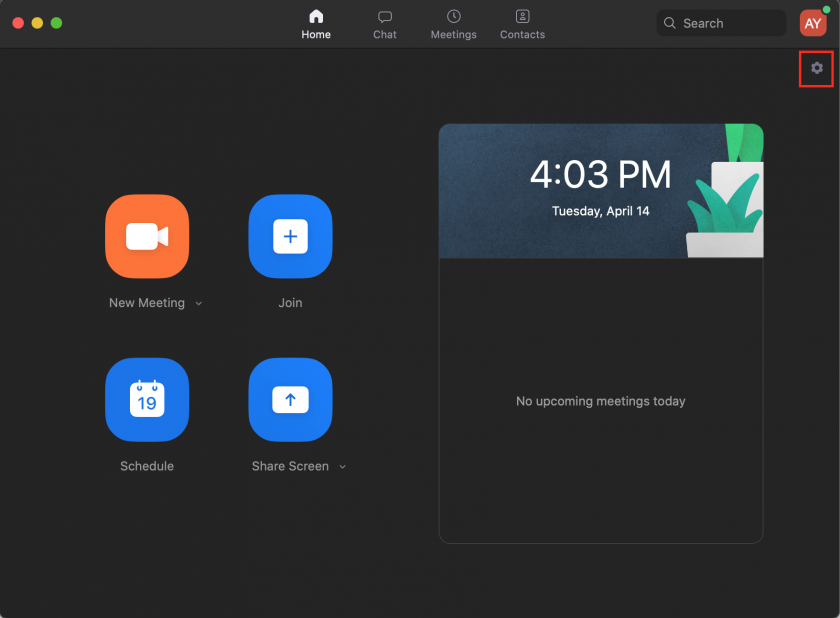](https://kb.mlml.sjsu.edu/uploads/images/gallery/2020-04-Apr/Screen-Shot-2020-04-14-at-4.03.59-PM.png)
3. Select the Video tab on the left > Turn off my video when joining meeting
[](https://kb.mlml.sjsu.edu/uploads/images/gallery/2020-04-Apr/Screen-Shot-2020-04-14-at-4.06.20-PM.png)
4. Select the Audio tab > Mute my mic when joining a meeting
[](https://kb.mlml.sjsu.edu/uploads/images/gallery/2020-04-Apr/Screen-Shot-2020-04-14-at-4.08.37-PM.png)
##### Guidelines During the Seminar
1. Join the seminar ~5 minutes early by clicking the Zoom link in the seminar announcement email
2. Keep your mic muted and video off during the seminar talk
3. Keep chat window and participant window up (see image below)
4. You can click a participants name in Chat window or the 3 dots in the video/profile pic to chat with them
5. Participant window has useful features to communicate without unmuting:
1. Raise Hand - use if you want to ask question at end
(or you can chat your question)
2. Applaud - use to thank speaker at end of talk
3. Like/Dislike
4. Slow Down/Speed Up
5. Yes/No
6. Need a Break
[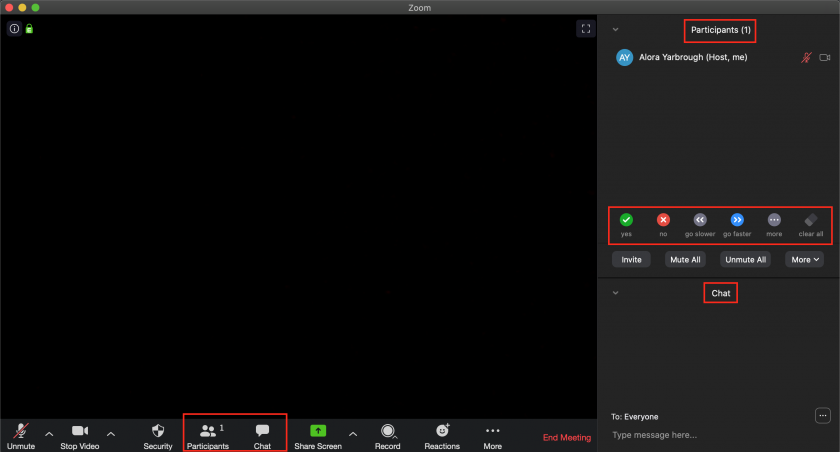](https://kb.mlml.sjsu.edu/uploads/images/gallery/2020-04-Apr/Screen-Shot-2020-04-14-at-4.15.01-PM.png)
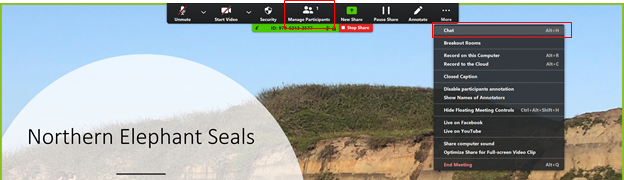
7. If you need **to view the Participants and Chat window while sharing your screen**, navigate to the top of your Zoom app and you'll find the Options Bar. The "Manage Participants" option will be on the bar and the Chat option you'll find in the "More" option on the bar: