# Zoom for Remote Teaching at MLML
### How to host a Remote Class at MLML using Zoom:
**For a more comprehensive guide for using Zoom, follow [this link](https://kb.mlml.sjsu.edu/books/collaboration-communication-tools/page/zoom-video-conferencing-and-more).**
**For Zoom Security Best Practices & Recommendations, follow [this link](https://kb.mlml.sjsu.edu/books/collaboration-communication-tools/page/zoom-security-best-practices-recommendations).**
####
#### **What you will need:**
- **Laptop** - for hosting the Zoom meeting
- Download the [Zoom App](https://zoom.us/support/download)
- **Mobile Phone** (to sign in to Duo)
- **Conference Phone** (optional to enhance audio if in a group)
####
#### **The setup procedure is as follows:**
1. **Download** the [Zoom App](https://zoom.us/support/download)
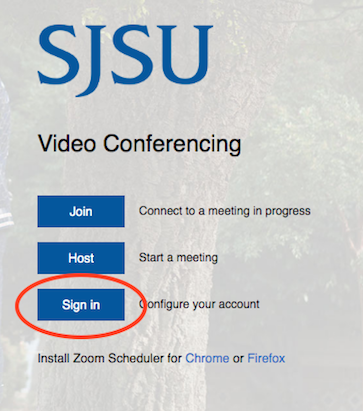
2. Go to [https://sjsu.zoom.us/](https://sjsu.zoom.us/) and click the **Sign In** button
[](https://kb.mlml.sjsu.edu/uploads/images/gallery/2020-03-Mar/Screen-Shot-2020-03-18-at-3.12.08-PM.png)
3. Sign in and authenticate with Duo
4. Click **Schedule a Meeting** - fill in the information and choose the following options:
[](https://kb.mlml.sjsu.edu/uploads/images/gallery/2020-03-Mar/Screen-Shot-2020-03-18-at-3.09.59-PM.png)
- Topic: Class # and Title
- Fill in Date & Time of class
- Select Recurring Meeting > Weekly
- Registration Required: Unchecked
- Require Meeting Password: Unchecked
- Video: Off for both
- Audio: Both
- Meeting Options - Select the Following:
- Enable join before host
- Mute participants upon entry
- Record Meeting Automatically - In the Cloud
- Click the Save icon to save the settings.
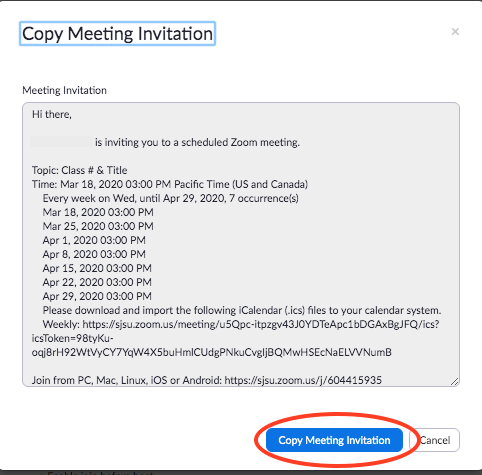
5. Click the **Copy the invitation** link, the info will be copied to your clipboard and you can send it to your meeting attendees via email.
[](https://kb.mlml.sjsu.edu/uploads/images/gallery/2020-03-Mar/Screen-Shot-2020-03-18-at-3.10.38-PM.png)
[](https://kb.mlml.sjsu.edu/uploads/images/gallery/2020-03-Mar/Screen-Shot-2020-03-18-at-2.16.49-PM.png)
6. When you are ready to start the Zoom meeting:
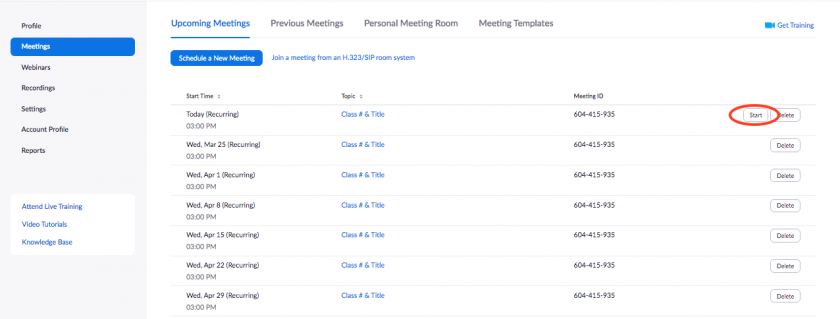
- Go to [https://sjsu.zoom.us/](https://sjsu.zoom.us/), sign-in, and click **Meetings** on the left
- Click the **Start Meeting** button to start the Zoom meeting
[](https://kb.mlml.sjsu.edu/uploads/images/gallery/2020-03-Mar/Screen-Shot-2020-03-18-at-2.18.52-PM.png)
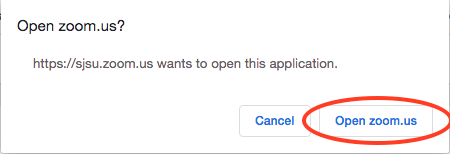
- Click **Open zoom.us** on the Pop-Up
[](https://kb.mlml.sjsu.edu/uploads/images/gallery/2020-03-Mar/Screen-Shot-2020-03-18-at-3.32.45-PM.png)
7. **Three Audio Options for Zoom:**
- - Join with **Computer** Audio: if you are alone in an isolated setting (i.e., office, home)
- Join with **Mobile Phone**: if your computer audio is poor quality, call into the meeting with your mobile phone and use it as your mic - make sure to plug into power for long lectures
- Join with **Conference Phone**: if you are in a room with a group of people so everyone in the room can speak through the phone & hear outside participants. (Make sure the phone is positioned centrally in the room)
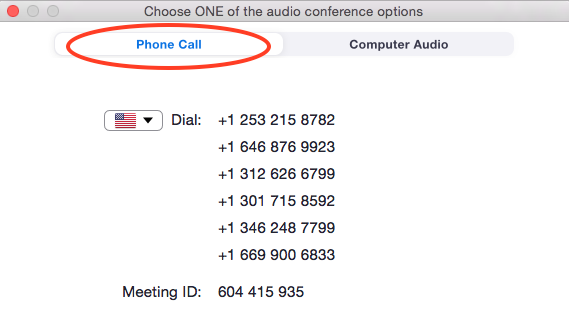
8. (Optional) **If calling in with mobile/conference phone:** Select the Phone Call tab.
[](https://kb.mlml.sjsu.edu/uploads/images/gallery/2020-03-Mar/Screen-Shot-2020-03-18-at-3.13.26-PM.png)
- - - Dial Zoom # (**1-646-876-9923**) or one of the numbers given under Phone Call tab (dial 7 first if calling out of MLML phone)
- Enter **Meeting ID followed by #**
- - Can be found at top of Zoom Meeting browser or in the email Invite
- Enter a participant ID followed by #, or press **\#** only to skip
9. Select **Share Screen** when you’re ready to show your slides to your class
- For more help on sharing screen, visit [this link](https://support.zoom.us/hc/en-us/articles/201362153-Sharing-your-screen)
10. (Optional) **Unmute** the Conference Phone or participants
- Click **Participants** at bottom of Zoom Browser
- Click the microphone icon next to the conference phone #
11. Be sure to review the [Zoom Security Best Practices & Recommendations](https://kb.mlml.sjsu.edu/books/collaboration-communication-tools/page/zoom-security-best-practices-recommendations) page.