# Computer Management & Storage
Helpful pages about how to manage, backup, and store data on your device. Also information about checking your computers performance.
# Computer Setup & Data Management
**Below are the steps you should take to purchase, setup, and manage a new workstation.**
---
### Purchasing Computers & Hardware:
When purchasing any computer hardware with SJSU, SJSURF, or Lab-specific funds, we recommend contacting the IT Group by submitting an [IT Helpdesk Ticket](https://helpdesk.mlml.calstate.edu), so IT can help you find the best hardware to fit your specific needs.
#### **Recommended Configurations**
Browse the workstation configurations available and recommended by IT through the SJSU Workstation Refresh program.
- - [Workstation Refresh (No-Cost)](https://kb.mlml.sjsu.edu/books/computer-hardware-upgrade-managment/page/workstation-refresh-%28no-cost%29)
- [Workstation Refresh (Discounted)](https://kb.mlml.sjsu.edu/books/computer-hardware-upgrade-managment/page/workstation-refresh-%28discounted%29)
####
#### **High Performance Configurations**
- - If you or your lab has a need for a high performance machine for a specific purpose, please contact IT by submitting an [IT Helpdesk Ticket](https://helpdesk.mlml.calstate.edu). The IT Group will work with you to decide what hardware will best suit your needs, whether it is a High Performance Desktop Workstation, a Virtual Machine in the on-premise environment, or a Cloud Compute Instance.
####
#### **Storage Devices**
- - ##### External Hard Drive
- For backing up your workstation, IT recommends a portable external hard drive. Below are a few recommended drives.
- [Seagate Backup Plus Slim](https://www.seagate.com/consumer/backup/backup-plus/)
- [Western Digital My Passport](https://www.wd.com/products/portable-storage/my-passport.html)
- ##### Network Attached Storage (NAS)
- For lab environments, where you may have lots of data that needs to be shared between many workstations, IT recommends purchasing a NAS. These are physical data storage servers, connected to the network, that allow you to keep your lab data in a centralized location and are accessible by whomever you give access.
- Be aware that any lab wanting to purchase a NAS must do so with their own funds.
- If you are thinking of purchasing a NAS for your lab, please submit an [IT Helpdesk Ticket](https://helpdesk.mlml.calstate.edu/). The IT Group will advise and assist in the process of planning, purchasing hardware, and getting the NAS setup for use.
####
#### [**Hardware Upgrades**](https://kb.mlml.sjsu.edu/books/computer-hardware-storage/page/hardware-upgrades)
- - In some cases, a slow workstation's performance can be improved by an increase in memory or replacing a hard drive with a solid-state drive. If you are thinking about a hardware upgrade for your workstation, please submit an [IT Helpdesk Ticket](https://helpdesk.mlml.calstate.edu/). For more information, see the [Hardware Upgrades page](https://kb.mlml.sjsu.edu/books/computer-hardware-storage/page/hardware-upgrades).
---
### Operating System (OS) & Software Configuration:
#### [**Operating Systems and Updates**](https://kb.mlml.sjsu.edu/books/software/page/recommended-operating-systems)
- - Install the latest operating system compatible with your device and perform regular updates to keep it running quickly and efficiently. For more information, visit the [Recommended Operating Systems page](https://kb.mlml.sjsu.edu/books/software/page/recommended-operating-systems).
- -
#### **Software Installation**
*To see what services and technologies you have access to at MLML, check out our [Service Level Agreements](https://mlml.sjsu.edu/itech/service-level-agreements/).*
- - Basic software recommendations include: [Microsoft Office](https://kb.mlml.sjsu.edu/books/software/page/request-microsoft-office-2016-for-state-owned-computers), [Adobe CC](https://kb.mlml.sjsu.edu/books/software/page/adobe-creative-cloud-software-information), and [Google Chrome](https://www.google.com/chrome/)
- To learn about all software available through MLML and other recommended software visit our [Software Page](https://mlml.sjsu.edu/itech/software/)
- Software Installation Procedures can be found on our [Knowledge Base](https://kb.mlml.sjsu.edu/books/software)
---
### Security:
All State-Owned computers will need to meet certain security requirements set by SJSU that IT will install (e.g., Spirion), but a password manager will also need to be setup by you and is required.
#### [**Password Management**](https://kb.mlml.sjsu.edu/books/security-anti-malware/page/secure-password-storage-management)
- - Learn how to keep your passwords robust, safe, and securely stored please visit our [Password Storage & Management Page](https://kb.mlml.sjsu.edu/books/security-anti-malware/page/secure-password-storage-management).
#### [**Information Security**](https://kb.mlml.sjsu.edu/books/security-anti-malware/page/information-security-overview)
- - IT **strongly** recommends thoroughly reading and implementing the advice on the [Information Security Overview](https://kb.mlml.sjsu.edu/books/security-anti-malware/page/information-security-overview) to keep you and your data safe online.
---
### Data Management:
#### [**Computer Backup**](https://kb.mlml.sjsu.edu/books/software/page/computer-backup)
##### There are two methods you may use to backup a computer:
##### 1) [Backup User Files to Hard Drive](https://kb.mlml.sjsu.edu/books/software/page/computer-backup)
- - - - Purchase an external hard drive to backup your workstation (recommended 1-2 TB)
- This hard drive should be dedicated for this purpose only
- Setup the following backup programs available on your device to backup to your external hard drive:
1. [Time Machine](https://kb.mlml.sjsu.edu/link/46#bkmrk-macos%3A-time-machine) - Apple Mac
2. [File History](https://kb.mlml.sjsu.edu/link/46#bkmrk-windows-8-and-newer%3A) (or equivalent) - Windows PC
##### 2) [Create a Disk Image](https://kb.mlml.sjsu.edu/books/software/page/create-a-disk-image)
- - - - Imaging your computer's disk creates a replica of the contents on your computer
- Using a differential setup creates one initial full image of your disk, then the proceeding images save only the content that has changed since the initial image
#### [**Storage Management**](https://kb.mlml.sjsu.edu/books/software/page/computer-storage-management)
1. - To keep your workstation working properly it is important to properly [manage the files and data](https://kb.mlml.sjsu.edu/books/software/page/computer-storage-management) on the computer
- Backups should be routinely scheduled - can automatically set this up in the backup computer settings (see Backup section above and follow link)
#### [**File Migration**](https://kb.mlml.sjsu.edu/books/computer-hardware-storage/page/how-to-migrate-files)
To successfully migrate folders and files from an old device to a new device, visit the [File Migration Page](https://kb.mlml.sjsu.edu/books/computer-hardware-storage/page/how-to-migrate-files).
# Computer Performance
This is a copy of the [Computer Performance](https://kb.mlml.sjsu.edu/books/software/page/computer-performance) page located in the [Software](https://kb.mlml.sjsu.edu/books/software) book under [Operating Systems](https://kb.mlml.sjsu.edu/books/software/chapter/operating-systems).
---
{{@54#bkmrk-macos}}
---
{{@54#bkmrk-macos-is-apple%E2%80%99s-o}}
#### {{@54#bkmrk-about-this-mac}}
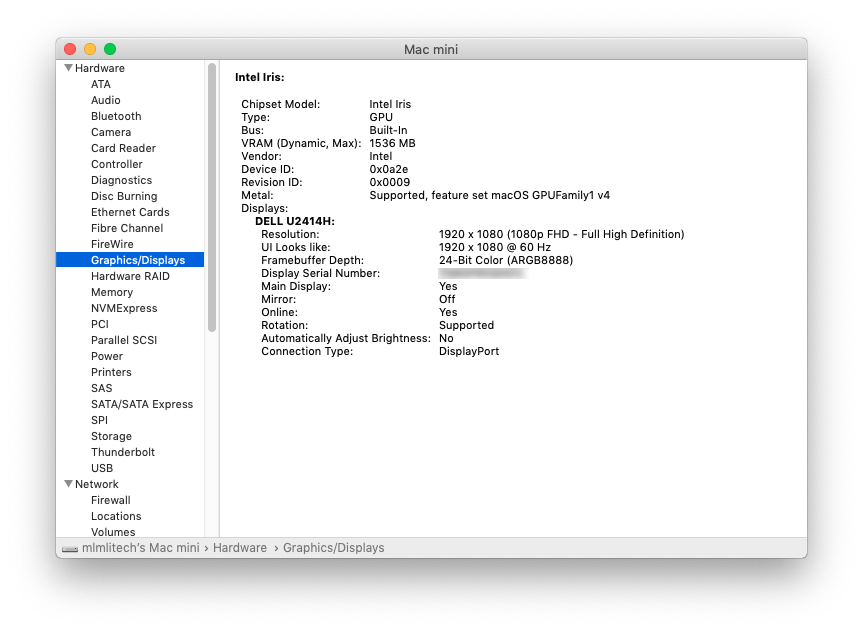
{{@54#bkmrk-this-dialog-shows-yo}}
{{@54#bkmrk-%C2%A0click-the%C2%A0system-re}}
[](https://kb.mlml.sjsu.edu/uploads/images/gallery/2019-02-Feb/image-1550604298812.png)
#### {{@54#bkmrk-activity-monitor}}
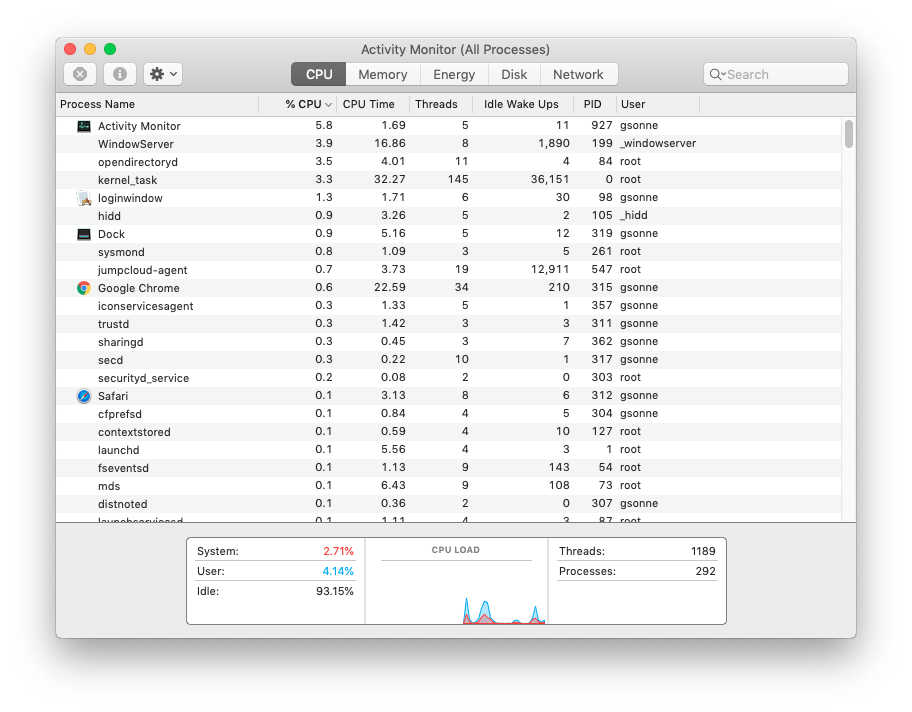
{{@54#bkmrk-similar-to-task-mana}}
[](https://kb.mlml.sjsu.edu/uploads/images/gallery/2019-02-Feb/image-1550604468855.png)
##### {{@54#bkmrk-uninstall-unnecessar}}
{{@54#bkmrk-one-simple-way-to-cl}}
### {{@54#bkmrk-windows}}
---
{{@54#bkmrk-windows-is-microsoft}}
#### {{@54#bkmrk-system-information}}
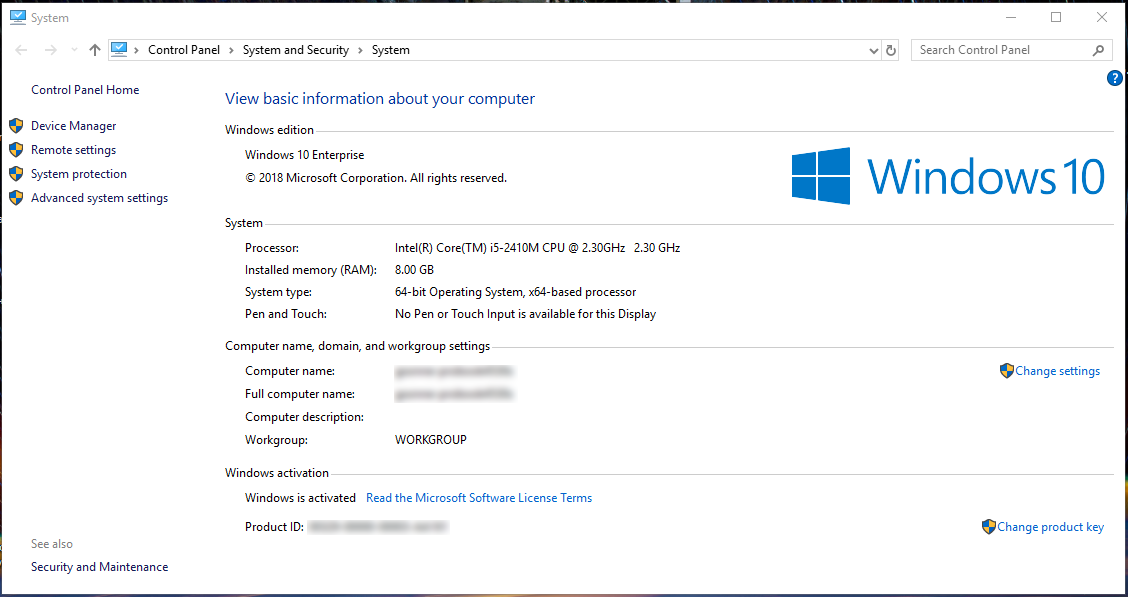
{{@54#bkmrk-windows-also-has-a-b}}
[](https://kb.mlml.sjsu.edu/uploads/images/gallery/2019-02-Feb/WinSysInfo.png)
{{@54#bkmrk-for-more-detailed-an}}
#### {{@54#bkmrk-task-manager}}
{{@54#bkmrk-similar-to-activity-}}
#### {{@54#bkmrk-resource-monitor}}
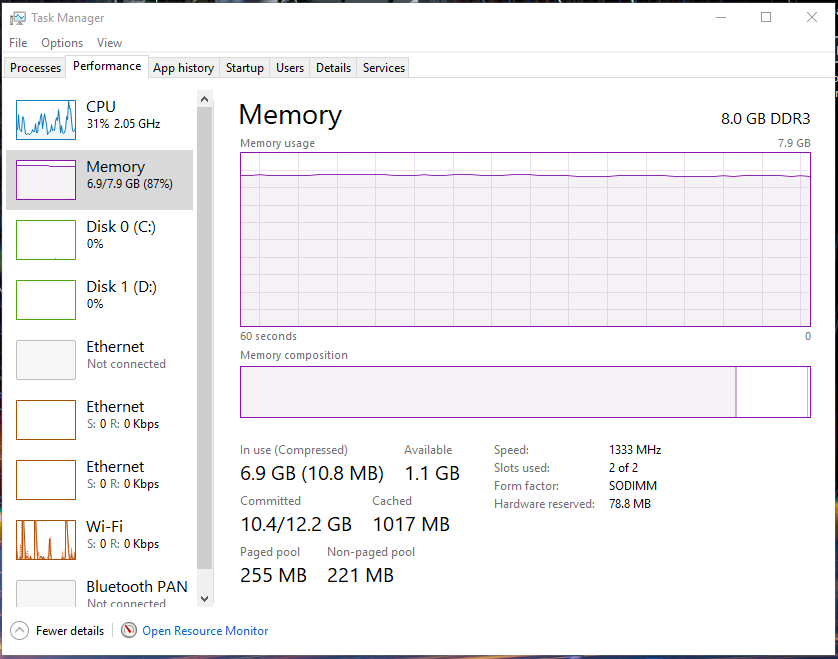
{{@54#bkmrk-the-resource-%28and-pe}}
[](https://kb.mlml.sjsu.edu/uploads/images/gallery/2019-02-Feb/image-1550604755764.png)
{{@54#bkmrk-there-is-a-more-deta}}
[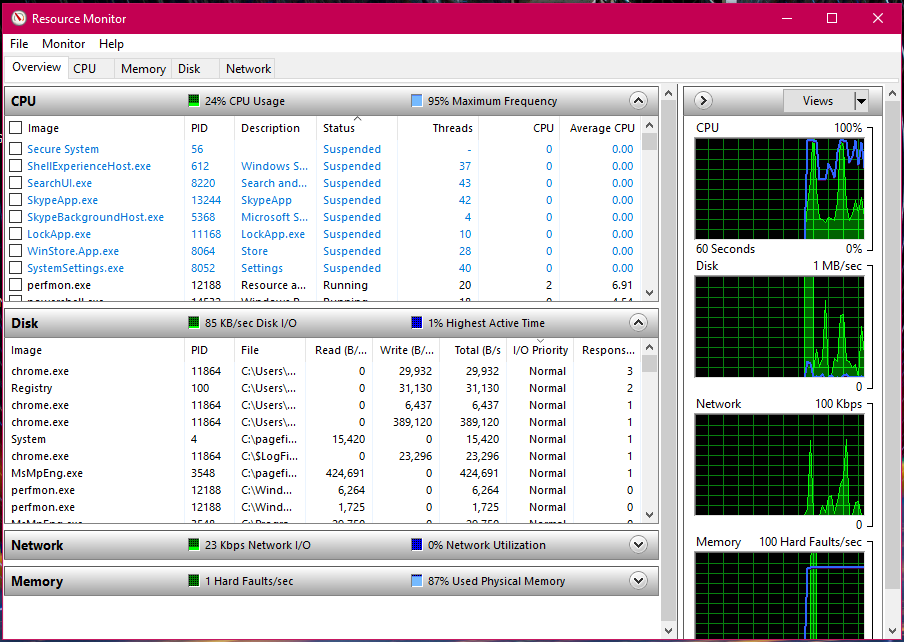](https://kb.mlml.sjsu.edu/uploads/images/gallery/2019-02-Feb/image-1550604776478.png)
#### {{@54#bkmrk-event-viewer}}
{{@54#bkmrk-log-files-such-as-se}}
#### {{@54#bkmrk-uninstall-unnecessar-0}}
{{@54#bkmrk-one-simple-way-to-cl-0}}
### {{@54#bkmrk-3rd-party-tools}}
---
{{@54#bkmrk-see-the-list-of-3rd-}}
{{@54#bkmrk-mac-3rd-party-tools-}}
{{@54#bkmrk-mac-os-caffeine-quic}}