# Access the MLML Network using GlobalProtect VPN
#### Privacy Notice
**All internet traffic to and from your computer will be routed through the MLML network while connected to the VPN.** Imagine you are physically present at MLML until you **Disconnect,** at which point your internet traffic will no longer go through the MLML network. The [CSU Responsible Use Policy](https://calstate.policystat.com/policy/6607908/latest/) applies to all network activity on computers actively connected to the VPN.
#### Connect to the MLML VPN to access the following services remotely:
- [MLML Intranet Access](https://mlml.sjsu.edu/intranet/) (Services and Resources)
- [MLML/MBARI Library Resources](https://mlml.sjsu.edu/library/offsite-library-access/)
- Devices and computers connected to the MLML network
- [The MLML ArcGIS license server](https://kb.mlml.sjsu.edu/books/software/page/how-to-update-an-arcgis-10x-concurrent-use-license)
- Other MLML services, hosted virtual machines, and network storage devices
- **For SJSU services, please see [Cisco AnyConnect VPN](https://kb.mlml.sjsu.edu/books/network-services/page/access-the-network-using-cisco-anyconnect-vpn-client "Access the Network using Cisco AnyConnect VPN client")**
#### Initial Client Installation & Setup
1. Download and install the GlobalProtect VPN client version **6.2.5**:
- Windows
- 64-bit (recommended) and 32-bit (if you are not running 64-bit Windows): [https://vpn.mlml.calstate.edu/](https://vpn.mlml.calstate.edu/)
- macOS
- 64-bit/Apple Silicon: [https://vpn.mlml.calstate.edu/](https://vpn.mlml.calstate.edu/)
2. A "Welcome to GlobalProtect" window with a small text box should show up once the installation is complete.
- A GlobalProtect icon in your taskbar on Windows or your menu bar on macOS should also appear.
3. **These additional steps are required for macOS 10.13 High Sierra and above:**
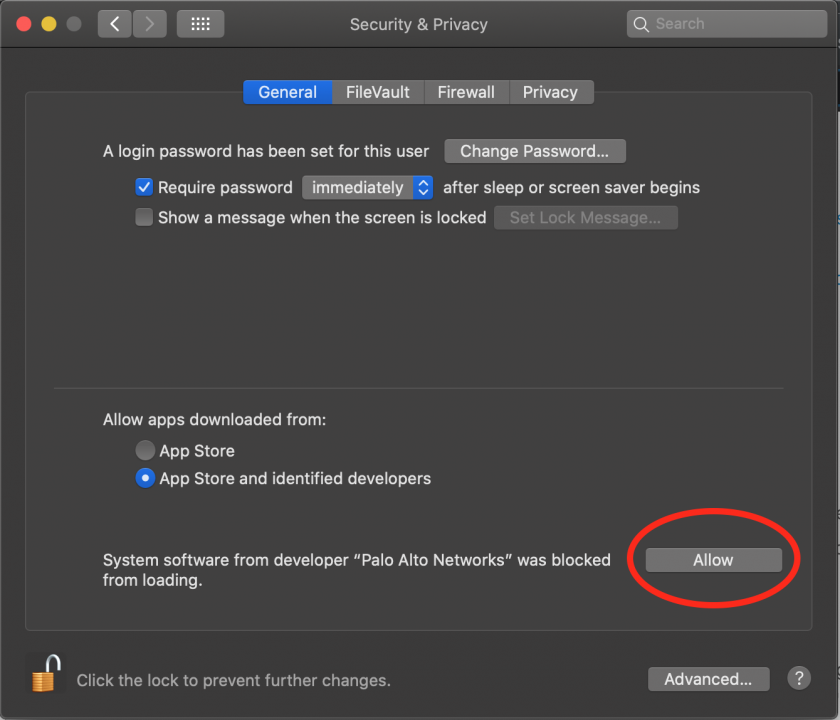
1. Navigate to **System Preferences** > **Security & Privacy**.
2. Click the **lock icon** in the lower left corner of the window to allow settings changes.
3. Click the **Allow** button next to this message: "System software from developer 'Palo Alto Networks' was blocked from loading."
[](https://kb.mlml.sjsu.edu/uploads/images/gallery/2020-06-Jun/Screen-Shot-2020-06-15-at-5.06.29-PM.png)
4. **You may need to restart your Mac** before GlobalProtect will work. You may also need to perform this step more than once on macOS 11 Big Sur and above.
#### Connecting
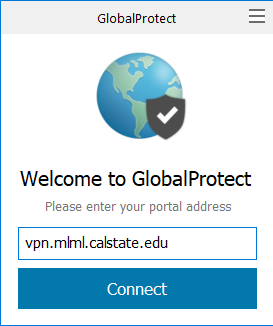
1. If the GlobalProtect window is not visible, click on the GlobalProtect icon in your taskbar or menu bar.
2. Enter the following portal address: **vpn.mlml.calstate.edu**
[](https://kb.mlml.sjsu.edu/uploads/images/gallery/2020-05-May/globalprotect_01.png)
3. Click Connect.
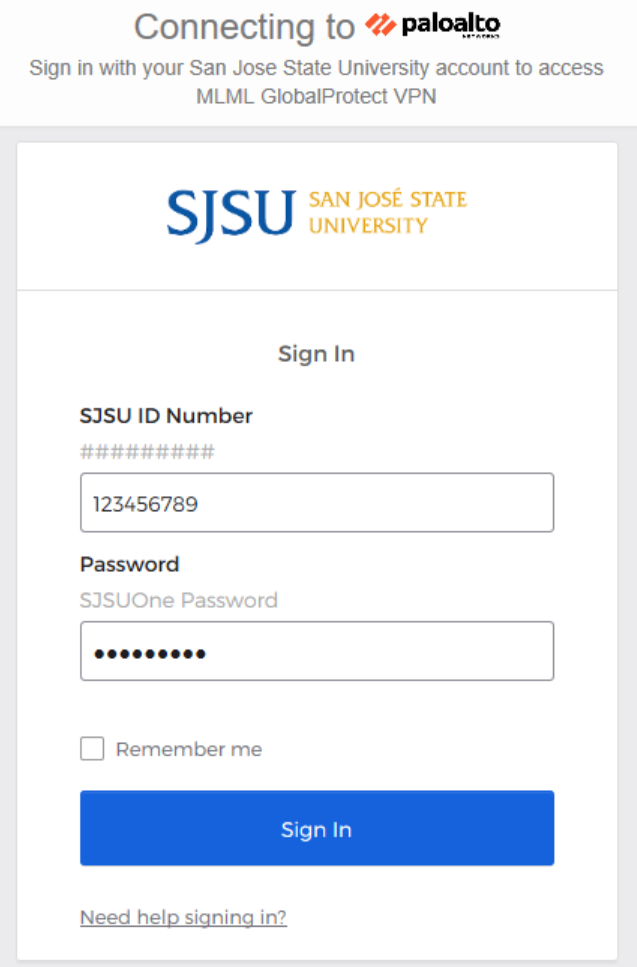
4. The SJSU sign-in portal should open in a new window. Enter your **SJSU account ID number and password**. Click Sign In.
[](https://kb.mlml.sjsu.edu/uploads/images/gallery/2023-04/sjsusignin.PNG)
4. You should be connected to the VPN within a few seconds if everything was entered correctly.
- Clicking away from the GlobalProtect window will hide it automatically.
**NOTE:** If you are unable to connect:
- - Disconnect from all other VPNs.
- Restart your computer.
- If you are still unable to connect, [submit a Help Desk ticket](https://helpdesk.mlml.calstate.edu/) for assistance.
#### Disconnecting
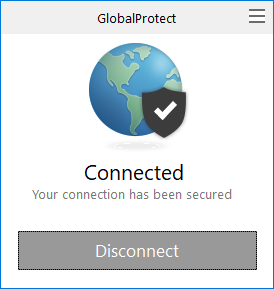
1. If the GlobalProtect window is not visible, click on the GlobalProtect icon in your taskbar or menu bar.
2. Click Disconnect.
[](https://kb.mlml.sjsu.edu/uploads/images/gallery/2020-05-May/globalprotect_03.png)
#### Uninstalling
- Windows
- You may uninstall GlobalProtect via "Add or remove programs."
- macOS
- Run the installer again, but this time check the "Uninstall GlobalProtect" checkbox.
- If you can't uninstall GlobalProtect because it's running and can't be quit, reboot your Mac and start it up in Safe Mode: [https://support.apple.com/guide/mac-help/start-up-your-mac-in-safe-mode-mh21245/mac](https://support.apple.com/guide/mac-help/start-up-your-mac-in-safe-mode-mh21245/mac), then try uninstalling GlobalProtect again.
- If you are still unable to install GlobalProtect after removing it, uninstall it again and delete all files related to GlobalProtect and Palo Alto Networks in this file locations:
- /Macintosh HD/Library/Application Support
- /Macintosh HD/Library/LaunchAgents
- /Macintosh HD/Library/LaunchDaemons
- /Macintosh HD/Users/<your username>/Library/Application Support
#### Troubleshooting:
If you are having trouble using GlobalProtect or connecting to the MLML network, try these steps:
- Uninstall GlobalProtect using the instructions above, then download the latest version from this page and reinstall it.
- Ensure you are using your MLML username and password. The username does not include "@mlml.calstate.edu", just the user ID.
- If you are using a Mac, ensure that you have allowed all GlobalProtect system extensions in System Preferences > Security & Privacy > General.