# Printing, Print, Printers, Scanning, Copiers

# How to Install a Network Printer

###  

### macOS:

*<span style="color: #ff0000;">NOTE: Refer to</span> [this post](https://kb.mlml.sjsu.edu/books/printing-print-printers-scanning-copiers/page/installing-adminlibrary-konica-minolta-copiers-macos) <span style="color: #ff0000;">if you want to print to a Konica Minolta (admin/library) copier on macOS.</span>*

1. Go to System Preferences &gt; Printers &amp; Scanners and click Setup Printers or the **+** button.[![1.png](https://kb.mlml.sjsu.edu/uploads/images/gallery/2022-08/scaled-1680-/RWi1.png)](https://kb.mlml.sjsu.edu/uploads/images/gallery/2022-08/RWi1.png)[![2.png](https://kb.mlml.sjsu.edu/uploads/images/gallery/2022-08/scaled-1680-/bem2.png)](https://kb.mlml.sjsu.edu/uploads/images/gallery/2022-08/bem2.png)[![3.png](https://kb.mlml.sjsu.edu/uploads/images/gallery/2022-08/scaled-1680-/doT3.png)](https://kb.mlml.sjsu.edu/uploads/images/gallery/2022-08/doT3.png)
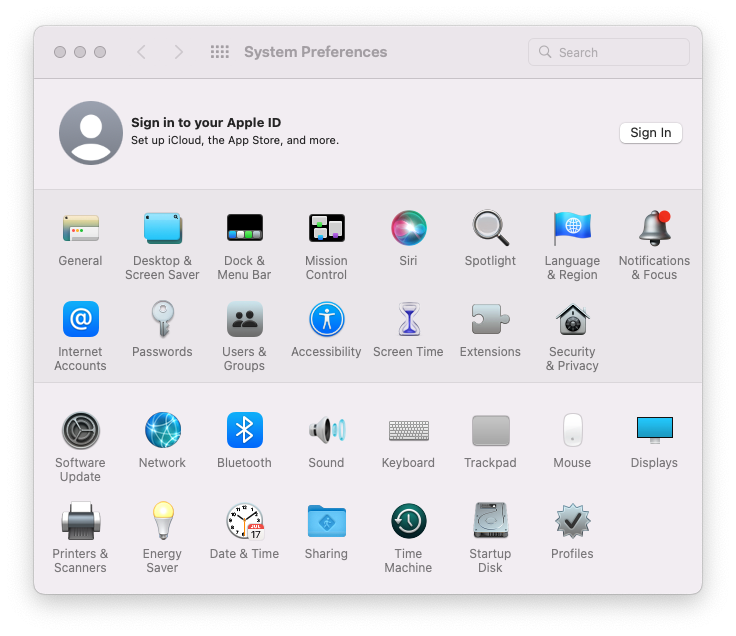
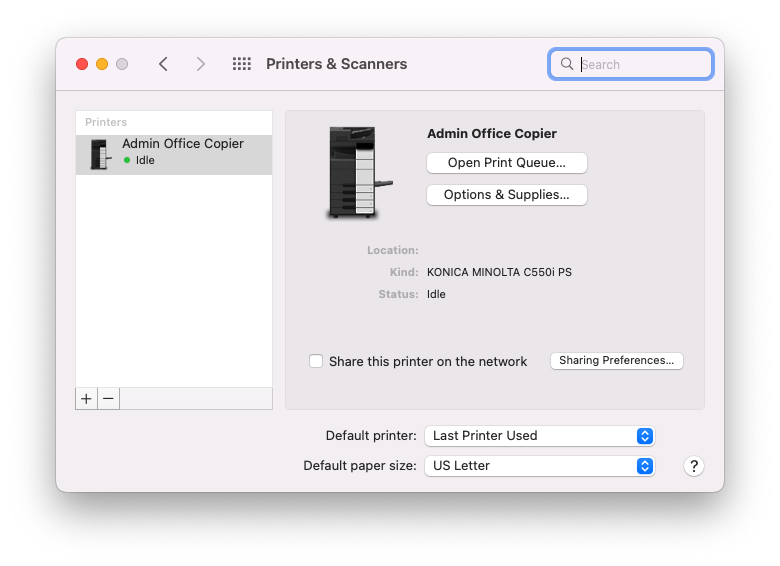
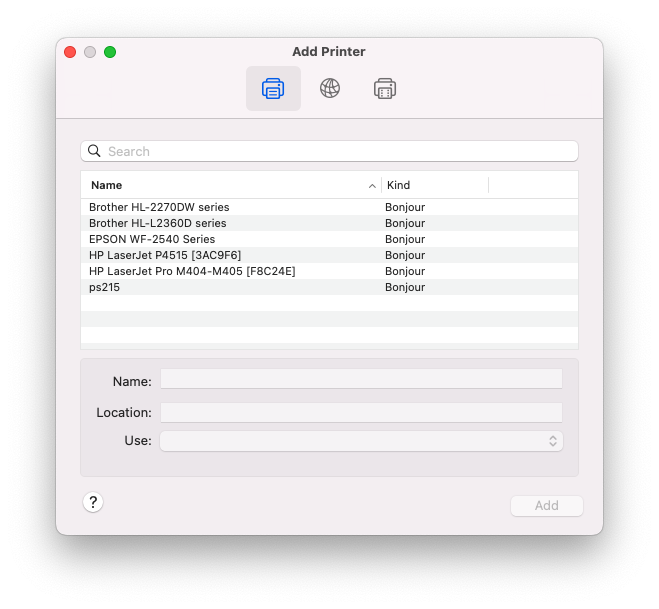
2. Click the IP tab. [![4.png](https://kb.mlml.sjsu.edu/uploads/images/gallery/2022-08/scaled-1680-/4.png)](https://kb.mlml.sjsu.edu/uploads/images/gallery/2022-08/4.png)
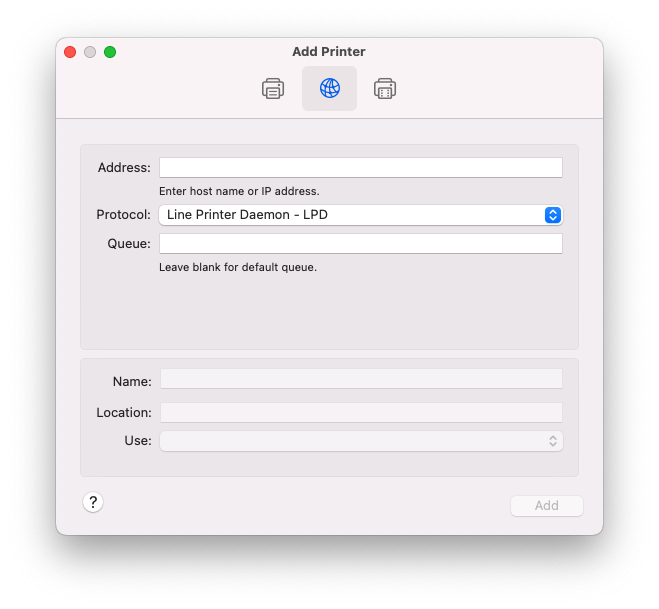
3. Enter the following information: 
    - Protocol: **AirPrint** (if possible) or **Line Printer Daemon - LPD**
    - Address: **ps...** or use the IP address. A list of printers and their hostnames can be found [here](https://kb.mlml.sjsu.edu/link/195). (e.g. **MLM-PRT-102B.mlml.calstate.edu**)
    - Queue: leave blank
    - Name: ***Your printer name - ps...***
    - Print using: 
        - ***Your printer model***   
            \- or -
        - Select a driver to use... &gt; *Your printer model[![5.png](https://kb.mlml.sjsu.edu/uploads/images/gallery/2022-08/scaled-1680-/QJm5.png)](https://kb.mlml.sjsu.edu/uploads/images/gallery/2022-08/QJm5.png)*
4. Click the Add button.
5. Click Continue

###  

### Windows:

*<span style="color: #ff0000;">NOTE: Refer to</span> [this post](https://kb.mlml.sjsu.edu/books/printing-print-printers-scanning-copiers/page/installing-adminlibrary-konica-minolta-copiers-windows) <span style="color: #ff0000;">if you want to print to a Kyocera (admin/library) copier on Windows.</span>*

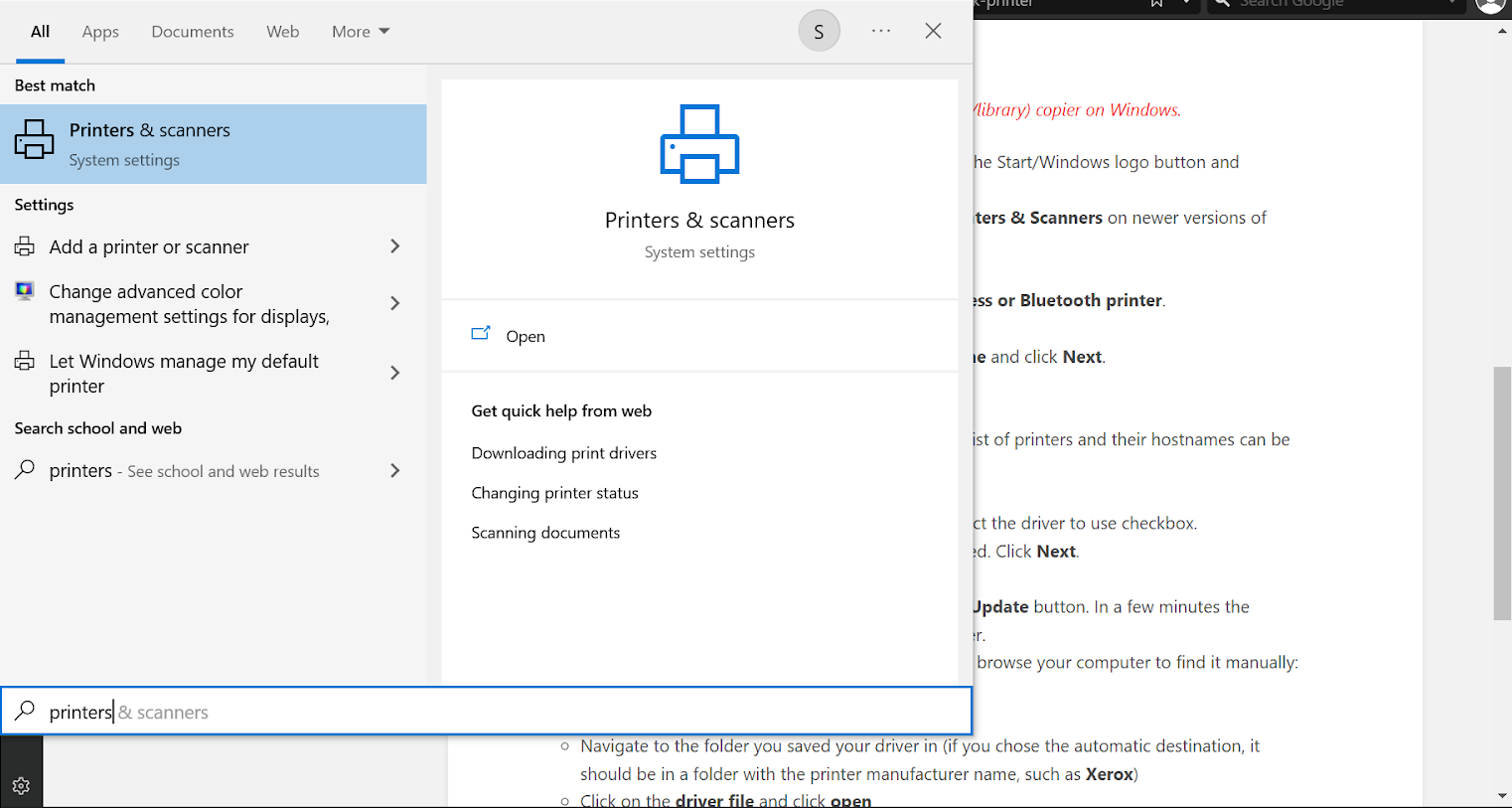
1. Go to **Printers &amp; Scanners**. You can find this by clicking the Start/Windows logo button and typing *Printers &amp; Scanners* into the search bar.[![1.png](https://kb.mlml.sjsu.edu/uploads/images/gallery/2022-08/scaled-1680-/9Vm1.png)](https://kb.mlml.sjsu.edu/uploads/images/gallery/2022-08/9Vm1.png)
2. Click **Add a printer**.[![2.PNG](https://kb.mlml.sjsu.edu/uploads/images/gallery/2022-08/scaled-1680-/XPg2.PNG)](https://kb.mlml.sjsu.edu/uploads/images/gallery/2022-08/XPg2.PNG)
    - On Windows Vista/7 only: Click **Add a network, wireless or Bluetooth printer**.
3. Click **The printer I want isn't listed[![3.PNG](https://kb.mlml.sjsu.edu/uploads/images/gallery/2022-08/scaled-1680-/sFP3.PNG)](https://kb.mlml.sjsu.edu/uploads/images/gallery/2022-08/sFP3.PNG)**
4. Select **Add a printer using a TCP/IP address or hostname** and click **Next**.[![4.PNG](https://kb.mlml.sjsu.edu/uploads/images/gallery/2022-08/scaled-1680-/ZZB4.PNG)](https://kb.mlml.sjsu.edu/uploads/images/gallery/2022-08/ZZB4.PNG)
5. Enter the following information: 
    - Device Type: TCP/IP Device
    - Hostname or IP address: **ps...** or use the IP address. A list of printers and their hostnames can be found [here](https://kb.mlml.sjsu.edu/link/195). (e.g. **MLM-PRT-102B.mlml.calstate.edu**)
    - Port Name: this will be auto-filled.
    - **Un-check** the Query the printer and automatically select the driver to use checkbox.[![5.PNG](https://kb.mlml.sjsu.edu/uploads/images/gallery/2022-08/scaled-1680-/x2c5.PNG)](https://kb.mlml.sjsu.edu/uploads/images/gallery/2022-08/x2c5.PNG)
6. You may be told that additional port information is required. Click **Next**.
7. Select ***Your printer model*** and click the **Next** button. [![7.png](https://kb.mlml.sjsu.edu/uploads/images/gallery/2022-08/scaled-1680-/Yd37.png)](https://kb.mlml.sjsu.edu/uploads/images/gallery/2022-08/Yd37.png)
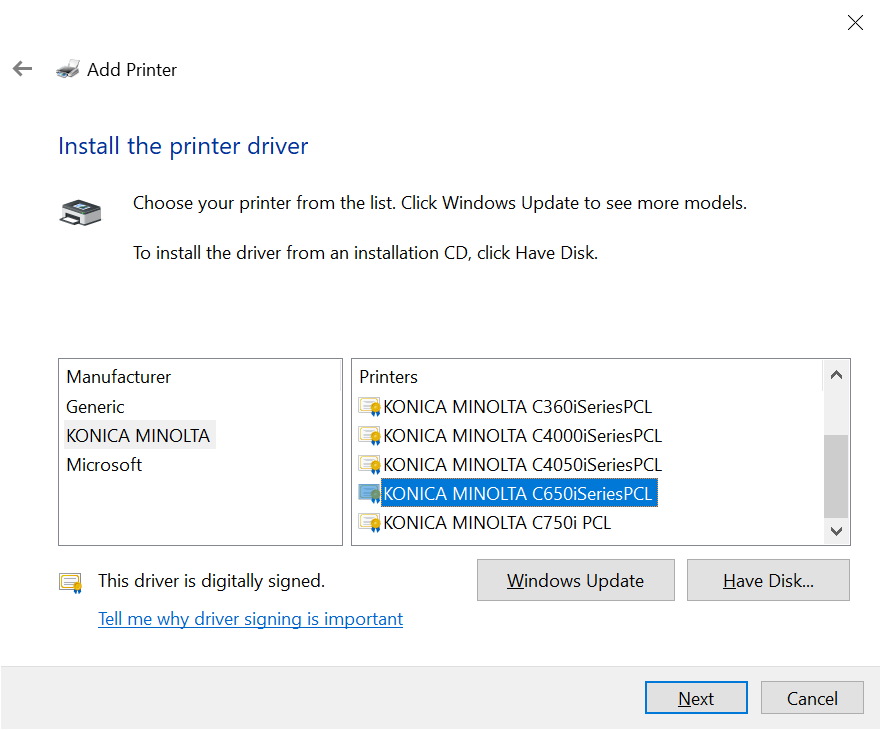
    - If you can't find the printer model, click the **Windows Update** button. In a few minutes the available selection of printer models will be much larger.
    - If you still can’t find the printer model, you will have to browse your computer to find it manually: 
        - Click **Have Disk**
        - Click the **Browse** button
        - Navigate to the folder you saved your driver in (if you chose the automatic destination, it should be in a folder with the printer manufacturer name, such as **Xerox**)
        - Click on the **driver file** and click **open**
        - Click **OK**
        - Now you should see the printer model. Select it and click **Next**.
    - If this manual process is unsuccessful, you may have installed your driver incorrectly. Be sure to restart your computer after install, as this is important to complete the process. Also try a manual install of the driver itself if the automatic install does not seem to work (follow the instructions above to do so).
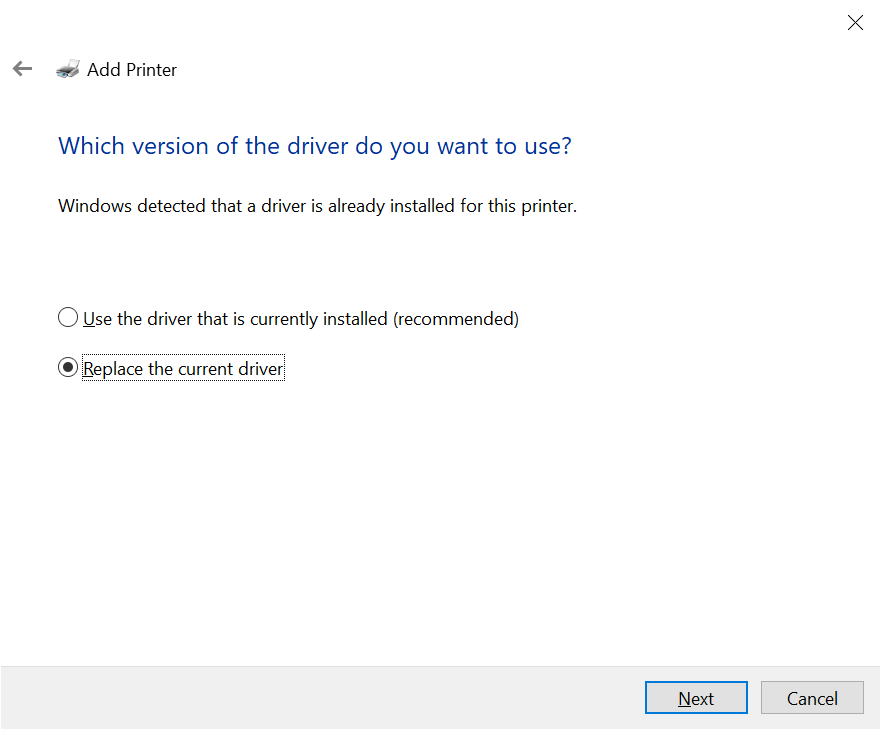
8. If the installer detects that the driver is already installed, select **Replace the current driver** and click **Next**.[![8.PNG](https://kb.mlml.sjsu.edu/uploads/images/gallery/2022-08/scaled-1680-/KrO8.PNG)](https://kb.mlml.sjsu.edu/uploads/images/gallery/2022-08/KrO8.PNG)
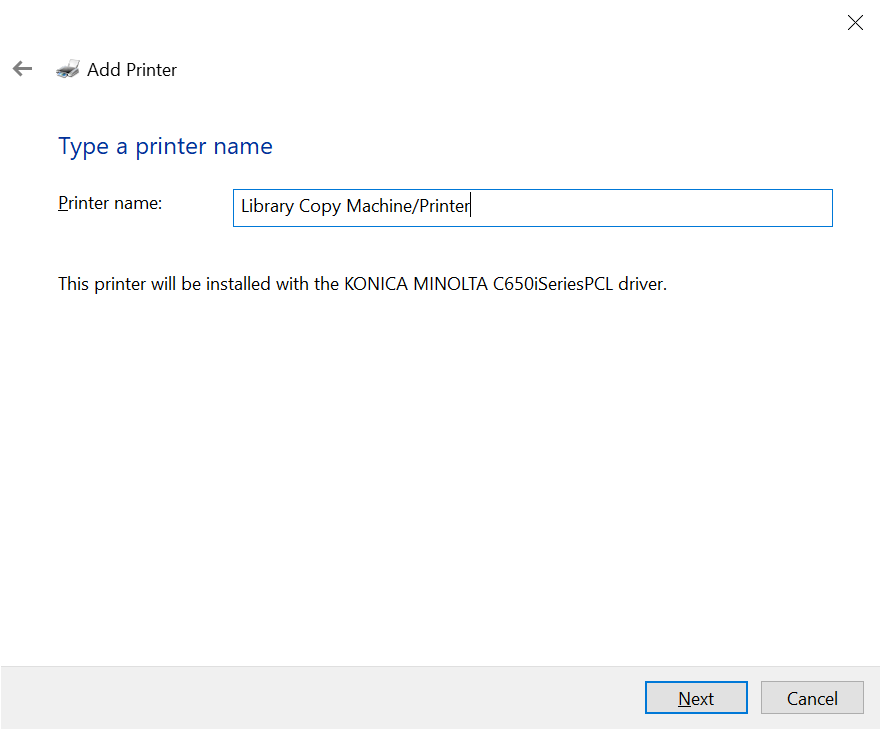
9. Name the printer *Your printer name* and click **Next**. [![9.PNG](https://kb.mlml.sjsu.edu/uploads/images/gallery/2022-08/scaled-1680-/9.PNG)](https://kb.mlml.sjsu.edu/uploads/images/gallery/2022-08/9.PNG)
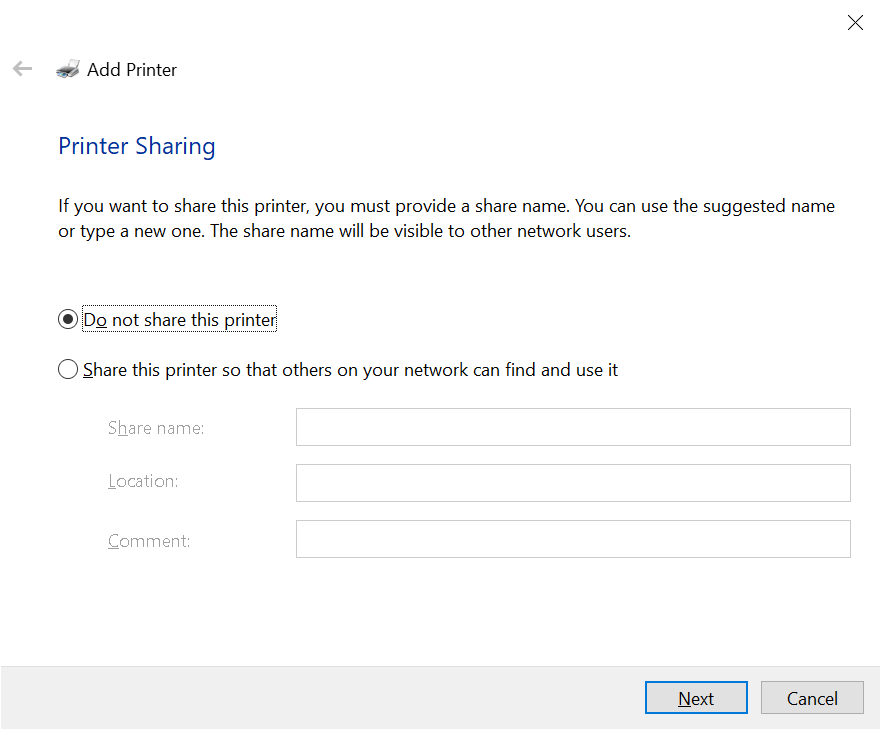
10. If the option exists, select **Do not share this printer** and click **Next**.[![10.PNG](https://kb.mlml.sjsu.edu/uploads/images/gallery/2022-08/scaled-1680-/10.PNG)](https://kb.mlml.sjsu.edu/uploads/images/gallery/2022-08/10.PNG)
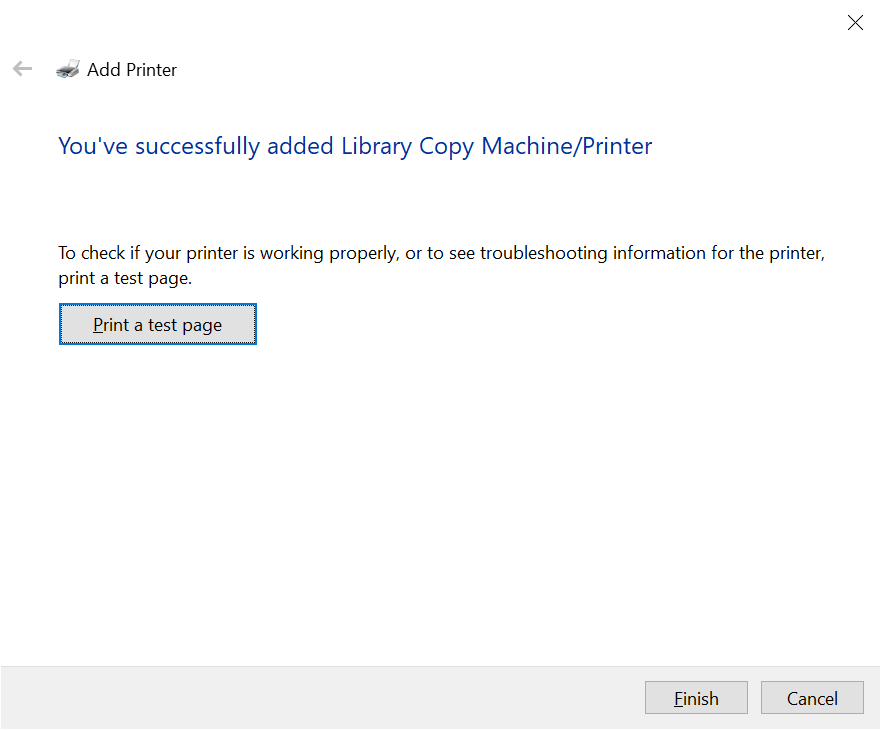
11. Rather than clicking the Print a test page button, complete the printer installation procedure and print a document you need as not to waste paper.
12. Click **Finish. [![11.png](https://kb.mlml.sjsu.edu/uploads/images/gallery/2022-08/scaled-1680-/11.png)](https://kb.mlml.sjsu.edu/uploads/images/gallery/2022-08/11.png)**
# Create a Scan to Email Account on the Konica Minolta Copiers

1. Tap the touch screen to wake-up the copier
2. If needed, tap the **HOME** button in the lower left corner of the touchscreen.
3. Tap **Address Book**.
4. Tap **New** at the bottom of the touchscreen
5. For **Address Type**, select **E-mail**
6. Use the on-screen keyboard to enter your **name** and your **@sjsu.edu** email address
7. If you scan to email frequently, tap to select **Favorites** under the name section
8. Click **Register**

You are now entered into the address book.

# Scan a Document Using the Konica Minolta Copiers

The Konica Minolta copiers in the Library and the Admin Copy room can scan documents directly to your SJSU email address. All of these instructions are posted for your convenience on the board next to the admin and library copiers.

---

#### Scan your document:

1. Tap the touch screen to wake-up the copier
2. If needed, tap the **HOME** button in the lower left corner of the touchscreen.
3. Tap Scan to **E-mail**
4. Insert the document into the document feeder (adjusting for size, as necessary) or place it onto the glass.
5. Browse the address book entry for the desired recipient and tap the checkbox next to their name. 
    1. If the desired recipient is not listed in the address book: 
        1. <span style="text-decoration: underline;">If you plan to scan items regularly</span>: You can add the email address as described in this KB post: <span style="text-decoration: underline;">[Create a scan to email account on the Konica Minolta copiers](https://kb.mlml.sjsu.edu/books/printing-print-printers-scanning-copiers/page/create-a-scan-to-email-account-on-the-konica-minolta-copiers)</span>
        2. <span style="text-decoration: underline;">If you do not plan to scan items regularly</span>: Tap **sample@test.local** at the top of the screen and enter the email address manually
6. Configure the scanner settings on the right side of the touch screen (if necessary):  
    (Below are the settings that you may want to change, otherwise leave as default) 
    - **Resolution** - Change the resolution of the scan (higher res provides more detail, lower res means smaller file sizes).
    - **File Type** - PDF/Compact PDF (default), TIFF, JPG (PDF is best for documents, images should be TIFF or JPG)
    - **Duplex Settings** - Select whether your document is one-sided or two-sided
    - **Density** - Lighten or darken the scan.
7. Press the **Start** button
8. Once the scan is complete, tap the **Home** button in the lower left corner of the touchscreen.

***IMPORTANT NOTE: If the copier beeps and/or displays an error code, it is likely that your address book entry in the scanner is not correct. If so, please verify that the email address in your address book entry is correct.***

---

#### Retrieve your scanned document:

1. Simply login to your SJSU Gmail account to download your scanned document: [https://mail.google.com/](https://mail.google.com/)

# MLML Network Printer DNS Names

##### **STUDENT PRINTERS**

Library Copy Machine/Printer - Konica Minolta bizhub C550i: **MLM-PRT-102B**  
  
*<span style="color: #ff0000;">**NOTE:** The printers below are restricted, please do not use them unless you have approval.</span>*

#####   
**LAB PRINTERS**

Mammal Lab Printer - HP M401dne: **ps215**  
  
Benthic Lab Printer - Brother HL-5250DN: **ps216**  
  
ChemOce Printer - HP LaserJet 2300dn: **ps507**  
  
Phyc Lab Printer - HP LaserJet P4014n: **ps218**  
  
GeoOce Printer - HP LaserJet 2300dn: **ps511c**  
  
Invert Lab Printer - **NONE**  
  
PhysOce Lab Printer - **NONE**  
  
Ich Lab Printer - **NONE**  
  
BioOce Lab Printer - **NONE**  
  
  
**FRONT OFFICE PRINTERS**

Admin Copy Machine/Printer - Konica Minolta bizhub C550i: **MLM-PRT-205**  
  
OLD Admin Copy Machine (moved to faculty offices wing)- Kyocera CS 4551ci: **ps205**  
  
  
**GROUP PRINTERS**  
  
Faculty Printer - HP LaserJet p4515d: **ps416**  
  
MOBY Printer - Xerox ColorQube 8570DN: **ps509c**  
  
PSRC Printer - HP LaserJet 4250N: **ps5141**  
  
Starr Lab Printer - HP LaserJet 1320n - **ps514**  
  
Marine OPs Copier - Xerox WorkCentre 3615: **psmarineops**  
  
Marine OPs Printer - Xerox Phaser 6180: **psmarineops2**  
  
Hab Center Printer - Minolta QMS MC2350: **pshabc**  
  
Small Boats Printer - HP K60: **HP K60**  
  
Norte Printer - Xerox Phaser 3610: **psnorte**

Norte Printer - Xerox WorkCentre 3615: **psnorte2**

Norte MPSL Field Crew Printer - Brother HL-5100DN - **psnorte47**  
  
CCWG Printer - HP Laser Jet Pro M402dw: **pssandholdt1**  
  
CCWG Printer - HP OfficeJet Pro 8715: **pssandholdt2**  
  
Aquaculture Center Printer - Lexmark C746: **psaquaculture**

# Installing Admin/Library Konica Minolta Copiers (Windows)

<table border="1" id="bkmrk-quick-tips%3A-printer-"><tbody><tr><td>##### IMPORTANT:

- - There are three parts to this process: 
        1. Downloading the <span style="text-decoration: underline;">[Konica Minolta driver](https://onyxweb.mykonicaminolta.com/OneStopProductSupport?appMode=public&productId=2276&categoryId=1&subCategoryId=ft0)</span>
        2. Installing the printer on your device
        3. Configuring the printer properly
    - All three parts are outlined below
    - **Please complete all three and follow these instructions completely. Otherwise, you will be unable to print successfully.**
    - If you encounter any problems, please come by the IT Help Desk in the main office or [submit a Help Desk ticket.](https://helpdesk.mlml.calstate.edu/)

</td></tr></tbody></table>

#### Windows 10

<p class="callout info"><span style="font-size: 11pt; font-family: Arial; background-color: transparent; font-weight: 400; font-variant: normal; text-decoration: none; vertical-align: baseline; white-space: pre-wrap;">These are instructions for setting up the new Konica Minolta copiers that were installed in December 2021 on Windows machines. If you find something that is out of date, please [submit a Help Desk ticket](https://helpdesk.mlml.calstate.edu/).</span></p>

### **<span style="font-size: 11pt; font-family: Arial; background-color: transparent; font-style: normal; font-variant: normal; text-decoration: none; vertical-align: baseline; white-space: pre-wrap;">1. Download the printer driver</span>**

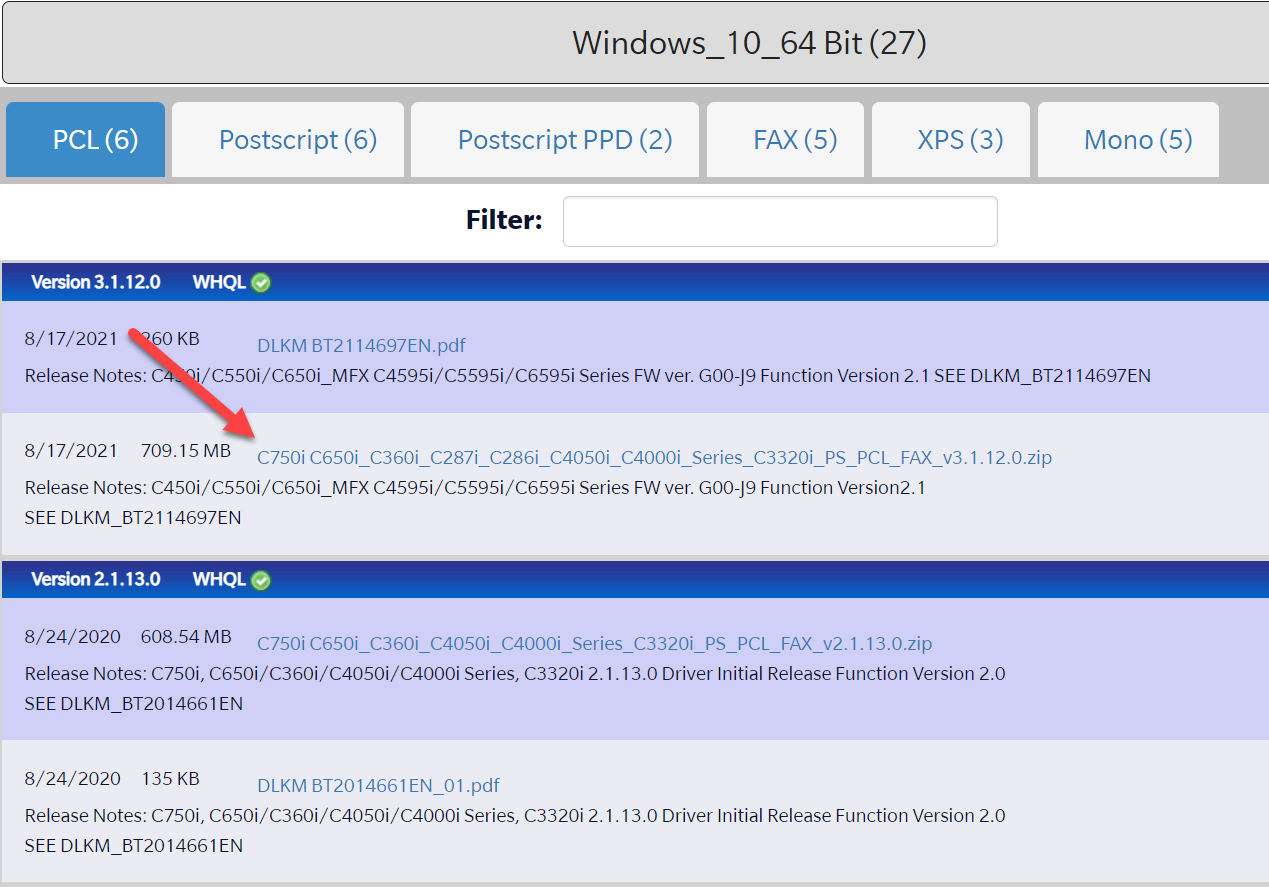
- - <span style="font-size: 11pt; font-family: Arial; background-color: transparent; font-weight: 400; font-style: normal; font-variant: normal; text-decoration: none; vertical-align: baseline; white-space: pre-wrap;">Click </span>[<span style="font-size: 11pt; font-family: Arial; background-color: transparent; font-weight: 400; font-style: normal; font-variant: normal; text-decoration: underline; text-decoration-skip-ink: none; vertical-align: baseline; white-space: pre-wrap;">this link</span>](https://onyxweb.mykonicaminolta.com/OneStopProductSupport?appMode=public&productId=2276&categoryId=1&subCategoryId=undefined)<span style="font-size: 11pt; font-family: Arial; background-color: transparent; font-weight: 400; font-style: normal; font-variant: normal; text-decoration: none; vertical-align: baseline; white-space: pre-wrap;"> to be taken to the Konica Minolta driver website for this printer (C550i).</span>
    - <span style="font-size: 11pt; font-family: Arial; background-color: transparent; font-weight: 400; font-style: normal; font-variant: normal; text-decoration: none; vertical-align: baseline; white-space: pre-wrap;">Click on the category for your operating system (most likely Windows 10 64-bit)</span>
    - <span style="font-size: 11pt; font-family: Arial; background-color: transparent; font-weight: 400; font-style: normal; font-variant: normal; text-decoration: none; vertical-align: baseline; white-space: pre-wrap;">The page has multiple files available for download. Download the newest version of the full printer driver (.zip), as shown below. There may be a newer version than what is shown in this screenshot.</span><span style="font-size: 11pt; font-family: Arial; color: #000000; background-color: transparent; font-weight: 400; font-style: normal; font-variant: normal; text-decoration: none; vertical-align: baseline; white-space: pre-wrap;">  
        </span>[![c550i_newest_version.PNG](https://kb.mlml.sjsu.edu/uploads/images/gallery/2023-09/kwNc550i-newest-version.PNG)](https://kb.mlml.sjsu.edu/uploads/images/gallery/2023-09/c550i-newest-version.PNG)
    - <span style="font-size: 11pt; font-family: Arial; background-color: transparent; font-weight: 400; font-style: normal; font-variant: normal; text-decoration: none; vertical-align: baseline; white-space: pre-wrap;">Save the .zip file to your computer, and open it when the download is complete.</span>
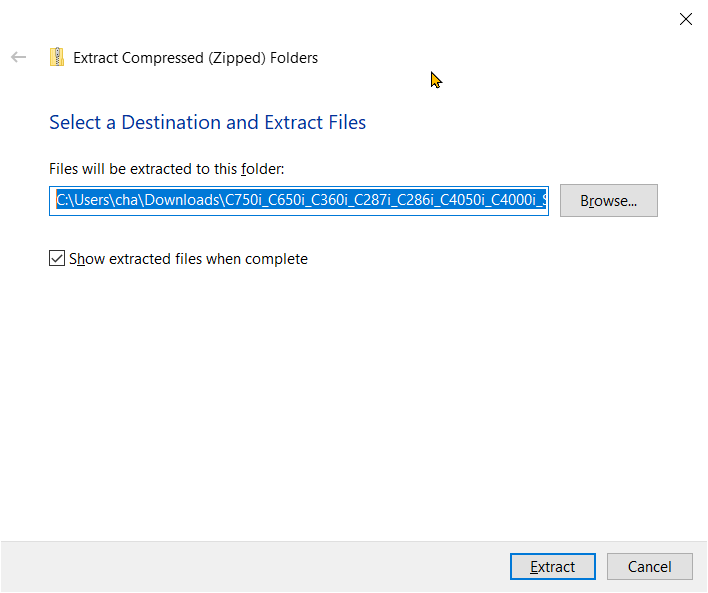
    - <span style="font-size: 11pt; font-family: Arial; background-color: transparent; font-weight: 400; font-style: normal; font-variant: normal; text-decoration: none; vertical-align: baseline; white-space: pre-wrap;">Extract the files to a folder:</span><span style="font-size: 11pt; font-family: Arial; color: #000000; background-color: transparent; font-weight: 400; font-style: normal; font-variant: normal; text-decoration: none; vertical-align: baseline; white-space: pre-wrap;">  
        </span>[![extract_to_folder.png](https://kb.mlml.sjsu.edu/uploads/images/gallery/2023-09/scaled-1680-/extract-to-folder.png)](https://kb.mlml.sjsu.edu/uploads/images/gallery/2023-09/extract-to-folder.png)
    - Most of the time, it will offer to extract the contents to same location where the zip file is saved (ex: Downloads folder)

### **<span style="font-size: 11pt; font-family: Arial; background-color: transparent; font-style: normal; font-variant: normal; text-decoration: none; vertical-align: baseline; white-space: pre-wrap;">2. Add the printer</span>**

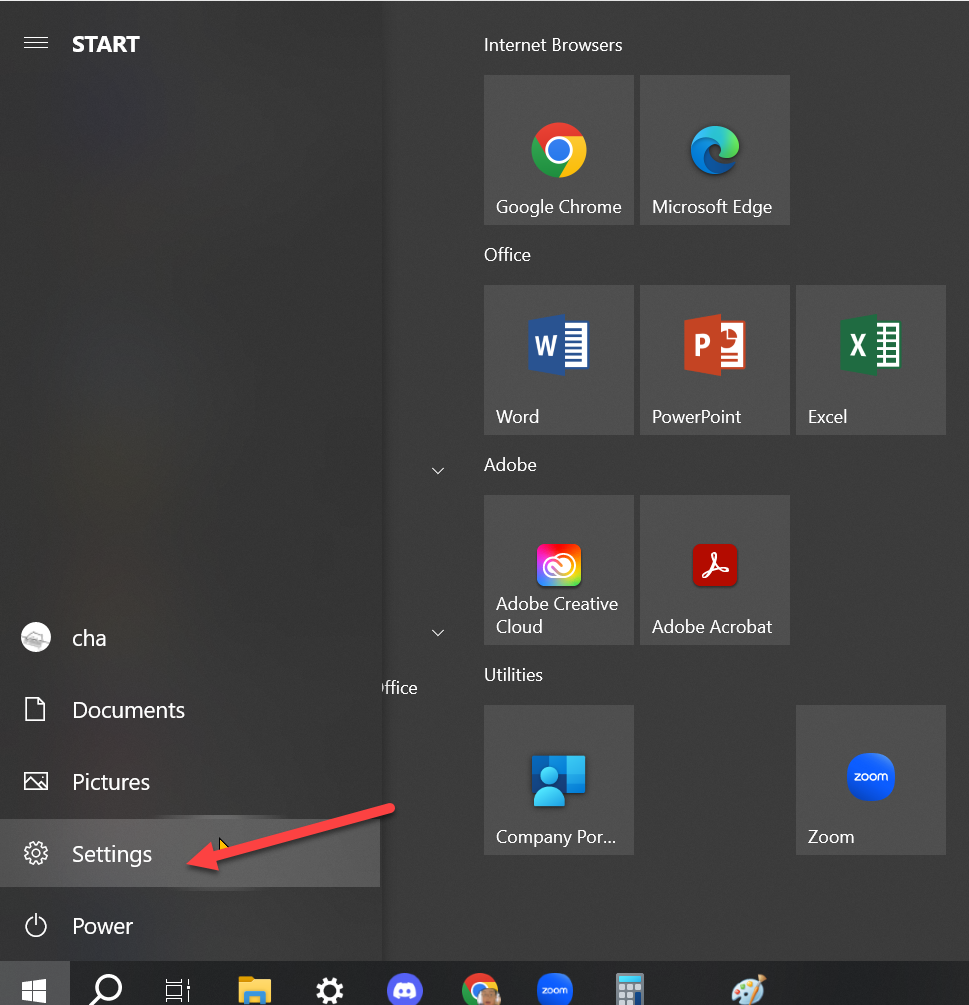
- 1. <span style="font-size: 11pt; font-family: Arial; background-color: transparent; font-weight: 400; font-style: normal; font-variant: normal; text-decoration: none; vertical-align: baseline; white-space: pre-wrap;">Open the Windows Start Menu and find the </span><span style="font-size: 11pt; font-family: Arial; background-color: transparent; font-weight: bold; font-style: normal; font-variant: normal; text-decoration: none; vertical-align: baseline; white-space: pre-wrap;">Settings</span><span style="font-size: 11pt; font-family: Arial; background-color: transparent; font-weight: 400; font-style: normal; font-variant: normal; text-decoration: none; vertical-align: baseline; white-space: pre-wrap;"> app:</span><span style="font-size: 11pt; font-family: Arial; background-color: transparent; font-weight: 400; font-style: normal; font-variant: normal; text-decoration: none; vertical-align: baseline; white-space: pre-wrap;">  
        </span><span style="font-size: 11pt; font-family: Arial; background-color: transparent; font-weight: 400; font-style: normal; font-variant: normal; text-decoration: none; vertical-align: baseline; white-space: pre-wrap;"><span style="border: none; display: inline-block; overflow: hidden; width: 624px; height: 656px;">![Settings_start.png](https://kb.mlml.sjsu.edu/uploads/images/gallery/2023-09/settings-start.png)</span></span>
    2. <span style="font-size: 11pt; font-family: Arial; background-color: transparent; font-weight: 400; font-style: normal; font-variant: normal; text-decoration: none; vertical-align: baseline; white-space: pre-wrap;"><span style="border: none; display: inline-block; overflow: hidden; width: 624px; height: 656px;">It should be the **Gear Icon** above the **Power Icon** Start Menu Button or you can search **Settings** in the Search box.</span></span>

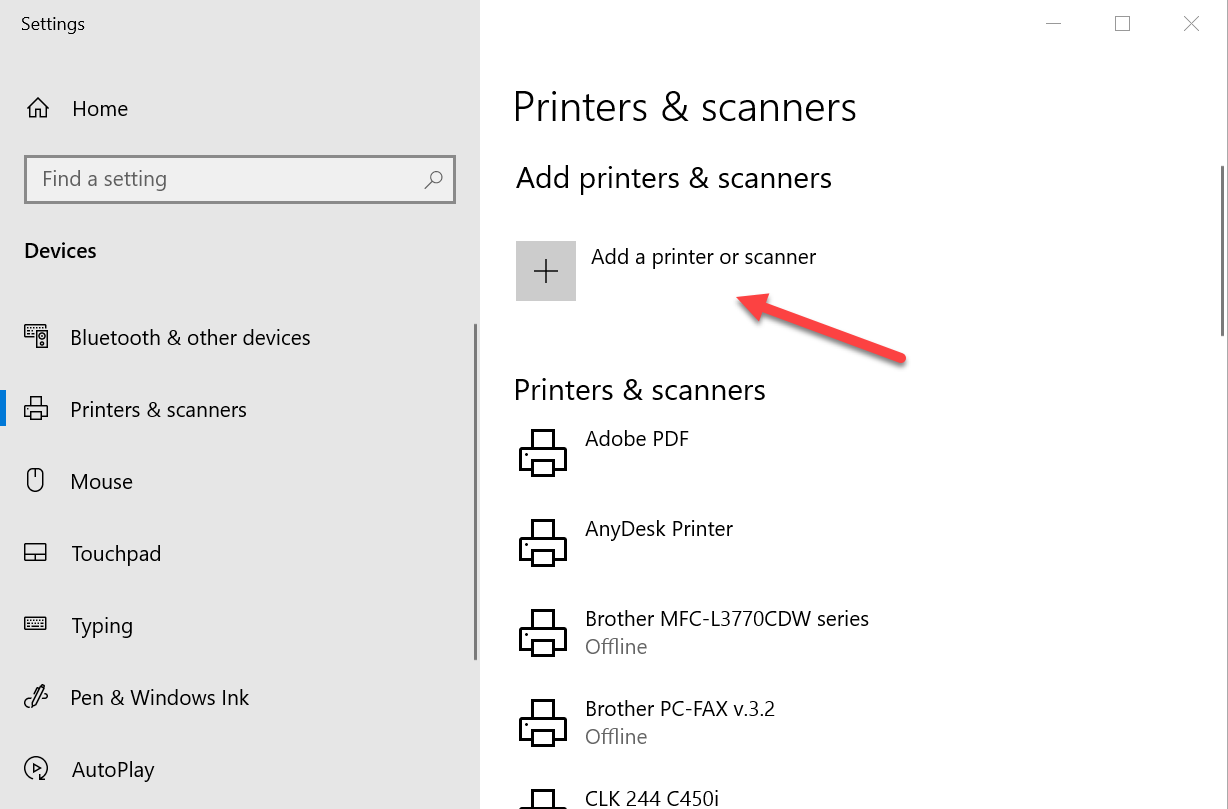
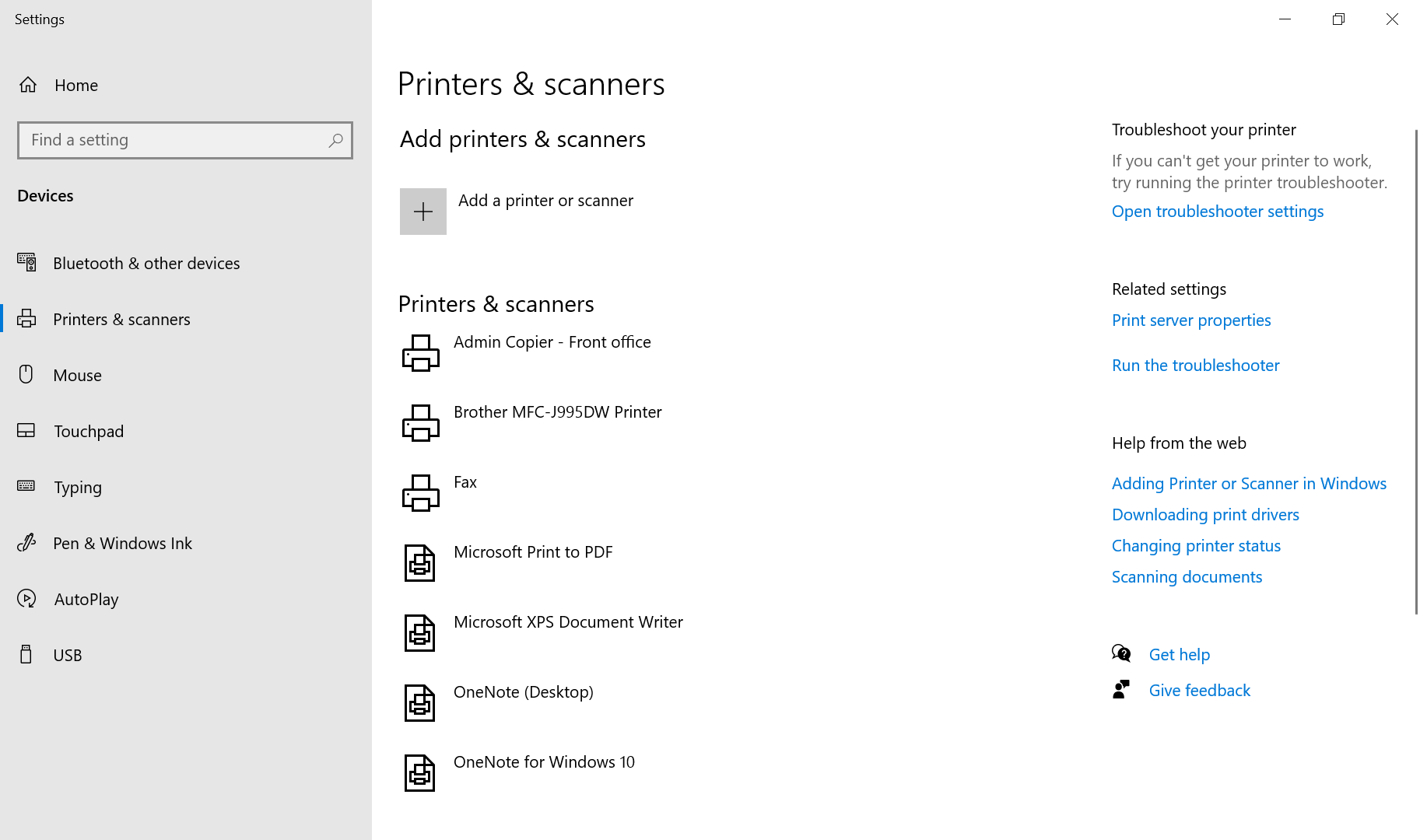
- - <span style="font-size: 11pt; font-family: Arial; background-color: transparent; font-weight: 400; font-style: normal; font-variant: normal; text-decoration: none; vertical-align: baseline; white-space: pre-wrap;">In Settings, click </span><span style="font-size: 11pt; font-family: Arial; background-color: transparent; font-weight: bold; font-style: normal; font-variant: normal; text-decoration: none; vertical-align: baseline; white-space: pre-wrap;">Devices</span><span style="font-size: 11pt; font-family: Arial; background-color: transparent; font-weight: 400; font-style: normal; font-variant: normal; text-decoration: none; vertical-align: baseline; white-space: pre-wrap;"> &gt; </span><span style="font-size: 11pt; font-family: Arial; background-color: transparent; font-weight: bold; font-style: normal; font-variant: normal; text-decoration: none; vertical-align: baseline; white-space: pre-wrap;">Printers &amp; scanners</span>
    - <span style="font-size: 11pt; font-family: Arial; background-color: transparent; font-weight: 400; font-style: normal; font-variant: normal; text-decoration: none; vertical-align: baseline; white-space: pre-wrap;">Click </span><span style="font-size: 11pt; font-family: Arial; background-color: transparent; font-weight: bold; font-style: normal; font-variant: normal; text-decoration: none; vertical-align: baseline; white-space: pre-wrap;">Add a printer or scanner</span><span style="font-size: 11pt; font-family: Arial; background-color: transparent; font-weight: 400; font-style: normal; font-variant: normal; text-decoration: none; vertical-align: baseline; white-space: pre-wrap;">.</span><span style="font-size: 11pt; font-family: Arial; background-color: transparent; font-weight: 400; font-style: normal; font-variant: normal; text-decoration: none; vertical-align: baseline; white-space: pre-wrap;">  
        </span><span style="font-size: 11pt; font-family: Arial; background-color: transparent; font-weight: 400; font-style: normal; font-variant: normal; text-decoration: none; vertical-align: baseline; white-space: pre-wrap;"><span style="border: none; display: inline-block; overflow: hidden; width: 624px; height: 420px;">![add_a_printer.png](https://kb.mlml.sjsu.edu/uploads/images/gallery/2023-09/add-a-printer.png)</span></span>
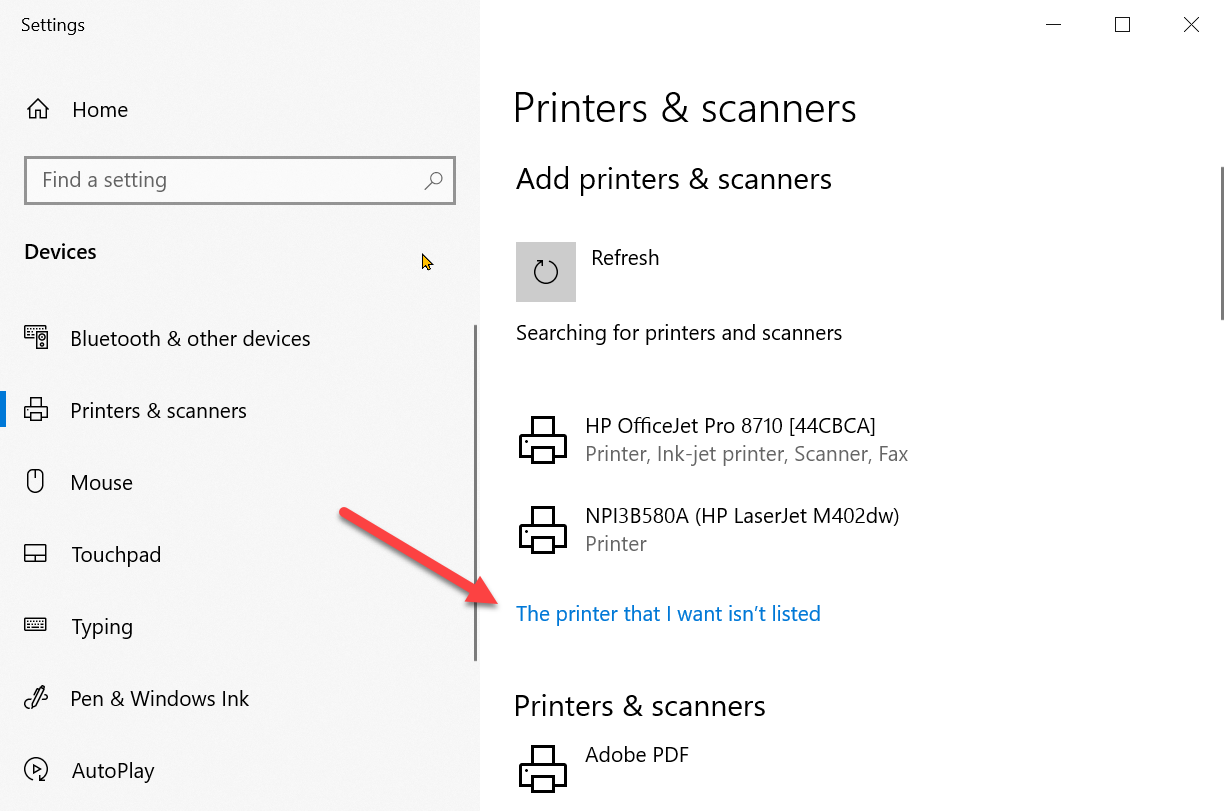
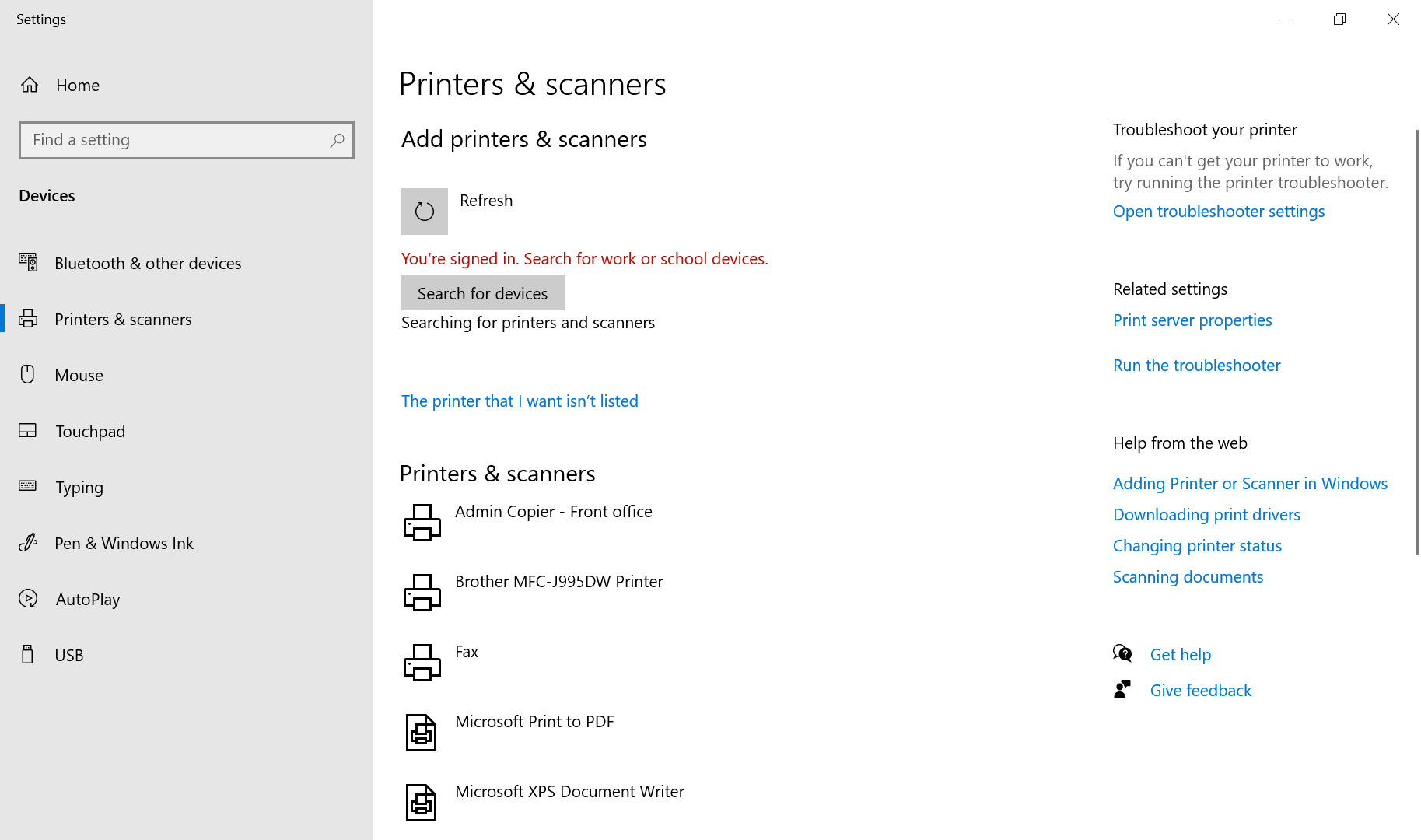
    - <span style="font-size: 11pt; font-family: Arial; background-color: transparent; font-weight: 400; font-style: normal; font-variant: normal; text-decoration: none; vertical-align: baseline; white-space: pre-wrap;">At the bottom of the list of printers, click </span><span style="font-size: 11pt; font-family: Arial; background-color: transparent; font-weight: bold; font-style: normal; font-variant: normal; text-decoration: none; vertical-align: baseline; white-space: pre-wrap;">The printer I want isn’t listed.</span><span style="font-size: 11pt; font-family: Arial; background-color: transparent; font-weight: bold; font-style: normal; font-variant: normal; text-decoration: none; vertical-align: baseline; white-space: pre-wrap;">  
        </span>[![add_a_printer_notlisted.png](https://kb.mlml.sjsu.edu/uploads/images/gallery/2023-09/scaled-1680-/add-a-printer-notlisted.png)](https://kb.mlml.sjsu.edu/uploads/images/gallery/2023-09/add-a-printer-notlisted.png)
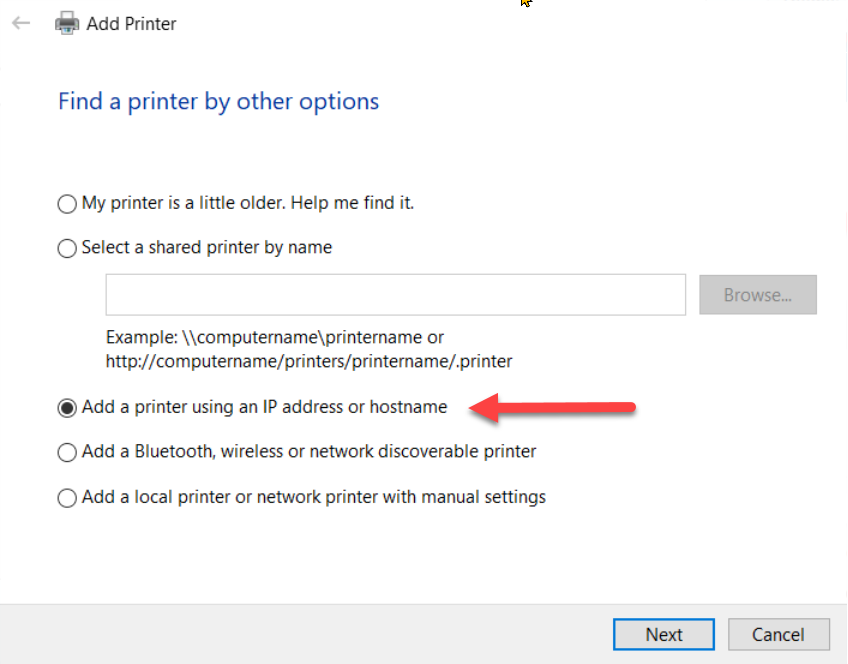
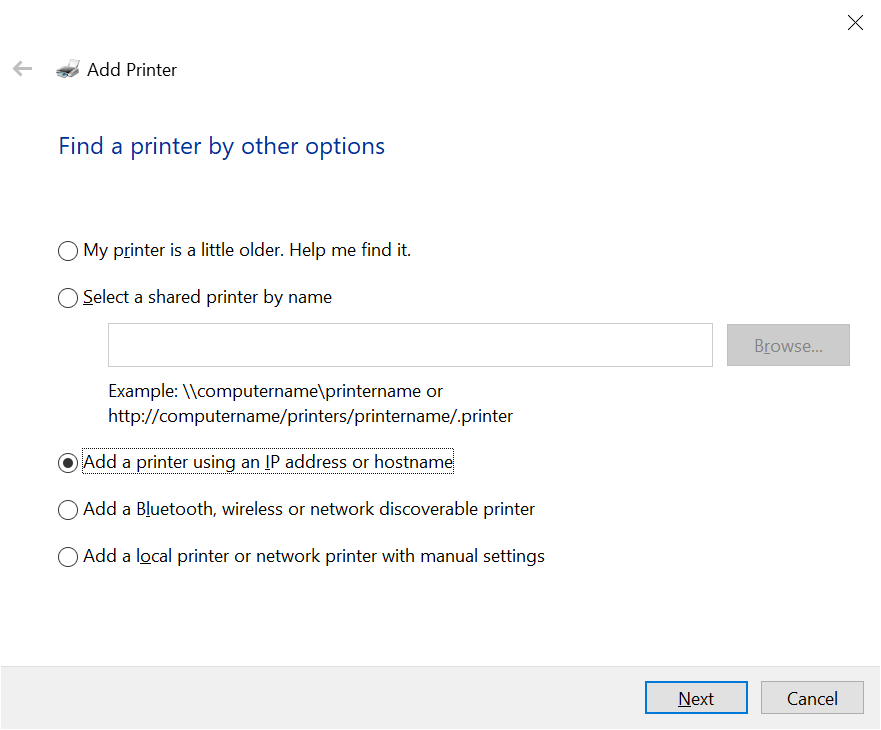
    - <span style="font-size: 11pt; font-family: Arial; background-color: transparent; font-weight: 400; font-style: normal; font-variant: normal; text-decoration: none; vertical-align: baseline; white-space: pre-wrap;">Select </span><span style="font-size: 11pt; font-family: Arial; background-color: transparent; font-weight: bold; font-style: normal; font-variant: normal; text-decoration: none; vertical-align: baseline; white-space: pre-wrap;">Add a printer using an IP address or hostname</span><span style="font-size: 11pt; font-family: Arial; background-color: transparent; font-weight: 400; font-style: normal; font-variant: normal; text-decoration: none; vertical-align: baseline; white-space: pre-wrap;"> and click </span><span style="font-size: 11pt; font-family: Arial; background-color: transparent; font-weight: bold; font-style: normal; font-variant: normal; text-decoration: none; vertical-align: baseline; white-space: pre-wrap;">Next.[![add_printer_by_ip.png](https://kb.mlml.sjsu.edu/uploads/images/gallery/2023-09/add-printer-by-ip.png)](https://kb.mlml.sjsu.edu/uploads/images/gallery/2023-09/extract-to-folder.png)</span>
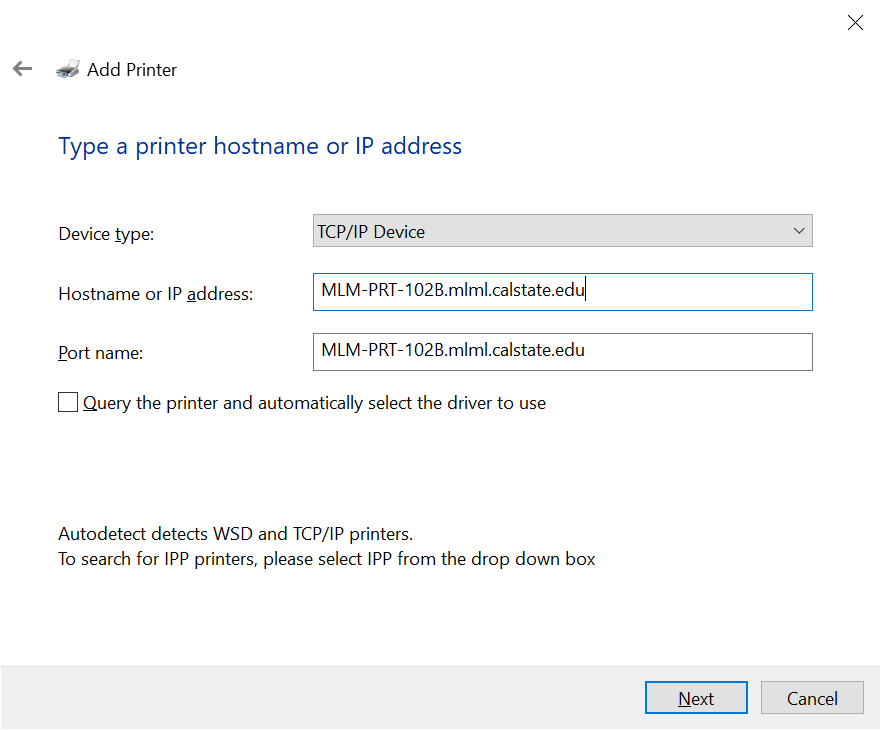
- Enter the following information: 
    - Device type: **TCP/IP Device**
    - Hostname or IP Address: 
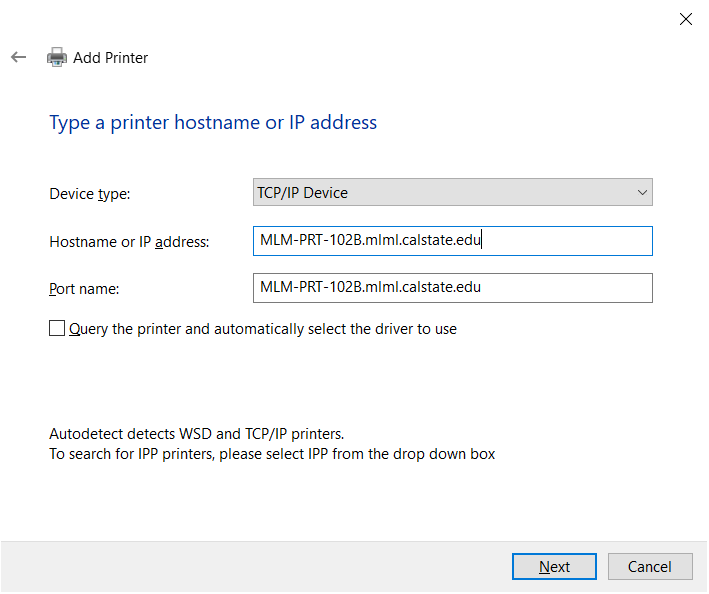
        - Library Copier: **MLM-PRT-102B.mlml.calstate.edu**
        - Admin Office copier: **MLM-PRT-205.mlml.calstate.edu**
    - Port name: this will auto-fill based on the hostname entered, you don’t need to change it.
    - UNCHECK **Query the printer and automatically select the driver to use**.<span style="font-size: 11pt; font-family: Arial; color: #000000; background-color: transparent; font-weight: 400; font-style: normal; font-variant: normal; text-decoration: none; vertical-align: baseline; white-space: pre-wrap;">  
        </span>[![tcpip_setup.png](https://kb.mlml.sjsu.edu/uploads/images/gallery/2023-10/scaled-1680-/tcpip-setup.png)](https://kb.mlml.sjsu.edu/uploads/images/gallery/2023-10/tcpip-setup.png)
    - <span style="font-size: 11pt; font-family: Arial; background-color: transparent; font-weight: 400; font-style: normal; font-variant: normal; text-decoration: none; vertical-align: baseline; white-space: pre-wrap;">Click </span><span style="font-size: 11pt; font-family: Arial; background-color: transparent; font-weight: bold; font-style: normal; font-variant: normal; text-decoration: none; vertical-align: baseline; white-space: pre-wrap;">Next</span><span style="font-size: 11pt; font-family: Arial; background-color: transparent; font-weight: 400; font-style: normal; font-variant: normal; text-decoration: none; vertical-align: baseline; white-space: pre-wrap;">.</span>
    - <span style="font-size: 11pt; font-family: Arial; background-color: transparent; font-weight: 400; font-style: normal; font-variant: normal; text-decoration: none; vertical-align: baseline; white-space: pre-wrap;">You may be told that additional port information is required. Leave </span><span style="font-size: 11pt; font-family: Arial; background-color: transparent; font-weight: bold; font-style: normal; font-variant: normal; text-decoration: none; vertical-align: baseline; white-space: pre-wrap;">Generic Network Card</span><span style="font-size: 11pt; font-family: Arial; background-color: transparent; font-weight: 400; font-style: normal; font-variant: normal; text-decoration: none; vertical-align: baseline; white-space: pre-wrap;"> selected and click </span><span style="font-size: 11pt; font-family: Arial; background-color: transparent; font-weight: bold; font-style: normal; font-variant: normal; text-decoration: none; vertical-align: baseline; white-space: pre-wrap;">Next</span><span style="font-size: 11pt; font-family: Arial; background-color: transparent; font-weight: 400; font-style: normal; font-variant: normal; text-decoration: none; vertical-align: baseline; white-space: pre-wrap;">.</span>
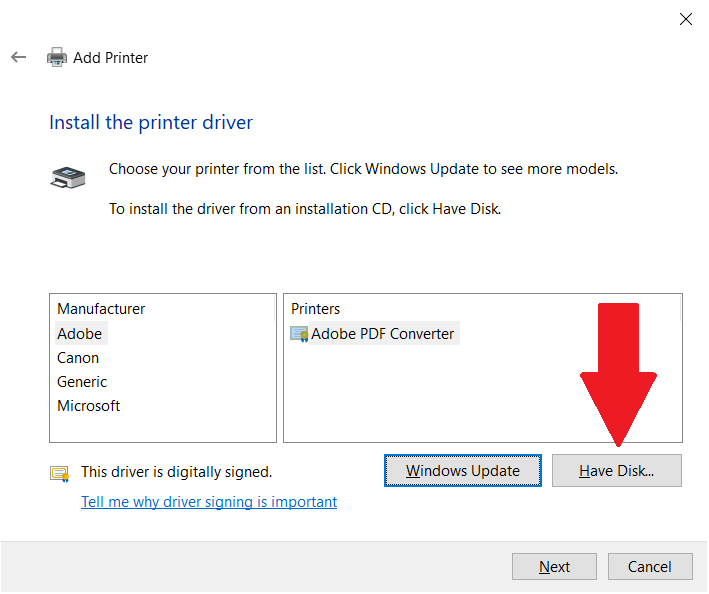
    - <span style="font-size: 11pt; font-family: Arial; background-color: transparent; font-weight: 400; font-style: normal; font-variant: normal; text-decoration: none; vertical-align: baseline; white-space: pre-wrap;">Click </span><span style="font-size: 11pt; font-family: Arial; background-color: transparent; font-weight: bold; font-style: normal; font-variant: normal; text-decoration: none; vertical-align: baseline; white-space: pre-wrap;">Have disk</span><span style="font-size: 11pt; font-family: Arial; background-color: transparent; font-weight: 400; font-style: normal; font-variant: normal; text-decoration: none; vertical-align: baseline; white-space: pre-wrap;">.</span><span style="font-size: 11pt; font-family: Arial; color: #000000; background-color: transparent; font-weight: 400; font-style: normal; font-variant: normal; text-decoration: none; vertical-align: baseline; white-space: pre-wrap;">  
        </span>[![havedisk_setup.png](https://kb.mlml.sjsu.edu/uploads/images/gallery/2023-10/scaled-1680-/GN0havedisk-setup.png)](https://kb.mlml.sjsu.edu/uploads/images/gallery/2023-10/GN0havedisk-setup.png)
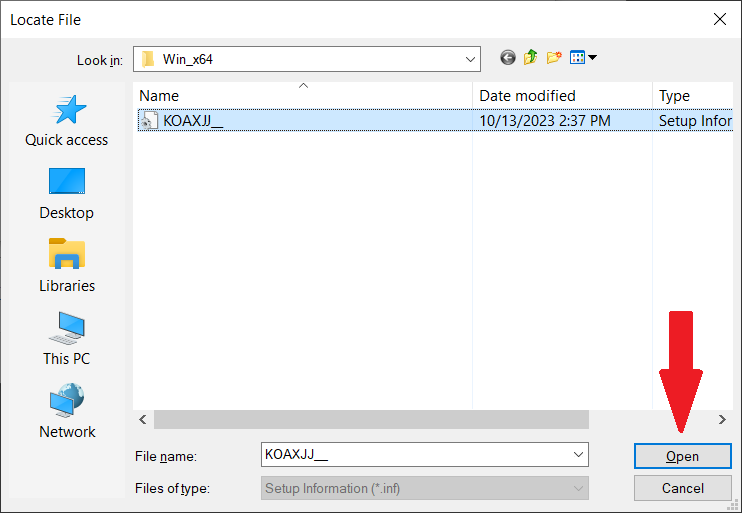
    - <span style="font-size: 11pt; font-family: Arial; background-color: transparent; font-weight: 400; font-style: normal; font-variant: normal; text-decoration: none; vertical-align: baseline; white-space: pre-wrap;">Click </span><span style="font-size: 11pt; font-family: Arial; background-color: transparent; font-weight: bold; font-style: normal; font-variant: normal; text-decoration: none; vertical-align: baseline; white-space: pre-wrap;">Browse </span><span style="font-size: 11pt; font-family: Arial; background-color: transparent; font-weight: 400; font-style: normal; font-variant: normal; text-decoration: none; vertical-align: baseline; white-space: pre-wrap;">and locate the folder that you extracted containing the driver files in Step 1.</span>
        - <span style="font-size: 11pt; font-family: Arial; background-color: transparent; font-weight: 400; font-style: normal; font-variant: normal; text-decoration: none; vertical-align: baseline; white-space: pre-wrap;">Inside the folder, navigate to </span><span style="font-size: 11pt; font-family: Arial; background-color: transparent; font-weight: bold; font-style: normal; font-variant: normal; text-decoration: none; vertical-align: baseline; white-space: pre-wrap;">Drivers/PCL/EN/Win\_x64/</span>
        - <span style="font-size: 11pt; font-family: Arial; background-color: transparent; font-weight: 400; font-style: normal; font-variant: normal; text-decoration: none; vertical-align: baseline; white-space: pre-wrap;">Select the .inf file that appears in the folder and click </span><span style="font-size: 11pt; font-family: Arial; background-color: transparent; font-weight: bold; font-style: normal; font-variant: normal; text-decoration: none; vertical-align: baseline; white-space: pre-wrap;">Open.</span><span style="font-size: 11pt; font-family: Arial; color: #000000; background-color: transparent; font-weight: 400; font-style: normal; font-variant: normal; text-decoration: none; vertical-align: baseline; white-space: pre-wrap;">  
            </span>[![havedisk_setup2.png](https://kb.mlml.sjsu.edu/uploads/images/gallery/2023-10/scaled-1680-/havedisk-setup2.png)](https://kb.mlml.sjsu.edu/uploads/images/gallery/2023-10/havedisk-setup2.png)
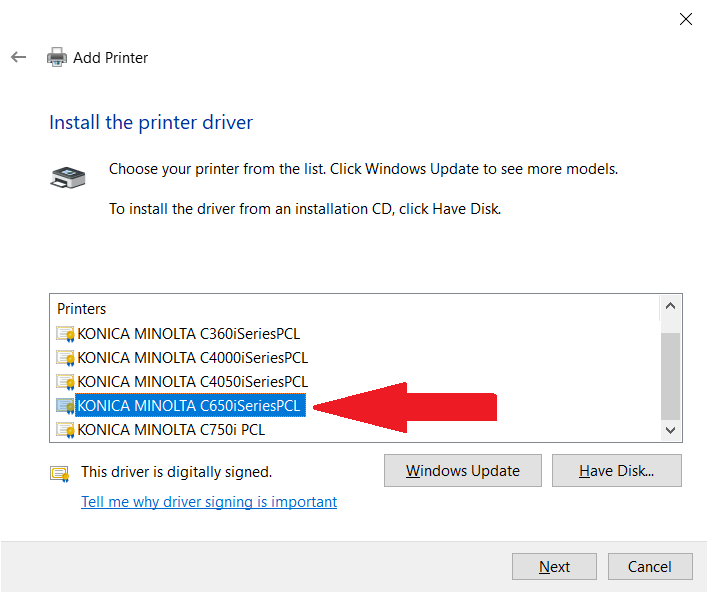
        - <span style="font-size: 11pt; font-family: Arial; background-color: transparent; font-weight: 400; font-style: normal; font-variant: normal; text-decoration: none; vertical-align: baseline; white-space: pre-wrap;">Click </span><span style="font-size: 11pt; font-family: Arial; background-color: transparent; font-weight: bold; font-style: normal; font-variant: normal; text-decoration: none; vertical-align: baseline; white-space: pre-wrap;">OK </span><span style="font-size: 11pt; font-family: Arial; background-color: transparent; font-weight: 400; font-style: normal; font-variant: normal; text-decoration: none; vertical-align: baseline; white-space: pre-wrap;">and then </span><span style="font-size: 11pt; font-family: Arial; background-color: transparent; font-weight: bold; font-style: normal; font-variant: normal; text-decoration: none; vertical-align: baseline; white-space: pre-wrap;">Next</span><span style="font-size: 11pt; font-family: Arial; background-color: transparent; font-weight: 400; font-style: normal; font-variant: normal; text-decoration: none; vertical-align: baseline; white-space: pre-wrap;">.</span>
    - <span style="font-size: 11pt; font-family: Arial; background-color: transparent; font-weight: 400; font-style: normal; font-variant: normal; text-decoration: none; vertical-align: baseline; white-space: pre-wrap;">Select </span><span style="font-size: 11pt; font-family: Arial; background-color: transparent; font-weight: bold; font-style: normal; font-variant: normal; text-decoration: none; vertical-align: baseline; white-space: pre-wrap;">KONICA MINOLTA C650iSeriesPCL</span><span style="font-size: 11pt; font-family: Arial; background-color: transparent; font-weight: 400; font-style: normal; font-variant: normal; text-decoration: none; vertical-align: baseline; white-space: pre-wrap;"> from the list of drivers (The 550i and 650i use the same software):</span><span style="font-size: 11pt; font-family: Arial; color: #000000; background-color: transparent; font-weight: 400; font-style: normal; font-variant: normal; text-decoration: none; vertical-align: baseline; white-space: pre-wrap;">  
        </span>[![install_printerdriver.png](https://kb.mlml.sjsu.edu/uploads/images/gallery/2023-10/scaled-1680-/install-printerdriver.png)](https://kb.mlml.sjsu.edu/uploads/images/gallery/2023-10/install-printerdriver.png)
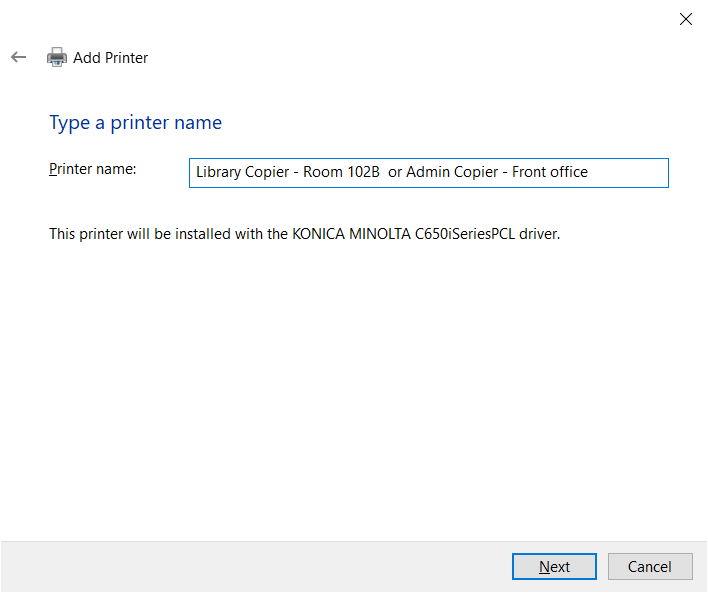
    - <span style="font-size: 11pt; font-family: Arial; background-color: transparent; font-weight: 400; font-style: normal; font-variant: normal; text-decoration: none; vertical-align: baseline; white-space: pre-wrap;">Name the printer (E.g. “Library Copier - Room 102B” or “Admin Copier - Front office”)</span><span style="font-size: 11pt; font-family: Arial; color: #000000; background-color: transparent; font-weight: 400; font-style: normal; font-variant: normal; text-decoration: none; vertical-align: baseline; white-space: pre-wrap;">  
        </span>[![naming_printer.png](https://kb.mlml.sjsu.edu/uploads/images/gallery/2023-10/scaled-1680-/naming-printer.png)](https://kb.mlml.sjsu.edu/uploads/images/gallery/2023-10/naming-printer.png)
    - <span style="font-size: 11pt; font-family: Arial; background-color: transparent; font-weight: 400; font-style: normal; font-variant: normal; text-decoration: none; vertical-align: baseline; white-space: pre-wrap;">Click </span><span style="font-size: 11pt; font-family: Arial; background-color: transparent; font-weight: bold; font-style: normal; font-variant: normal; text-decoration: none; vertical-align: baseline; white-space: pre-wrap;">Next</span><span style="font-size: 11pt; font-family: Arial; background-color: transparent; font-weight: 400; font-style: normal; font-variant: normal; text-decoration: none; vertical-align: baseline; white-space: pre-wrap;">.</span>
    - <span style="font-size: 11pt; font-family: Arial; background-color: transparent; font-weight: 400; font-style: normal; font-variant: normal; text-decoration: none; vertical-align: baseline; white-space: pre-wrap;">You will be asked if you want to share the printer on the network. Select </span><span style="font-size: 11pt; font-family: Arial; background-color: transparent; font-weight: bold; font-style: normal; font-variant: normal; text-decoration: none; vertical-align: baseline; white-space: pre-wrap;">Do not share this printer</span><span style="font-size: 11pt; font-family: Arial; background-color: transparent; font-weight: 400; font-style: normal; font-variant: normal; text-decoration: none; vertical-align: baseline; white-space: pre-wrap;"> and click </span><span style="font-size: 11pt; font-family: Arial; background-color: transparent; font-weight: bold; font-style: normal; font-variant: normal; text-decoration: none; vertical-align: baseline; white-space: pre-wrap;">Next</span><span style="font-size: 11pt; font-family: Arial; background-color: transparent; font-weight: 400; font-style: normal; font-variant: normal; text-decoration: none; vertical-align: baseline; white-space: pre-wrap;">.</span><span style="font-size: 11pt; font-family: Arial; color: #000000; background-color: transparent; font-weight: 400; font-style: normal; font-variant: normal; text-decoration: none; vertical-align: baseline; white-space: pre-wrap;">  
        </span>[![naming_printer.png](https://kb.mlml.sjsu.edu/uploads/images/gallery/2023-10/scaled-1680-/naming-printer.png)](https://kb.mlml.sjsu.edu/uploads/images/gallery/2023-10/naming-printer.png)
    - <span style="font-size: 11pt; font-family: Arial; background-color: transparent; font-weight: 400; font-style: normal; font-variant: normal; text-decoration: none; vertical-align: baseline; white-space: pre-wrap;">Click </span><span style="font-size: 11pt; font-family: Arial; background-color: transparent; font-weight: bold; font-style: normal; font-variant: normal; text-decoration: none; vertical-align: baseline; white-space: pre-wrap;">Finish</span><span style="font-size: 11pt; font-family: Arial; background-color: transparent; font-weight: 400; font-style: normal; font-variant: normal; text-decoration: none; vertical-align: baseline; white-space: pre-wrap;">. Do not print a test page. Uncheck the box for "Print a test page" if applicable.</span>

### **<span style="font-size: 11pt; font-family: Arial; background-color: transparent; font-style: normal; font-variant: normal; text-decoration: none; vertical-align: baseline; white-space: pre-wrap;">3. Set Default Printing Settings</span>**

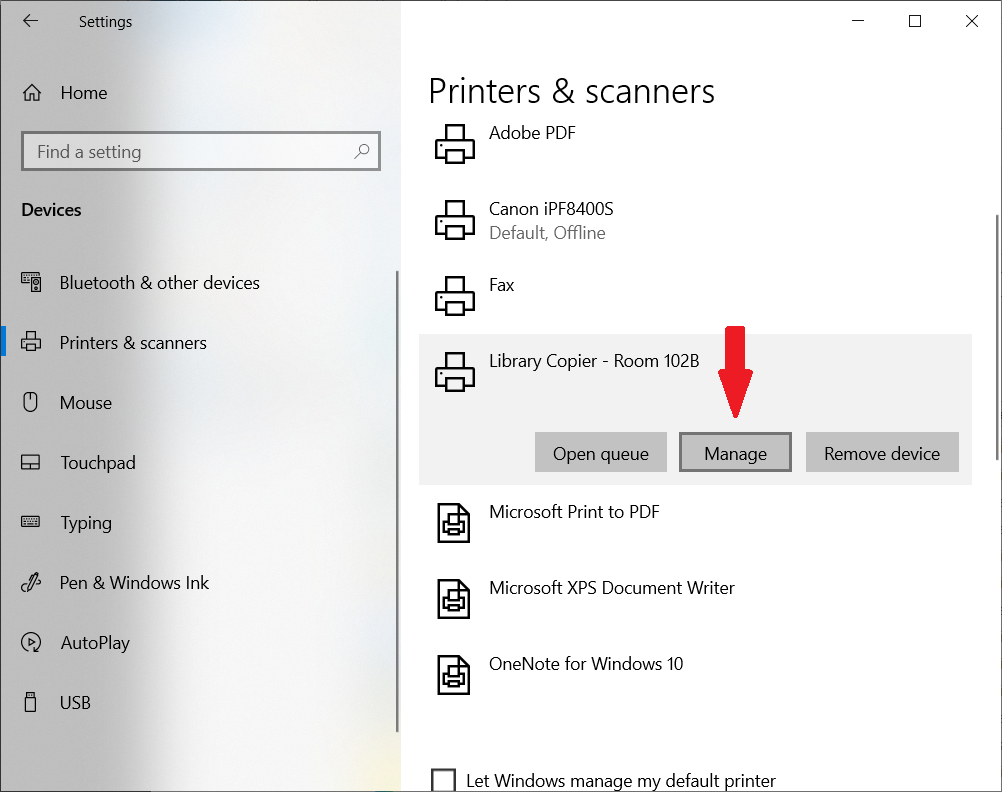
- - <span style="font-size: 11pt; font-family: Arial; background-color: transparent; font-weight: 400; font-style: normal; font-variant: normal; text-decoration: none; vertical-align: baseline; white-space: pre-wrap;">Find the copier in your list of printers and click on it, then click </span><span style="font-size: 11pt; font-family: Arial; background-color: transparent; font-weight: bold; font-style: normal; font-variant: normal; text-decoration: none; vertical-align: baseline; white-space: pre-wrap;">Manage</span><span style="font-size: 11pt; font-family: Arial; background-color: transparent; font-weight: 400; font-style: normal; font-variant: normal; text-decoration: none; vertical-align: baseline; white-space: pre-wrap;">:</span><span style="font-size: 11pt; font-family: Arial; color: #000000; background-color: transparent; font-weight: 400; font-style: normal; font-variant: normal; text-decoration: none; vertical-align: baseline; white-space: pre-wrap;">  
        </span>[![manage_print.png](https://kb.mlml.sjsu.edu/uploads/images/gallery/2023-10/scaled-1680-/manage-print.png)](https://kb.mlml.sjsu.edu/uploads/images/gallery/2023-10/manage-print.png)
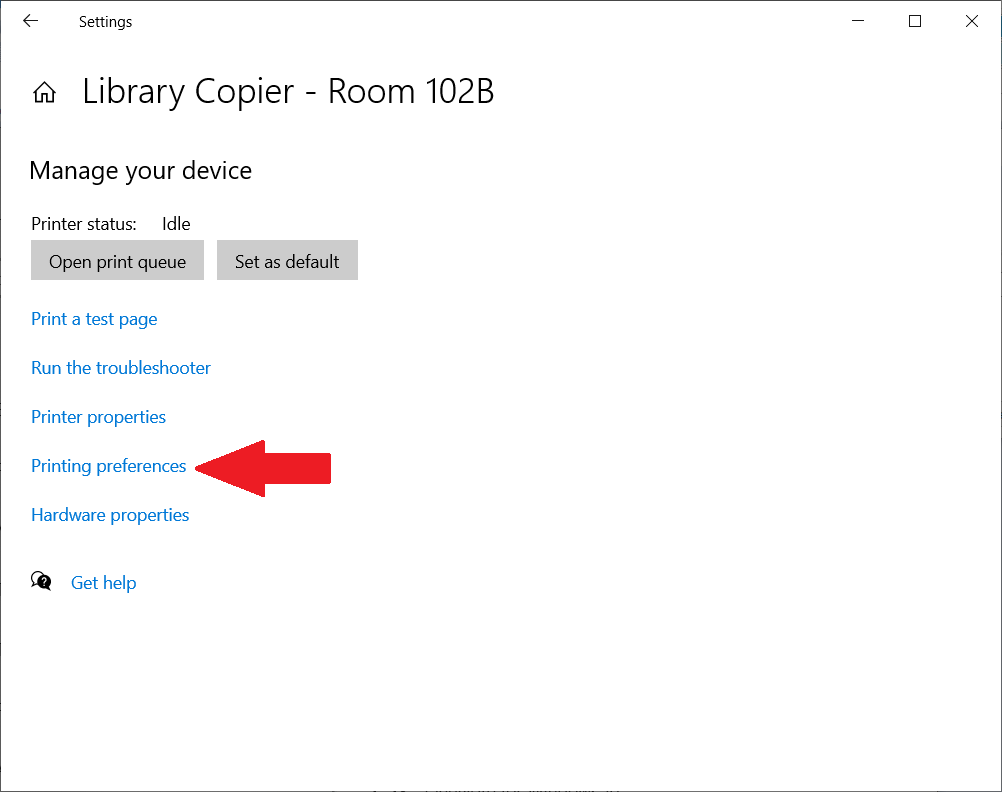
    - <span style="font-size: 11pt; font-family: Arial; background-color: transparent; font-weight: 400; font-style: normal; font-variant: normal; text-decoration: none; vertical-align: baseline; white-space: pre-wrap;">Click </span><span style="font-size: 11pt; font-family: Arial; background-color: transparent; font-weight: bold; font-style: normal; font-variant: normal; text-decoration: none; vertical-align: baseline; white-space: pre-wrap;">Printing preferences:</span><span style="font-size: 11pt; font-family: Arial; color: #000000; background-color: transparent; font-weight: 400; font-style: normal; font-variant: normal; text-decoration: none; vertical-align: baseline; white-space: pre-wrap;">  
        </span>[![print_pref.png](https://kb.mlml.sjsu.edu/uploads/images/gallery/2023-10/scaled-1680-/print-pref.png)](https://kb.mlml.sjsu.edu/uploads/images/gallery/2023-10/print-pref.png)
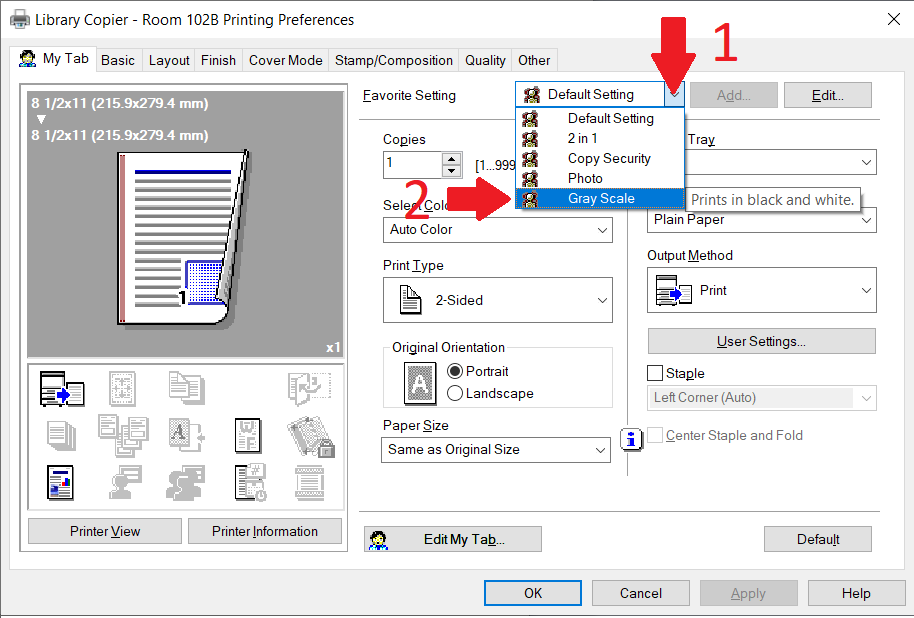
    - <span style="font-size: 11pt; font-family: Arial; background-color: transparent; font-weight: 400; font-style: normal; font-variant: normal; text-decoration: none; vertical-align: baseline; white-space: pre-wrap;">Select the “Favorite Setting” dropdown and click </span><span style="font-size: 11pt; font-family: Arial; background-color: transparent; font-weight: bold; font-style: normal; font-variant: normal; text-decoration: none; vertical-align: baseline; white-space: pre-wrap;">Gray Scale</span><span style="font-size: 11pt; font-family: Arial; background-color: transparent; font-weight: 400; font-style: normal; font-variant: normal; text-decoration: none; vertical-align: baseline; white-space: pre-wrap;">:</span><span style="font-size: 11pt; font-family: Arial; color: #000000; background-color: transparent; font-weight: 400; font-style: normal; font-variant: normal; text-decoration: none; vertical-align: baseline; white-space: pre-wrap;">  
        </span>[![fav_setting.png](https://kb.mlml.sjsu.edu/uploads/images/gallery/2023-10/scaled-1680-/fav-setting.png)](https://kb.mlml.sjsu.edu/uploads/images/gallery/2023-10/fav-setting.png)
    - <span style="font-size: 11pt; font-family: Arial; background-color: transparent; font-weight: 400; font-style: normal; font-variant: normal; text-decoration: none; vertical-align: baseline; white-space: pre-wrap;">Click </span><span style="font-size: 11pt; font-family: Arial; background-color: transparent; font-weight: bold; font-style: normal; font-variant: normal; text-decoration: none; vertical-align: baseline; white-space: pre-wrap;">OK.</span>
    - <span style="font-size: 11pt; font-family: Arial; background-color: transparent; font-weight: 400; font-style: normal; font-variant: normal; text-decoration: none; vertical-align: baseline; white-space: pre-wrap;">This means that when you print, it will default to grayscale (black and white). If you need to print in color, you can select a color preset, but you should leave the default/favorite setting as grayscale.</span>
    - <span style="font-size: 11pt; font-family: Arial; background-color: transparent; font-weight: 400; font-style: normal; font-variant: normal; text-decoration: none; vertical-align: baseline; white-space: pre-wrap;">If you need to change other printing settings, the </span><span style="font-size: 11pt; font-family: Arial; background-color: transparent; font-weight: bold; font-style: normal; font-variant: normal; text-decoration: none; vertical-align: baseline; white-space: pre-wrap;">Printing preferences </span><span style="font-size: 11pt; font-family: Arial; background-color: transparent; font-weight: 400; font-style: normal; font-variant: normal; text-decoration: none; vertical-align: baseline; white-space: pre-wrap;">menu is where you access them. Remember to leave the default set to grayscale.</span>
    - <span style="font-size: 11pt; font-family: Arial; background-color: transparent; font-weight: 400; font-style: normal; font-variant: normal; text-decoration: none; vertical-align: baseline; white-space: pre-wrap;">The printer is now ready to be used.</span>

# Installing Admin/Library Konica Minolta Copiers (macOS)

<table border="1" id="bkmrk-important%3A-there-are" style="border-collapse: collapse; width: 100%;"><tbody><tr><td style="width: 100%;">##### IMPORTANT:

- - There are three parts to this process: 
        1. Downloading the <span style="text-decoration: underline;">[Konica Minolta driver](https://onyxweb.mykonicaminolta.com/OneStopProductSupport?appMode=public&productId=2276&categoryId=1&subCategoryId=undefined)</span>
        2. Installing the printer on your device
        3. Configuring the printer properly
    - All three parts are outlined below
    - **Please complete all three and follow these instructions <span style="text-decoration: underline;">completely</span>. Otherwise, you will be unable to print successfully.**
    - If you encounter any problems, please come by the IT Help Desk in the main office or <span style="text-decoration: underline;">[submit a Help Desk ticket.](https://helpdesk.mlml.calstate.edu/)</span>

</td></tr></tbody></table>

<p class="callout info">These instructions are for the NEW Konica Minolta copiers that were installed in December 2021 for use with newer versions of macOS. Older versions of macOS will have similar instructions, but certain fields may be named slightly different. If you find something that is out of date, please <span style="text-decoration: underline;">[submit a Help Desk ticket](https://helpdesk.mlml.calstate.edu/).</span></p>

##### **1. Download the printer driver**

- <span style="font-weight: 400;">Click </span><span style="text-decoration: underline;">[<span style="font-weight: 400;">this link</span>](https://onyxweb.mykonicaminolta.com/OneStopProductSupport?appMode=public&productId=2276&categoryId=1&subCategoryId=undefined)</span><span style="font-weight: 400;"> to be taken to the Konica Minolta driver website for this printer (C550i)</span>
- <span style="font-weight: 400;">Find your operating system and select it</span>
    - <span style="font-weight: 400;">If you do not know your operating system, click on the Apple icon in the top left corner of your screen and select “About This Mac”</span>
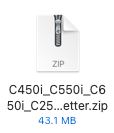
- <span style="font-weight: 400;">Download the newest version of the full printer driver (.zip), as shown below. There may be a newer version than what is shown in this screenshot.</span>
    - <span style="font-weight: 400;">There may be multiple versions of the print driver. If so, make sure you are selecting the driver for Letter paper, as shown below.  
        [![1.png](https://kb.mlml.sjsu.edu/uploads/images/gallery/2022-08/scaled-1680-/JmZ1.png)](https://kb.mlml.sjsu.edu/uploads/images/gallery/2022-08/JmZ1.png)  

        </span>
- <span style="font-weight: 400;">Once the download is complete, open the .zip file to extract the .pkg file and run it  
    [![2.png](https://kb.mlml.sjsu.edu/uploads/images/gallery/2022-08/scaled-1680-/2.png)](https://kb.mlml.sjsu.edu/uploads/images/gallery/2022-08/2.png)</span>
- <span style="font-weight: 400;">When the installer launches, click continue/agree when prompted and complete the driver installation. ​​If a pop-up comes up saying "Installer" would like to access files in your Downloads folder click **OK**. Move the Installer to Trash.</span>

##### **2. Add the printer**

- <span style="font-weight: 400;">Access your </span>**System Preferences**<span style="font-weight: 400;"> (in the drop-down menu from clicking on the Apple logo in the top left corner of the desktop).</span>
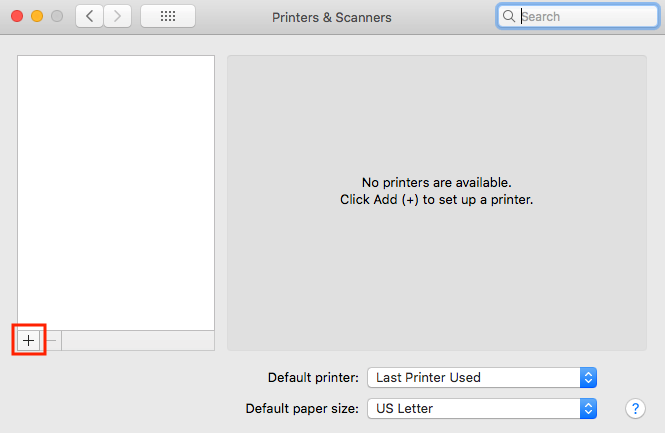
- <span style="font-weight: 400;">Go to **Printers &amp; Scanners**. Click on the **+** button to add a printer.   
    *NOTE: If you have the old library or admin printer installed, remove it first by highlighting it, then clicking on the* ***-*** *symbol.  
    [![plus.png](https://kb.mlml.sjsu.edu/uploads/images/gallery/2021-12/scaled-1680-/plus.png)](https://kb.mlml.sjsu.edu/uploads/images/gallery/2021-12/plus.png)* </span>
- <span style="font-weight: 400;">Click the **globe icon/IP tab** at the top of the window  
    **[![globe.png](https://kb.mlml.sjsu.edu/uploads/images/gallery/2021-12/scaled-1680-/globe.png)](https://kb.mlml.sjsu.edu/uploads/images/gallery/2021-12/globe.png)**  

    **OR**  
    [![IP.png](https://kb.mlml.sjsu.edu/uploads/images/gallery/2021-12/scaled-1680-/ip.png)](https://kb.mlml.sjsu.edu/uploads/images/gallery/2021-12/ip.png)  

    </span>
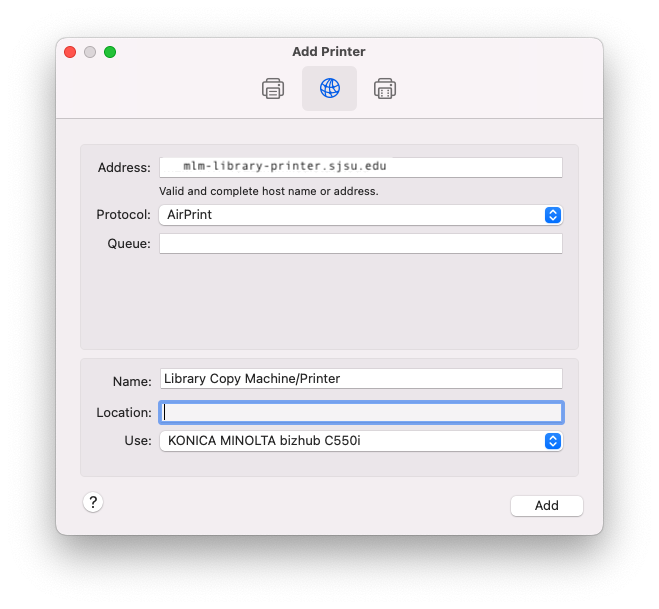
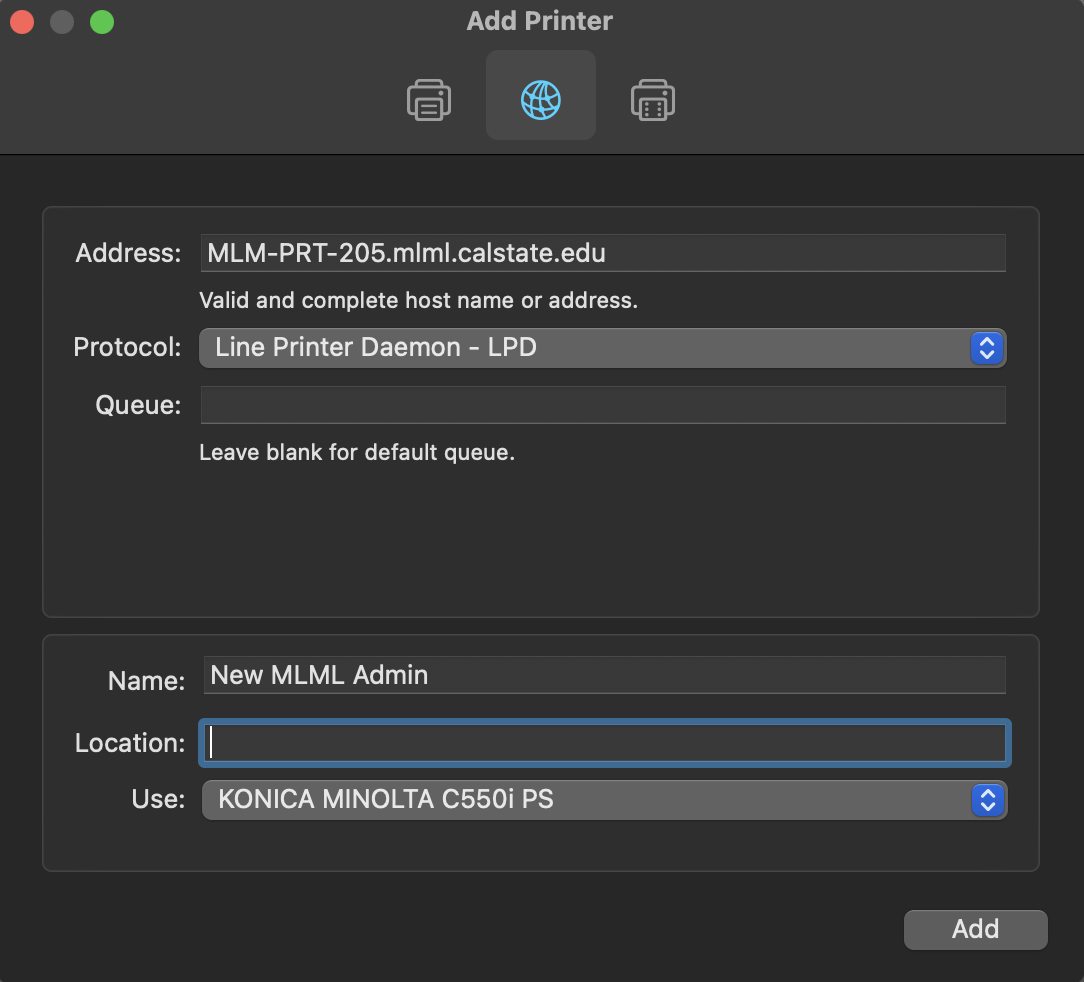
- <span style="font-weight: 400;">Enter the following for the printer you wish to add into the </span>**Address**<span style="font-weight: 400;"> text box</span>
    - <span style="font-weight: 400;">Library Copier: </span>**MLM-PRT-102B.mlml.calstate.edu**
    - <span style="font-weight: 400;">Admin Office copier: **MLM-PRT-205.mlml.calstate.edu**</span>
- <span style="font-weight: 400;">Select </span>**Line Printer Daemon - LPD**<span style="font-weight: 400;"> from the </span>**Protocol**<span style="font-weight: 400;"> drop-down menu.</span>
- <span style="font-weight: 400;">Leave the </span>**Queue**<span style="font-weight: 400;"> field blank.</span>
- <span style="font-weight: 400;">Change the name of the printer to something that helps you easily identify the printer (eg. "Library Printer" or "Admin Copier"). You may do the same for the </span>**Location**<span style="font-weight: 400;"> field if you desire.</span>
- <span style="font-weight: 400;">Select the **Select Software…** option from the **Use** drop-down menu. Search for the model # of the printer</span>
    - <span style="font-weight: 400;">Library and Admin office copiers: **KONICA MINOLTA C550i PS**</span>
- <span style="font-weight: 400;">Highlight the correct print driver and click </span>**OK**<span style="font-weight: 400;"> without changing any fields, then click the </span>**Add**<span style="font-weight: 400;"> button</span>
- <span style="font-weight: 400;">Admin Copier Example:  
    </span>**[![example.png](https://kb.mlml.sjsu.edu/uploads/images/gallery/2021-12/scaled-1680-/example.png)](https://kb.mlml.sjsu.edu/uploads/images/gallery/2021-12/example.png)**
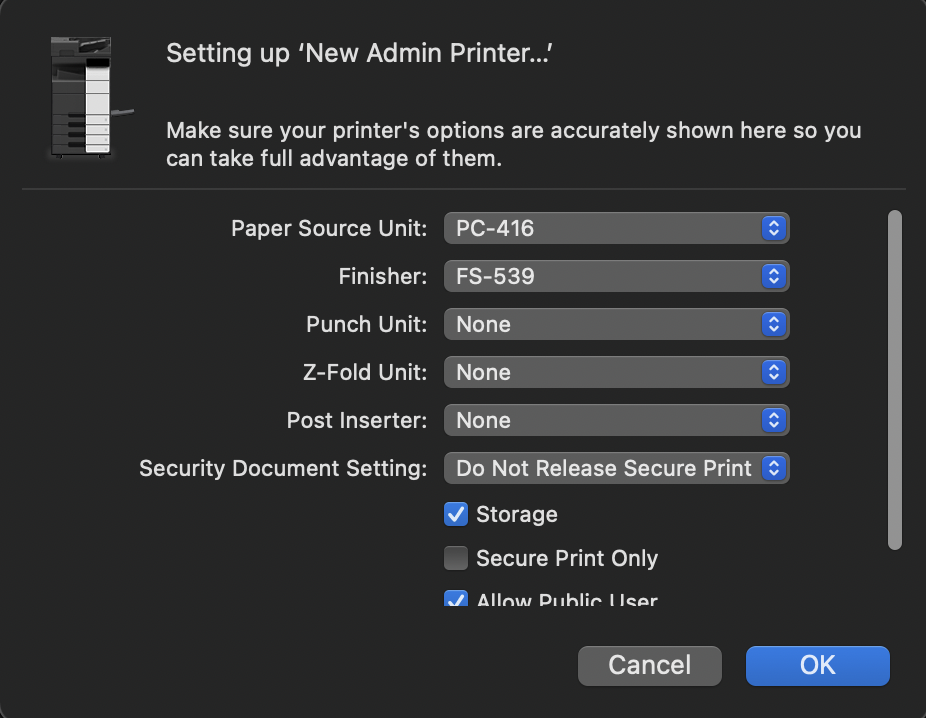
- **<span style="font-weight: 400;">Select the following options in the printer setup window then click **OK**:</span>**
    - <span style="font-weight: 400;">Paper Source Unit: </span>**PC-416**
    - <span style="font-weight: 400;">Finisher: </span>**FS-539**
    - <span style="font-weight: 400;">Leave all other settings as default, click **OK**  
        </span>**[![settings.png](https://kb.mlml.sjsu.edu/uploads/images/gallery/2021-12/scaled-1680-/settings.png)](https://kb.mlml.sjsu.edu/uploads/images/gallery/2021-12/settings.png)**
- The printer is now installed, follow the next steps in order to print successfully.

##### **3. Configure Printing Presets**

- <span style="font-weight: 400;">Open a blank Word document or text file.</span>
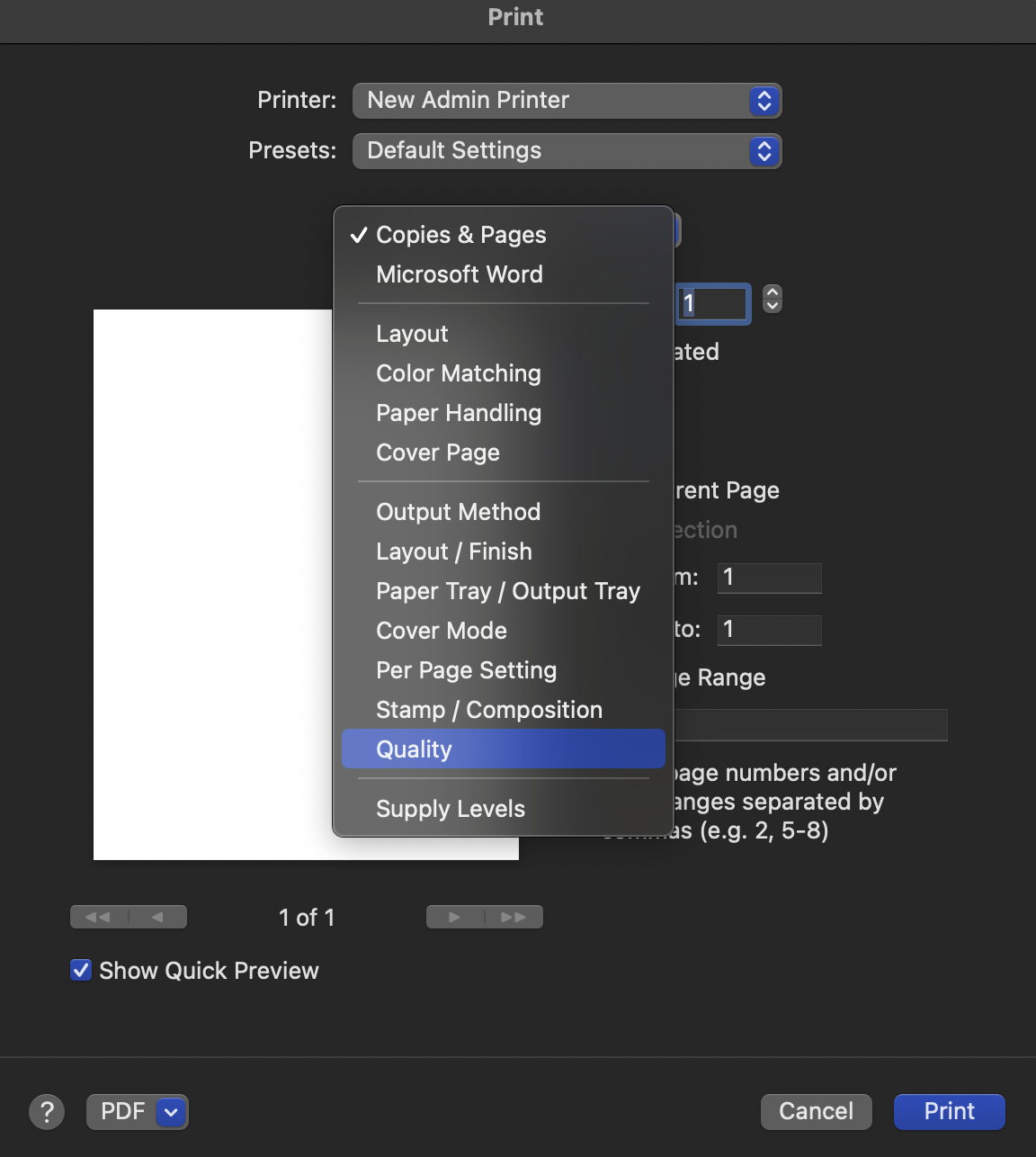
- <span style="font-weight: 400;">Select </span>**Print…**<span style="font-weight: 400;"> from the </span>**File**<span style="font-weight: 400;"> menu</span>
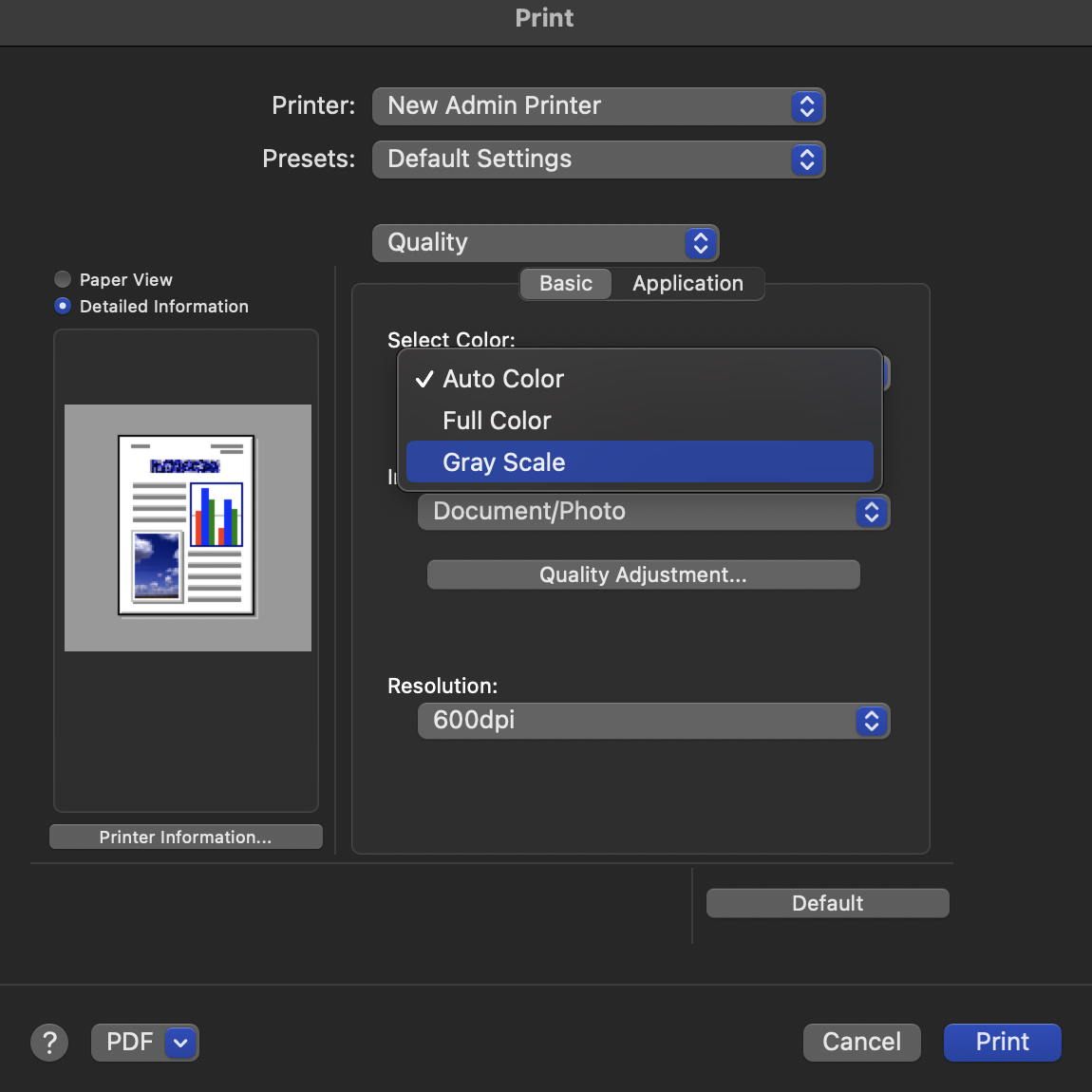
- **<span style="font-weight: 400;">From the drop down list in the middle of the print dialogue box select </span>Quality  
    [![quality.png](https://kb.mlml.sjsu.edu/uploads/images/gallery/2021-12/scaled-1680-/quality.png)](https://kb.mlml.sjsu.edu/uploads/images/gallery/2021-12/quality.png)**
- Under **Select Color** choose **Gray Scale** [![gray scale.png](https://kb.mlml.sjsu.edu/uploads/images/gallery/2021-12/scaled-1680-/gray-scale.png)](https://kb.mlml.sjsu.edu/uploads/images/gallery/2021-12/gray-scale.png)
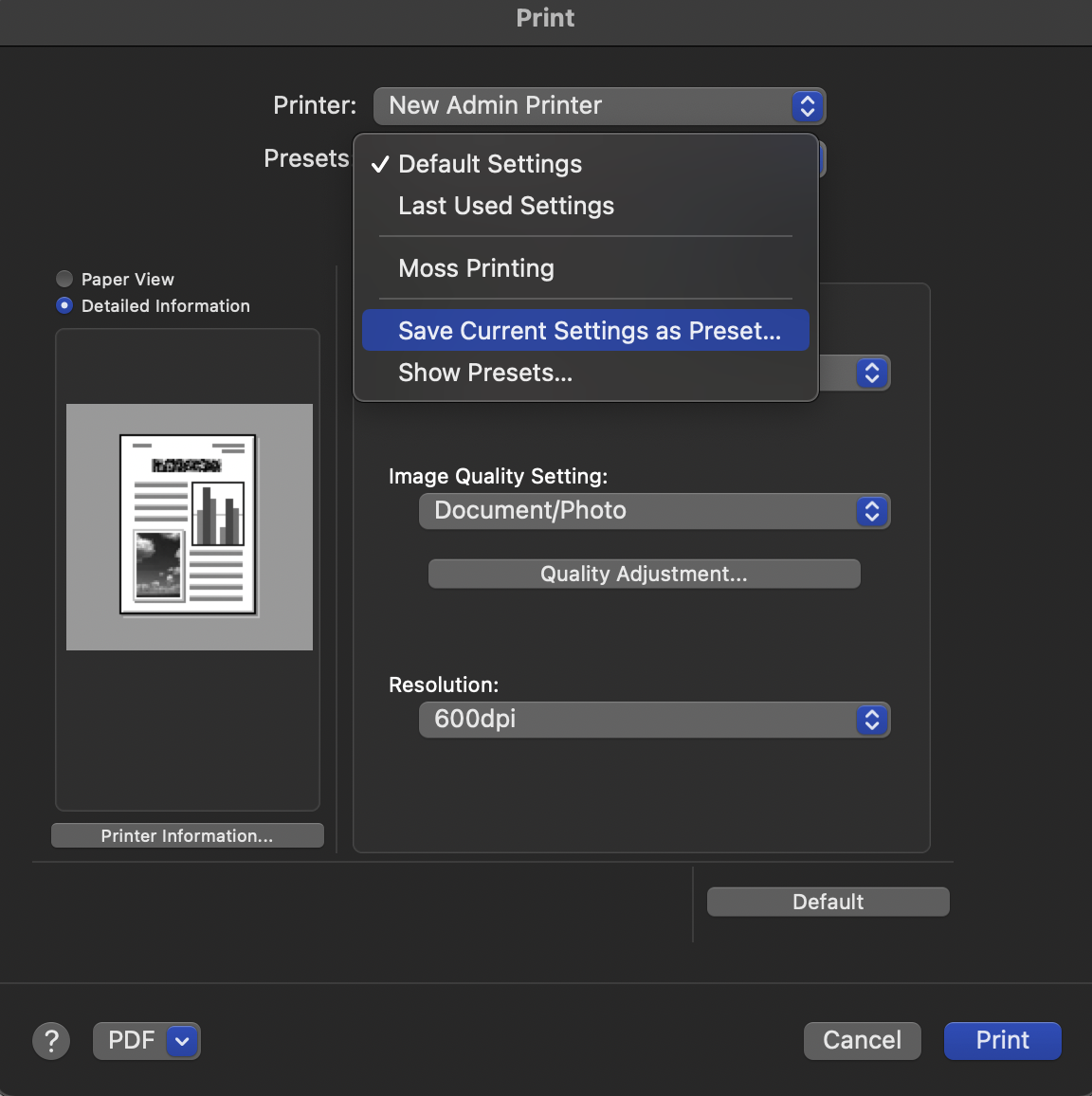
- **<span style="font-weight: 400;">Go to the </span>Presets<span style="font-weight: 400;"> drop-down menu and select </span>Save Current Settings as a Preset… <span style="font-weight: 400;">Name this preset something easy to distinguish, such as “MLML B&amp;W” and </span>apply only to this printer<span style="font-weight: 400;">. Click </span>OK<span style="font-weight: 400;">.  
    </span>[![preset.png](https://kb.mlml.sjsu.edu/uploads/images/gallery/2021-12/scaled-1680-/preset.png)](https://kb.mlml.sjsu.edu/uploads/images/gallery/2021-12/preset.png)**
- <span style="font-weight: 400;">Repeat these steps to create a preset for color printing by selecting </span>**Auto Color**<span style="font-weight: 400;">.</span>
- <span style="font-weight: 400;">Click **Cancel** to exit the print dialog.</span>
- <span style="font-weight: 400;">Ensure that you are selecting the correct preset when printing B&amp;W vs. color documents.</span>