# Security & Anti-Malware

# Information Security Overview

Every day, it seems there is another news story about the latest data breach, ransomware attack, or other security related threat. ***Please*** take the time to read this page in full, and implement the advice contained here. Remember, the first defense against any malware attack or identity theft is **you**, the user.

<table border="1" id="bkmrk-account-security-ema" style="border-collapse: collapse; width: 100%;"><tbody><tr><td class="align-center" style="width: 25%;">[**Account Security**](#bkmrk-account-security)</td><td class="align-center" style="width: 25%;">[**Email-Related Threats**](#bkmrk-email-related-threat)</td><td class="align-center" style="width: 28.3334%;">[**Identity Theft/Hacked Account**](#bkmrk-identity-theft%2Fhacke)</td><td class="align-center" style="width: 21.6666%;">[**Password Managers**](#bkmrk-password-managers)</td></tr><tr><td class="align-center" style="width: 25%;">[**Anti-Malware Software**](#bkmrk-anti-malware-softwar)</td><td class="align-center" style="width: 25%;">[**Adblock**](#bkmrk-adblock)</td><td class="align-center" style="width: 28.3334%;">[**Clear Web Browser Cache**](#bkmrk-clear-web-browser-ca)</td><td class="align-center" style="width: 21.6666%;">[**Update Web Browser**](#bkmrk-update-web-browser)</td></tr></tbody></table>

## **Identity and Data Security**

#### Account Security

<div id="bkmrk-"><div><div><div data-index="2"><div><div>---

</div></div></div></div></div></div>###### **Q: How do I keep my accounts secure?**

A: We recommend that you use a different password for every account you have. Each password should be unique and complex. A complex password contains a minimum of 8 characters. The key to a secure password is the longer the better. You can also include at least one lowercase letter, one uppercase letter, a number, and symbol. See [Secure Password Management](https://kb.mlml.sjsu.edu/books/security-anti-malware/page/secure-password-storage-management) to learn where you can store all your passwords securely and in one place.

#### Email-Related Threats

<div id="bkmrk--0"><div><div><div data-index="2"><div><div>---

</div></div></div></div></div></div>###### **Phishing**

When reading your emails, always stay vigilant. If you receive an email—and something seems fishy about it—always listen to your gut. An email may look completely legit, but a corporation will never ask for you to email them things like your password or credit card information in plain text. Look at the URLs of the links in the email. Check the sender’s email address. Never open a suspicious attachment. If something seems off, it probably is. The scam artists are getting much more sophisticated at seeming legitimate, but if you use a little bit of common sense, you should be able to catch when things don’t feel right, and act accordingly. More information about how to detect phishing attempts and how to report phishing emails can be found in [Google's Gmail Help Center](https://support.google.com/mail/answer/8253?hl=en).

###### **Email attachments**

***Never open a suspicious attachment!*** And generally, do not open attachments that you were not expecting, or aren’t from a trusted source. Gmail, and most webmail services have good malware scanning built in these days, but if the file is over 25MB, the scan won’t run. Be careful, and stay vigilant. Again, practice common sense.

####  

#### Phone-Related Threats

<div id="bkmrk--1"><div><div><div><div data-index="2"><div><div><div><div><div><div data-index="2"><div><div>---

</div></div></div></div></div></div></div></div></div></div></div></div></div>###### **Scam Calls / Robocalls**

If you receive a phone call that seems suspicious, whether it's a computer-generated voice on the other end or a person fishing for personal information: Don't follow any directions given by the caller. Just ***hang up the phone***. Following any prompts given by the caller may make them more likely to call again. ***Never give out any personal information*** to an unknown caller. Take down any information you remember and [report the call to the FTC](https://www.ftc.gov/faq/consumer-protection/submit-consumer-complaint-ftc).

These calls often show up as being from a local phone number, spoofing of numbers is rampant among scam callers, to hide the call's origin and make the calls difficult to block.

<span style="color: #555555; font-size: 1.666em; font-weight: 400;">Identity Theft/Hacked Account</span>

<div id="bkmrk--2"><div><div><div data-index="2"><div><div>---

</div></div></div></div></div></div>###### **Q: Help! My account has been compromised, what can I do?**

A: The first and foremost thing you should do if you still have access to your account is to change all your passwords and security questions, along with anything associated with your account. Let your contacts know that your account has been compromised and to not open any suspicious emails from you. After updating your passwords and security questions, check your email settings and make sure nothing has been changed. It is not uncommon for hackers to modify your recovery email address and automatically forward your emails to them. Scan your computer for malware and viruses (See our [Anti-Malware Software](https://mlml.sjsu.edu/itech/security/#anti) section). For more information on securing your account:

<div id="bkmrk-secure-an-account-th"><div><div><div data-index="2"><div><div>- [Secure an account that has suspicious activity (Google)](https://support.google.com/accounts/answer/7539929)
- [Recover a hacked or hijacked account (Google)](https://support.google.com/accounts/answer/6294825)

</div></div></div></div></div></div><div id="bkmrk--3"><div><div><div data-index="2"><div><div></div></div></div></div></div></div>#### Password Managers

<div id="bkmrk--4"><div><div><div data-index="2"><div><div>---

</div></div></div></div></div></div>###### **Q: There are too many passwords to remember! What can I do?**

A: [LastPass](https://www.lastpass.com/) is a password manager for all of your devices. LastPass is great for storing passwords for websites, web services, or just about anything else. It’s more convenient and secure than your web browser’s password manager, in that you can connect on all your devices. There is a LastPast Website and web add-on, a desktop application, and a mobile phone app. This means you only need to remember one password to have access to your passwords on all your devices.

*You can download LastPass from here: [https://lastpass.com/misc\_download2.php](https://lastpass.com/misc_download2.php)*

###### **Q: How do I get started with LastPass?**

A: Visit the [LastPass User Support Page](https://support.logmeininc.com/lastpass) to learn how to make your profile secure and customize to your preferences.

There are some configuration settings you will want to get familiar with:

<div id="bkmrk-master-password%C2%A0--th"><div><div><div><div data-index="2"><div><div>- - [Master Password](https://support.logmeininc.com/lastpass/help/change-your-master-password-lp020001) - the one password you will need to remember to gain access into your LastPass account.
    - [Account Settings](https://support.logmeininc.com/lastpass/manage-account-settings) - add a recovery email or phone number, manage preferences, etc.
    - [Auto Logout](https://lastpass.com/support.php?cmd=showfaq&id=153) - ensure LastPass logouts of your account when you are away from your device.

</div></div></div></div></div></div></div>For a more detailed write-up on password management software, go [here](https://kb.mlml.sjsu.edu/books/security-anti-malware/page/secure-password-storage-management).

   
<span id="bkmrk--13"></span>

<div id="bkmrk--5"><div><div><div data-index="2"><div><div></div></div></div></div></div></div>#### Anti-Malware Software

<div id="bkmrk--6"><div><div><div data-index="2"><div><div>---

</div></div></div></div></div></div>###### **Q: How do I keep my computer secure?**

A: We recommend downloading an antivirus and anti-malware software. To keep your computer secure, make sure that you keep your antivirus/anti-malware software up to date.

###### Windows 7 and **older**

<div id="bkmrk-microsoft-security-e"><div><div><div data-index="2"><div><div>- [Microsoft Security Essentials](http://windows.microsoft.com/en-us/windows/security-essentials-download) - Unobtrusive, effective, and free.
- [Malwarebytes Anti-Malware](https://www.malwarebytes.com/) - Has solid malware definitions. Run when you suspect that Microsoft Security Essentials missed something, although it doesn't hurt to run it more often.

</div></div></div></div></div></div>###### Windows 8 and **newer**

<div id="bkmrk-windows-defender--%C2%A0t"><div><div><div data-index="2"><div><div>- **Windows Defender -** The successor to Microsoft Security Essentials, included with the operating system. You don't have to install any extra software.
- [Malwarebytes Anti-Malware](https://www.malwarebytes.com/) - Has solid malware definitions. Run when you suspect that Windows Defender missed something, although it doesn't hurt to run it more often.

</div></div></div></div></div></div>###### Mac OS X

<div id="bkmrk-clamxav%C2%A0--an-antivir"><div><div data-index="2"><div><div>- [ClamXAV](https://www.clamxav.com/) - An antivirus software for Apple Macintosh provides full disk virus scans, scheduled scans and updates for times that suit you, automatic scanning of new downloads, quarantining infected files, and much more. Consider installing the free 30-day trial initially.
- [Malwarebytes Anti-Malware](https://www.malwarebytes.com/) - Has solid malware definitions in addition to an effective heuristics engine that will check your computer for software with suspicious behavior.

</div></div></div></div></div>##  

## **Network Security**

<div id="bkmrk--7"><div><div><div data-index="4"><div><div></div></div></div></div></div></div>#### Adblock

<div id="bkmrk--8"><div><div><div data-index="4"><div><div>---

</div></div></div></div></div></div>###### **Q: What is an adblocker and which one should I use?**

A: An adblocker is a web browser extension designed to prevent ads from appearing on a web page. Adblockers are useful on websites with questionable content where clicking on an ad may result in your computer downloading malware. We recommend uBlock Origin, which is available for [Chrome](https://chrome.google.com/webstore/detail/ublock-origin/cjpalhdlnbpafiamejdnhcphjbkeiagm?hl=en), [Firefox](https://addons.mozilla.org/en-US/firefox/addon/ublock-origin/), and [Edge](https://www.microsoft.com/en-us/p/ublock-origin/9nblggh444l4).

<div id="bkmrk--9"><div><div><div data-index="4"><div><div></div></div></div></div></div></div>#### Clear Web Browser Cache

<div id="bkmrk--10"><div><div><div data-index="4"><div><div>---

</div></div></div></div></div></div>Clearing your web browser's cache can help fix problems related to accessing web sites. If you are having problems accessing or otherwise using a website that you believe should be accessible and functioning normally, try clearing your browser's cache to fix the problem.

###### **Q: How do I clear my browser cache?**

###### **Mozilla Firefox:**

<div id="bkmrk-click-the-menu-icon-"><div><div><div data-index="4"><div><div>1. Click the menu icon (the three stacked horizontal lines near the top right of your browser window).
2. Click **History**, then choose the **Clear Recent History...** option.
3. Select the **Time Range** to clear (drop-down menu).  
    \- Select **Everything** to clear all cache.
4. Click **Details** to choose what history elements to clear.  
    \- e.g. Cache, Cookies, and Active Logins  
    WARNING!: DO NOT check the Browsing &amp; Download History or the Form &amp; Search History boxes.
5. Click the **Clear Now** button.
6. Exit and re-launch the browser.

</div></div></div></div></div></div>###### **Google Chrome:**

<div id="bkmrk-click-the-menu-icon--0"><div><div><div data-index="4"><div><div>1. Click the menu icon (the three stacked horizontal lines near the top right of your browser window).
2. Hover your mouse cursor over the **History** menu option, then click **History** at the top of the expanded menu.
3. Click **Clear browsing data...**
4. Set the **Obliterate the following items** from drop-down menu to **the** **beginning of time**.
5. Check the **Cookies and other site and plugin data** and **Cached images and files** boxes ONLY. (Un-check all other check boxes)
6. Click the Clear browsing data button.
7. Exit and re-launch the browser.

</div></div></div></div></div></div>###### **Safari:**

<div id="bkmrk-open-safari.-click-o"><div><div><div data-index="4"><div><div>1. Open Safari.
2. Click on **Safari** in the upper toolbar and select **Clear History...**
3. Select **all history** from the drop-down list.
4. Click the **Clear History** button.
5. Quit and re-launch the browser.

</div></div></div></div></div></div><div id="bkmrk--11"><div><div><div data-index="4"><div><div></div></div></div></div></div></div>#### Update Web Browser

<div id="bkmrk--12"><div><div><div data-index="4"><div><div>---

</div></div></div></div></div></div>###### **Q: Why should I update my web browser?**

A: It is important to always run the most updated version of your web browser. Using an outdated web browser can compromise the security of your computer and any networks to which it is connected. Web browser developers are constantly searching for security vulnerabilities and when they find them they fix them and update the software. Therefore, if you are running a later version of a browser you are leaving yourself vulnerable to malicious websites.

Do not use browsers that no longer have updates or are being retired (e.g. Safari for PCs, Internet Explorer).

###### **Q: How do I update my web browser?**

A: It is highly recommended to set up your browser to automatically update. For update instructions and how to set up automatic update follow the link for instructions for your specific browser:

<div id="bkmrk-google-chrome%3A%C2%A0this-"><div><div><div data-index="4"><div><div>- - [Google Chrome:](https://support.google.com/chrome/answer/95414?co=GENIE.Platform%3DDesktop&hl=en) this browser’s default is to automatically update
    - [Firefox:](https://support.mozilla.org/en-US/kb/update-firefox-latest-version) this browser’s default is to automatically update
    - [Safari: ](https://support.apple.com/en-us/HT204416)this browser updates with macOS updates
    - [Edge:](https://support.microsoft.com/en-us/help/4027667/windows-update-windows-10) this browser’s default is to automatically update

</div></div></div></div></div></div>*NOTE: If the instructions outlined here do not match the menus and options in the web browser you are using, please check to be sure that you are using the most recent version of the web browser. Using an outdated web browser can compromise the security of your computer and any networks to which it is connected.*

# Password Checklist

*For information about **User Accounts**, including SJSU and CSUMB accounts, see the **[User Accounts](https://mlml.sjsu.edu/itech/user-accounts/) page** on the IT Website.*

*Keep in mind that your Gmail password is not necessarily the same as your MLML password.*

##### <span style="text-decoration: underline;">**Password Checklist**</span>

A strong and unique password will keep your account safe.  
Here is a checklist for creating secure passwords for all of your accounts:

- Your password should be easy for you to remember without being obvious for someone else to guess.
- The **longer and more complex** the password, the stronger it is. 
    - Include a variety of characters, such as punctuation marks, numbers, and mix capital and lowercase letters.
    - Don't choose a dictionary word as your password.
- Have a **recovery email** or **phone number** set up with your account to be able to recover it in case you lose access. 
    - Here are the [Google Account Recovery instructions](https://support.google.com/accounts/answer/7682439).
    - If you ever have a situation where your account is compromised, check to see that the recovery email or phone number hasn't been changed.
- **Never use the same password** on multiple accounts. A **[password manager](https://kb.mlml.sjsu.edu/books/security-anti-malware/page/secure-password-storage-management)** can help you keep track of your passwords (and generate very strong passwords).
- **Use multi-factor authentication**. This adds an extra layer of security by having you approve a login with your smartphone or entering a code sent to your smartphone or from a physical token. 
    - [Gmail 2-Step Verification instructions](https://support.google.com/accounts/answer/185839).
    - All SJSU employees must use Duo 2-Factor Authentication to access SJSUOne services. For instructions, see our [Guide to set up Duo 2-Factor Authentication](https://kb.mlml.sjsu.edu/books/security-anti-malware/page/set-up-duo-2-factor-authentication).
- **Never tell anyone your password**.
- **Never write down your password**. Use a **[password manager](https://kb.mlml.sjsu.edu/books/security-anti-malware/page/secure-password-storage-management)** instead!
- Periodically **change your password**.
- Make sure you have strong passwords on all of your accounts.

# Recommended Anti-Malware Software

<div id="bkmrk-"><div><div><div data-index="2"><div><div></div></div></div></div></div></div>######  

We recommend downloading an antivirus and anti-malware program. To keep your computer secure, make sure that you keep your antivirus/anti-malware software up to date.

#### Windows 7 and **older**

<div id="bkmrk-microsoft-security-e"><div><div><div data-index="2"><div><div>- [Microsoft Security Essentials](http://windows.microsoft.com/en-us/windows/security-essentials-download) - Unobtrusive, effective, and free.
- [Malwarebytes Anti-Malware](https://www.malwarebytes.com/) - Has solid malware definitions. Run when you suspect that Microsoft Security Essentials missed something, although it doesn't hurt to run it more often.

</div></div></div></div></div></div>#### Windows 8 and **newer**

<div id="bkmrk-windows-defender--%C2%A0"><div><div><div data-index="2"><div><div>- **Windows Defender -** The successor to Microsoft Security Essentials, included with the operating system. You don't have to install any extra software.
- [Malwarebytes Anti-Malware](https://www.malwarebytes.com/) - Has solid malware definitions. Run when you suspect that Windows Defender missed something, although it doesn't hurt to run it more often.

</div></div></div></div></div></div>#### macOS

<div id="bkmrk-clamxav%C2%A0--an-antivi"><div><div data-index="2"><div><div>- [ClamXAV](https://www.clamxav.com/) - An antivirus software for Apple Macintosh provides full disk virus scans, scheduled scans and updates for times that suit you, automatic scanning of new downloads, quarantining infected files, and much more. Consider installing the free 30-day trial initially.
- [Malwarebytes Anti-Malware](https://www.malwarebytes.com/) - Has solid malware definitions in addition to an effective heuristics engine that will check your computer for software with suspicious behavior.

</div></div></div></div></div>

# Duo 2-Factor Authentication


# Set Up Duo 2-Factor Authentication

**\*\*Did you get a new phone and not setup [Duo Restore](#bkmrk--19) beforehand? Visit our [Recovering Duo 2-Factor Account page](https://kb.mlml.sjsu.edu/books/security-anti-malware/page/recovering-duo-2-factor-account) to learn how to setup Duo 2-Factor Authentication on a new device.\*\***

#### **What is Two-Factor Authentication?**

Two-Factor Authentication (2FA) adds a second layer of security to your SJSUOne account. By verifying your identity using a second factor (such as your mobile device or a key fob), 2FA prevents anyone else from logging into your account, even if they know your password.

Duo 2FA only effects your SJSUOne account. Once it is set up, you must use Duo 2FA to sign-in to this account and its associated services (SJSU Email, PeopleSoft, CFS, FTS, etc). It does not apply to your MLML-specific credentials.

Currently, it is available to all SJSU/Foundation Staff, Faculty, and Student Employees.

<span style="text-decoration: underline;">**To setup Duo 2-Factor Authentication:**</span>

- **Start with [First Steps](#bkmrk-first-steps%3A)**
- **Proceed to [Installation](#bkmrk-install-instructions)**
- **Continue to either [SmartPhone](#bkmrk-if-you-are-using-a-s) (recommended) or [Key Fob](#bkmrk-if-you-are-using-a-k)**
- **Finish by [Enabling Third-Party Accounts](#bkmrk--19) for easy recovery**

#### **First Steps:**

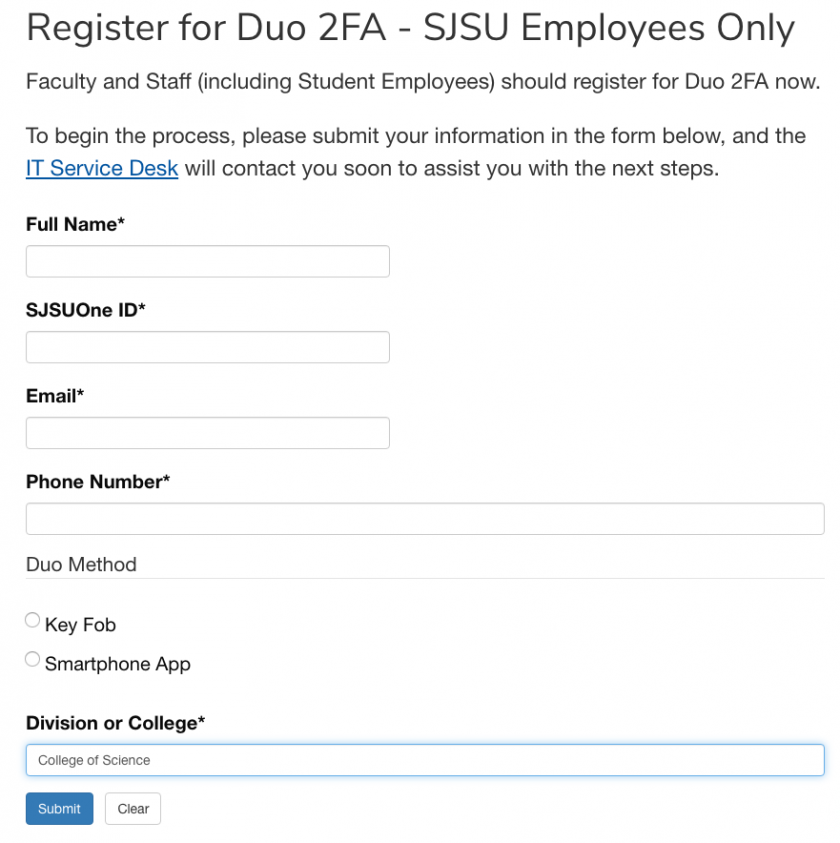
<table border="1" id="bkmrk-go-to-the%C2%A0sjsu-duo-" style="width: 100%; border-collapse: collapse;"><tbody><tr><td style="width: 100%;">- <span class="s1">Go to the</span> [<span class="s2">SJSU Duo</span> <span class="s2">Page</span>](http://www.sjsu.edu/it/services/computer-security/duo.php)
- Scroll down to **Register for Duo 2FA - SJSU Employees Only**
- Select the **Smartphone App** option in the **Duo Method** section of the form. 
    - <span style="color: #ff0000;">*<span class="s5">Please Note: </span>*</span>Only select the **Key Fob** option if you <span style="color: #ff0000;">*<span style="text-decoration: underline;"><span class="s2">do not own</span> a smartphone</span>*</span> or<span style="text-decoration: underline;">*<span class="s2"> absolutely refuse</span>*</span> to install the Duo App on your phone. A key fob is a small physical device that displays a continuously updating passcode. Please submit an [IT Helpdesk Ticket](https://helpdesk.mlml.calstate.edu/) to request a key fob.
- Enter your information and then **Submit** the form. Select “**College of Science**” in the **Division or College** section:

</td></tr><tr><td class="align-center" style="width: 75%;">[![SJSU-Duo-Registration.png](https://kb.mlml.sjsu.edu/uploads/images/gallery/2019-04-Apr/scaled-840-0/SJSU-Duo-Registration.png)](https://kb.mlml.sjsu.edu/uploads/images/gallery/2019-04-Apr/SJSU-Duo-Registration.png)</td></tr><tr><td style="width: 100%;">- Wait to receive an email from SJSU IT enabling Duo on your account
- Once you receive the email with setup instructions, it may take 1-2 hours for the change to sync to your account

</td></tr></tbody></table>


#### **Install Instructions**:

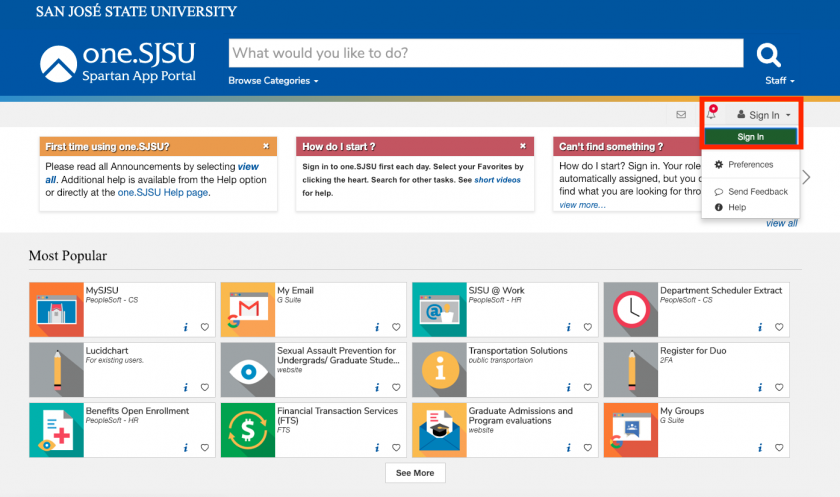
<table border="1" id="bkmrk-navigate-to-the-sjsu" style="width: 100%; border-collapse: collapse;"><tbody><tr><td style="width: 100%;">- Navigate to the<span class="s9"> [<span class="s2">**SJSUOne**</span> ](https://one.sjsu.edu/)</span>page, or any other page where you use your SJSU login credentials (eg. SJSU Email):

</td></tr><tr><td class="align-center" style="width: 100%;">[![SJSUOne-Sign-In.png](https://kb.mlml.sjsu.edu/uploads/images/gallery/2019-04-Apr/scaled-840-0/SJSUOne-Sign-In.png)](https://kb.mlml.sjsu.edu/uploads/images/gallery/2019-04-Apr/SJSUOne-Sign-In.png)</td></tr></tbody></table>

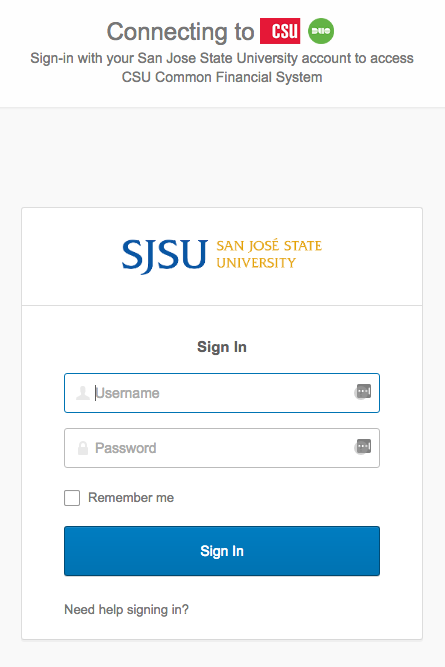
<table border="1" id="bkmrk-sign-in%3A-note%3A-if-yo" style="width: 100%; border-collapse: collapse;"><tbody><tr><td style="width: 50%;">- **Sign** **In**: 
    - Note: If you are already logged in, you may want to use your browser’s incognito/private mode so that you do not have to log out and back in again.

</td></tr><tr><td class="align-center" style="width: 50%;">**![](https://kb.mlml.sjsu.edu/uploads/images/gallery/2019-02-Feb/scaled-840-0/image-1550690151856.png)**</td></tr></tbody></table>


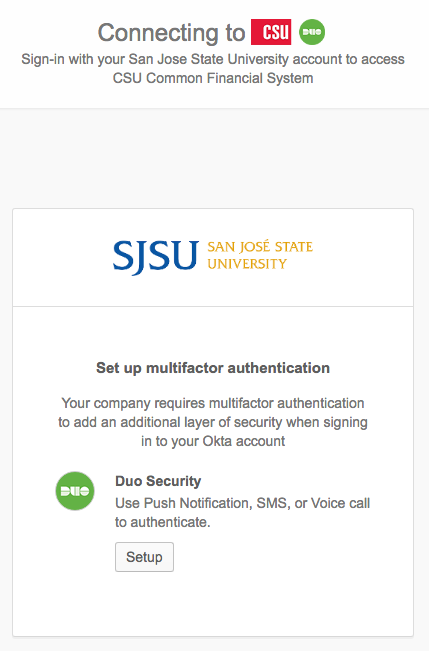
<table border="1" id="bkmrk-click-setup%3A" style="width: 100%; border-collapse: collapse;"><tbody><tr><td style="width: 100%;">- Click **Setup**:

</td></tr><tr><td class="align-center" style="width: 100%;">![](https://kb.mlml.sjsu.edu/uploads/images/gallery/2019-02-Feb/scaled-840-0/image-1550690159219.png)</td></tr></tbody></table>

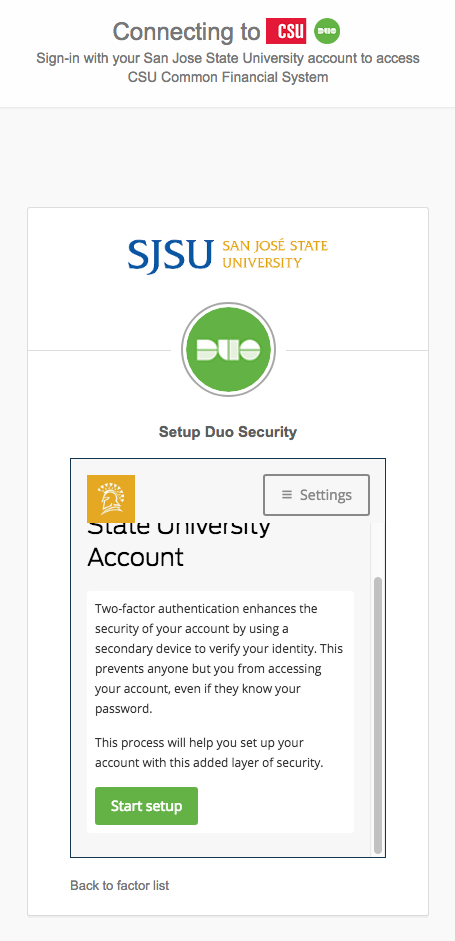
<table border="1" id="bkmrk-scroll-down-and-clic" style="width: 100%; border-collapse: collapse;"><tbody><tr><td style="width: 100%;">- Scroll down and click **Start** **Setup**:

</td></tr><tr><td class="align-center" style="width: 100%;">![](https://kb.mlml.sjsu.edu/uploads/images/gallery/2019-02-Feb/scaled-840-0/image-1550690171069.png)</td></tr></tbody></table>


##### If you are using a Key Fob:

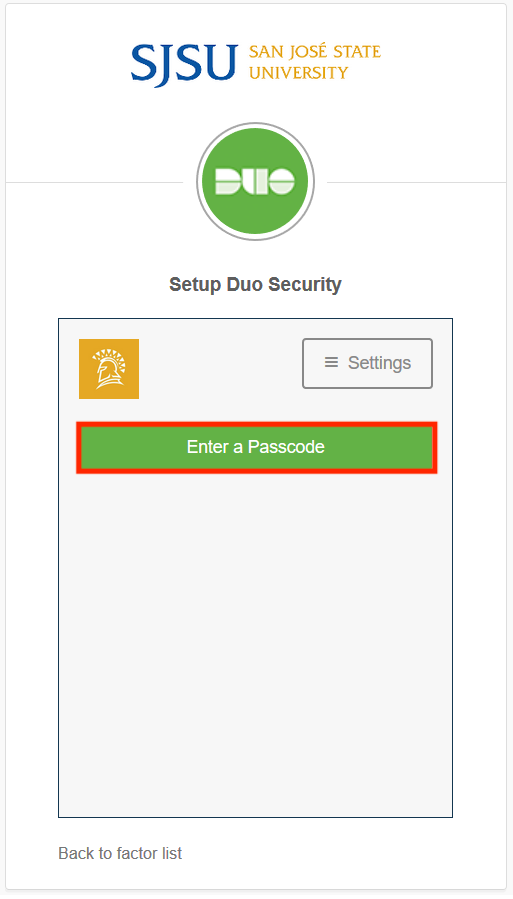
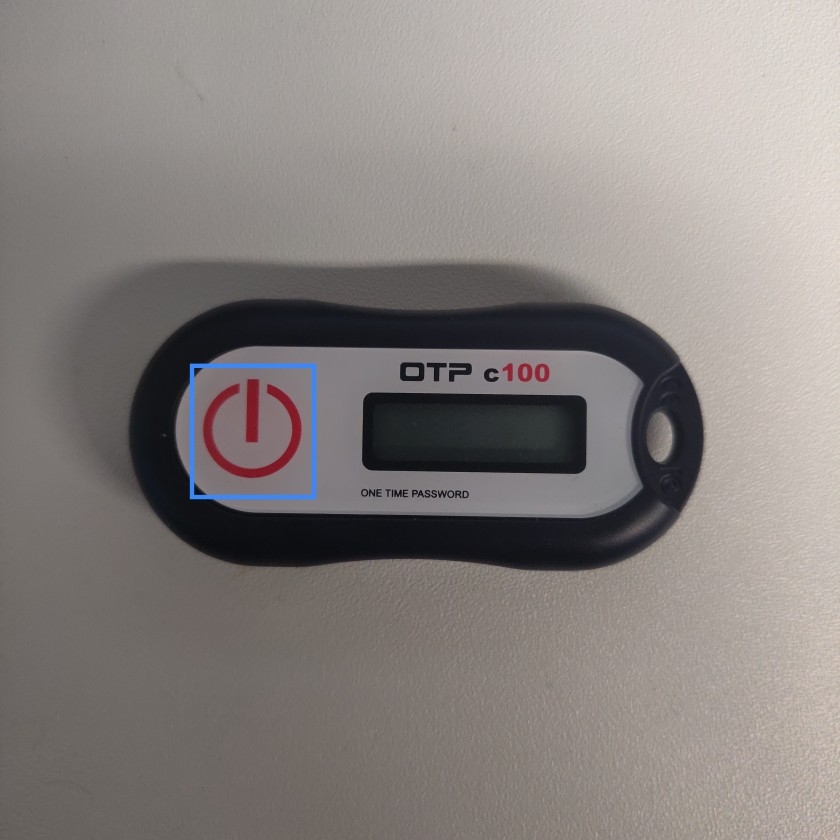
<table border="1" id="bkmrk-press%C2%A0enter-a-passc" style="border-collapse: collapse; width: 99.8765%;"><tbody><tr><td style="width: 99.8765%;">- Press **Enter a Passcode**, and press the single **Button** on your **Duo Key Fob**:

</td></tr><tr><td class="align-center" style="width: 99.8765%;">[![Duo-Fob-Select-Passcode.png](https://kb.mlml.sjsu.edu/uploads/images/gallery/2019-04-Apr/scaled-840-0/Duo-Fob-Select-Passcode.png)](https://kb.mlml.sjsu.edu/uploads/images/gallery/2019-04-Apr/Duo-Fob-Select-Passcode.png)</td></tr><tr><td class="align-center" style="width: 99.8765%;">[![Duo-Fob.jpg](https://kb.mlml.sjsu.edu/uploads/images/gallery/2019-04-Apr/scaled-840-0/Duo-Fob.jpg)](https://kb.mlml.sjsu.edu/uploads/images/gallery/2019-04-Apr/Duo-Fob.jpg)</td></tr></tbody></table>

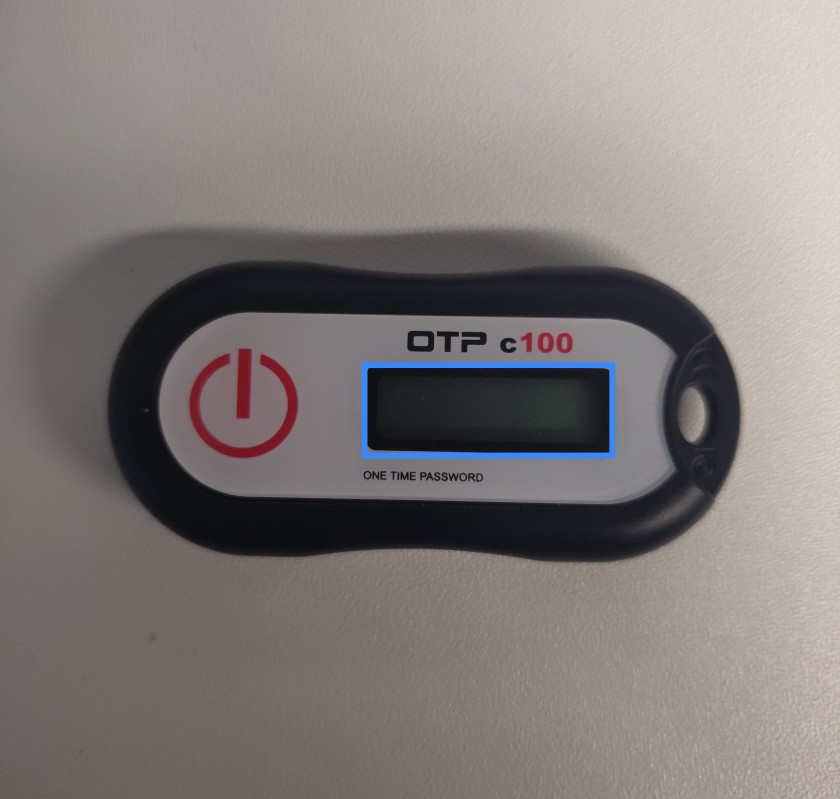
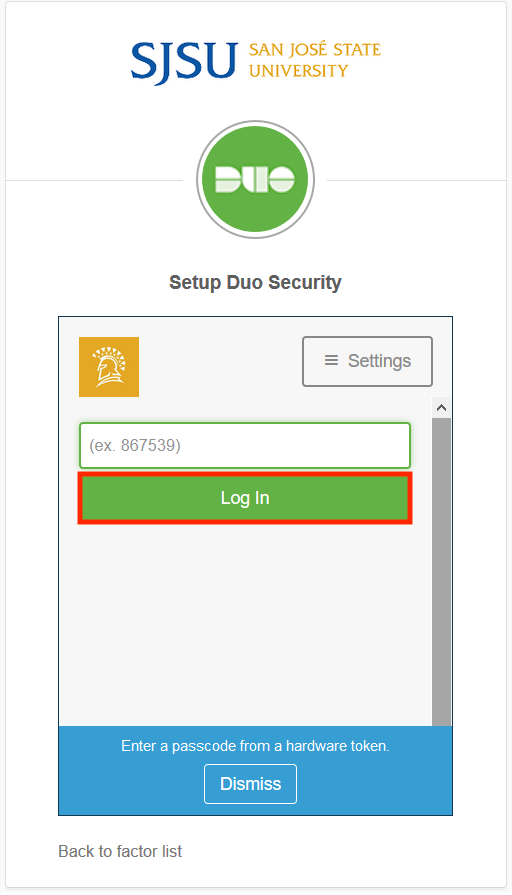
<table border="1" id="bkmrk-enter-your%C2%A0one-time" style="border-collapse: collapse; width: 99.8765%;"><tbody><tr><td style="width: 99.8765%;">- Enter your **One Time Password** from the Key Fob into the passcode field and press **Log In**: 
    - You have about 15 seconds to enter the passcode.

</td></tr><tr><td class="align-center" style="width: 99.8765%;">[![Duo-Fob-OTP.jpg](https://kb.mlml.sjsu.edu/uploads/images/gallery/2019-04-Apr/scaled-840-0/Duo-Fob-OTP.jpg)](https://kb.mlml.sjsu.edu/uploads/images/gallery/2019-04-Apr/Duo-Fob-OTP.jpg)</td></tr><tr><td class="align-center" style="width: 99.8765%;">[![Duo-Fob-Login.png](https://kb.mlml.sjsu.edu/uploads/images/gallery/2019-04-Apr/scaled-840-0/Duo-Fob-Login.png)](https://kb.mlml.sjsu.edu/uploads/images/gallery/2019-04-Apr/Duo-Fob-Login.png)</td></tr><tr><td style="width: 99.8765%;">Congratulations, Duo 2-Factor Authentication should now be set up for use with your Key Fob!</td></tr></tbody></table>

##### If you are using a Smartphone:

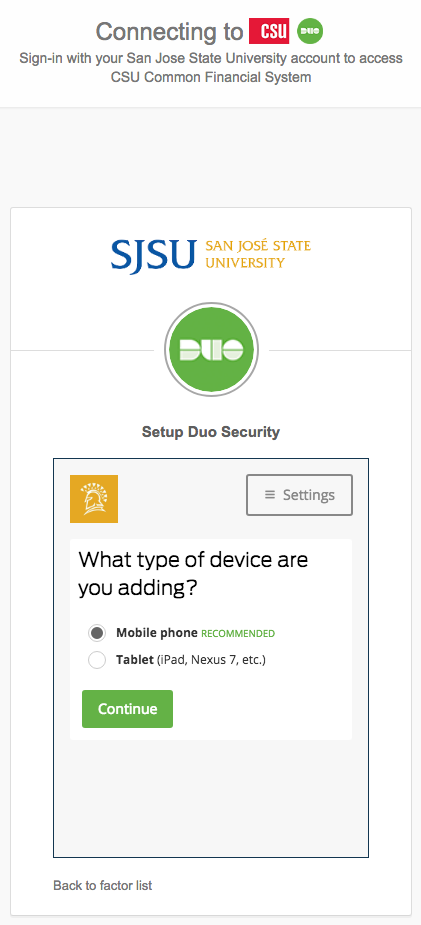
<table border="1" id="bkmrk-select-mobile-phone-" style="width: 100%; border-collapse: collapse;"><tbody><tr><td style="width: 100%;">- Select **Mobile phone** and click **Continue**:

</td></tr><tr><td class="align-center" style="width: 100%;">![](https://kb.mlml.sjsu.edu/uploads/images/gallery/2019-02-Feb/scaled-840-0/image-1550690182776.png)</td></tr></tbody></table>

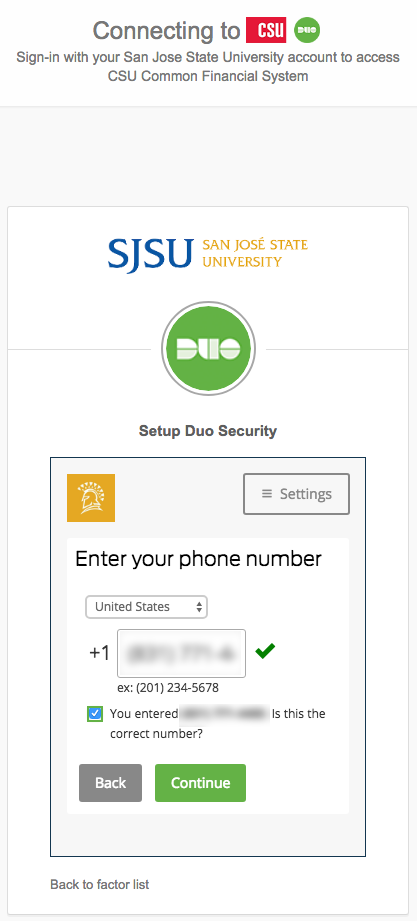
<table border="1" id="bkmrk-enter-your-phone-num" style="width: 100%; border-collapse: collapse;"><tbody><tr><td style="width: 100%;">- Enter your **phone number** and click **Continue**:

</td></tr><tr><td class="align-center" style="width: 100%;">![](https://kb.mlml.sjsu.edu/uploads/images/gallery/2019-02-Feb/scaled-840-0/image-1550690234183.png)</td></tr></tbody></table>

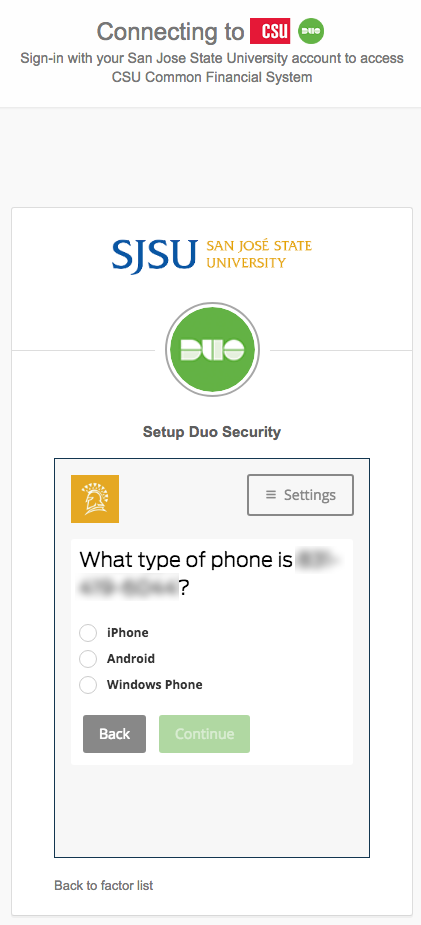
<table border="1" id="bkmrk-select-the-type-of-p" style="width: 100%; border-collapse: collapse;"><tbody><tr><td style="width: 100%;">- Select the **type of phone** and click **Continue**:

</td></tr><tr><td class="align-center" style="width: 100%;">![](https://kb.mlml.sjsu.edu/uploads/images/gallery/2019-02-Feb/scaled-840-0/image-1550690245004.png)</td></tr></tbody></table>

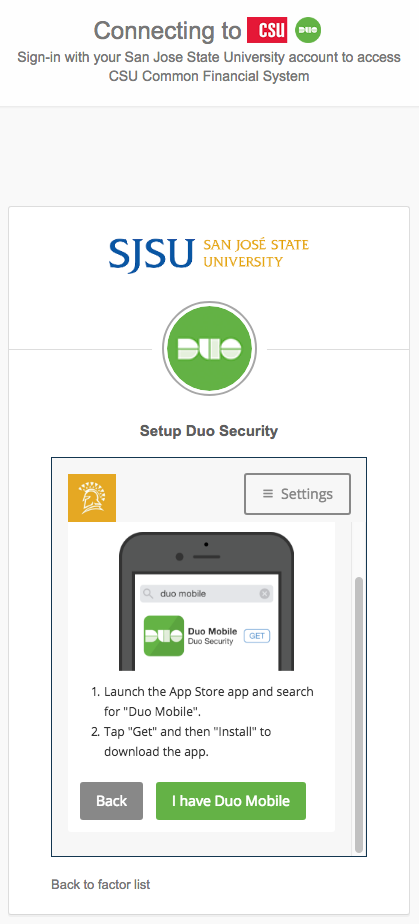
<table border="1" id="bkmrk-search-and-install-%E2" style="width: 100%; border-collapse: collapse;"><tbody><tr><td style="width: 100%;">- Search and install “**Duo mobile**” from your app store onto your device: 
    - Apple **App Store** for iOS
    - Google **Play** **Store** for Android
- Once downloaded, go back to setup screen and click **I have Duo** **Mobile** :

</td></tr><tr><td class="align-center" style="width: 100%;">![](https://kb.mlml.sjsu.edu/uploads/images/gallery/2019-02-Feb/scaled-840-0/image-1550690258059.png)</td></tr></tbody></table>

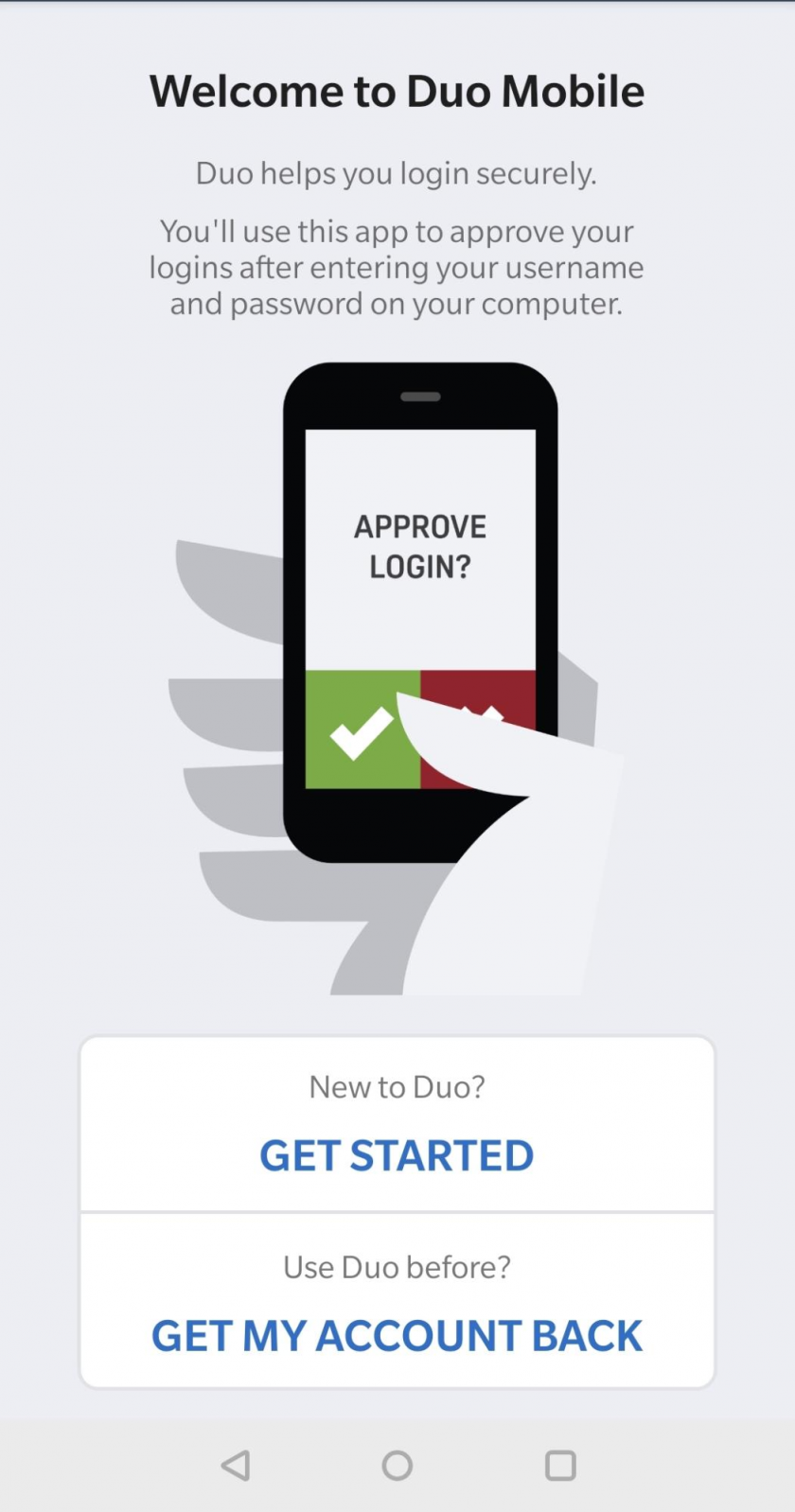
<table border="1" id="bkmrk-open-the-duo-mobile-" style="width: 100%; border-collapse: collapse;"><tbody><tr><td style="width: 100%;">- Open the Duo Mobile app and tap **Get Started** or **Add** **Account**:

</td></tr><tr><td class="align-center" style="width: 100%;">![](https://kb.mlml.sjsu.edu/uploads/images/gallery/2019-02-Feb/scaled-840-0/image-1550690271637.png)</td></tr></tbody></table>

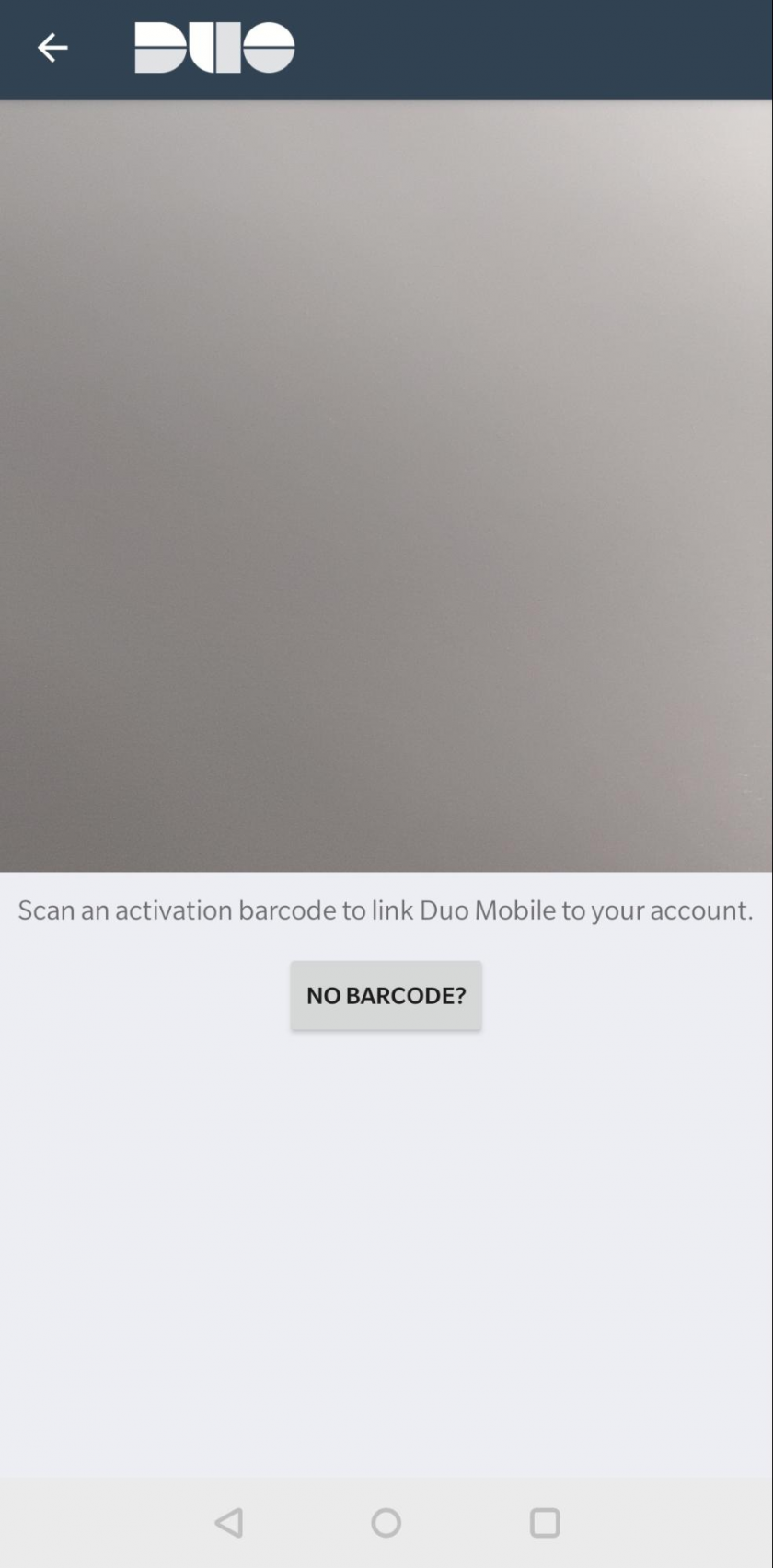
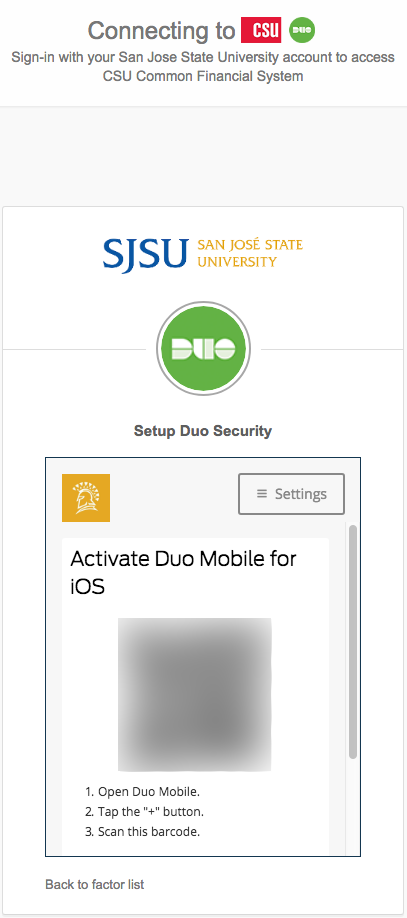
<table border="1" id="bkmrk-allow-camera-permiss" style="width: 100%; border-collapse: collapse;"><tbody><tr><td style="width: 100%;">- **Allow camera permissions** on your device if you have not already, and **scan the QR** **code** that appears on the setup screen:

</td></tr><tr><td class="align-center" style="width: 100%;">![](https://kb.mlml.sjsu.edu/uploads/images/gallery/2019-02-Feb/scaled-840-0/image-1550690292286.png)</td></tr><tr><td class="align-center" style="width: 100%;">![](https://kb.mlml.sjsu.edu/uploads/images/gallery/2019-02-Feb/scaled-840-0/image-1550690318192.png)</td></tr></tbody></table>

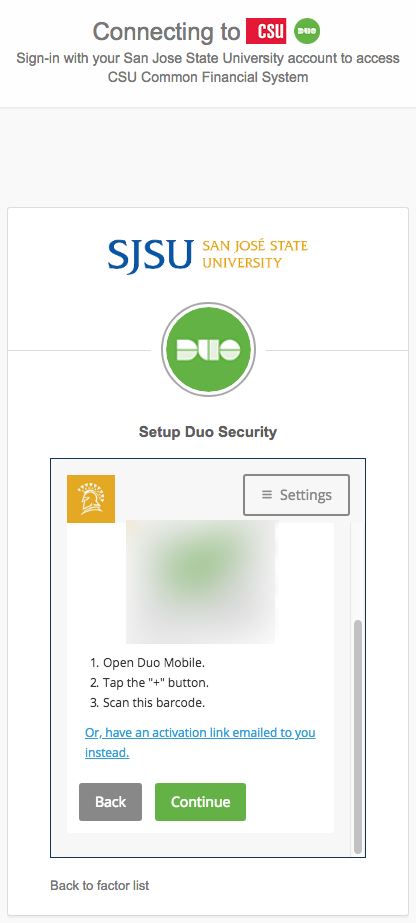
<table border="1" id="bkmrk-once-you-have-scanne" style="width: 100%; border-collapse: collapse;"><tbody><tr><td style="width: 100%;">- Once you have scanned the QR code, scroll down and click **Continue** on the setup screen:

</td></tr><tr><td class="align-center" style="width: 100%;">![](https://kb.mlml.sjsu.edu/uploads/images/gallery/2019-02-Feb/scaled-840-0/image-1550690334908.png)</td></tr></tbody></table>


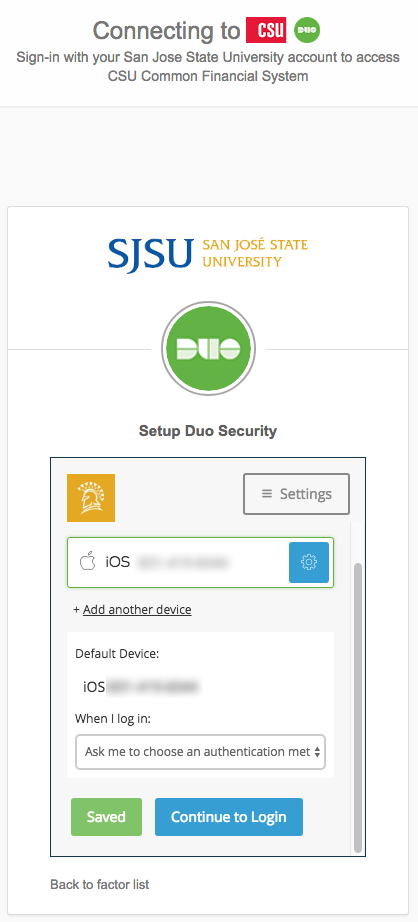
<table border="1" id="bkmrk-check%2Fset-device-set" style="width: 100%; border-collapse: collapse;"><tbody><tr><td style="width: 100%;">- Check/set device settings for Duo and click **Continue to** **Login**:

</td></tr><tr><td class="align-center" style="width: 100%;">![](https://kb.mlml.sjsu.edu/uploads/images/gallery/2019-02-Feb/scaled-840-0/image-1550690381958.png)</td></tr></tbody></table>


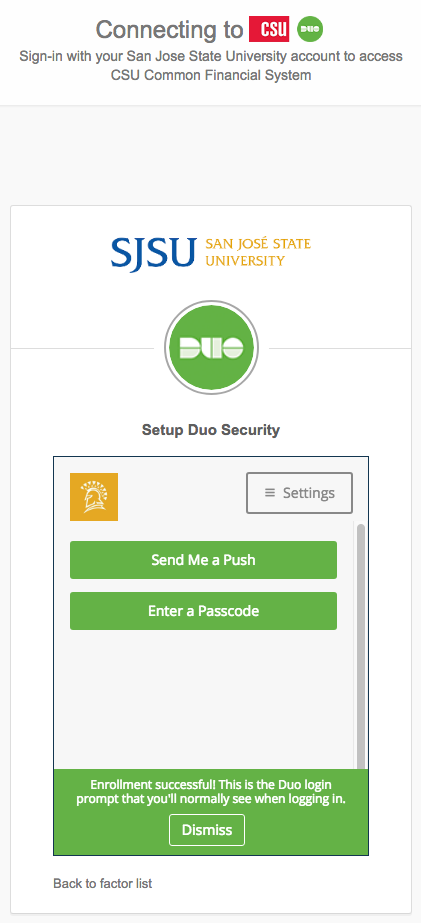
<table border="1" id="bkmrk-congratulations%2C-duo" style="width: 100%; border-collapse: collapse;"><tbody><tr><td style="width: 100%;">- Congratulations, Duo 2-Factor Authentication should now be set up for use with your smartphone!

</td></tr><tr><td class="align-center" style="width: 100%;">![](https://kb.mlml.sjsu.edu/uploads/images/gallery/2019-02-Feb/scaled-840-0/image-1550690392729.png)</td></tr></tbody></table>


#### **Signing In:**

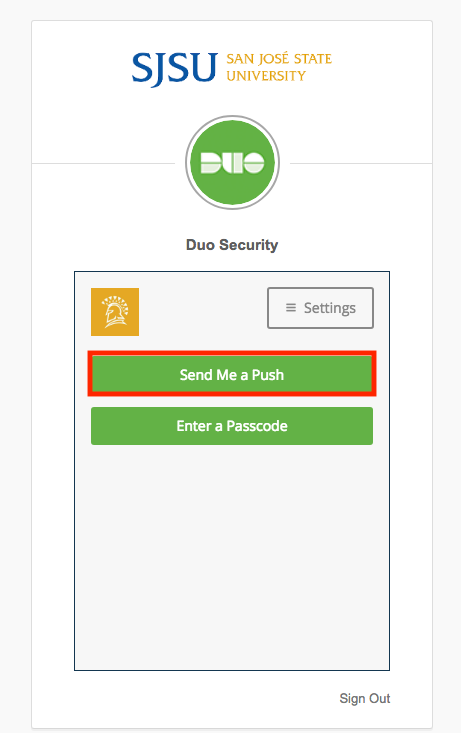
<table border="1" id="bkmrk-to-sign-in-with-duo-" style="width: 100%; border-collapse: collapse;"><tbody><tr><td style="width: 100%;">- To sign in with Duo 2FA from your computer or other device, click **Send Me a** **Push**:

</td></tr><tr><td class="align-center" style="width: 100%;">![](https://kb.mlml.sjsu.edu/uploads/images/gallery/2019-02-Feb/scaled-840-0/image-1550690404769.png)</td></tr></tbody></table>

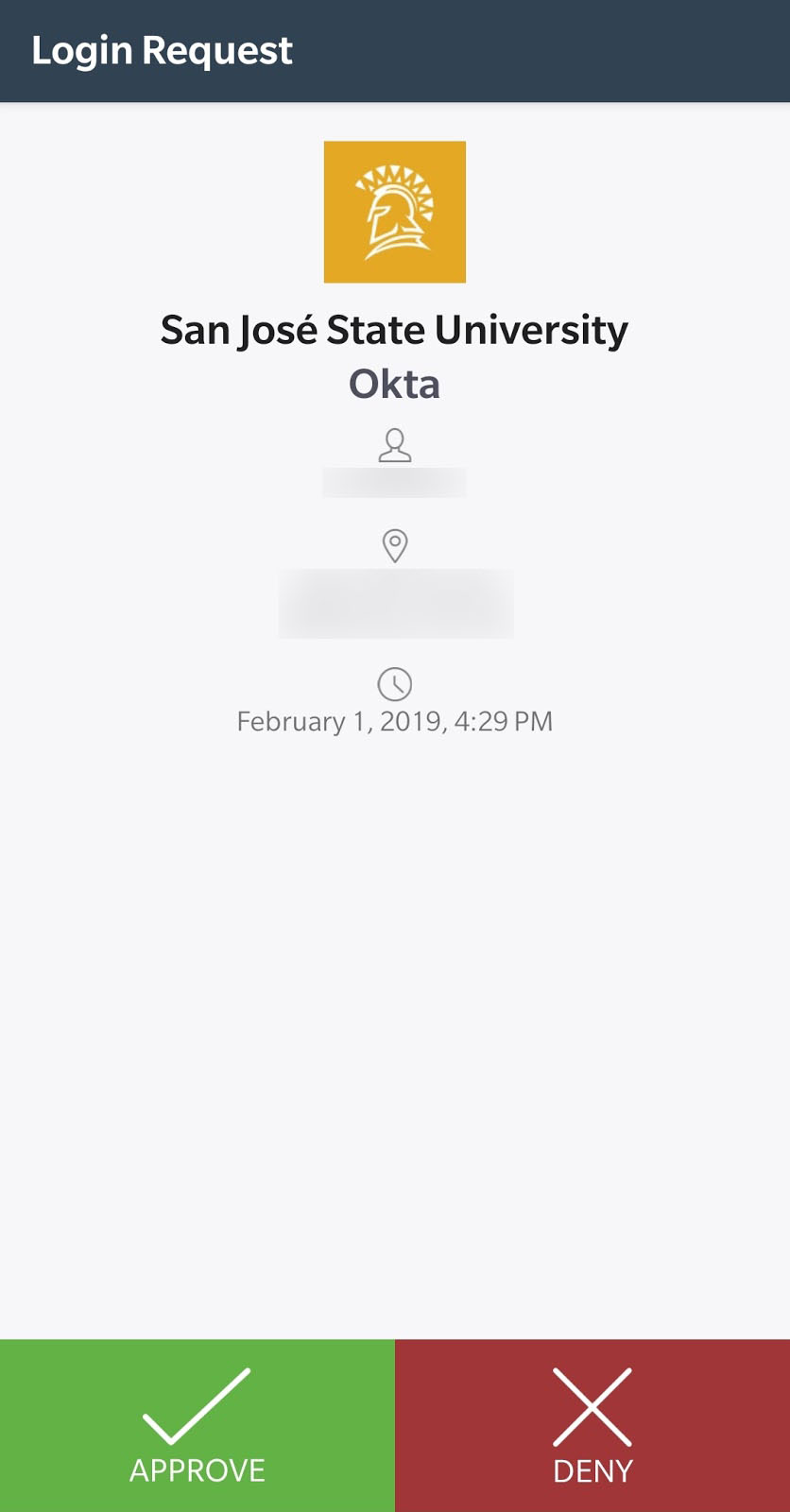
<table border="1" id="bkmrk-press-approve-on-you" style="width: 100%; border-collapse: collapse;"><tbody><tr><td style="width: 100%;">- Press **Approve** on your phone:

</td></tr><tr><td class="align-center" style="width: 100%;">![](https://kb.mlml.sjsu.edu/uploads/images/gallery/2019-02-Feb/scaled-840-0/image-1550690411648.png)</td></tr></tbody></table>

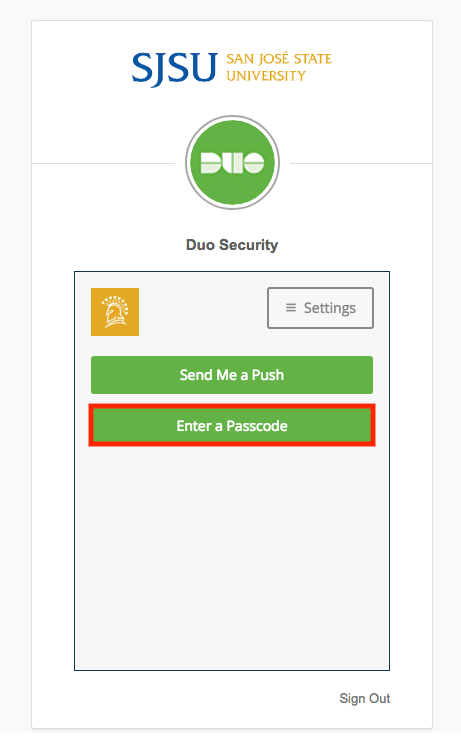
<table border="1" id="bkmrk-alternatively%2C-click" style="width: 100%; border-collapse: collapse;"><tbody><tr><td style="width: 100%;">- Alternatively, click **Enter** **Passcode:**
- Entering a passcode may be helpful in situations where the push notification won’t get through, for instance when your computer has a connection to the internet but you have no data service (cell or WiFi) on your phone.


</td></tr><tr><td class="align-center" style="width: 100%;">![](https://kb.mlml.sjsu.edu/uploads/images/gallery/2019-02-Feb/scaled-840-0/image-1550690441049.png)</td></tr></tbody></table>

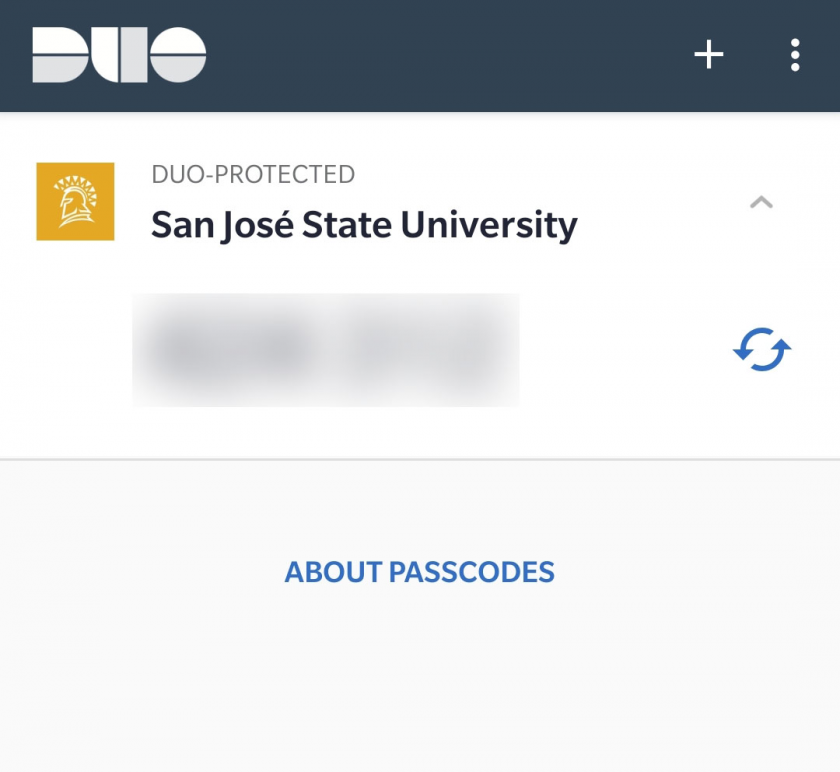
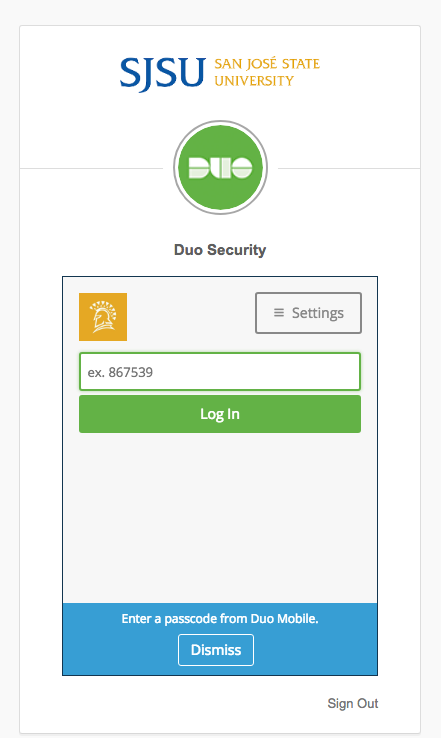
<table border="1" id="bkmrk-enter-the-passcode-f" style="width: 100%; border-collapse: collapse; height: 694px;"><tbody><tr style="height: 56px;"><td style="width: 100%; height: 56px;">- Enter the **passcode** from Duo on your phone into the field on the device you are signing in with:

</td></tr><tr style="height: 31px;"><td class="align-center" style="width: 100%; height: 31px;">![](https://kb.mlml.sjsu.edu/uploads/images/gallery/2019-02-Feb/scaled-840-0/image-1550690492350.png)</td></tr><tr style="height: 607px;"><td class="align-center" style="width: 100%; height: 607px;">![](https://kb.mlml.sjsu.edu/uploads/images/gallery/2019-02-Feb/scaled-840-0/image-1550690540347.png)</td></tr></tbody></table>

#### **Enable Easy Account Recovery:**

**Recovering your account on a new device can be made simple by setting up Duo Restore NOW - before you get a new device. It backups your account and uses a recovery password that you can enter on your new device to register that new account. If you do not do this, you will have to unregister your old device, then register your new device with SJSU IT (even if it is the same number).**

**To learn how to setup Duo Restore for your iOS or Android follow the instructions on [this page](https://guide.duo.com/duo-restore).**

#### **For more information:**

- - <span class="s2">[SJSU Duo <span class="s19">Page</span>](http://www.sjsu.edu/it/services/computer-security/duo.php)</span>
    - <span class="s2">[Duo End-User <span class="s19">Guide</span>](https://guide.duo.com/)</span>

# Sign In with Duo 2-Factor Authentication

This page assumes you have **previously set up** Duo 2-Factor Authentication with your **smartphone** or a **key fob**. If you have not, please see our [Duo Set Up Guide](https://kb.mlml.sjsu.edu/books/security-anti-malware/page/set-up-duo-2-factor-authentication).

##### **First, sign in to SJSU Normally:**

<table border="1" id="bkmrk-navigate-to-the-sjsu"><tbody><tr><td>- Navigate to the<span class="s9"> [<span class="s2">**SJSUOne**</span> ](https://one.sjsu.edu/)</span>page, or any other page where you use your SJSU login credentials (eg. SJSU Email):

</td></tr><tr><td class="align-center">[![SJSUOne-Sign-In.png](https://kb.mlml.sjsu.edu/uploads/images/gallery/2019-04-Apr/scaled-840-0/SJSUOne-Sign-In.png)](https://kb.mlml.sjsu.edu/uploads/images/gallery/2019-04-Apr/SJSUOne-Sign-In.png)</td></tr></tbody></table>

<table border="1" id="bkmrk-sign-in%3A-note%3A-if-yo"><tbody><tr><td>- **Sign** **In** with your SJSU ID Number or SJSU Email Address and Password:
- - Note: If you are already logged in, you may want to use your browser’s incognito/private mode so that you do not have to log out and back in again.

</td></tr><tr><td class="align-center">**![](https://kb.mlml.sjsu.edu/uploads/images/gallery/2019-02-Feb/scaled-840-0/image-1550690151856.png)**</td></tr></tbody></table>

Your browser will now bring up the Duo 2-Factor Authentication page, the method you use to sign in with Duo 2-FA will vary based on which option you select and whether you are using a smartphone or a key fob.

These methods are outlined below.

####  

#### **Sign In with a Push Notification:**

<table border="1" id="bkmrk-to-sign-in-with-2-fa" style="width: 100%; border-collapse: collapse;"><tbody><tr><td style="width: 100%;">- To sign in with 2-factor Authentication from your computer or other device you are signing in with, click **Send Me a Push**:

</td></tr><tr><td class="align-center" style="width: 100%;">![](https://kb.mlml.sjsu.edu/uploads/images/gallery/2019-02-Feb/scaled-840-0/image-1550690404769.png)</td></tr></tbody></table>

<table border="1" id="bkmrk-press%C2%A0approve%C2%A0on-y" style="border-collapse: collapse; width: 100%;"><tbody><tr><td style="width: 100%;">- Press **Approve** on your phone:

</td></tr><tr><td class="align-center" style="width: 100%;">![](https://kb.mlml.sjsu.edu/uploads/images/gallery/2019-02-Feb/scaled-840-0/image-1550690411648.png)</td></tr></tbody></table>

####  

#### **Sign In with a Passcode:**

<table border="1" id="bkmrk-alternatively%2C-click" style="border-collapse: collapse; width: 100%;"><tbody><tr><td style="width: 100%;">- Alternatively, click **Enter** **Passcode:**
    - Entering a passcode may be helpful in situations where the push notification won’t get through, for instance when your computer has a connection to the internet but you have no data service (cell or WiFi) on your phone.

</td></tr><tr><td class="align-center" style="width: 100%;">![](https://kb.mlml.sjsu.edu/uploads/images/gallery/2019-02-Feb/scaled-840-0/image-1550690441049.png)</td></tr></tbody></table>

<table border="1" id="bkmrk-enter-the%C2%A0passcode%C2" style="border-collapse: collapse; width: 100%;"><tbody><tr><td style="width: 100%;">- Enter the **passcode** from Duo on your phone into the field on the device you are signing in with:

</td></tr><tr><td class="align-center" style="width: 100%;">![](https://kb.mlml.sjsu.edu/uploads/images/gallery/2019-02-Feb/scaled-840-0/image-1550690492350.png)</td></tr><tr><td class="align-center" style="width: 100%;">![](https://kb.mlml.sjsu.edu/uploads/images/gallery/2019-02-Feb/scaled-840-0/image-1550690540347.png)</td></tr></tbody></table>

#### **Sign in with a Key Fob Passcode:**

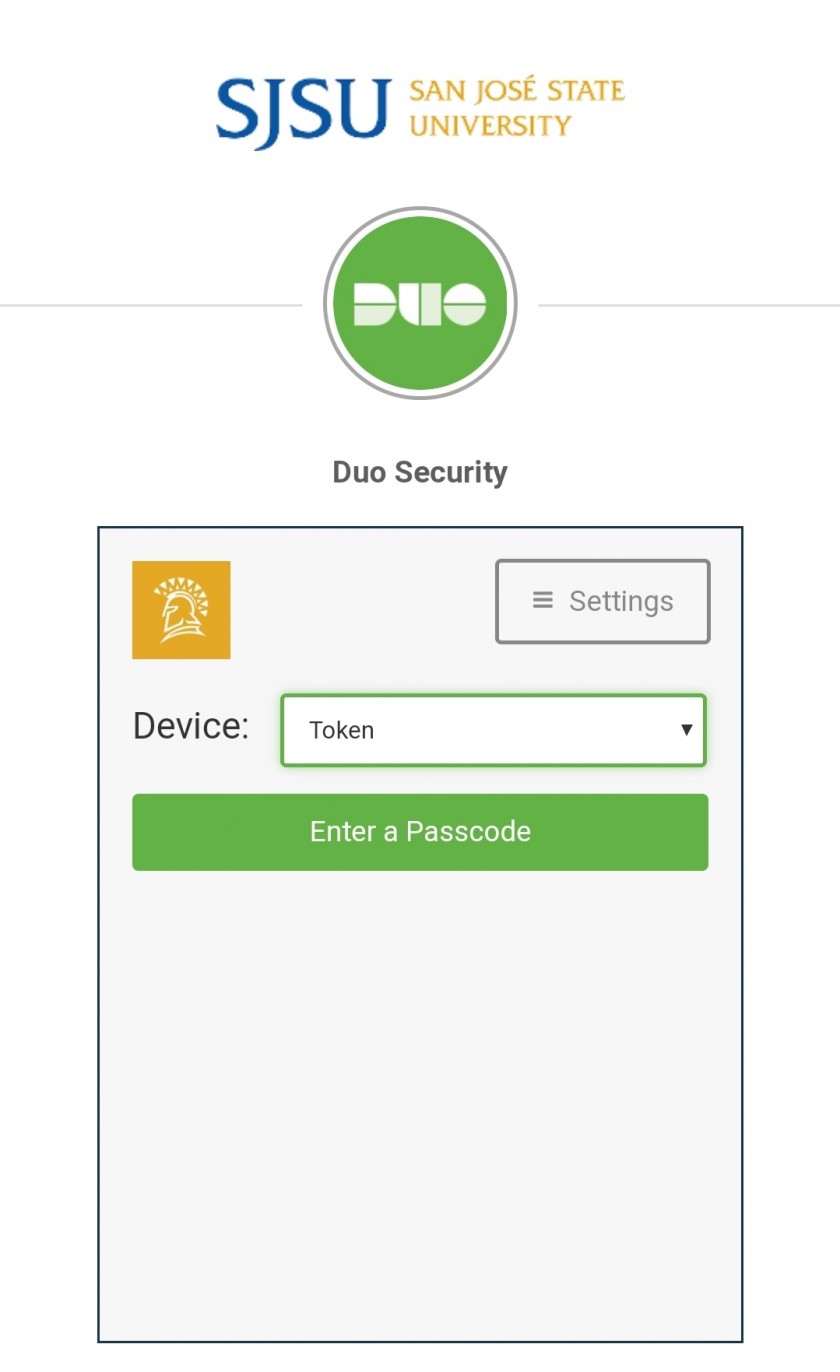
<table border="1" id="bkmrk-in-the-duo-sign-in-p" style="border-collapse: collapse; width: 100%;"><tbody><tr><td style="width: 100%;">- On the Duo **Sign in** page, where it says **Device**, make sure the device selected is **Token**:

</td></tr><tr><td class="align-center" style="width: 100%;">[![Duo-Devices.jpg](https://kb.mlml.sjsu.edu/uploads/images/gallery/2019-04-Apr/scaled-840-0/Duo-Devices.jpg)](https://kb.mlml.sjsu.edu/uploads/images/gallery/2019-04-Apr/Duo-Devices.jpg)</td></tr></tbody></table>

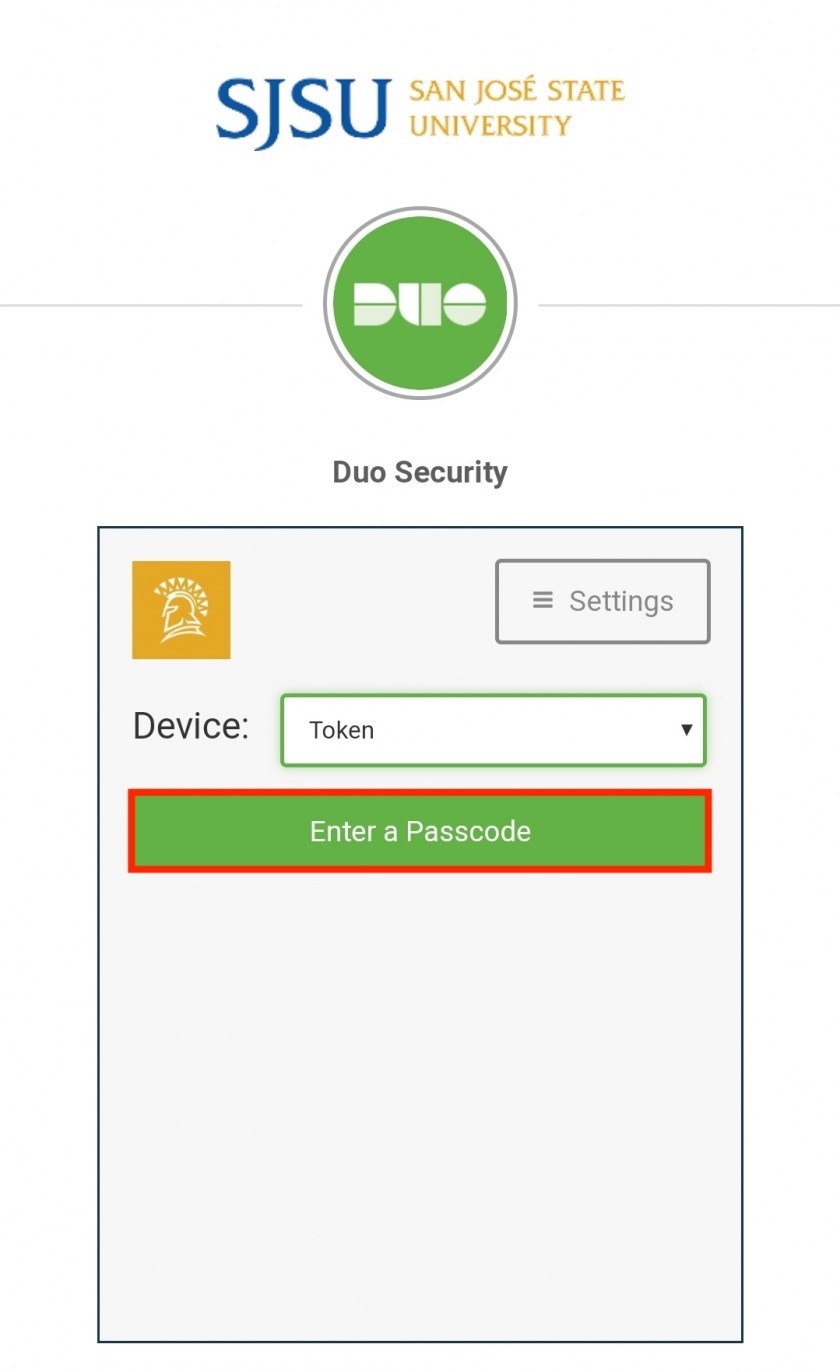
<div id="bkmrk-"></div><table border="1" id="bkmrk-press%C2%A0enter-a-passc" style="border-collapse: collapse; width: 100%;"><tbody><tr><td style="width: 100%;">- Press **Enter a Passcode**, and press the single **Button** on your **Duo Key Fob**:

</td></tr><tr><td class="align-center" style="width: 100%;">[![Duo-Devices-Passcode-highlight.jpeg](https://kb.mlml.sjsu.edu/uploads/images/gallery/2019-04-Apr/scaled-840-0/Duo-Devices-Passcode-highlight.jpeg)](https://kb.mlml.sjsu.edu/uploads/images/gallery/2019-04-Apr/Duo-Devices-Passcode-highlight.jpeg)</td></tr><tr><td class="align-center" style="width: 100%;">[![Duo-Fob.jpg](https://kb.mlml.sjsu.edu/uploads/images/gallery/2019-04-Apr/scaled-840-0/Duo-Fob.jpg)](https://kb.mlml.sjsu.edu/uploads/images/gallery/2019-04-Apr/Duo-Fob.jpg)</td></tr></tbody></table>

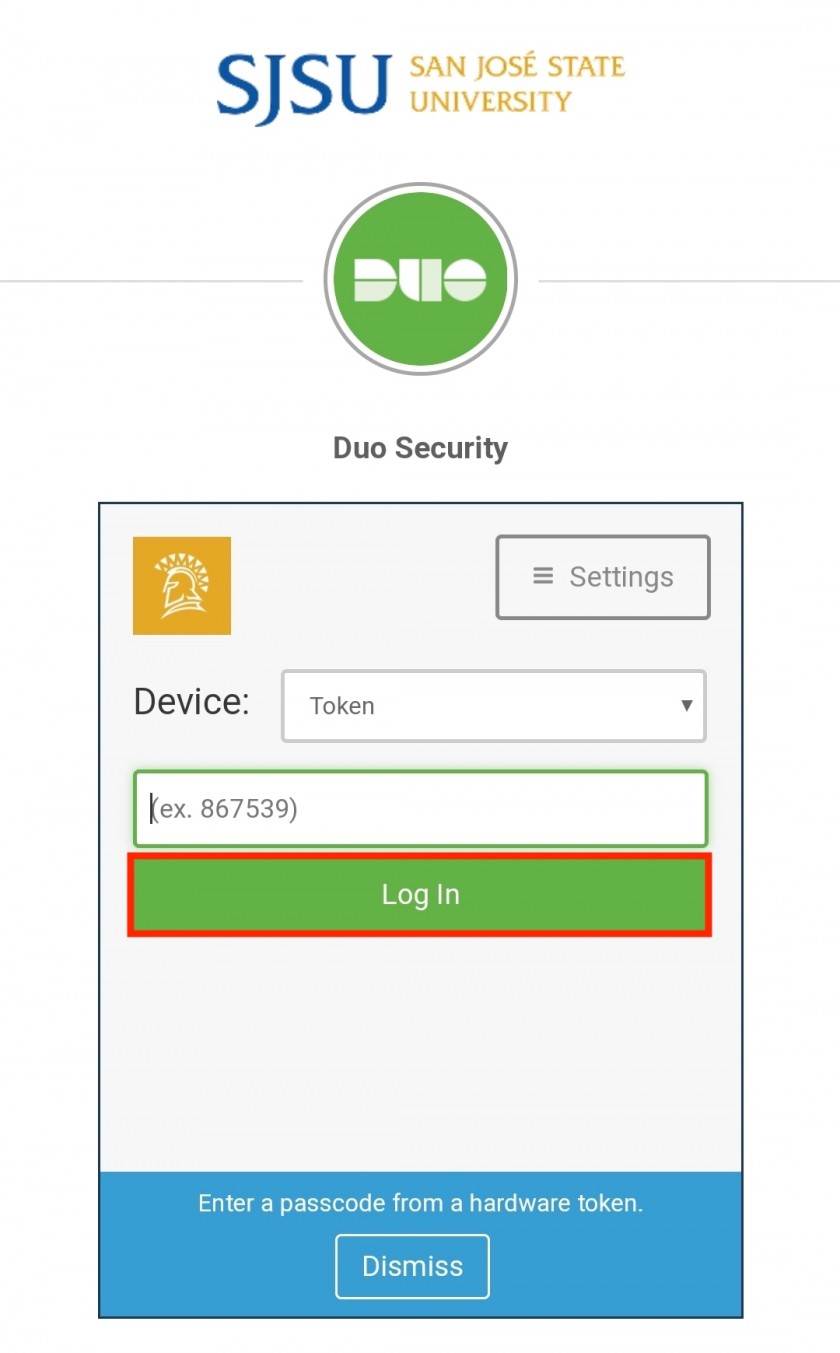
<table border="1" id="bkmrk-enter-your-one-time-" style="border-collapse: collapse; width: 100%;"><tbody><tr><td style="width: 100%;">- Enter your **One Time Password** from the Key Fob into the passcode field and press **Log In**: 
    - You have about 15 seconds to enter the passcode.

</td></tr><tr><td class="align-center" style="width: 100%;">[![Duo-Fob-OTP.jpg](https://kb.mlml.sjsu.edu/uploads/images/gallery/2019-04-Apr/scaled-840-0/Duo-Fob-OTP.jpg)](https://kb.mlml.sjsu.edu/uploads/images/gallery/2019-04-Apr/Duo-Fob-OTP.jpg)</td></tr><tr><td class="align-center" style="width: 100%;">[![Duo-Token-Passcode-Login-highlighted.jpeg](https://kb.mlml.sjsu.edu/uploads/images/gallery/2019-04-Apr/scaled-840-0/Duo-Token-Passcode-Login-highlighted.jpeg)](https://kb.mlml.sjsu.edu/uploads/images/gallery/2019-04-Apr/Duo-Token-Passcode-Login-highlighted.jpeg)</td></tr></tbody></table>

# Recovering Duo 2-Factor Account

**When you setup your Duo 2-Factor Account, it's important to setup [Duo Restore](https://help.duo.com/s/article/duo-restore?language=en_US) to ensure easy account recovery if you get a new device or your account is deleted off your original device. However, if you did not enable Duo Restore before getting a new device do not fear, you can still recover your account by contacting the SJSU IT Help Desk. Follow the instructions below:**

1. File an [IT Ticket](https://isupport.sjsu.edu/mlml) and include your name, and your SJSU email address and ID number.
2. When your request is processed, you will be sent a temporary bypass code. 
    1. Visit the SJSU Duo MFA Settings page: [https://sjsu.okta.com/signin/verify/duo/web](https://sjsu.okta.com/signin/verify/duo/web)
    2. Enter this code when prompted for a Duo code:   
        [![image-1634258396430.png](https://kb.mlml.sjsu.edu/uploads/images/gallery/2021-10/scaled-1680-/image-1634258396430.png)](https://kb.mlml.sjsu.edu/uploads/images/gallery/2021-10/image-1634258396430.png)
    3. Follow the directions on the SJSU Duo setup page to add your new device as a Duo authentication device: [https://www.sjsu.edu/it/services/computer-security/duo/](https://www.sjsu.edu/it/services/computer-security/duo/)

# How to Access Duo Multi-Factor Authentication

#### **What is Duo?**

Two-Factor Authentication (MFA) adds a second layer of security to your SJSUOne account. By verifying your identity using a second factor (such as your mobile device or a key fob), MFA prevents anyone else from logging into your account, even if they know your password

#### **Who should use Duo?**

Students should set up Duo MFA to protect their account and private information from being hacked. As of September 2020, it is available to all SJSU staff and students

#### **How does Duo work?**

Two-Factor Authentication combines something you know (your username and password) with something you carry (your Apple or Android smartphone, or a Hardware Token / Key-Fob), to ensure that only you can log in to your SJSUOne account. After entering your username and password you will be prompted to confirm your login, using your device

##### Cost

- Using the smartphone app factor is covered by the CSU master license
- Hardware tokens (key fobs) are purchased by SJSU and provided to you. Replacements are available for broken or lost fobs

#### **How do I set up Duo for my account?** 

##### Using a smartphone

1. <span style="text-decoration: underline;">Download the Duo mobile app</span>
    - [Apple Devices](https://apps.apple.com/us/developer/duo-security/id413163561)
    - [Android Devices](https://play.google.com/store/apps/details?id=com.duosecurity.duomobile&hl=en_US)
2. <span style="text-decoration: underline;">[Register for SJSU Duo](http://duoregistration.sjsu.edu/Login?ReturnUrl=%2fEligibility%2f)</span>
    - After you register, Duo should be enabled for your account within one hour
    - At your next login, a series of prompts will guide you through the self service Duo Mobile enrollment process. The initial enrollment should be completed by logging in from a web browser on a computer, and having your phone with you
3. <span style="text-decoration: underline;">Secure login</span>
    - Once your enrollment is complete, every time your SJSU ID and Password is requested, you will also get a notification pushed to your mobile device. Acknowledge this notification to complete the login process

##### Using a key FOB

The current procedures for student access to Duo are only for smart phones, so please contact the [IT Service Desk](http://www.sjsu.edu/it/support/service-desk/index.php) for assistance by calling 408-924-1530 or by submitting a [help desk ticket](https://www.sjsu.edu/it/support/service-desk/help-ticket.php). Because Duo MFA is a security service, the IT Service Desk must confirm your identity before providing assistance.

#### **More Resources:** 

[SJSU's Duo for Students page](https://www.sjsu.edu/it/services/computer-security/duo/2FA-students/index.php?mkt_tok=eyJpIjoiTlRVeU5qQmlaV0kzT1dJdyIsInQiOiJSSjdtb0xyR24zUkZwSVp6dmErZkFtRk82UE1ZZjhiam91OUxRK1haemNUQ2lSQ2pqa3NicXNqN2hUMENmQWRqU0VCNHZwd21WN09rSEpQMDY0MmtDbEV6c0ZvdVNjd3VBMnhQUnVwZitZSlRRalVtbVNKZ1NEY1wvOUloSmkwdXYifQ%3D%3D)

[Duo's Guide to MFA's ](https://guide.duo.com)

[Duo's YouTube channel ](https://www.youtube.com/user/duosec)