# Set Up Duo 2-Factor Authentication

**\*\*Did you get a new phone and not setup [Duo Restore](#bkmrk--19) beforehand? Visit our [Recovering Duo 2-Factor Account page](https://kb.mlml.sjsu.edu/books/security-anti-malware/page/recovering-duo-2-factor-account) to learn how to setup Duo 2-Factor Authentication on a new device.\*\***

#### **What is Two-Factor Authentication?**

Two-Factor Authentication (2FA) adds a second layer of security to your SJSUOne account. By verifying your identity using a second factor (such as your mobile device or a key fob), 2FA prevents anyone else from logging into your account, even if they know your password.

Duo 2FA only effects your SJSUOne account. Once it is set up, you must use Duo 2FA to sign-in to this account and its associated services (SJSU Email, PeopleSoft, CFS, FTS, etc). It does not apply to your MLML-specific credentials.

Currently, it is available to all SJSU/Foundation Staff, Faculty, and Student Employees.

<span style="text-decoration: underline;">**To setup Duo 2-Factor Authentication:**</span>

- **Start with [First Steps](#bkmrk-first-steps%3A)**
- **Proceed to [Installation](#bkmrk-install-instructions)**
- **Continue to either [SmartPhone](#bkmrk-if-you-are-using-a-s) (recommended) or [Key Fob](#bkmrk-if-you-are-using-a-k)**
- **Finish by [Enabling Third-Party Accounts](#bkmrk--19) for easy recovery**

#### **First Steps:**

<table border="1" id="bkmrk-go-to-the%C2%A0sjsu-duo-" style="width: 100%; border-collapse: collapse;"><tbody><tr><td style="width: 100%;">- <span class="s1">Go to the</span> [<span class="s2">SJSU Duo</span> <span class="s2">Page</span>](http://www.sjsu.edu/it/services/computer-security/duo.php)
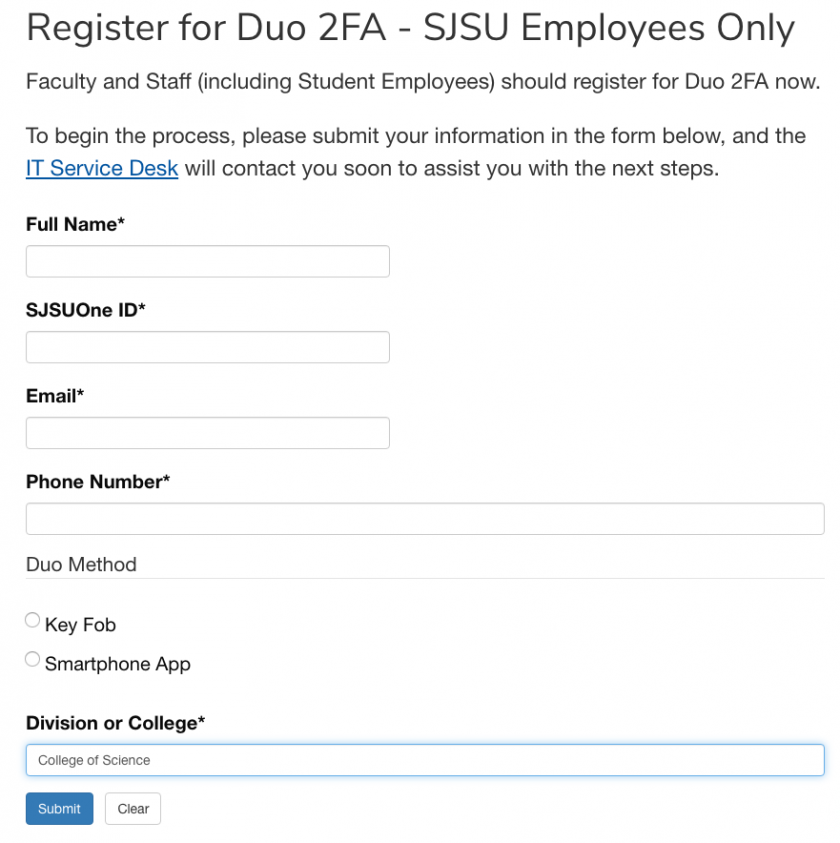
- Scroll down to **Register for Duo 2FA - SJSU Employees Only**
- Select the **Smartphone App** option in the **Duo Method** section of the form. 
    - <span style="color: #ff0000;">*<span class="s5">Please Note: </span>*</span>Only select the **Key Fob** option if you <span style="color: #ff0000;">*<span style="text-decoration: underline;"><span class="s2">do not own</span> a smartphone</span>*</span> or<span style="text-decoration: underline;">*<span class="s2"> absolutely refuse</span>*</span> to install the Duo App on your phone. A key fob is a small physical device that displays a continuously updating passcode. Please submit an [IT Helpdesk Ticket](https://helpdesk.mlml.calstate.edu/) to request a key fob.
- Enter your information and then **Submit** the form. Select “**College of Science**” in the **Division or College** section:

</td></tr><tr><td class="align-center" style="width: 75%;">[![SJSU-Duo-Registration.png](https://kb.mlml.sjsu.edu/uploads/images/gallery/2019-04-Apr/scaled-840-0/SJSU-Duo-Registration.png)](https://kb.mlml.sjsu.edu/uploads/images/gallery/2019-04-Apr/SJSU-Duo-Registration.png)</td></tr><tr><td style="width: 100%;">- Wait to receive an email from SJSU IT enabling Duo on your account
- Once you receive the email with setup instructions, it may take 1-2 hours for the change to sync to your account

</td></tr></tbody></table>


#### **Install Instructions**:

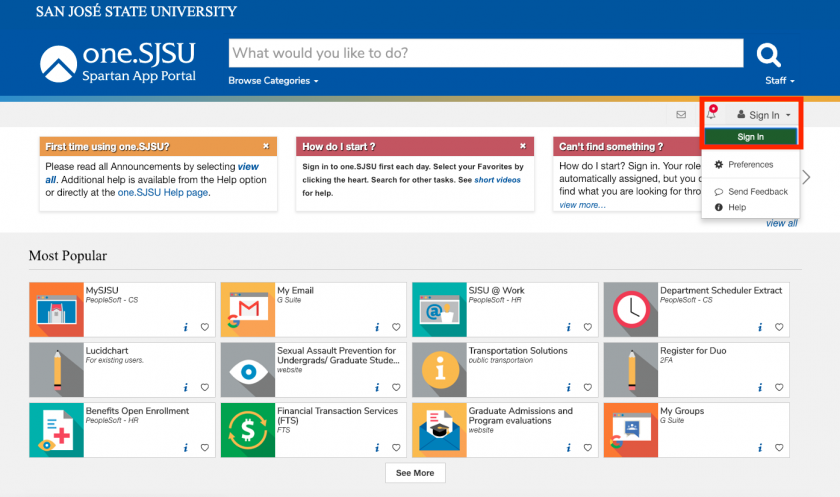
<table border="1" id="bkmrk-navigate-to-the-sjsu" style="width: 100%; border-collapse: collapse;"><tbody><tr><td style="width: 100%;">- Navigate to the<span class="s9"> [<span class="s2">**SJSUOne**</span> ](https://one.sjsu.edu/)</span>page, or any other page where you use your SJSU login credentials (eg. SJSU Email):

</td></tr><tr><td class="align-center" style="width: 100%;">[![SJSUOne-Sign-In.png](https://kb.mlml.sjsu.edu/uploads/images/gallery/2019-04-Apr/scaled-840-0/SJSUOne-Sign-In.png)](https://kb.mlml.sjsu.edu/uploads/images/gallery/2019-04-Apr/SJSUOne-Sign-In.png)</td></tr></tbody></table>

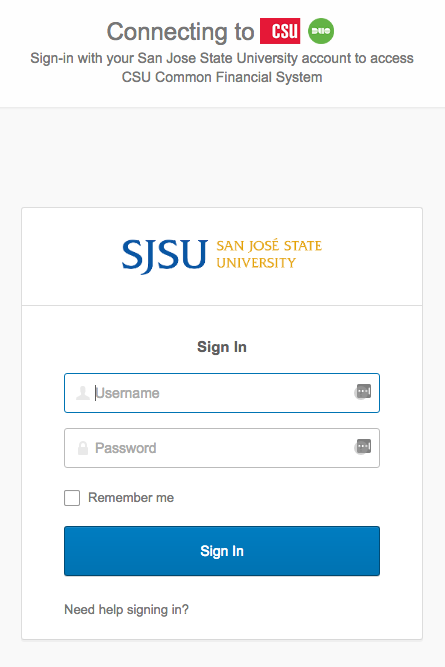
<table border="1" id="bkmrk-sign-in%3A-note%3A-if-yo" style="width: 100%; border-collapse: collapse;"><tbody><tr><td style="width: 50%;">- **Sign** **In**: 
    - Note: If you are already logged in, you may want to use your browser’s incognito/private mode so that you do not have to log out and back in again.

</td></tr><tr><td class="align-center" style="width: 50%;">**![](https://kb.mlml.sjsu.edu/uploads/images/gallery/2019-02-Feb/scaled-840-0/image-1550690151856.png)**</td></tr></tbody></table>


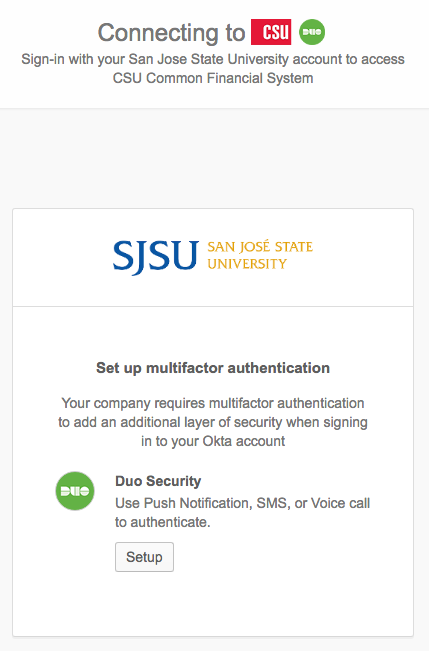
<table border="1" id="bkmrk-click-setup%3A" style="width: 100%; border-collapse: collapse;"><tbody><tr><td style="width: 100%;">- Click **Setup**:

</td></tr><tr><td class="align-center" style="width: 100%;">![](https://kb.mlml.sjsu.edu/uploads/images/gallery/2019-02-Feb/scaled-840-0/image-1550690159219.png)</td></tr></tbody></table>

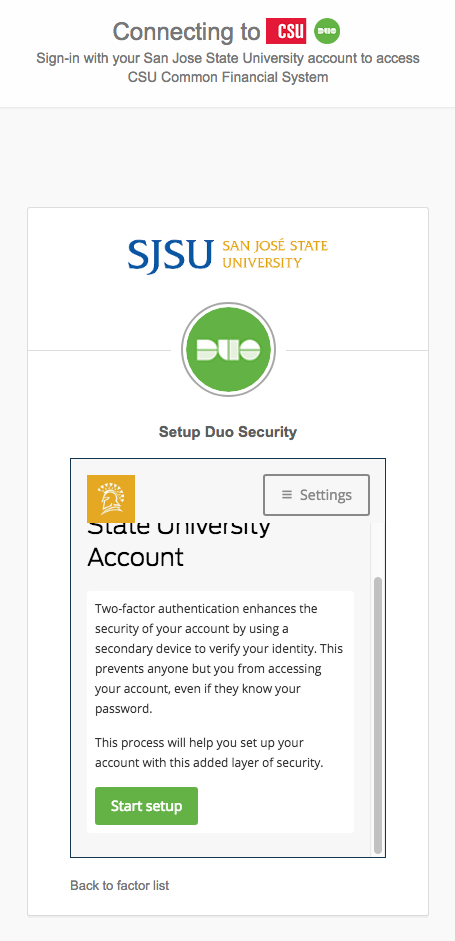
<table border="1" id="bkmrk-scroll-down-and-clic" style="width: 100%; border-collapse: collapse;"><tbody><tr><td style="width: 100%;">- Scroll down and click **Start** **Setup**:

</td></tr><tr><td class="align-center" style="width: 100%;">![](https://kb.mlml.sjsu.edu/uploads/images/gallery/2019-02-Feb/scaled-840-0/image-1550690171069.png)</td></tr></tbody></table>


##### If you are using a Key Fob:

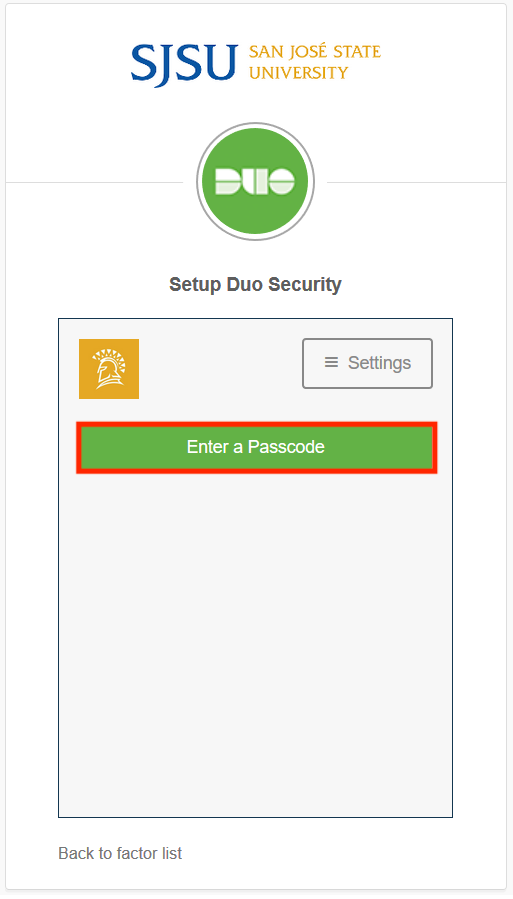
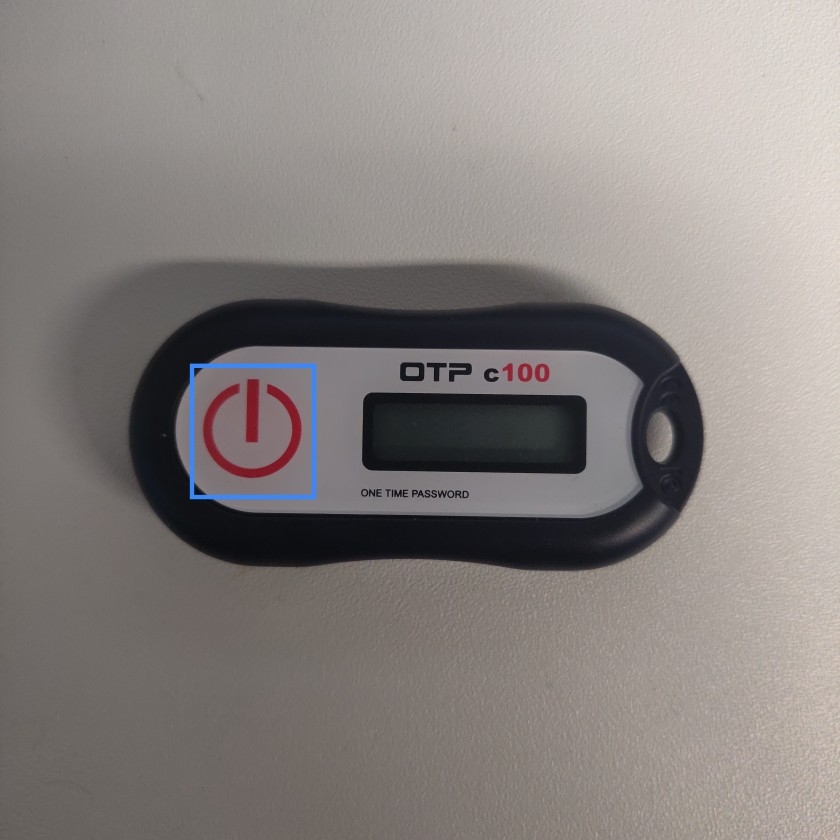
<table border="1" id="bkmrk-press%C2%A0enter-a-passc" style="border-collapse: collapse; width: 99.8765%;"><tbody><tr><td style="width: 99.8765%;">- Press **Enter a Passcode**, and press the single **Button** on your **Duo Key Fob**:

</td></tr><tr><td class="align-center" style="width: 99.8765%;">[![Duo-Fob-Select-Passcode.png](https://kb.mlml.sjsu.edu/uploads/images/gallery/2019-04-Apr/scaled-840-0/Duo-Fob-Select-Passcode.png)](https://kb.mlml.sjsu.edu/uploads/images/gallery/2019-04-Apr/Duo-Fob-Select-Passcode.png)</td></tr><tr><td class="align-center" style="width: 99.8765%;">[![Duo-Fob.jpg](https://kb.mlml.sjsu.edu/uploads/images/gallery/2019-04-Apr/scaled-840-0/Duo-Fob.jpg)](https://kb.mlml.sjsu.edu/uploads/images/gallery/2019-04-Apr/Duo-Fob.jpg)</td></tr></tbody></table>

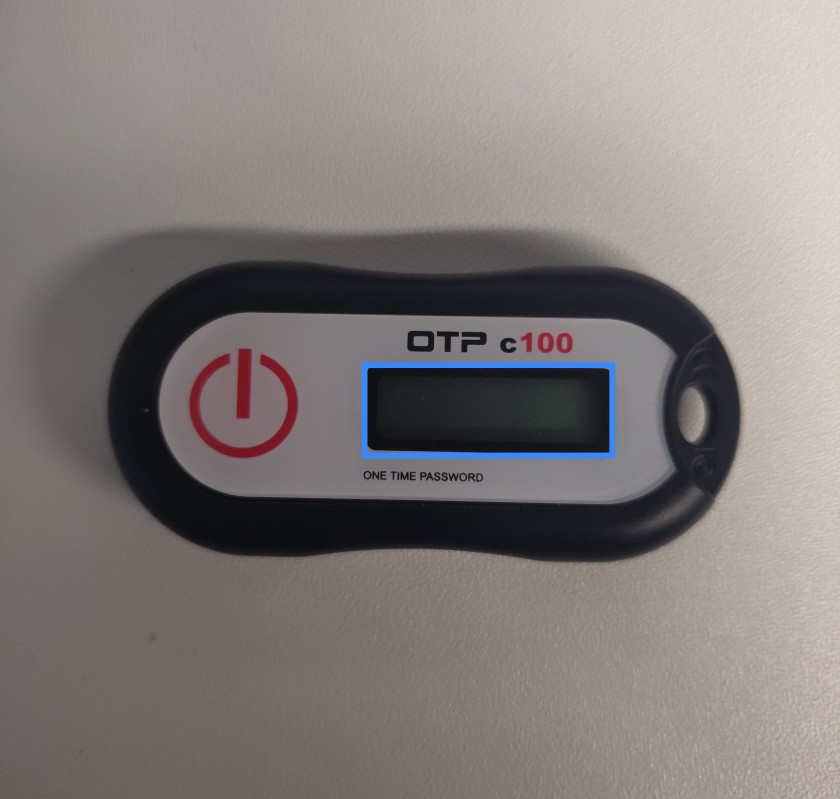
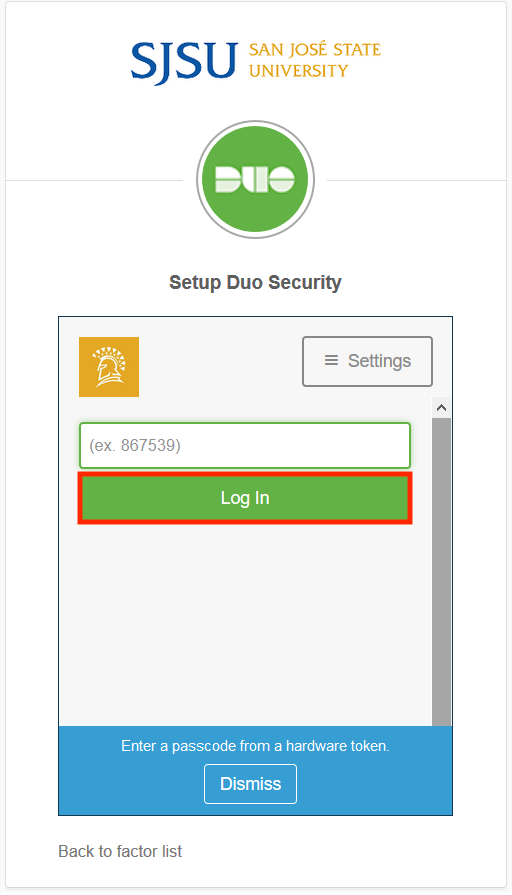
<table border="1" id="bkmrk-enter-your%C2%A0one-time" style="border-collapse: collapse; width: 99.8765%;"><tbody><tr><td style="width: 99.8765%;">- Enter your **One Time Password** from the Key Fob into the passcode field and press **Log In**: 
    - You have about 15 seconds to enter the passcode.

</td></tr><tr><td class="align-center" style="width: 99.8765%;">[![Duo-Fob-OTP.jpg](https://kb.mlml.sjsu.edu/uploads/images/gallery/2019-04-Apr/scaled-840-0/Duo-Fob-OTP.jpg)](https://kb.mlml.sjsu.edu/uploads/images/gallery/2019-04-Apr/Duo-Fob-OTP.jpg)</td></tr><tr><td class="align-center" style="width: 99.8765%;">[![Duo-Fob-Login.png](https://kb.mlml.sjsu.edu/uploads/images/gallery/2019-04-Apr/scaled-840-0/Duo-Fob-Login.png)](https://kb.mlml.sjsu.edu/uploads/images/gallery/2019-04-Apr/Duo-Fob-Login.png)</td></tr><tr><td style="width: 99.8765%;">Congratulations, Duo 2-Factor Authentication should now be set up for use with your Key Fob!</td></tr></tbody></table>

##### If you are using a Smartphone:

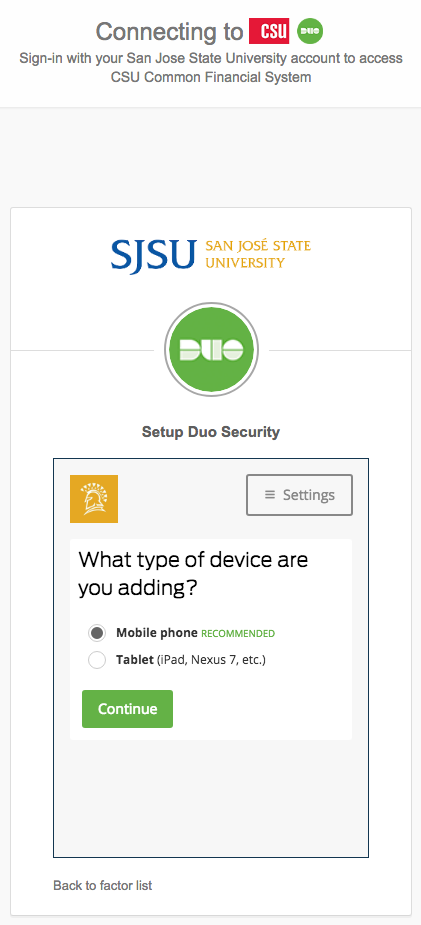
<table border="1" id="bkmrk-select-mobile-phone-" style="width: 100%; border-collapse: collapse;"><tbody><tr><td style="width: 100%;">- Select **Mobile phone** and click **Continue**:

</td></tr><tr><td class="align-center" style="width: 100%;">![](https://kb.mlml.sjsu.edu/uploads/images/gallery/2019-02-Feb/scaled-840-0/image-1550690182776.png)</td></tr></tbody></table>

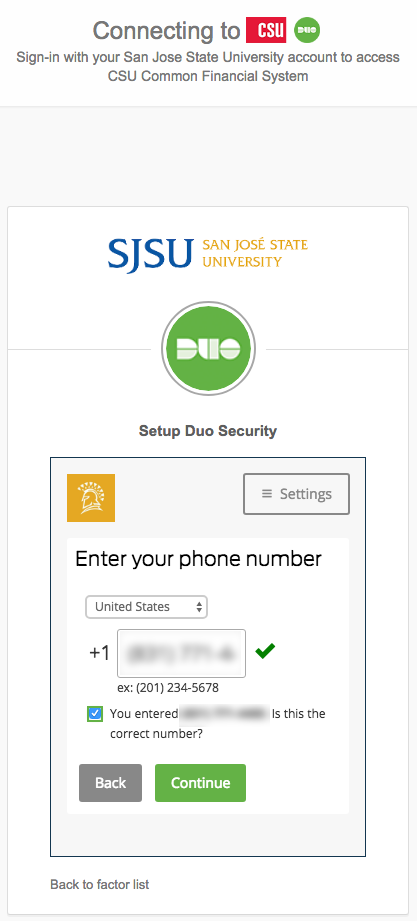
<table border="1" id="bkmrk-enter-your-phone-num" style="width: 100%; border-collapse: collapse;"><tbody><tr><td style="width: 100%;">- Enter your **phone number** and click **Continue**:

</td></tr><tr><td class="align-center" style="width: 100%;">![](https://kb.mlml.sjsu.edu/uploads/images/gallery/2019-02-Feb/scaled-840-0/image-1550690234183.png)</td></tr></tbody></table>

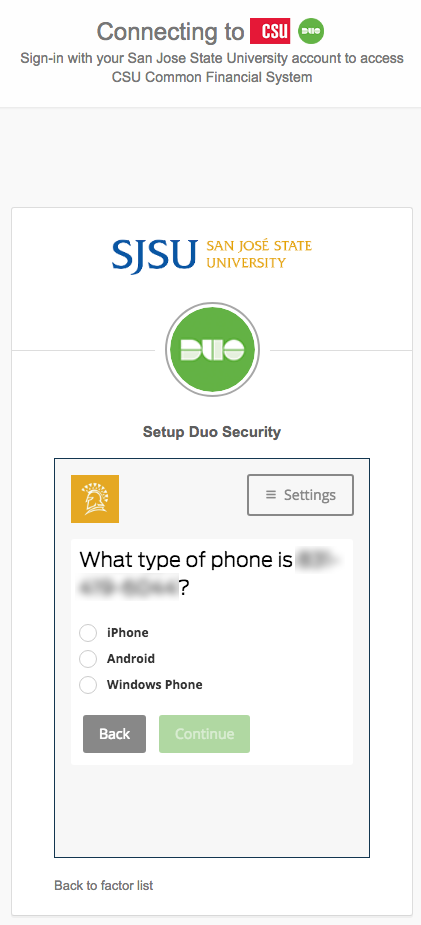
<table border="1" id="bkmrk-select-the-type-of-p" style="width: 100%; border-collapse: collapse;"><tbody><tr><td style="width: 100%;">- Select the **type of phone** and click **Continue**:

</td></tr><tr><td class="align-center" style="width: 100%;">![](https://kb.mlml.sjsu.edu/uploads/images/gallery/2019-02-Feb/scaled-840-0/image-1550690245004.png)</td></tr></tbody></table>

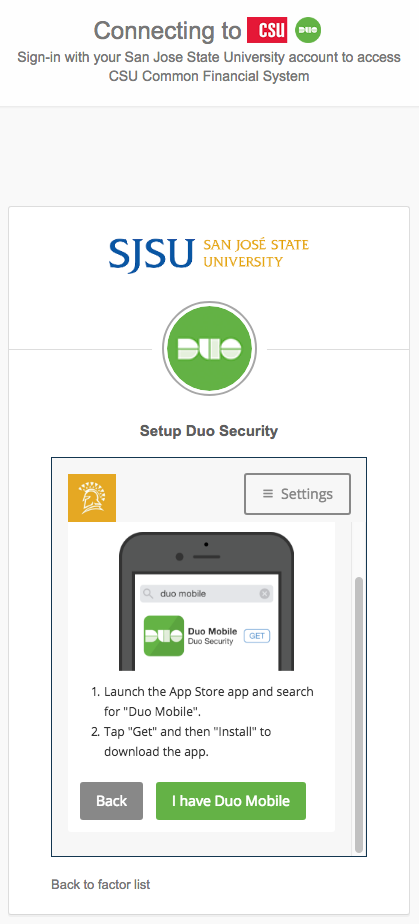
<table border="1" id="bkmrk-search-and-install-%E2" style="width: 100%; border-collapse: collapse;"><tbody><tr><td style="width: 100%;">- Search and install “**Duo mobile**” from your app store onto your device: 
    - Apple **App Store** for iOS
    - Google **Play** **Store** for Android
- Once downloaded, go back to setup screen and click **I have Duo** **Mobile** :

</td></tr><tr><td class="align-center" style="width: 100%;">![](https://kb.mlml.sjsu.edu/uploads/images/gallery/2019-02-Feb/scaled-840-0/image-1550690258059.png)</td></tr></tbody></table>

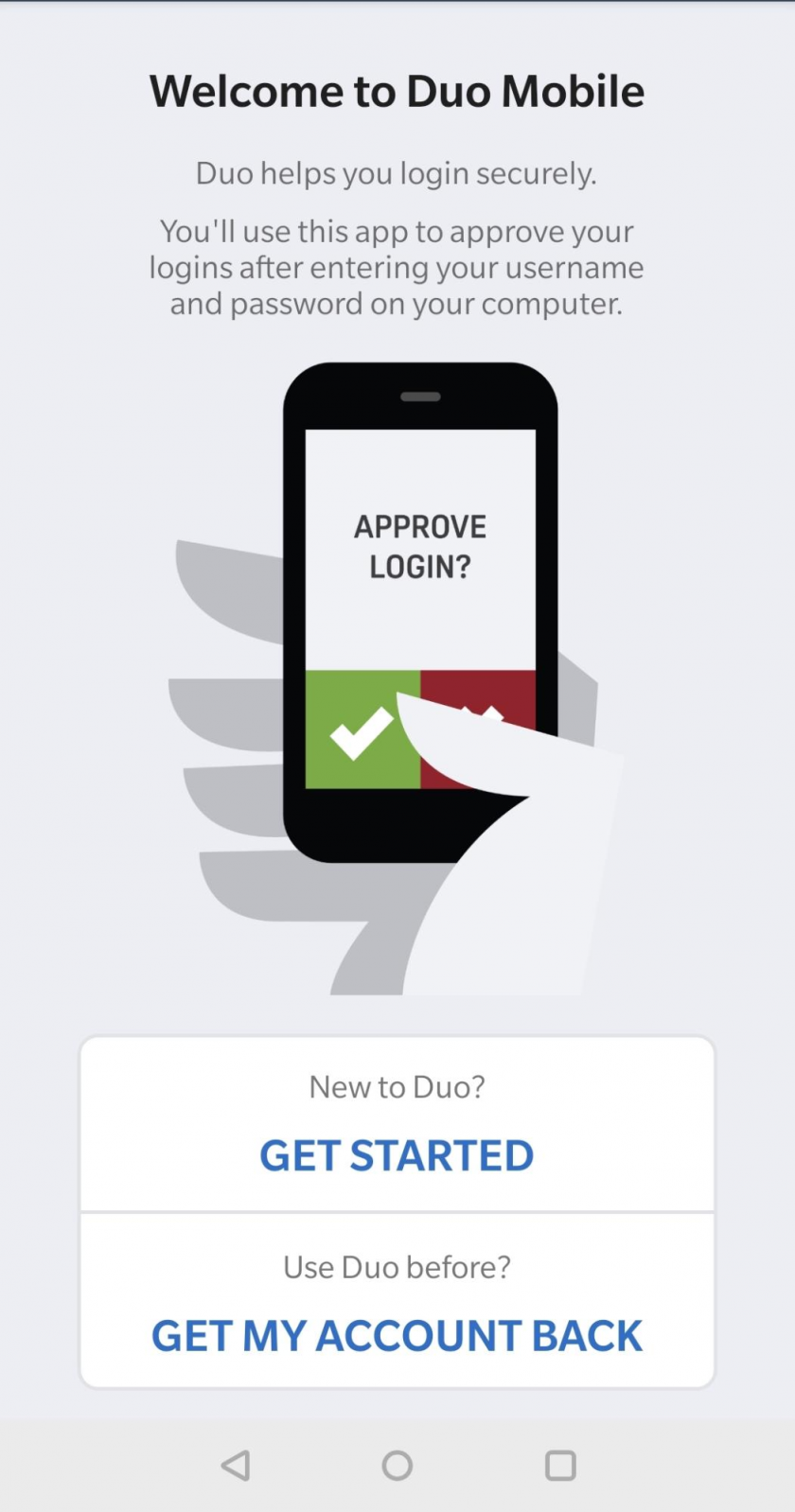
<table border="1" id="bkmrk-open-the-duo-mobile-" style="width: 100%; border-collapse: collapse;"><tbody><tr><td style="width: 100%;">- Open the Duo Mobile app and tap **Get Started** or **Add** **Account**:

</td></tr><tr><td class="align-center" style="width: 100%;">![](https://kb.mlml.sjsu.edu/uploads/images/gallery/2019-02-Feb/scaled-840-0/image-1550690271637.png)</td></tr></tbody></table>

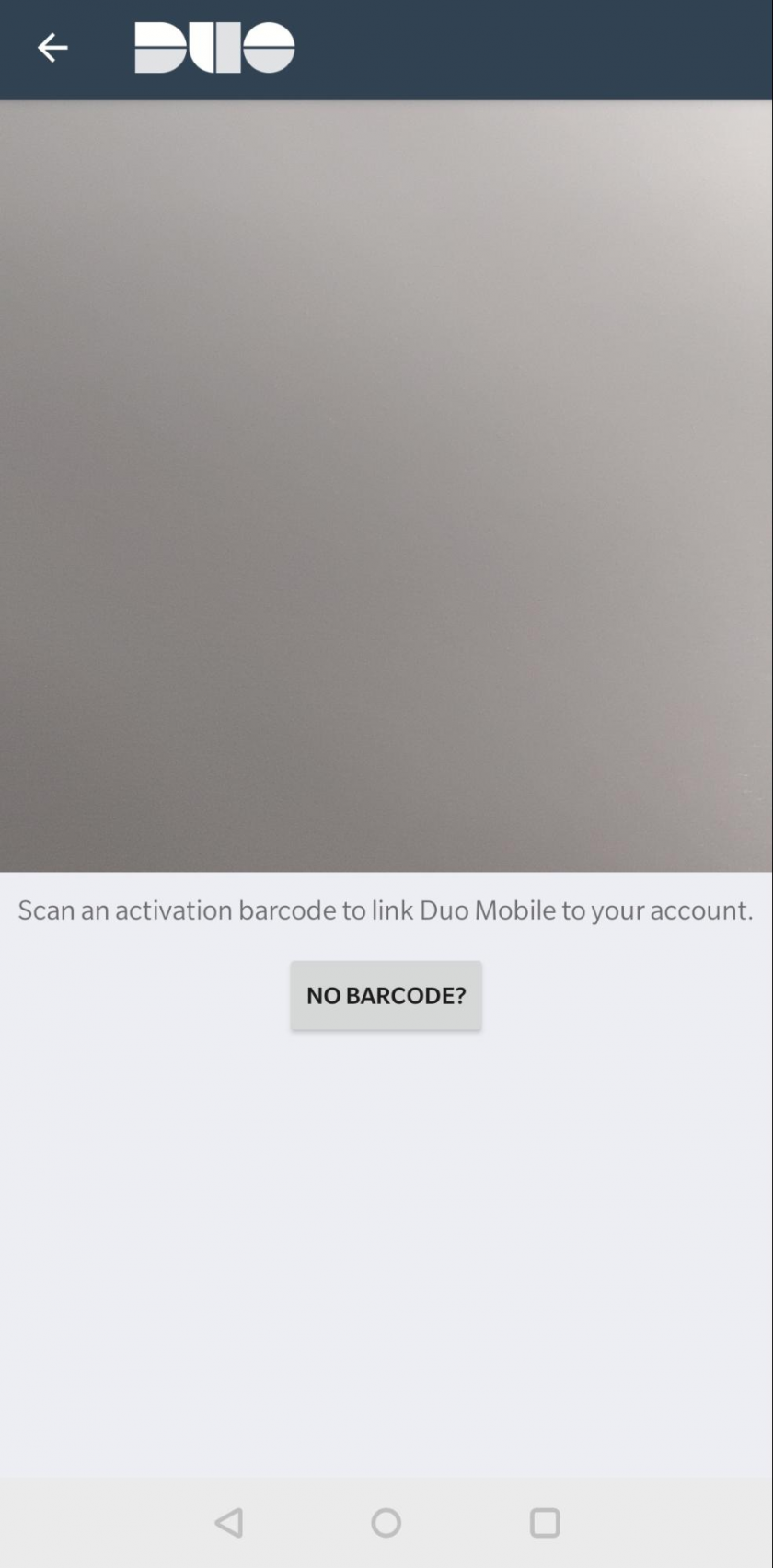
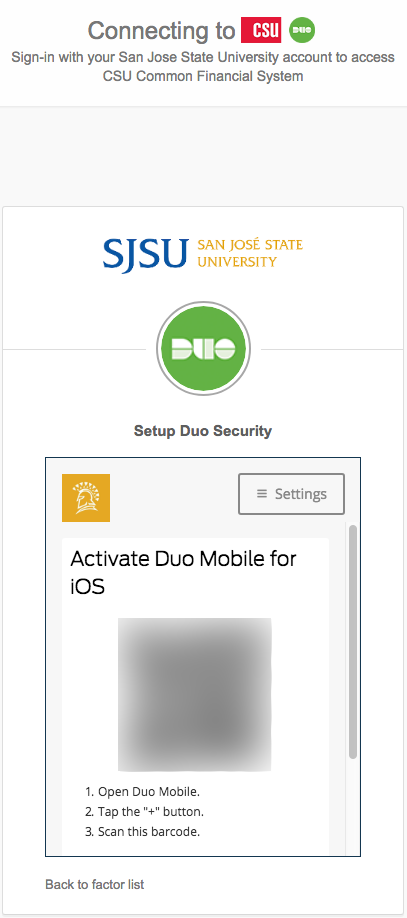
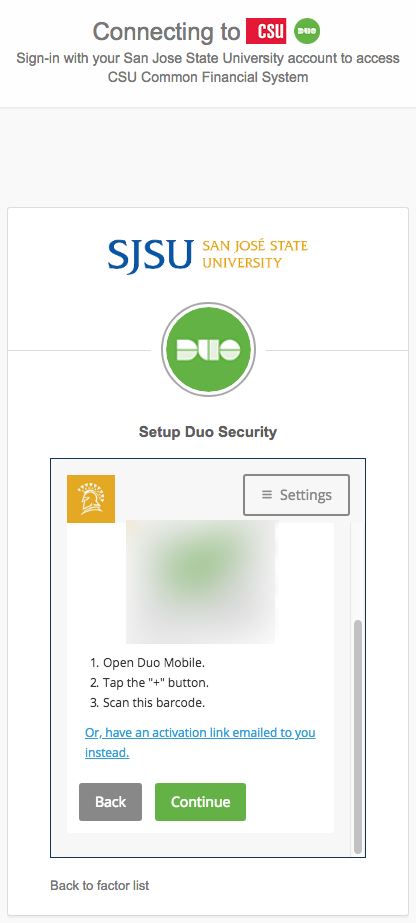
<table border="1" id="bkmrk-allow-camera-permiss" style="width: 100%; border-collapse: collapse;"><tbody><tr><td style="width: 100%;">- **Allow camera permissions** on your device if you have not already, and **scan the QR** **code** that appears on the setup screen:

</td></tr><tr><td class="align-center" style="width: 100%;">![](https://kb.mlml.sjsu.edu/uploads/images/gallery/2019-02-Feb/scaled-840-0/image-1550690292286.png)</td></tr><tr><td class="align-center" style="width: 100%;">![](https://kb.mlml.sjsu.edu/uploads/images/gallery/2019-02-Feb/scaled-840-0/image-1550690318192.png)</td></tr></tbody></table>

<table border="1" id="bkmrk-once-you-have-scanne" style="width: 100%; border-collapse: collapse;"><tbody><tr><td style="width: 100%;">- Once you have scanned the QR code, scroll down and click **Continue** on the setup screen:

</td></tr><tr><td class="align-center" style="width: 100%;">![](https://kb.mlml.sjsu.edu/uploads/images/gallery/2019-02-Feb/scaled-840-0/image-1550690334908.png)</td></tr></tbody></table>


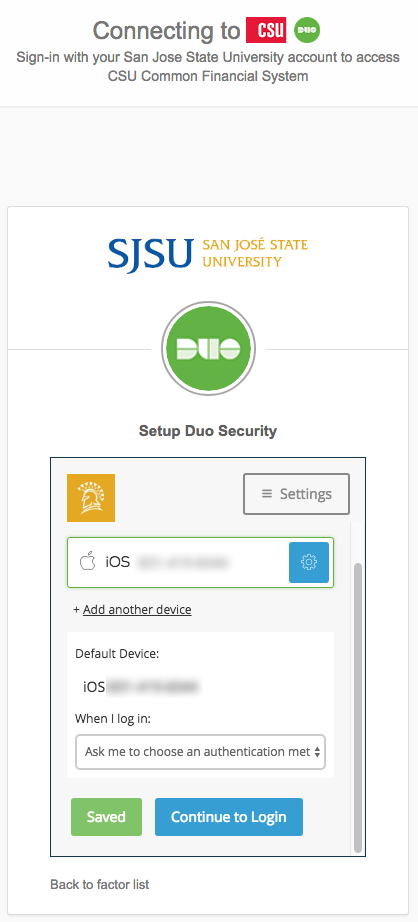
<table border="1" id="bkmrk-check%2Fset-device-set" style="width: 100%; border-collapse: collapse;"><tbody><tr><td style="width: 100%;">- Check/set device settings for Duo and click **Continue to** **Login**:

</td></tr><tr><td class="align-center" style="width: 100%;">![](https://kb.mlml.sjsu.edu/uploads/images/gallery/2019-02-Feb/scaled-840-0/image-1550690381958.png)</td></tr></tbody></table>


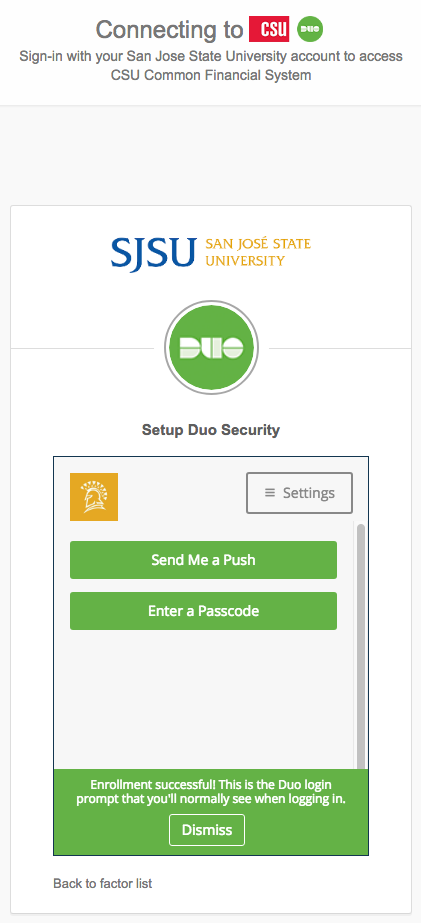
<table border="1" id="bkmrk-congratulations%2C-duo" style="width: 100%; border-collapse: collapse;"><tbody><tr><td style="width: 100%;">- Congratulations, Duo 2-Factor Authentication should now be set up for use with your smartphone!

</td></tr><tr><td class="align-center" style="width: 100%;">![](https://kb.mlml.sjsu.edu/uploads/images/gallery/2019-02-Feb/scaled-840-0/image-1550690392729.png)</td></tr></tbody></table>


#### **Signing In:**

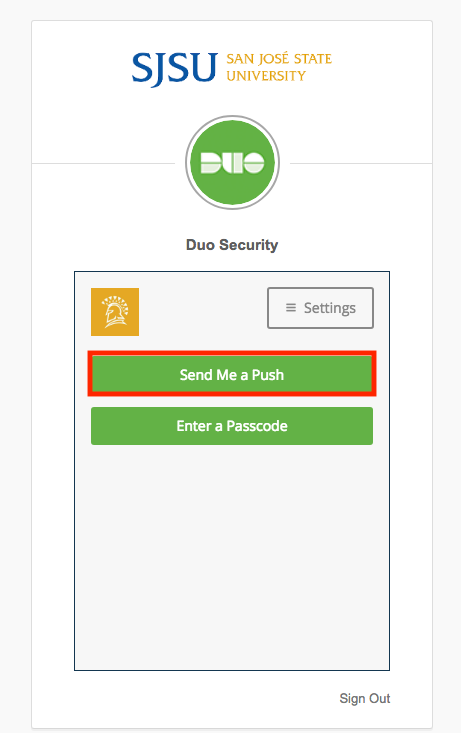
<table border="1" id="bkmrk-to-sign-in-with-duo-" style="width: 100%; border-collapse: collapse;"><tbody><tr><td style="width: 100%;">- To sign in with Duo 2FA from your computer or other device, click **Send Me a** **Push**:

</td></tr><tr><td class="align-center" style="width: 100%;">![](https://kb.mlml.sjsu.edu/uploads/images/gallery/2019-02-Feb/scaled-840-0/image-1550690404769.png)</td></tr></tbody></table>

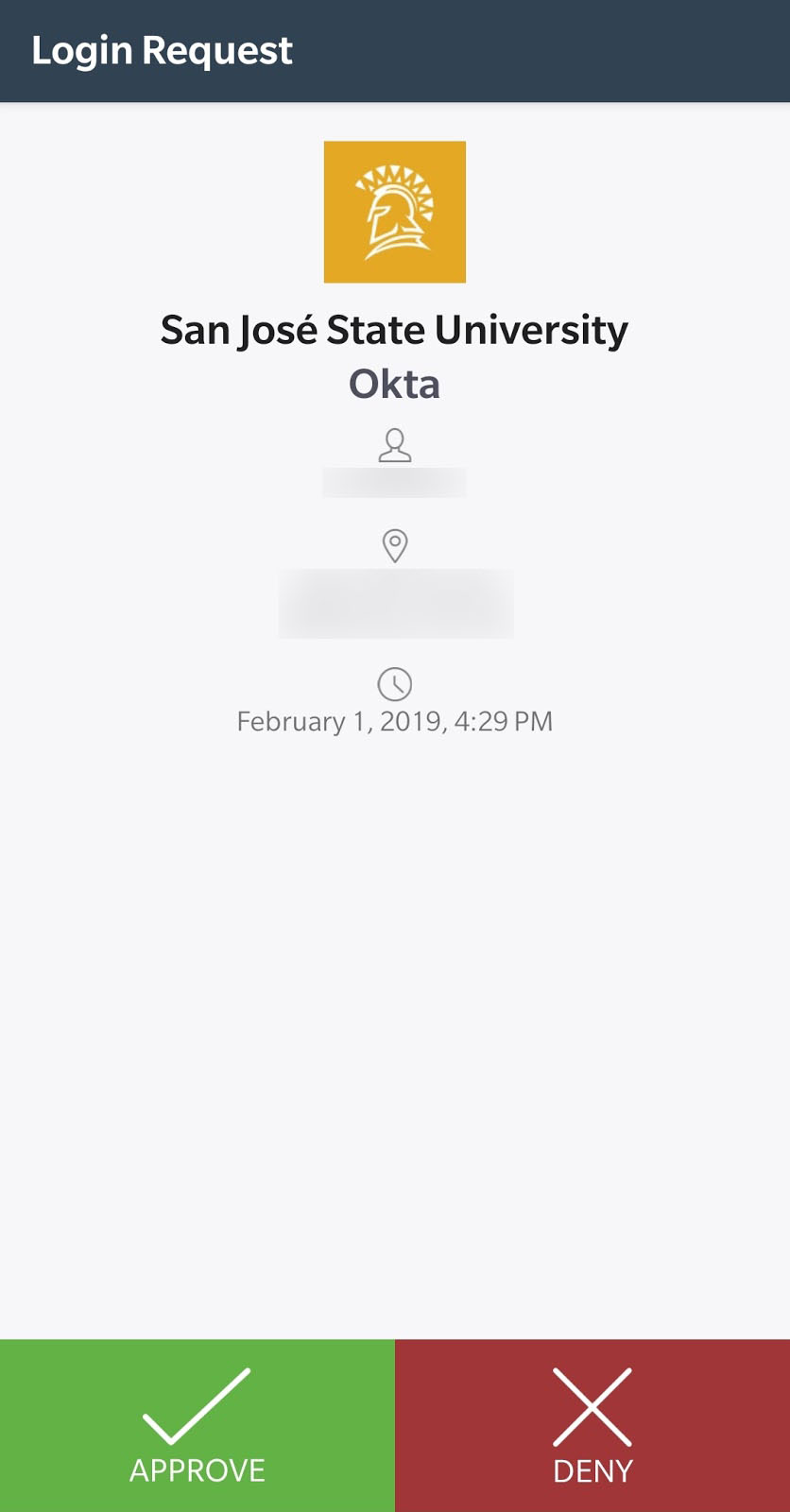
<table border="1" id="bkmrk-press-approve-on-you" style="width: 100%; border-collapse: collapse;"><tbody><tr><td style="width: 100%;">- Press **Approve** on your phone:

</td></tr><tr><td class="align-center" style="width: 100%;">![](https://kb.mlml.sjsu.edu/uploads/images/gallery/2019-02-Feb/scaled-840-0/image-1550690411648.png)</td></tr></tbody></table>

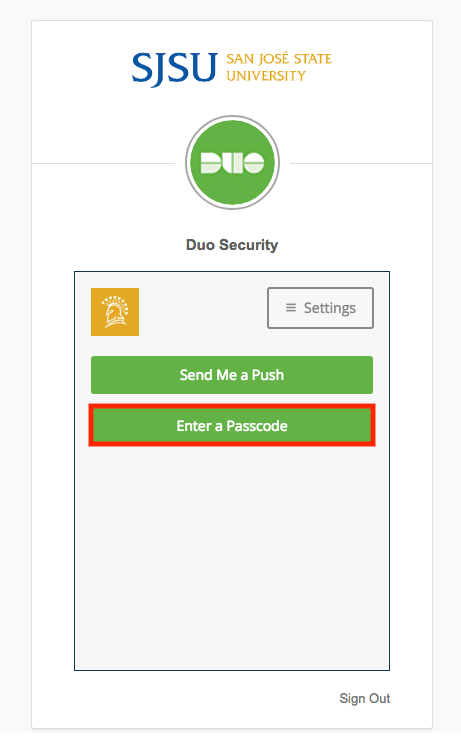
<table border="1" id="bkmrk-alternatively%2C-click" style="width: 100%; border-collapse: collapse;"><tbody><tr><td style="width: 100%;">- Alternatively, click **Enter** **Passcode:**
- Entering a passcode may be helpful in situations where the push notification won’t get through, for instance when your computer has a connection to the internet but you have no data service (cell or WiFi) on your phone.


</td></tr><tr><td class="align-center" style="width: 100%;">![](https://kb.mlml.sjsu.edu/uploads/images/gallery/2019-02-Feb/scaled-840-0/image-1550690441049.png)</td></tr></tbody></table>

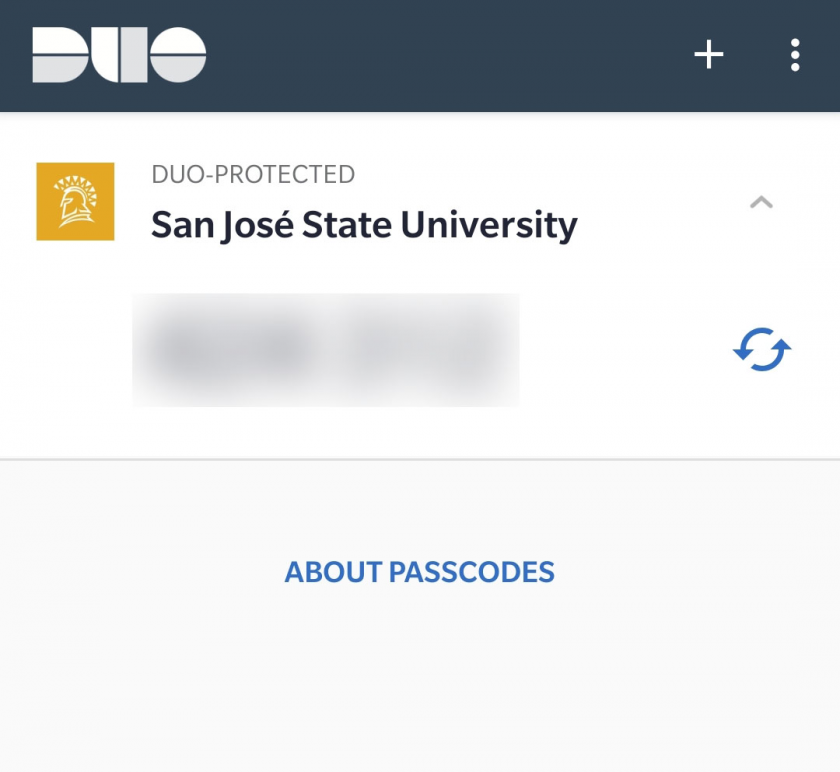
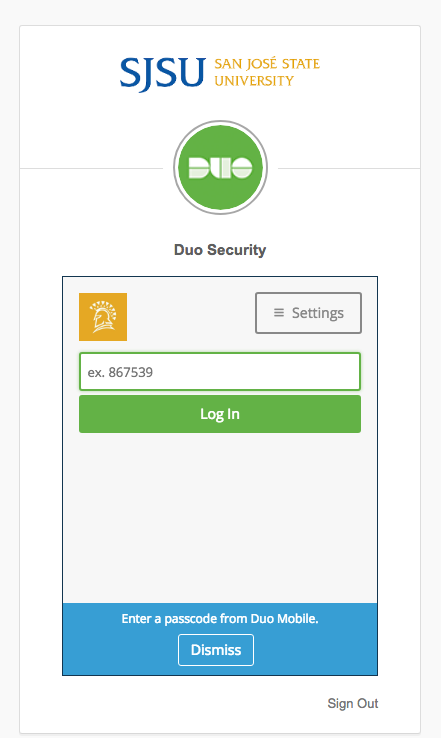
<table border="1" id="bkmrk-enter-the-passcode-f" style="width: 100%; border-collapse: collapse; height: 694px;"><tbody><tr style="height: 56px;"><td style="width: 100%; height: 56px;">- Enter the **passcode** from Duo on your phone into the field on the device you are signing in with:

</td></tr><tr style="height: 31px;"><td class="align-center" style="width: 100%; height: 31px;">![](https://kb.mlml.sjsu.edu/uploads/images/gallery/2019-02-Feb/scaled-840-0/image-1550690492350.png)</td></tr><tr style="height: 607px;"><td class="align-center" style="width: 100%; height: 607px;">![](https://kb.mlml.sjsu.edu/uploads/images/gallery/2019-02-Feb/scaled-840-0/image-1550690540347.png)</td></tr></tbody></table>

#### **Enable Easy Account Recovery:**

**Recovering your account on a new device can be made simple by setting up Duo Restore NOW - before you get a new device. It backups your account and uses a recovery password that you can enter on your new device to register that new account. If you do not do this, you will have to unregister your old device, then register your new device with SJSU IT (even if it is the same number).**

**To learn how to setup Duo Restore for your iOS or Android follow the instructions on [this page](https://guide.duo.com/duo-restore).**

#### **For more information:**

- - <span class="s2">[SJSU Duo <span class="s19">Page</span>](http://www.sjsu.edu/it/services/computer-security/duo.php)</span>
    - <span class="s2">[Duo End-User <span class="s19">Guide</span>](https://guide.duo.com/)</span>