# Sign In with Duo 2-Factor Authentication

This page assumes you have **previously set up** Duo 2-Factor Authentication with your **smartphone** or a **key fob**. If you have not, please see our [Duo Set Up Guide](https://kb.mlml.sjsu.edu/books/security-anti-malware/page/set-up-duo-2-factor-authentication).

##### **First, sign in to SJSU Normally:**

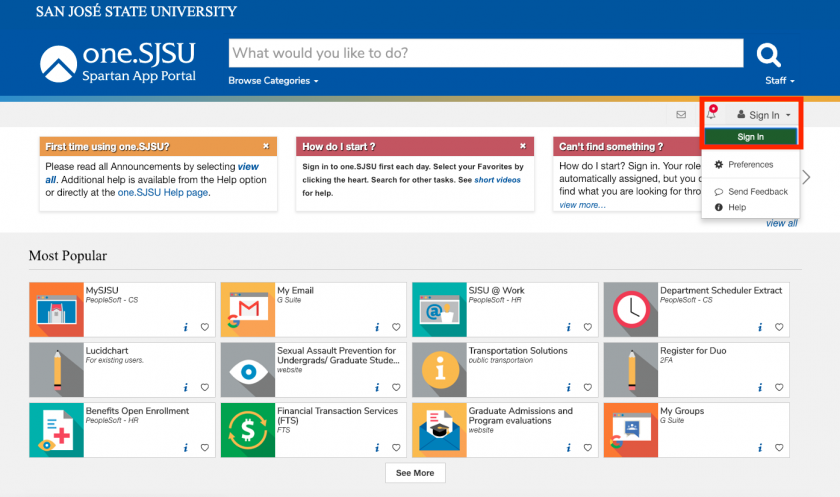
<table border="1" id="bkmrk-navigate-to-the-sjsu"><tbody><tr><td>- Navigate to the<span class="s9"> [<span class="s2">**SJSUOne**</span> ](https://one.sjsu.edu/)</span>page, or any other page where you use your SJSU login credentials (eg. SJSU Email):

</td></tr><tr><td class="align-center">[![SJSUOne-Sign-In.png](https://kb.mlml.sjsu.edu/uploads/images/gallery/2019-04-Apr/scaled-840-0/SJSUOne-Sign-In.png)](https://kb.mlml.sjsu.edu/uploads/images/gallery/2019-04-Apr/SJSUOne-Sign-In.png)</td></tr></tbody></table>

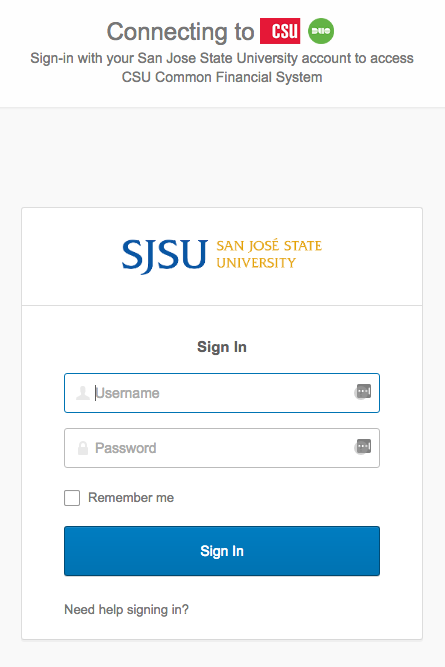
<table border="1" id="bkmrk-sign-in%3A-note%3A-if-yo"><tbody><tr><td>- **Sign** **In** with your SJSU ID Number or SJSU Email Address and Password:
- - Note: If you are already logged in, you may want to use your browser’s incognito/private mode so that you do not have to log out and back in again.

</td></tr><tr><td class="align-center">**![](https://kb.mlml.sjsu.edu/uploads/images/gallery/2019-02-Feb/scaled-840-0/image-1550690151856.png)**</td></tr></tbody></table>

Your browser will now bring up the Duo 2-Factor Authentication page, the method you use to sign in with Duo 2-FA will vary based on which option you select and whether you are using a smartphone or a key fob.

These methods are outlined below.

####  

#### **Sign In with a Push Notification:**

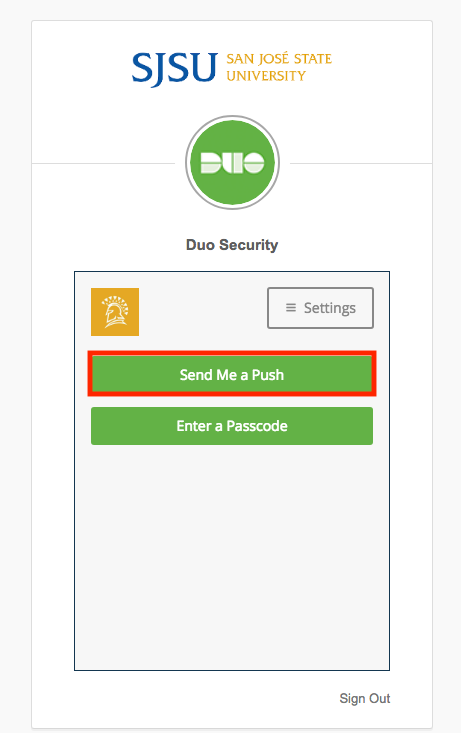
<table border="1" id="bkmrk-to-sign-in-with-2-fa" style="width: 100%; border-collapse: collapse;"><tbody><tr><td style="width: 100%;">- To sign in with 2-factor Authentication from your computer or other device you are signing in with, click **Send Me a Push**:

</td></tr><tr><td class="align-center" style="width: 100%;">![](https://kb.mlml.sjsu.edu/uploads/images/gallery/2019-02-Feb/scaled-840-0/image-1550690404769.png)</td></tr></tbody></table>

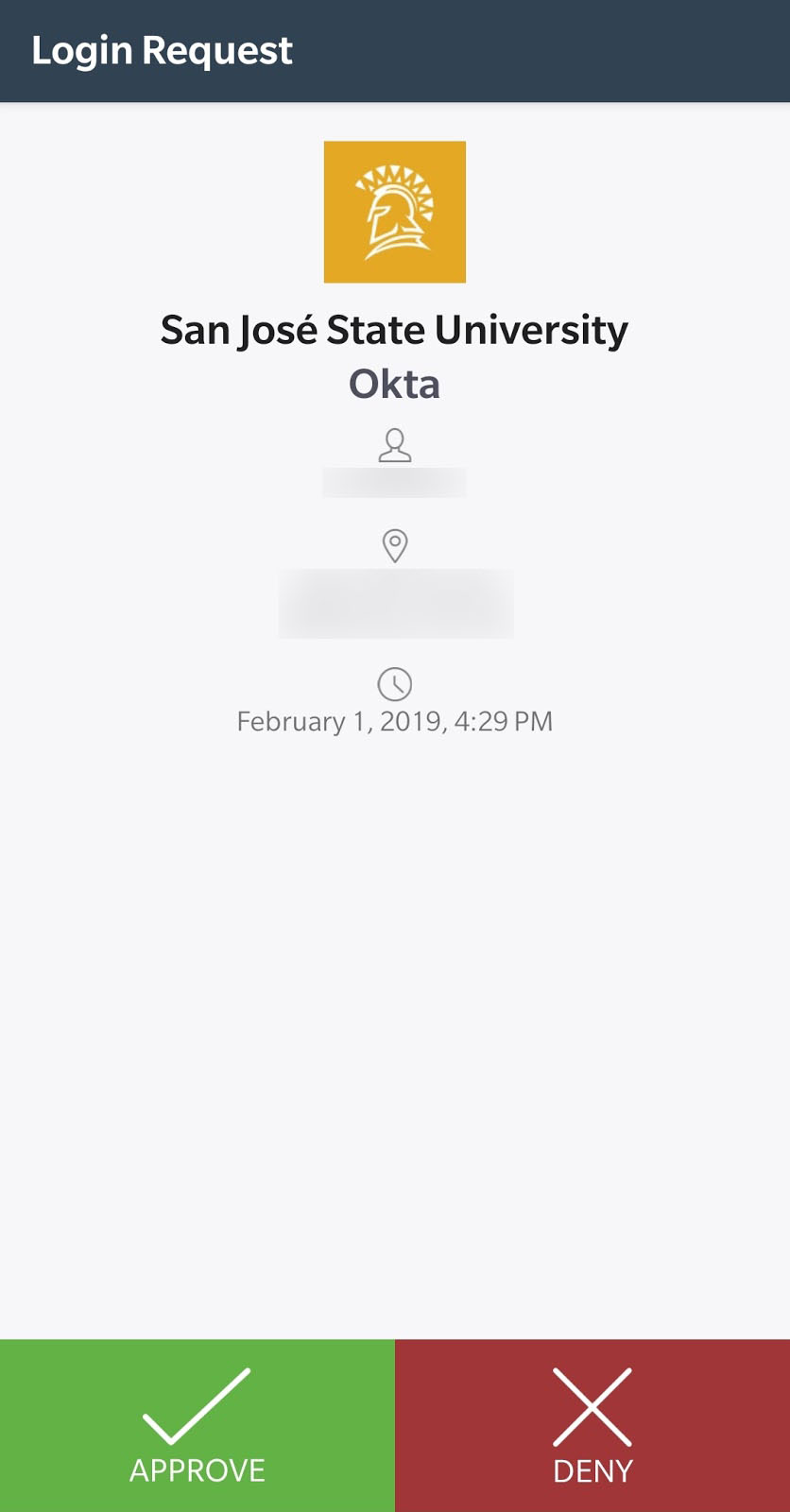
<table border="1" id="bkmrk-press%C2%A0approve%C2%A0on-y" style="border-collapse: collapse; width: 100%;"><tbody><tr><td style="width: 100%;">- Press **Approve** on your phone:

</td></tr><tr><td class="align-center" style="width: 100%;">![](https://kb.mlml.sjsu.edu/uploads/images/gallery/2019-02-Feb/scaled-840-0/image-1550690411648.png)</td></tr></tbody></table>

####  

#### **Sign In with a Passcode:**

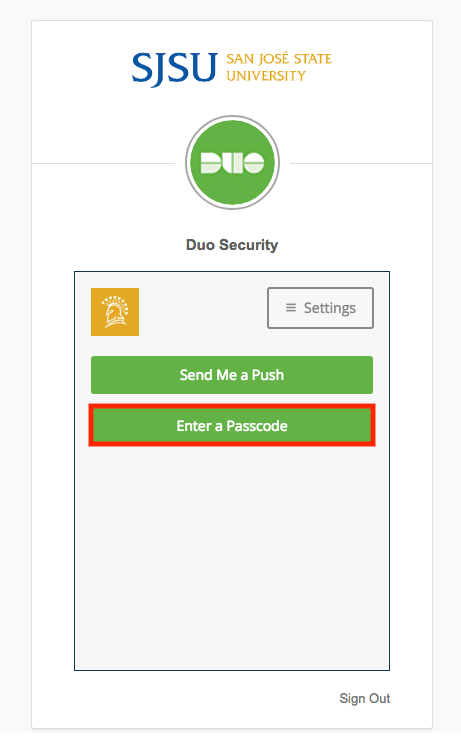
<table border="1" id="bkmrk-alternatively%2C-click" style="border-collapse: collapse; width: 100%;"><tbody><tr><td style="width: 100%;">- Alternatively, click **Enter** **Passcode:**
    - Entering a passcode may be helpful in situations where the push notification won’t get through, for instance when your computer has a connection to the internet but you have no data service (cell or WiFi) on your phone.

</td></tr><tr><td class="align-center" style="width: 100%;">![](https://kb.mlml.sjsu.edu/uploads/images/gallery/2019-02-Feb/scaled-840-0/image-1550690441049.png)</td></tr></tbody></table>

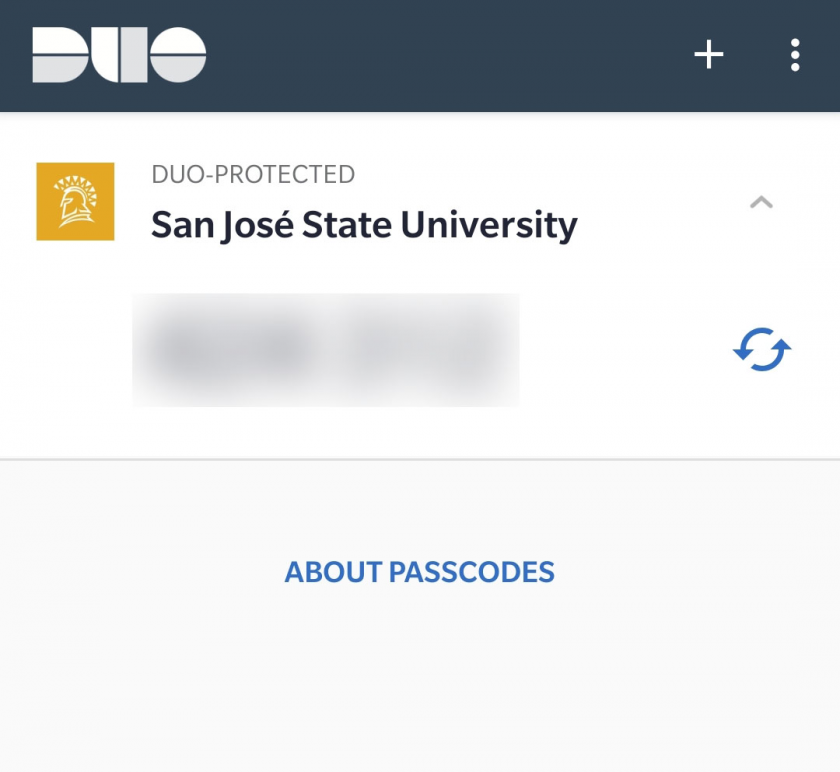
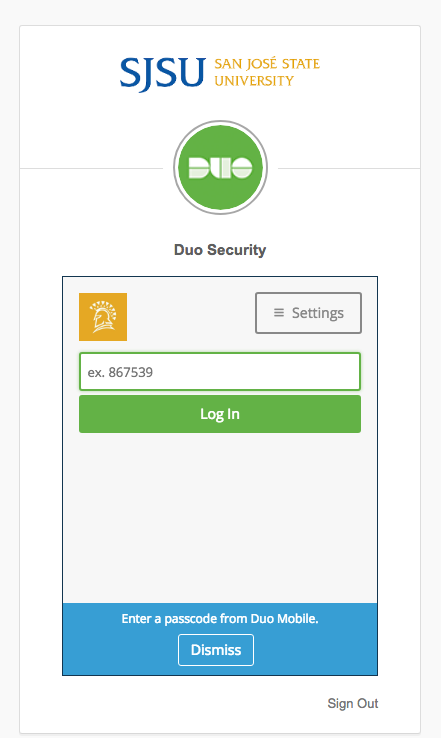
<table border="1" id="bkmrk-enter-the%C2%A0passcode%C2" style="border-collapse: collapse; width: 100%;"><tbody><tr><td style="width: 100%;">- Enter the **passcode** from Duo on your phone into the field on the device you are signing in with:

</td></tr><tr><td class="align-center" style="width: 100%;">![](https://kb.mlml.sjsu.edu/uploads/images/gallery/2019-02-Feb/scaled-840-0/image-1550690492350.png)</td></tr><tr><td class="align-center" style="width: 100%;">![](https://kb.mlml.sjsu.edu/uploads/images/gallery/2019-02-Feb/scaled-840-0/image-1550690540347.png)</td></tr></tbody></table>

#### **Sign in with a Key Fob Passcode:**

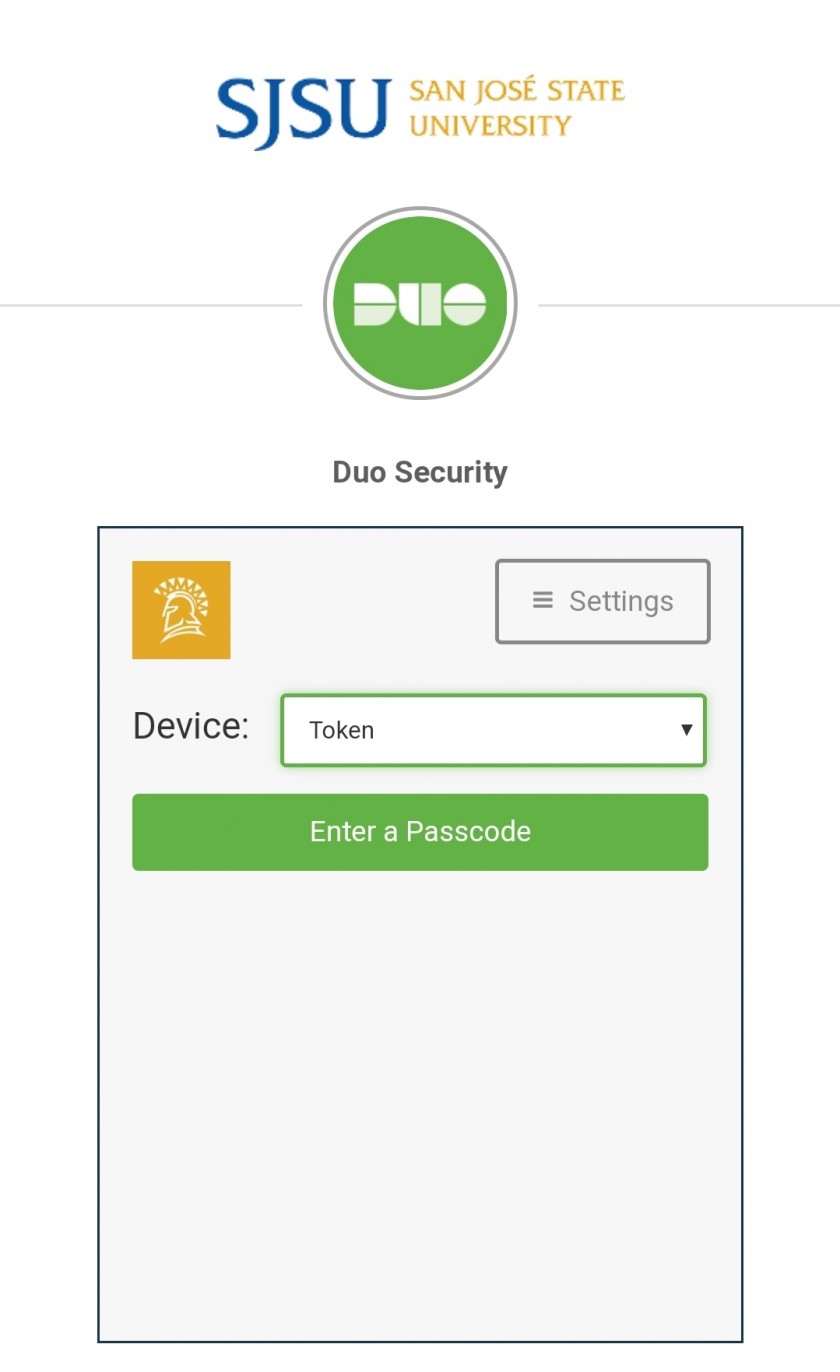
<table border="1" id="bkmrk-in-the-duo-sign-in-p" style="border-collapse: collapse; width: 100%;"><tbody><tr><td style="width: 100%;">- On the Duo **Sign in** page, where it says **Device**, make sure the device selected is **Token**:

</td></tr><tr><td class="align-center" style="width: 100%;">[![Duo-Devices.jpg](https://kb.mlml.sjsu.edu/uploads/images/gallery/2019-04-Apr/scaled-840-0/Duo-Devices.jpg)](https://kb.mlml.sjsu.edu/uploads/images/gallery/2019-04-Apr/Duo-Devices.jpg)</td></tr></tbody></table>

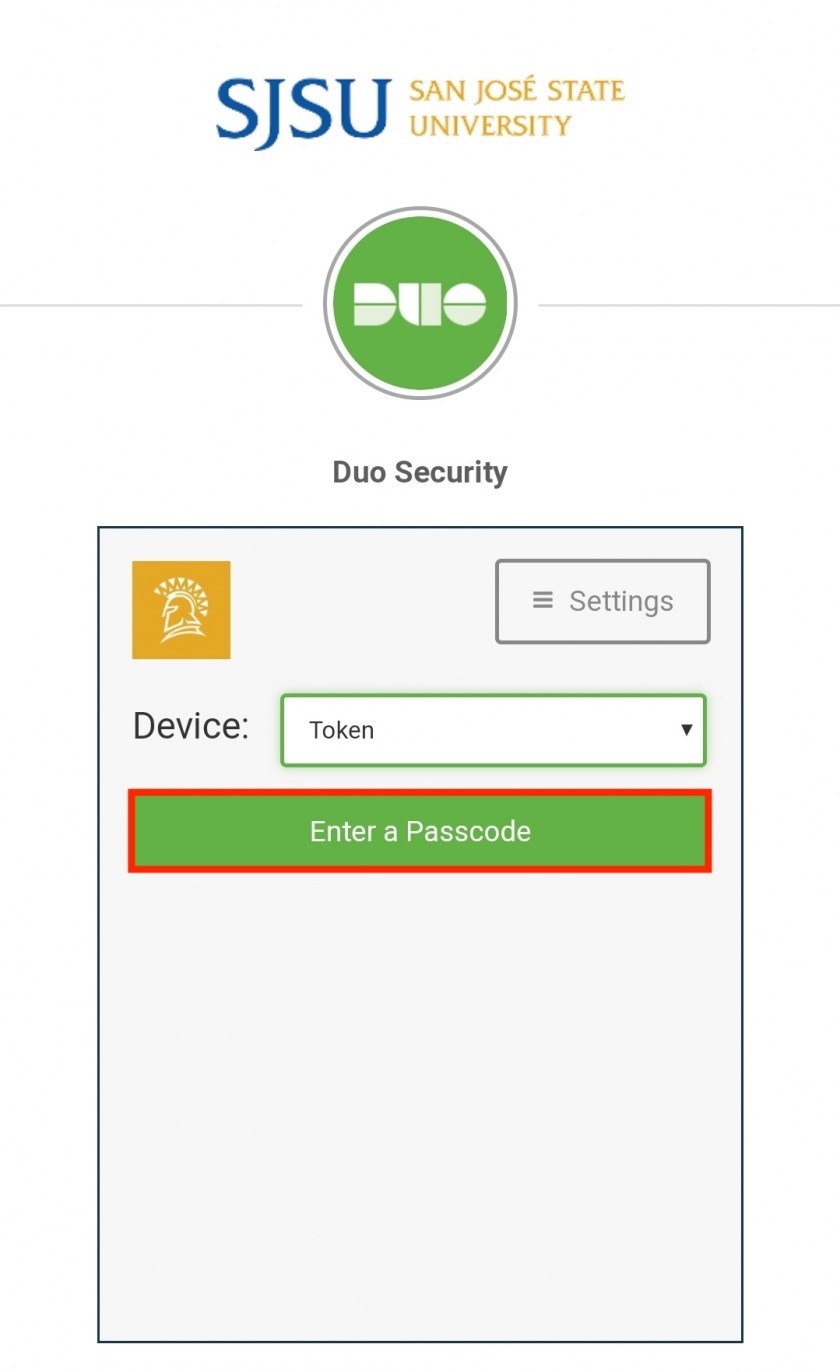
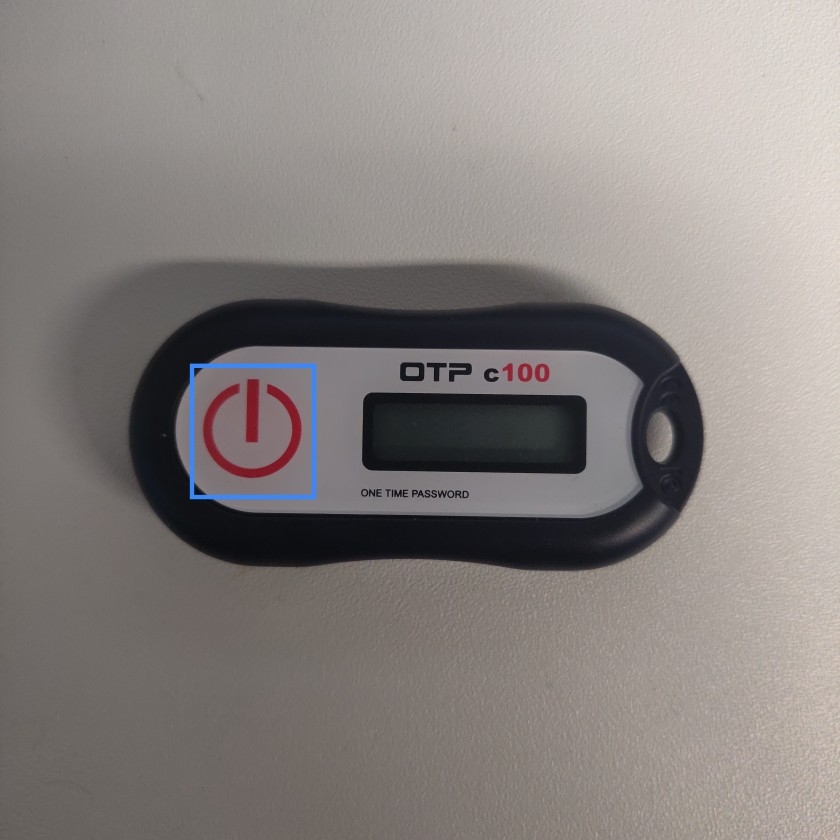
<div id="bkmrk-"></div><table border="1" id="bkmrk-press%C2%A0enter-a-passc" style="border-collapse: collapse; width: 100%;"><tbody><tr><td style="width: 100%;">- Press **Enter a Passcode**, and press the single **Button** on your **Duo Key Fob**:

</td></tr><tr><td class="align-center" style="width: 100%;">[![Duo-Devices-Passcode-highlight.jpeg](https://kb.mlml.sjsu.edu/uploads/images/gallery/2019-04-Apr/scaled-840-0/Duo-Devices-Passcode-highlight.jpeg)](https://kb.mlml.sjsu.edu/uploads/images/gallery/2019-04-Apr/Duo-Devices-Passcode-highlight.jpeg)</td></tr><tr><td class="align-center" style="width: 100%;">[![Duo-Fob.jpg](https://kb.mlml.sjsu.edu/uploads/images/gallery/2019-04-Apr/scaled-840-0/Duo-Fob.jpg)](https://kb.mlml.sjsu.edu/uploads/images/gallery/2019-04-Apr/Duo-Fob.jpg)</td></tr></tbody></table>

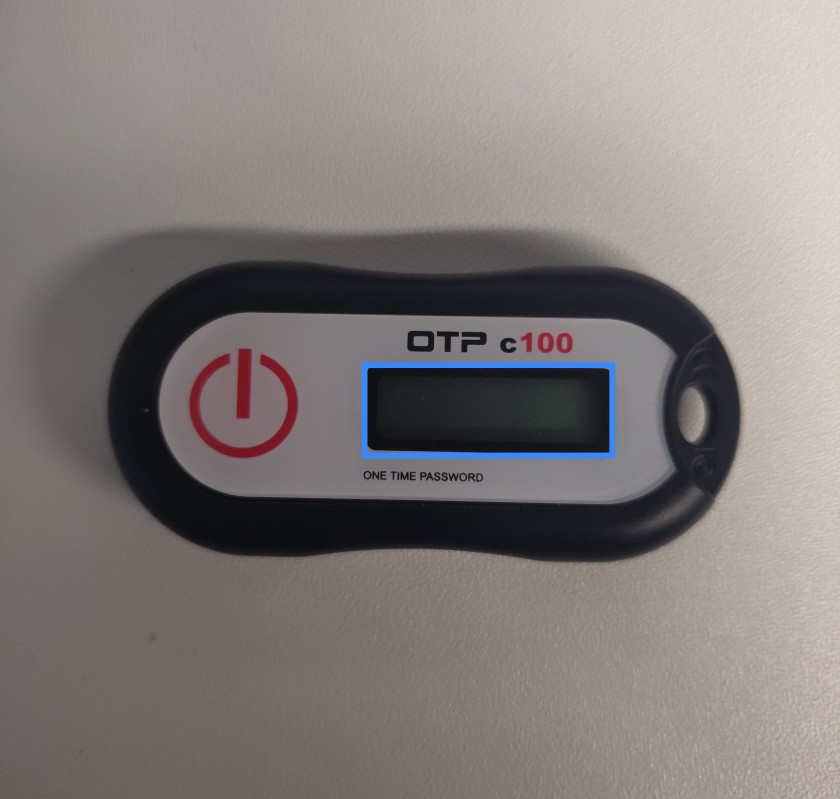
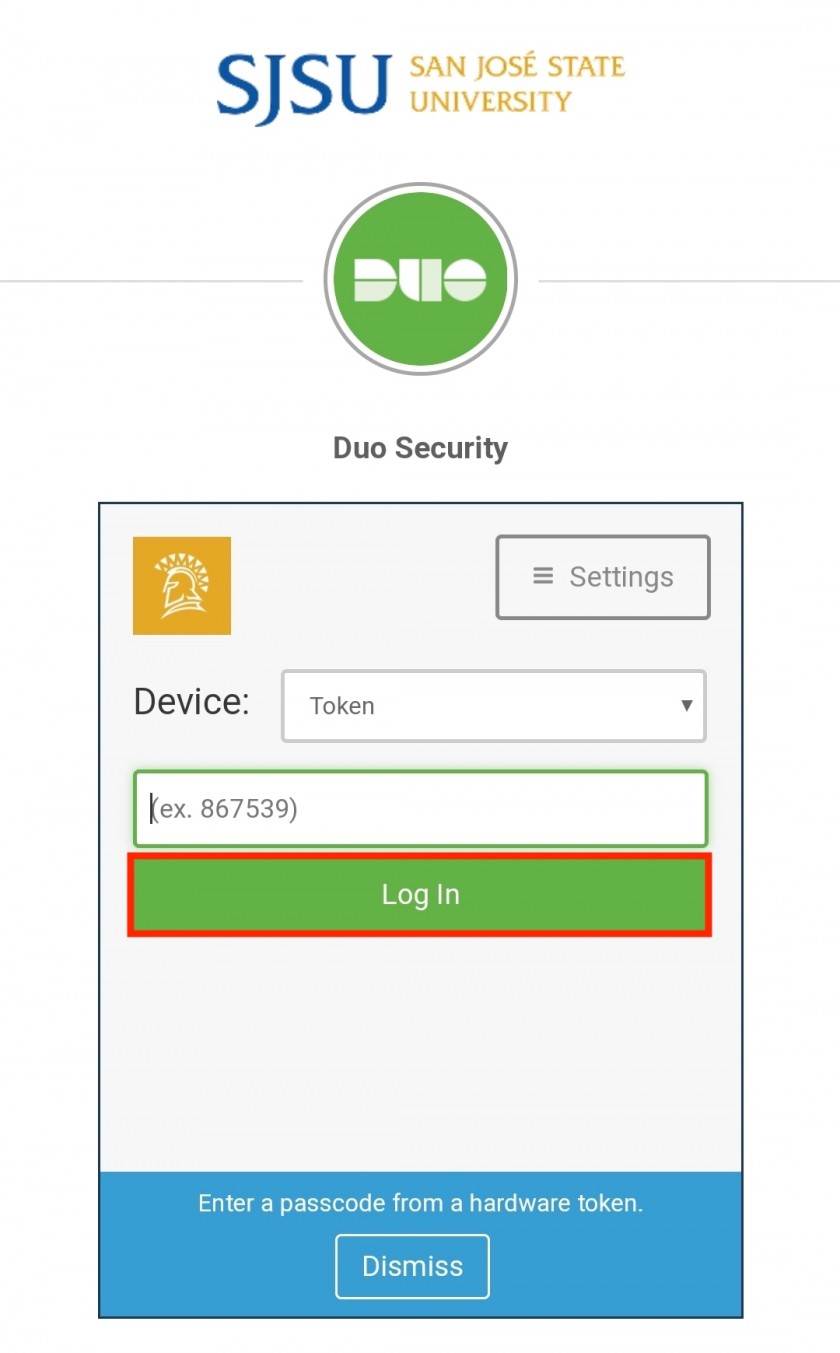
<table border="1" id="bkmrk-enter-your-one-time-" style="border-collapse: collapse; width: 100%;"><tbody><tr><td style="width: 100%;">- Enter your **One Time Password** from the Key Fob into the passcode field and press **Log In**: 
    - You have about 15 seconds to enter the passcode.

</td></tr><tr><td class="align-center" style="width: 100%;">[![Duo-Fob-OTP.jpg](https://kb.mlml.sjsu.edu/uploads/images/gallery/2019-04-Apr/scaled-840-0/Duo-Fob-OTP.jpg)](https://kb.mlml.sjsu.edu/uploads/images/gallery/2019-04-Apr/Duo-Fob-OTP.jpg)</td></tr><tr><td class="align-center" style="width: 100%;">[![Duo-Token-Passcode-Login-highlighted.jpeg](https://kb.mlml.sjsu.edu/uploads/images/gallery/2019-04-Apr/scaled-840-0/Duo-Token-Passcode-Login-highlighted.jpeg)](https://kb.mlml.sjsu.edu/uploads/images/gallery/2019-04-Apr/Duo-Token-Passcode-Login-highlighted.jpeg)</td></tr></tbody></table>