# ArcGIS
Learn how to install, update a license, and enable toolboxes/extensions.
# Gaining Access to ArcGIS Pro
#### To gain access to ArcGIS Pro, please follow the steps outlined below.
##### Note: you will need to run ArcGIS Pro on a windows computer.
##### Activating your ArcGIS Account
1. [Click this link](https://sjsugis.maps.arcgis.com/home/index.html) to be taken to the ArcGIS portal.
2. Click **Sign in.**
3. Click **SJSU Okta**.
4. Sign in with your SJSU TowerID number and password.
##### Downloading ArcGIS Pro
1. At the top right of the page, click your profile picture and click **My settings**.**[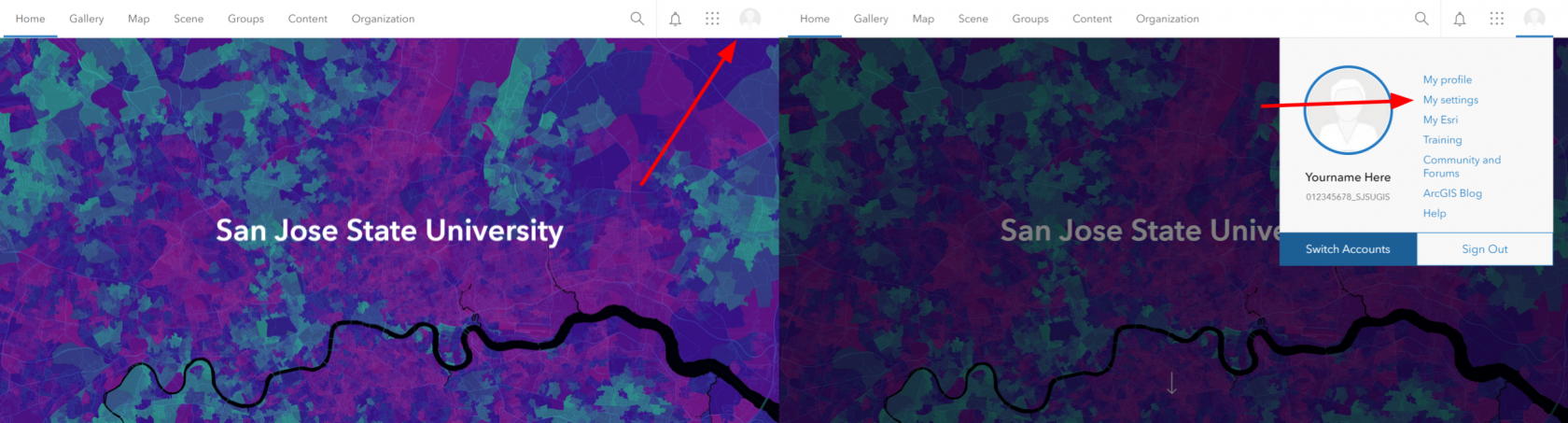](https://kb.mlml.sjsu.edu/uploads/images/gallery/2022-08/gis-full-select.png)**
2. On the My Settings page, click the **Licenses** tab.
3. Your user type, role, and assigned licenses are listed.
4. Next to **ArcGIS Pro**, click **Download.**
5. Select destination folder - either default or browse & choose a different folder.
6. This will initiate the extraction of the installation files.
##### Installation of ArcGIS Pro
1. Once the files are extracted check the box at the bottom of the screen to open installation files.
2. Click **Close**.
3. The installation will commence.
4. Accept the master agreement > **Next**.
5. Choose your installation method preference:
1. Complete - all apps and features installed (best for basic/intermediate ArcGIS users)
2. Custom - you hand pick which apps and features you'd like to install (best for advanced users)
6. Click **Next**.
7. Select designation folder - either default or browse & choose a different folder
1. This will occur twice in a row: once for installation files, the other for python files
8. Check or uncheck the "participate in Esri User Experience Improvement program" based on your preference.
9. Click **Install**.
10. Allow the installation process to complete and click **Finish**.
11. The ArcGIS Administrator Wizard will likely automatically open.
12. Select **Sign in with your organization's ArcGIS URL.**
13. **Finish.**
14. Now ArcGIS should be installed.
##### Licensing of ArcGIS Pro
1. Enter `sjsugis` into the URL box and click **Continue**.
2. Click **SJSU Okta**.
3. Sign in with your SJSU TowerID number and password again.
4. ArcGIS Pro will be activated and ready to use.
#### Troubleshooting
##### ArcGIS Pro gives the error “ArcGIS Pro requires microsoft .NET Desktop Runtime (x64). To download and install Microsoft Windows Desktop Runtime - 6.0.5 (x64) or greater, visit the Microsoft website or contact your system administrator.”
1. Go to [this link](https://dotnet.microsoft.com/en-us/download/dotnet/thank-you/runtime-desktop-6.0.6-windows-x64-installer) to download .NET Desktop Runtime 6.0.8 (x64). A popup should immediately appear to download.
2. Once it is downloaded, run the downloaded file and click **Install**.
3. Once the installation is complete, attempt "Downloading ArcGIS Pro" from step 5 again. The error should not occur.