# Change your Windows 10 Login Password

###  

### Windows 10

  
If you use a Microsoft account on your Windows 10 computer, you need to follow the instructions in Method 2 of this guide (or sign into the Microsoft online website) to change your password.

#### **Method 1**:

##### Change the Windows 10 Password from Control Panel

---

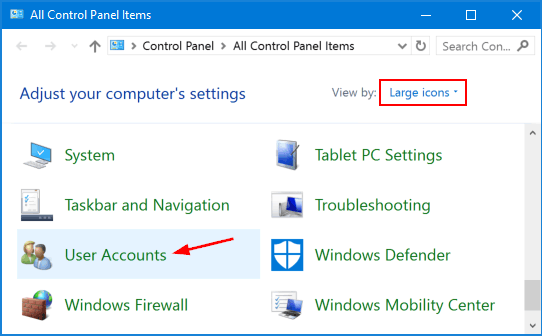
1. Open the Control Panel. Set the **View by** option to **Large icons**. Click **User Accounts**. <div><dl class="file"><dt class="attach-image"></dt><dt class="attach-image">![](https://kb.mlml.sjsu.edu/uploads/images/gallery/2019-02-Feb/scaled-840-0/image-1550688089584.png)
    
    </dt></dl></div>
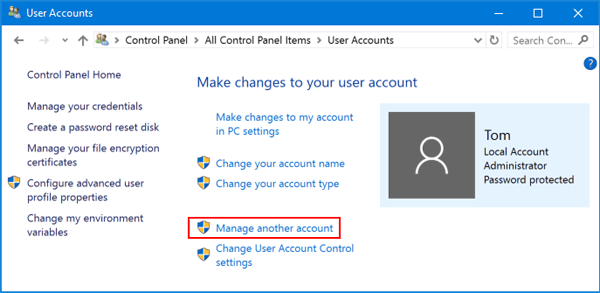
2. Click the **Manage another account** link. <div><dl class="file"><dt class="attach-image"></dt><dt class="attach-image">![](https://kb.mlml.sjsu.edu/uploads/images/gallery/2019-02-Feb/scaled-840-0/image-1550688113167.png)
    
    </dt></dl></div>
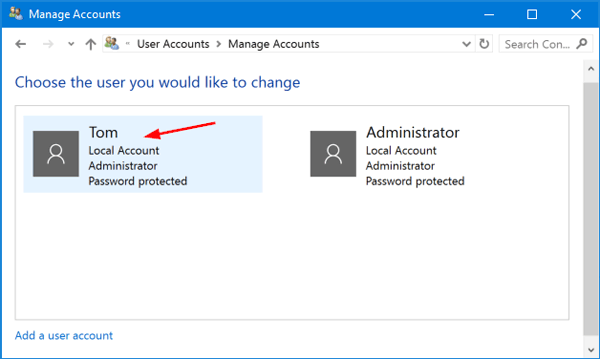
3. Click the user account that you want to change the password for. <div><dl class="file"><dt class="attach-image"></dt><dt class="attach-image">![](https://kb.mlml.sjsu.edu/uploads/images/gallery/2019-02-Feb/scaled-840-0/image-1550688153622.png)
    
    </dt></dl></div>
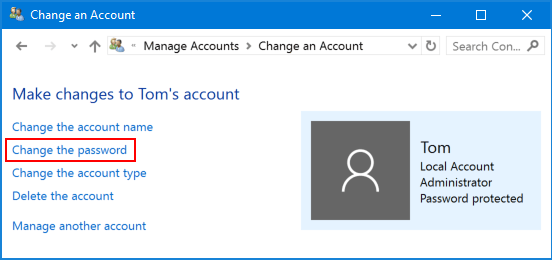
4. On the next screen, click the **Change the password** option. <div><dl class="file"><dt class="attach-image"></dt><dt class="attach-image">![](https://kb.mlml.sjsu.edu/uploads/images/gallery/2019-02-Feb/scaled-840-0/image-1550688169779.png)</dt></dl></div>
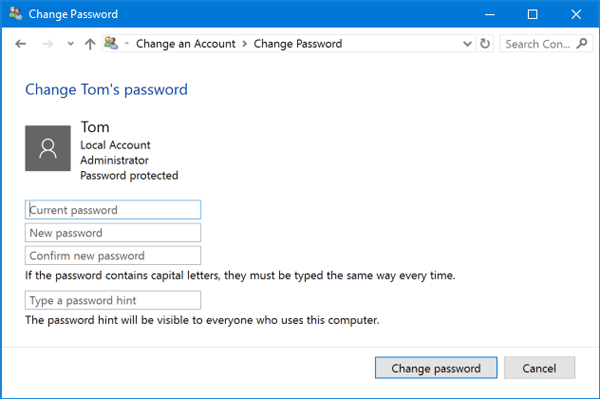
5. Type in your current password and then enter the new one you wish to use. **Click Change password**. <div><dl class="file"><dt class="attach-image">![](https://kb.mlml.sjsu.edu/uploads/images/gallery/2019-02-Feb/scaled-840-0/image-1550688192075.png)
    
    </dt><dd></dd></dl></div>

####  

####   
**Method 2**:

##### Change the Windows 10 Password from PC Settings

---

1. Press the Windows + I keys together to open the Settings app. Click **Accounts**.![](https://kb.mlml.sjsu.edu/uploads/images/gallery/2019-02-Feb/scaled-840-0/image-1550688204393.png)
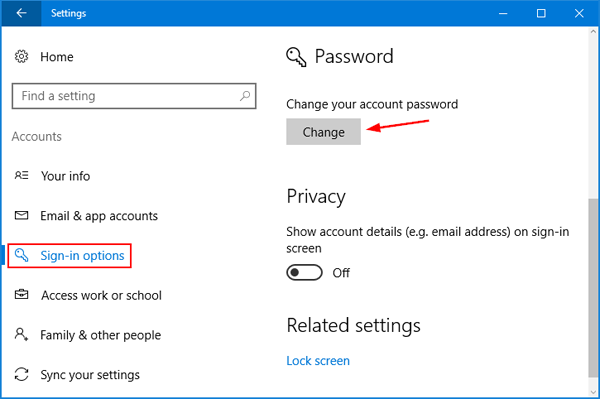
2. Click **Sign-in options** on the left side, and click the **Change** button under Password section on the right side. <div><dl class="file"><dt class="attach-image"></dt><dt class="attach-image">![](https://kb.mlml.sjsu.edu/uploads/images/gallery/2019-02-Feb/scaled-840-0/image-1550688238374.png)
    
    </dt></dl></div>
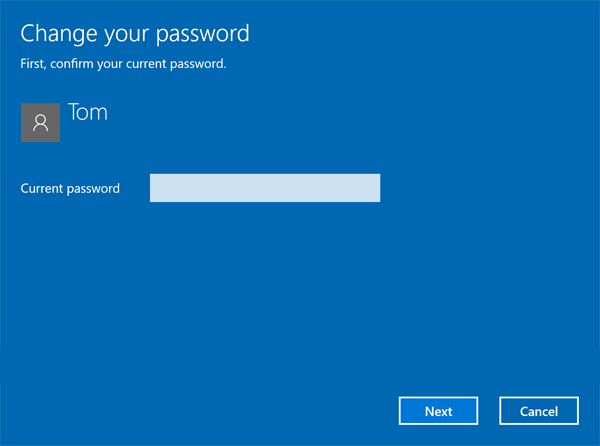
3. Enter your current password and click **Next**. <div><dl class="file"><dt class="attach-image"></dt><dt class="attach-image">![](https://kb.mlml.sjsu.edu/uploads/images/gallery/2019-02-Feb/scaled-840-0/image-1550688254947.png)</dt></dl></div>
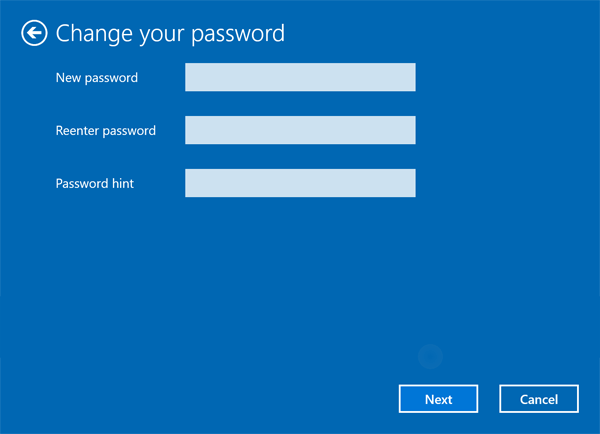
4. Enter and reenter a new password, and set a password hint. Click **Next**. <div><dl class="file"><dt class="attach-image"></dt><dt class="attach-image">![](https://kb.mlml.sjsu.edu/uploads/images/gallery/2019-02-Feb/scaled-840-0/image-1550688271601.png)</dt></dl></div>