# Create a Disk Image Backup with Macrium Reflect
**Creating a disk image is a great way to keep your computer and files backed up. This is one of two ways IT recommends backing up your devices. The other way is to back up with Windows File History or macOS Time Machine.**
**Follow the instructions below to create a disk image:**
1. Download [Macrium Reflect](https://www.macrium.com/reflectfree)
2. During installation:
1. Do not include the PE environment
2. Reflect Defaults:
1. Backup - set priority to 3/4
2. Advanced - Disable backup notification
3. Once installation complete, configure backup settings:
1. Open Macrium Reflect
2. Select "Create an image of the partition(s) required to backup and restore Windows" on the left side panel of Macrium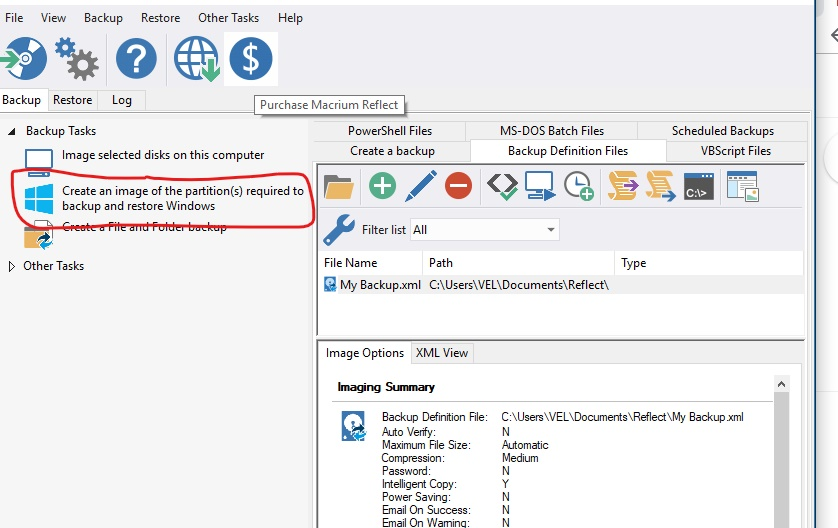
3. Make sure the whole disk is selected (far left box is checked, as well as all sections of that disk are checked)
4. Set your destination of the images you create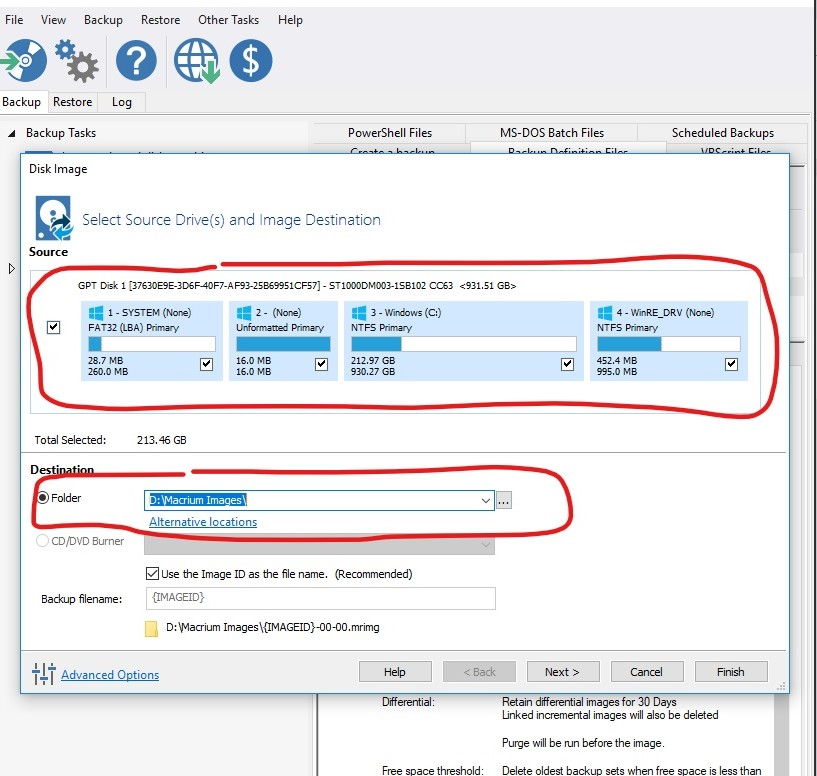
5. Click **Next**
6. Select a Template for your Backup Plan: **Differential Backup Set**
7. Select **Edit Schedule** with **Full** highlighted
1. Configure settings:
1. Monthly
2. Every first Sunday at 3:00am
2. Conditions: (check all mentioned)
1. Run task as soon as possible after a scheduled start is missed
2. Start the task only if the computer is on AC power
3. Wake the computer to run this task
3. Select **OK**
8. Select **Edit Schedule** with **Differential** highlighted
1. Configure settings:
1. Daily
2. Weekdays at 12:30pm
2. Conditions: (check all mentioned)
1. Run task as soon as possible after a scheduled start is missed
2. Start the task only if the computer is on AC power
3. Wake the computer to run this task
3. Select **OK**
9. Define Retention Rules
1. Full: change amount to 2, change from "Weeks" to "Backups"
2. Differential: change to 30 Days
10. Hit **Finish**
11. Hit **OK**