# How to Fill PDFs Electronically Using Adobe Reader

<span style="font-weight: 400;">When having to fill out a PDF form, some forms can be filled electronically. If your PDF form is fillable, here’s how you fill it out and print the completed form. For more information, see </span>[<span style="font-weight: 400;">Adobe’s Support Page</span>](https://helpx.adobe.com/reader/using/fill-forms.html)<span style="font-weight: 400;"> on completing electronic forms. </span>

1. <span style="font-weight: 400;">Make sure you have </span>[<span style="font-weight: 400;">Adobe Reader</span>](https://get.adobe.com/reader/)<span style="font-weight: 400;"> installed on your computer.</span>

- <span style="font-weight: 400;">Faculty or staff members with a valid SJSUOne ID can use </span>[<span style="font-weight: 400;">DocuSign</span>](https://sjsu.okta.com/login/login.htm?fromURI=%2Fhome%2Fdocusign%2F0oab5wk2fzgtwvTpM0x7%2F292)<span style="font-weight: 400;"> to have recipients fill out and sign documents online. Refer to our </span>[<span style="font-weight: 400;">DocuSign FAQs</span>](https://kb.mlml.sjsu.edu/books/internal-resources/page/docusign-faqs)<span style="font-weight: 400;"> for more information. </span><span style="font-weight: 400;">  
    </span>
- <span style="font-weight: 400;">Download the fillable form onto your computer and open the file in Adobe Reader.</span>
- To make form fields easier to identify, click the **Highlight Existing Fields** ![](https://kb.mlml.sjsu.edu/uploads/images/gallery/2019-02-Feb/scaled-840-0/image-1550776049665.png) <span style="font-weight: 400;">button on the document message bar, if necessary.</span>
- Select the **Hand Tool**<span style="font-weight: 400;"><span style="font-weight: 400;">. </span></span>![](https://kb.mlml.sjsu.edu/uploads/images/gallery/2019-02-Feb/scaled-840-0/image-1550776157095.png)
- <span style="font-weight: 400;">Select the fillable </span>**highlighted**<span style="font-weight: 400;"> field on your form. An I-beam will appear for you to type in the text or arrow to select or check boxes. </span>
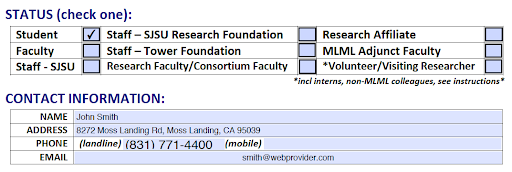
- <span style="font-weight: 400;">Fill in the necessary information for each field.</span><span style="font-weight: 400;">  
    </span><span style="font-weight: 400;"><span style="font-weight: 400;">Example: </span></span>![](https://kb.mlml.sjsu.edu/uploads/images/gallery/2019-02-Feb/scaled-840-0/image-1550776203111.png)
- <span style="font-weight: 400;">Once you have finished filling the form, </span>**Save**<span style="font-weight: 400;"> your form by printing as a PDF in order to email or print.</span>
    - **Windows:**
        - <span style="font-weight: 400;">Select </span>**File**<span style="font-weight: 400;"> &gt; </span>**Print**<span style="font-weight: 400;">.</span>
        - <span style="font-weight: 400;">Choose </span>**Adobe PDF**<span style="font-weight: 400;"> as the printer in the Print dialog box.</span>
        - <span style="font-weight: 400;">Click </span>**Print**<span style="font-weight: 400;">. Type a name for your file, and click </span>**Save**<span style="font-weight: 400;">.</span>
    - **MacOS:**
        - <span style="font-weight: 400;">Select </span>**File**<span style="font-weight: 400;"> &gt; </span>**Save As**<span style="font-weight: 400;">.</span>
        - <span style="font-weight: 400;">Select a location to save, type a name for your file, and click </span>**Save.**
        - <span style="font-weight: 400;">To flatten your form so that it cannot be edited, open the file in the MacOS </span>**Preview**<span style="font-weight: 400;"> application.</span>
        - <span style="font-weight: 400;">Select </span>**File**<span style="font-weight: 400;"> &gt; </span>**Export As PDF...**
        - Select a location to save, type a name for your file, and click **Save.**