# Install and License Resampling Stats 4.0 - Excel Add-in
##### Already installed but need a license?
*NOTE: [Submit a Help Desk ticket](http://helpdesk.mlml.calstate.edu/) to get a license key.*
1. Run **Resampling Stats for Excel** from your Start menu or the Desktop icon. This will open Excel with Resampling Stats enabled.
2. Select the **Add-ins** tab in the top menu bar.
3. Click the **Resampling** drop-down menu and select **RSXL License**. Click **Yes** when asked if you want to enter a new license key.
4. **Copy and paste** the license information you were given in the Help Desk ticket and click **OK**.
Requirements
- Microsoft Windows
- Microsoft Office 2007 or newer
##### Pre-install Excel Configuration
*NOTE: These instructions were written with Office 2010 in mind. There may be minor variations in older and newer versions.*
1. Open Excel.
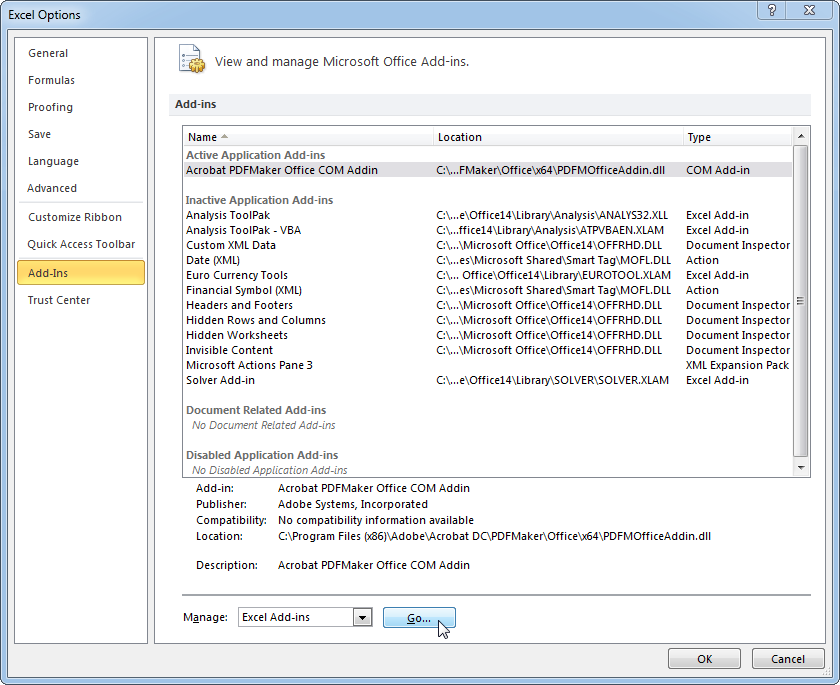
2. In the **File** menu (or the **Office icon** in Office 2007), click **Options**.
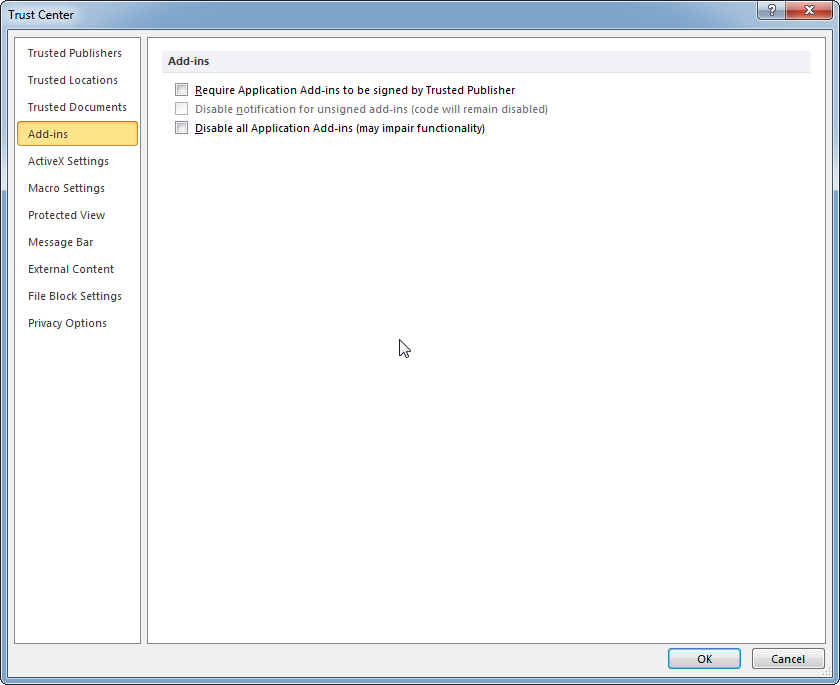
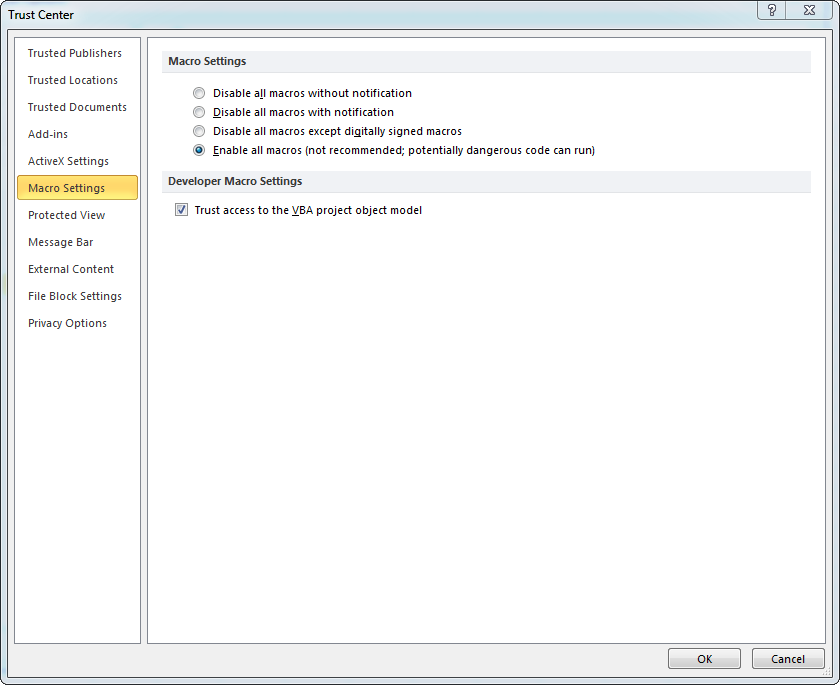
3. Click the **Trust Center** tab on the left, then the **Trust Center Settings...** button.
4. Ensure everything in the **Add-ins** tab is unchecked.
- 
- 
- 
- 
9. Exit Excel.
##### Install
*NOTE: [Submit a Help Desk ticket](http://helpdesk.mlml.calstate.edu/) to get a license key.*
1. Download and install Resampling Stats from [here](http://www.resample.com/wp-content/uploads/2015/01/Resampling-Stats-for-Excel.exe).
2. Run **Resampling Stats for Excel** from your Start menu or the Desktop icon. This will open Excel with Resampling Stats enabled.
3. **Copy and paste** the license information you were given in the Help Desk ticket and click **OK**.
##### Having trouble?
Check out these links for more information:
[http://www.resample.com/support/user-guides/](http://www.resample.com/support/user-guides/)
[http://www.resample.com/support/troubleshooting/](http://www.resample.com/support/troubleshooting/)