# How-To Guides
Instructions on how to accomplish various tasks in WordPress.
# Content Guidelines for Posts on MLML Website
**Goal****:** To outline desired content and format of different types of posts
**Target Audience****:** Front Desk, Social Media, IT, WAG
**Review:** No formal review of posts → please proofread carefully
##### Types of posts covered:
- **Press coverage**
- Posted by Front Desk or Social Media
- **Events**
- Posted by Front Desk
- **Public seminars**
- Posted by Front Desk or HelpDesk
- **Defense seminars**
- Posted by Front Desk
---
### Content Guidelines
- Use an existing post or a post template from the [WordPress Resources webpage](https://mlml.sjsu.edu/wordpress-resources/)
- To learn how to use an existing post or template follow these [instructions](https://mlml.sjsu.edu/wordpress-resources/how-to-use-page-templates/)
- Writing for the general public, not MLML community
- [5 Tips for Creating Posts](https://kb.mlml.sjsu.edu/books/wordpress/page/5-tips-for-creating-posts)
##### **All posts must follow these guidelines:**
- Have a **minimum of one photo** (make sure you have permission)
- If a photo is not provided use:
- A photo of the speaker or MLML personnel involved
- A picture of the journal the article is published in
- Relevant embedded video is encouraged
- **Set a "featured image"**
- **Add links** where possible
- Hyperlink all MLML personnel to their pages on the website
- If you mention a lab, hyperlink to that lab
- Hyperlink to original article if appropriate
- **Add tags**: faculty names, subject matter, MLML lab, etc.
- **Change the url ending** (default is title of post with dashes)
- E.g. for a seminar speaker, you can change the url to be firstname-lastname-seminar
#####
##### **Additional guidelines based off type of Post:**
##### Press/Achievement posts:
- - **Catchy title** relevant to article or achievement
- Good → MLML professor creates only land based seaweed business in the USA
- Bad → MLML’s new aquaculture facility in The Californian
- **Catchy one-line description** that can be on front page with links to key player and/or article
- **Summary of article** (150-250 words)
- Provide some details about the article or achievement
- Provide information so the general public can understand even if they do not click on the article link
- Include links to labs and faculty involved
- Properly cite source material
**Example:**
[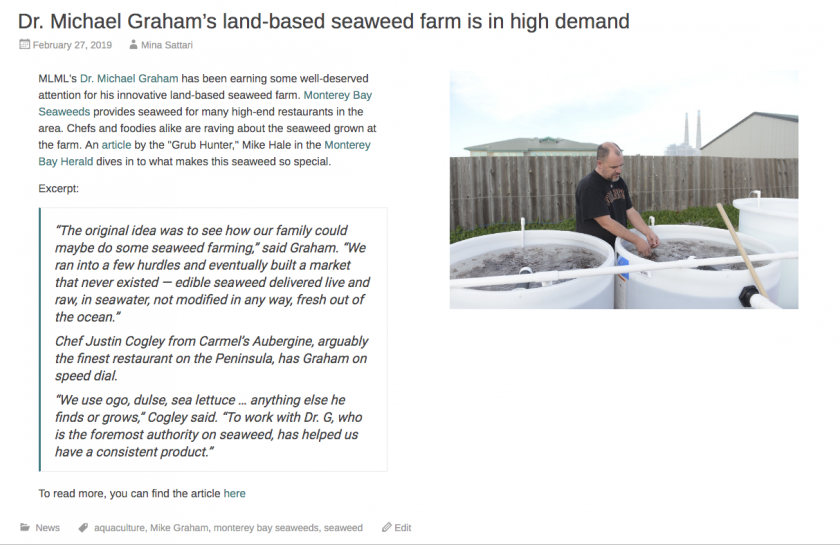](https://kb.mlml.sjsu.edu/uploads/images/gallery/2019-04-Apr/Screen-Shot-2019-04-05-at-9.50.38-AM.png)
##### Event Posts:
- - Title should be in the following format:
- **"Title of Talk/Event - Month DD, YYYY"**
- Add post to **"Upcoming Events" category**
- After the event, change the category to **"Events"**
**Example:**
[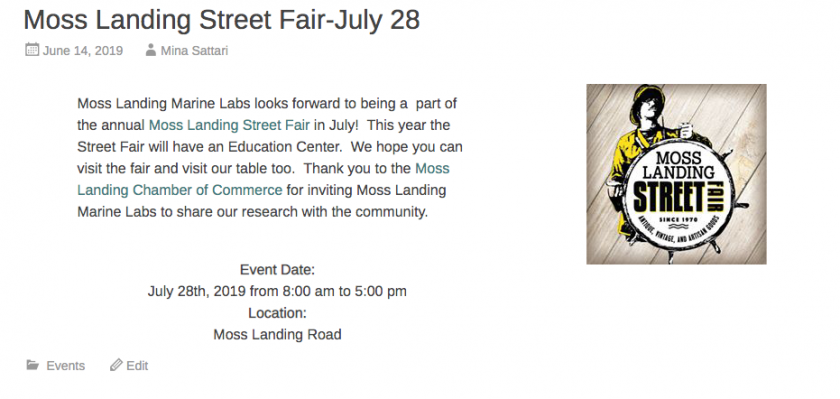](https://kb.mlml.sjsu.edu/uploads/images/gallery/2019-07-Jul/Screen-Shot-2019-07-02-at-9.26.50-AM.png)
##### Seminar Posts:
- - The Visiting Scientist collects information about the speakers and adds them to a[ google sheet schedule](https://docs.google.com/spreadsheets/d/1HwMlhqYhIUlaQ2SB1xtFVF6qbUrr1xKKJaaFmtRInDc/edit?usp=sharing) and a[ google drive folder](https://drive.google.com/drive/folders/0B6TtNqjDg-8LdjlneGMycGZzYzA?usp=sharing)
- Use previous Seminar posts as a template
- Content to include
- **Talk title** is title of post: "Title of Talk - Month DD"
- **At the top of each page include:**
- Presenter name, position title, university or institution affiliation
- Moss Landing Marine Labs Seminar Series - Month DD, YYYY
- Hosted by the xxx Lab (link this to the lab's webpage)
- MLML Seminar Room, 4pm
- (or Watch it Live [here](https://mlml.sjsu.edu/mlml-live-stream/)!) <- only if they agree to be publicly streamed
- Open to the public
- ~*More info coming soon!~* (until you receive the abstract and more info)
- **Brief talk abstract** (~100-200 words)
- **Link to speakers website**
- **DO NOT include post date** (confusing with two dates)
- Put post in **"Upcoming Seminars" category**
- After seminar, change the category to **"Seminars"**
- Create the last seminar's post first - this way they display in chronological order
**Example:**
[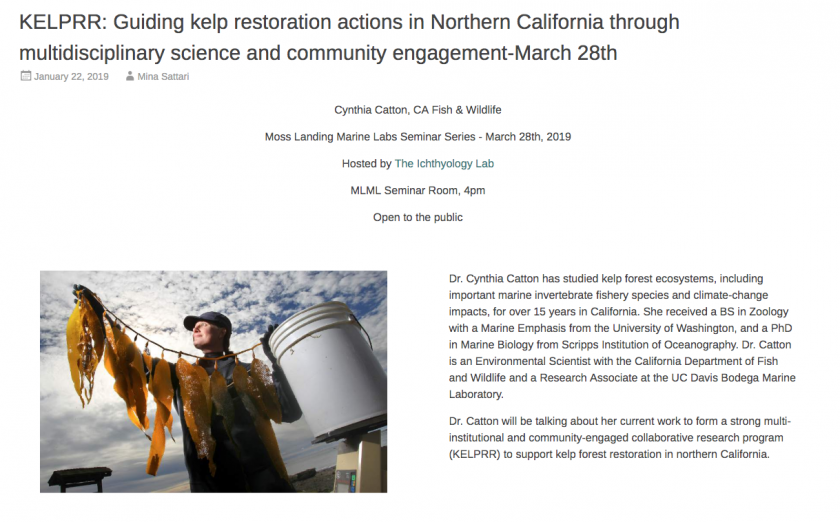](https://kb.mlml.sjsu.edu/uploads/images/gallery/2019-04-Apr/Screen-Shot-2019-04-05-at-9.54.58-AM.png)
##### Thesis Defense posts:
- - Front desk will request talk title, abstract, and photos 2-3 weeks before a thesis defense
- Content to include:
- **Post title**: "Thesis Defense by \[NAME\] - Month DD"
- **At the top of each page include:**
- Talk title
- Presenter name
- Lab affiliation (link to lab's webpage)
- Date and Time
- MLML Seminar Room
- (or Watch it Live [here](https://mlml.sjsu.edu/mlml-live-stream/)!) <- only if they agree to be publicly streamed
- ~*More info coming soon!~* (until you receive the abstract and more info)
- **Brief talk abstract** (~100-200 words)
- **DO NOT include post date** (confusing with 2 dates)
- Put post in **"Upcoming Thesis Defenses" category**
- After defense, add to **"Thesis Defenses" category**
- Note: having a website post is not a requirement; the students are busy and likely stressed about the talk, so don’t bombard them with emails to send info.
**Example:**
[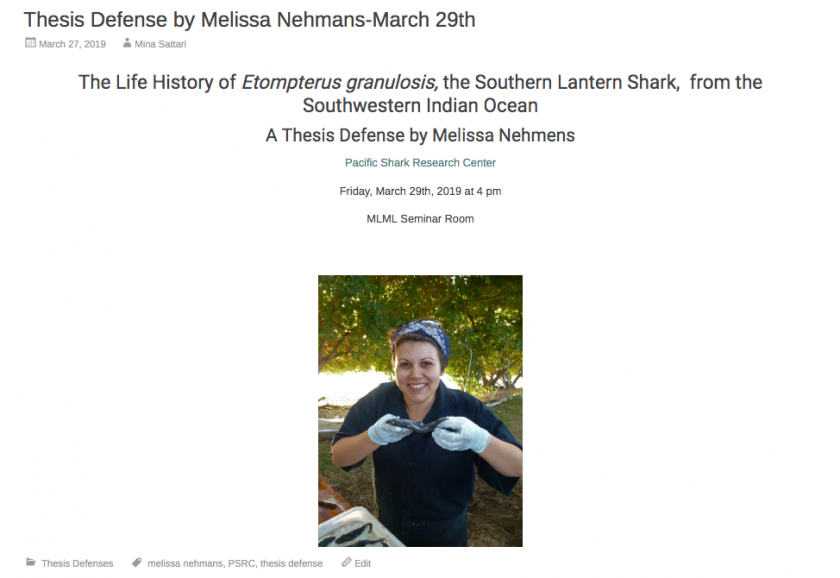](https://kb.mlml.sjsu.edu/uploads/images/gallery/2019-04-Apr/Screen-Shot-2019-04-05-at-9.58.07-AM.png)
# How to Become a WordPress Admin
### Submit an IT Helpdesk Ticket
- First you must [submit an IT Helpdesk Ticket](https://helpdesk.mlml.calstate.edu/) with IT and give them the following information:
- What website you want to become a WordPress Admin for
- What your goal or plan is for the website
- Your availability for a WordPress Training Session
### Attend a WordPress Training Session
- IT will be holding WordPress training sessions that go into detail how to use WordPress effectively and responsibly
- **All who would like to become a WordPress admin must attend a training session**
### How to Login
- To login to your website use the following URL - input your website's name where it says "yoursite":
- mlml.sjsu.edu/yoursite/admin
- Use your MLML username and password when the login pop-ups
- You may also login using[ intranet](https://mlml.sjsu.edu/intranet/)
- Navigate to[ intranet](https://mlml.sjsu.edu/intranet/) > login with your MLML username and password
- Now navigate to your site using your site's URL
- e.g., [https://mlml.sjsu.edu/yoursite/](https://mlml.sjsu.edu/yoursite/)
Now visit our [Getting Started with WordPress](https://mlml.sjsu.edu/wordpress-resources/getting-started-with-wordpress/) page for information on how to start creating an awesome website!
# Wordpress Posts and Pages Best Practices and Policies
### Summary
- Posts are to capture a point in time (such as an event).
- Pages are for regular website content
- Always use Page Builder to create all types of content--makes it easier!
---
### Posts
##### Capturing a point in time - content will not be updated over time
- **Content Type:**
- News
- Blogs
- Events
- **Editor/Admin Roles:**
- Contributors - Can create posts which will then be moderated
- Authors - Can create, edit, and publish their own posts only
- Editors and Admins - Can create, edit, and publish any posts
- **Authorization** for certain webpages should be obtained by the corresponding admins:
- Main MLML website - Approved by Ivano or Jim
- Tier 1 sites - Approved by website owners
- Tier 2 & 3 sites - Approved by website owners or web admins (as website owner decides)
- **General** **Info:**
- Posts are displayed by the order of when they were created.
- *You can change the post date to make sure that events stay in order--**please do this!***
- [Content Guidelines for Posts (Press Highlights and Events)](https://kb.mlml.sjsu.edu/books/wordpress/page/content-guidelines-for-press-and-event-posts)
-
### Pages
##### Content not tied to a specific date - may be updated over time
- **Content Type:**
- About page
- Project pages
- Bio pages
- **Editor/Admin Roles:**
- Editors and Admins - Can create, edit, and publish
- **Authorization** for certain webpages should be obtained by the corresponding admins:
- Main website - IT Helpdesk Ticket
- Tier 1 sites - IT Helpdesk Ticket
- Tier 2 & 3 sites - Website owners and web admins
- **Reviewing Process:**
- Main website - IT Helpdesk Ticket > WAG review > approval > page updated
- Tier 1 sites - IT Helpdesk Ticket > WAG review > approval > page updated
- Tier 2 & 3 sites - Approved by website owners and web admins
- **Getting Started:**
- [Page Templates](https://mlml.sjsu.edu/wordpress-resources/page-template-directory/) - Use these pre-made templates to outline the layout of your page
- Need help using them? Go to [How to use Page Templates](https://mlml.sjsu.edu/wordpress-resources/how-to-use-page-templates/)
Widget Recommendations:
**For more information on the different widgets available: [Third-Party Plugins](https://mlml.sjsu.edu/wordpress-resources/third-party-plugins/)**
##### **Page layout:**
- Use **Page Builder** for every Page and Post created, even the simplest posts and pages
- - Organize with rows and columns
- Copy and paste rows and widgets
##### **Text:**
- SiteOrigin Editor widget
- Headline Widget
##### **Images:** ([Image Use Guidelines](https://kb.mlml.sjsu.edu/books/wordpress/page/image-use-guidelines))
- SiteOrigin Editor widget
- FooGallery - use shortcode in Custom HTML widget
- SiteOrigin Image widget
- Inline with text wrap around
- Photo gallery/slideshow
- Single image
- -
- -
# WordPress Menu Best Practices and Policies
### Summary
- **Use Mega Menu (under Appearance)**
- Keep menu item names concise
- Keep formatting consistent
- WordPress Support: [Custom Menus](https://en.support.wordpress.com/menus/#add-menu-items)
- For more in-depth reading, visit our [Third Party Plugin Documentation](https://mlml.sjsu.edu/wordpress-resources/third-party-plugins/) page and click on Max Mega Menu.
### Instructions
- Navigate to your menu: **Dashboard > Appearance > Menus**
- Create a new Menu
- Select a menu to edit: **Mega Menu (Primary Menu)**
- To add categories use the Pages, Posts, Custom Links, and Categories tabs listed on the left side of screen
- If you'd like to directly link to one of the above that you've already created (i.e., a post or page) you can do so using those tabs
- If you'd like to **create a drop down category use the Custom Links** option
- For URL insert mlml.sjsu.edu - you can **delete the URL link once it's added to the menu**
- Insert desired title of category in **Link Text**
- Add to Menu
- Click drop down arrow on newly created category and delete the URL linked
- For **Drop Down Menus where you'd like to add subcategories** with links or links to other pages:
- Hover over the main menu category you'd like to create a drop down for
- Select **Mega Menu button** that appears in blue
- For "Sub menu display mode" choose "**Mega Menu - Standard Layout**"
- Select a Widget to add to the panel: "**Layout Builder**"
- 2 columns
- To edit the Layout Builder in drop down menu:
- Select the **wrench** on the right hand side of Layout Builder widget
- Select **Open Builder**
- Add desired number of rows with desired number of columns
- The number of columns can be useful to place subcategories directly under the portion of the drop down menu that you want (i.e., more towards the right side of the menu, left side or middle)
- Add a **SiteOrigin Editor** widget to make a list of Pages that you'd like to link to
### Visual Instructions
Appearance > Menus > Mega Menu (Primary Menu)
### [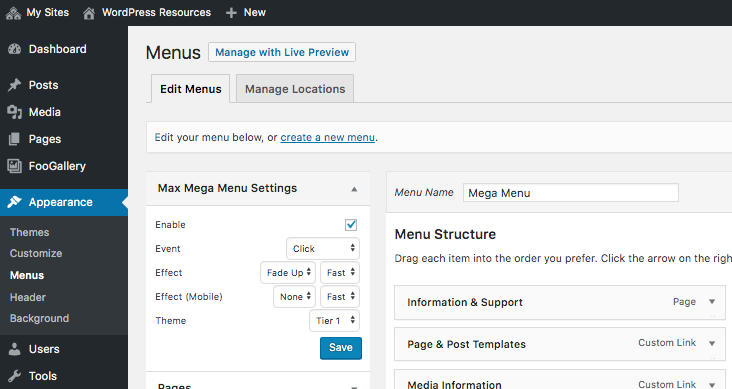](https://kb.mlml.sjsu.edu/uploads/images/gallery/2019-04-Apr/Screen-Shot-2019-04-05-at-10.17.34-AM.png)
Hover over the menu you want to modify and click the blue Mega Menu icon:
[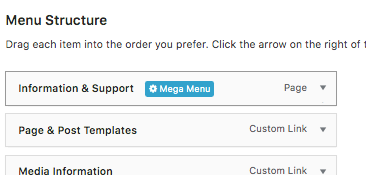](https://kb.mlml.sjsu.edu/uploads/images/gallery/2019-04-Apr/Screen-Shot-2019-04-05-at-10.18.28-AM.png)
Use Layout Builder. Click the Wrench icon on the right to edit
[](https://kb.mlml.sjsu.edu/uploads/images/gallery/2019-04-Apr/Screen-Shot-2019-04-05-at-10.19.02-AM.png)
Open Builder:
[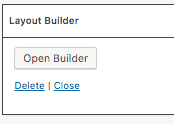](https://kb.mlml.sjsu.edu/uploads/images/gallery/2019-04-Apr/Screen-Shot-2019-04-05-at-10.19.25-AM.png)
Here you have the standard Page Builder interface where you can add rows, columns, and widgets to create menu items.
[](https://kb.mlml.sjsu.edu/uploads/images/gallery/2019-04-Apr/Screen-Shot-2019-04-05-at-10.19.44-AM.png)
# 5 Tips for Creating WordPress Posts
Posts on the MLML website are meant to be a brief, but intriguing introduction to an event or article affiliated with the labs. It is important that they look nice and give enough information that someone reading can understand the article or event without clicking on further links.
---
#### **1. Include Pictures and Make Them Interactive**
**Always** include at least one picture when creating a post (the more the better). Make your photos interactive when possible. At the very least, enable [Lightbox](https://mlml.sjsu.edu/wordpress-resources/what-is-lightbox/) for the photos you include in your post. Give photos descriptive captions. Templates on different ways to display captions are available under the Media Information section of the [WordPress Resources](https://mlml.sjsu.edu/wordpress-resources/image-captions/) website. You can also have your photo link to another website by assigning it a **Destination URL**.
When posting a photo always ensure you have permission to use the photo and give credit as best you can. Click [here](https://kb.mlml.sjsu.edu/books/wordpress/page/image-use-guidelines) to learn more about MLML's image use guidelines.
#### **2. Format Text for a Clean Appearance**
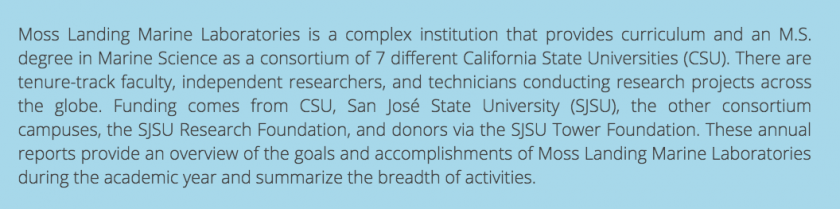
Something as simple as setting a paragraph of text to align center (ctrl+alt+c) or justify (ctrl+alt+j) can greatly improve the aesthetics of your post.
**Example:**
Default alignment (align left):
[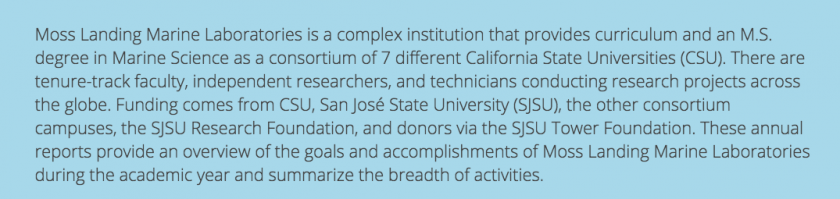](https://kb.mlml.sjsu.edu/uploads/images/gallery/2019-08-Aug/Screen-Shot-2019-08-06-at-10.32.16-AM.png)
Text Justified:
[](https://kb.mlml.sjsu.edu/uploads/images/gallery/2019-08-Aug/Screen-Shot-2019-08-06-at-10.35.17-AM.png)
#### **3. Incorporate Quotes**
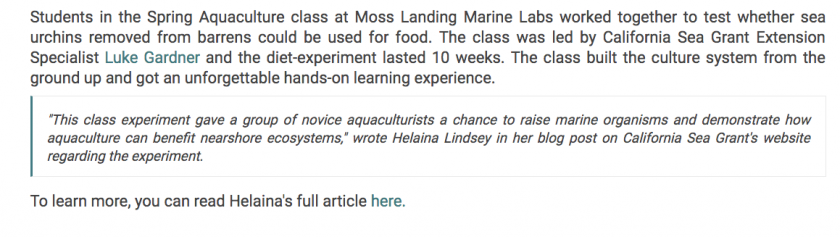
When creating a post about an article, include relevant quotes directly from the article using blockquote in WordPress.
Blockquote is dictated by an open quotation mark in the WordPress Toolbar.
[](https://kb.mlml.sjsu.edu/uploads/images/gallery/2019-08-Aug/Screen-Shot-2019-08-06-at-10.38.25-AM.png)
Blockquote makes quotes stand out from the body of the text. For example:
[](https://kb.mlml.sjsu.edu/uploads/images/gallery/2019-08-Aug/Screen-Shot-2019-08-06-at-10.38.58-AM.png)
#### **4. Set Hyperlinks to Open in a New Tab**
This is especially important if a link directs you to an outside website. It allows the viewer to easily navigate back to MLML's website.
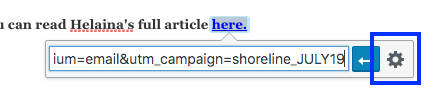
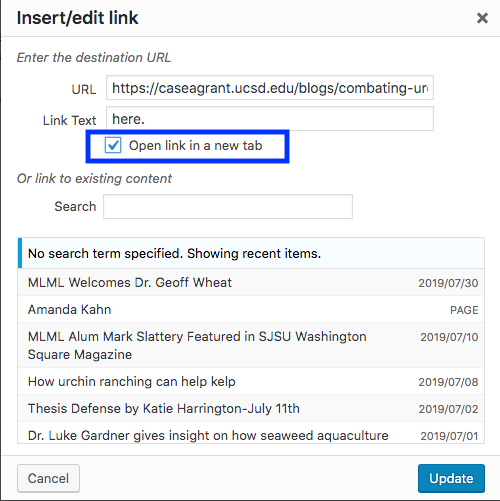
To set a hyperlink to open in a new tab:
1\. Click **Link Options**
**[](https://kb.mlml.sjsu.edu/uploads/images/gallery/2019-08-Aug/Screen-Shot-2019-08-06-at-10.45.59-AM.png)**
2\. Check **Open Link in a New Tab**
**[](https://kb.mlml.sjsu.edu/uploads/images/gallery/2019-08-Aug/Screen-Shot-2019-08-06-at-10.46.11-AM.png)**
#### **5. Use a Previous Post as a Template**
When in doubt, finding a post that you think looks nice and copying it as a template is a simple way to create a great post. There are also a host of templates on the [WordPress Website](https://mlml.sjsu.edu/wordpress-resources/).
---
If you want further help creating a post, feel free to drop by the **IT Help Desk** in the main office or submit an [IT Helpdesk Ticket](https://helpdesk.mlml.calstate.edu/helpdesk/WebObjects/Helpdesk.woa).