# WordPress Menu Best Practices and Policies
### Summary
- **Use Mega Menu (under Appearance)**
- Keep menu item names concise
- Keep formatting consistent
- WordPress Support: [Custom Menus](https://en.support.wordpress.com/menus/#add-menu-items)
- For more in-depth reading, visit our [Third Party Plugin Documentation](https://mlml.sjsu.edu/wordpress-resources/third-party-plugins/) page and click on Max Mega Menu.
### Instructions
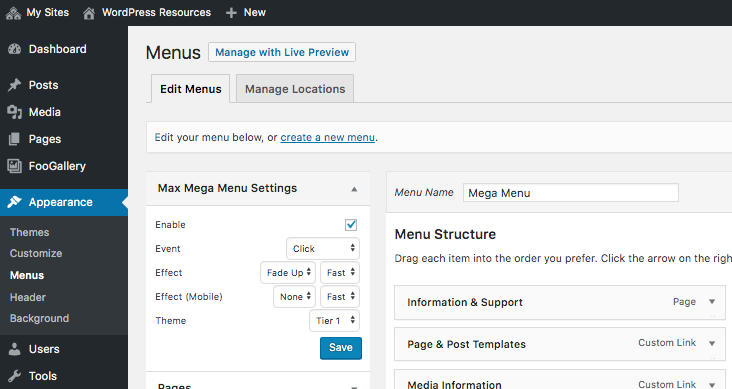
- Navigate to your menu: **Dashboard > Appearance > Menus**
- Create a new Menu
- Select a menu to edit: **Mega Menu (Primary Menu)**
- To add categories use the Pages, Posts, Custom Links, and Categories tabs listed on the left side of screen
- If you'd like to directly link to one of the above that you've already created (i.e., a post or page) you can do so using those tabs
- If you'd like to **create a drop down category use the Custom Links** option
- For URL insert mlml.sjsu.edu - you can **delete the URL link once it's added to the menu**
- Insert desired title of category in **Link Text**
- Add to Menu
- Click drop down arrow on newly created category and delete the URL linked
- For **Drop Down Menus where you'd like to add subcategories** with links or links to other pages:
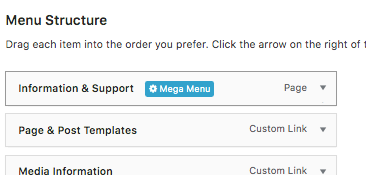
- Hover over the main menu category you'd like to create a drop down for
- Select **Mega Menu button** that appears in blue
- For "Sub menu display mode" choose "**Mega Menu - Standard Layout**"
- Select a Widget to add to the panel: "**Layout Builder**"
- 2 columns
- To edit the Layout Builder in drop down menu:
- Select the **wrench** on the right hand side of Layout Builder widget
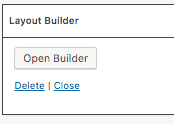
- Select **Open Builder**
- Add desired number of rows with desired number of columns
- The number of columns can be useful to place subcategories directly under the portion of the drop down menu that you want (i.e., more towards the right side of the menu, left side or middle)
- Add a **SiteOrigin Editor** widget to make a list of Pages that you'd like to link to
### Visual Instructions
Appearance > Menus > Mega Menu (Primary Menu)
### [](https://kb.mlml.sjsu.edu/uploads/images/gallery/2019-04-Apr/Screen-Shot-2019-04-05-at-10.17.34-AM.png)
Hover over the menu you want to modify and click the blue Mega Menu icon:
[](https://kb.mlml.sjsu.edu/uploads/images/gallery/2019-04-Apr/Screen-Shot-2019-04-05-at-10.18.28-AM.png)
Use Layout Builder. Click the Wrench icon on the right to edit
[](https://kb.mlml.sjsu.edu/uploads/images/gallery/2019-04-Apr/Screen-Shot-2019-04-05-at-10.19.02-AM.png)
Open Builder:
[](https://kb.mlml.sjsu.edu/uploads/images/gallery/2019-04-Apr/Screen-Shot-2019-04-05-at-10.19.25-AM.png)
Here you have the standard Page Builder interface where you can add rows, columns, and widgets to create menu items.
[](https://kb.mlml.sjsu.edu/uploads/images/gallery/2019-04-Apr/Screen-Shot-2019-04-05-at-10.19.44-AM.png)